
Installation and Configuration
Installation
Download PLNR from AppExchange
You can install the application from AppExchange via the “Get it now” button. You can elect to either install it in your Sandbox or Production environment.
We recommend you install the Application for Administrators ONLY so you can better control Access and Permissions for your organization.
We recommend you install the application in a Partial Copy or Full Copy environment so you can review it with your existing data.
Once installed, you will receive an email confirming that the installation was successful (this may take a few minutes). You will need to complete the Installation Steps before you can access and use the Application.
We recommend you contact us to ensure you have any upgrades that we may have published.
Assign Application Permission Sets
To access the Application, you need to assign the proper permission sets in Salesforce based on the roles the user will play.
As an Administrator, you will need to assign the PLNR Administrator permission set to your user and make sure your profile has the proper object access.
Given that PLNR is dependent on the standard objects: Accounts and Opportunities, you will need to Clone the PLNR related permission sets for the following objects:
- Account Plan Model (plnr__xs_Account_Plan_Model__c)
- Opportunity Plan Model (plnr__xs_Opportunity_Plan_Model__c)
You should set the following Object Permissions:
Objects | PLNR Administrator | PLNR Planner | PLNR Viewer |
|---|---|---|---|
Account Plan Model | Modify All Records, Create | Read, Create, Edit, Delete | Read |
Opportunity Plan Model | Modify All Records, Create | Read, Create, Edit, Delete | Read |
Cloning the "PLNR ADMINISTRATOR" PERMISSION SET
Steps:
- Go to "Setup"
- In the "Quick Find" search bar search for "Permission Sets"
- Search for "PLNR Administrator"
- Select the "Clone" option
- Update the "Label" field
- Click "Save"
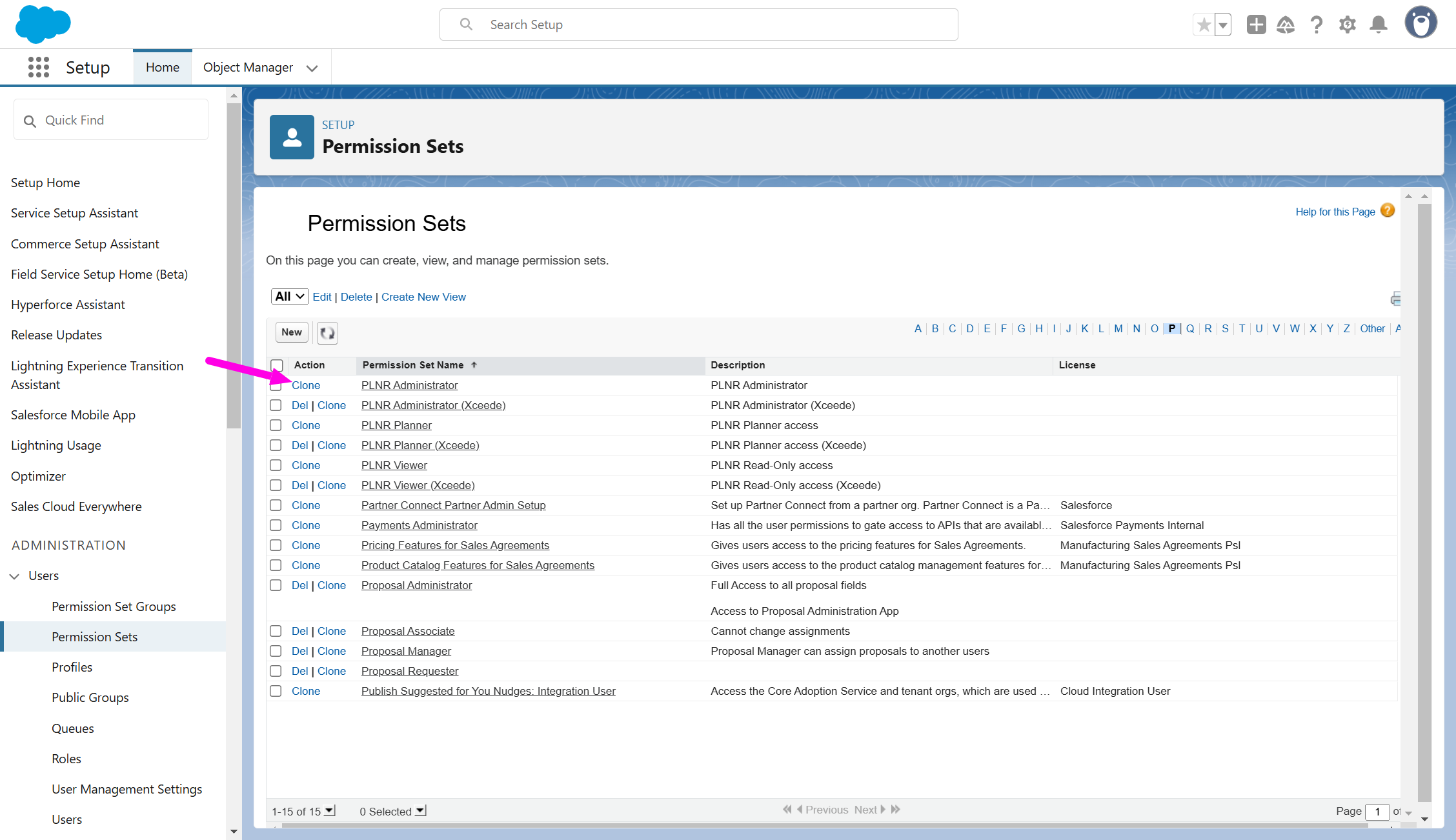
Figure 1.1 - PLNR Administrator Permission Set
Make sure you change the name of the Permission Set before you save the Clone
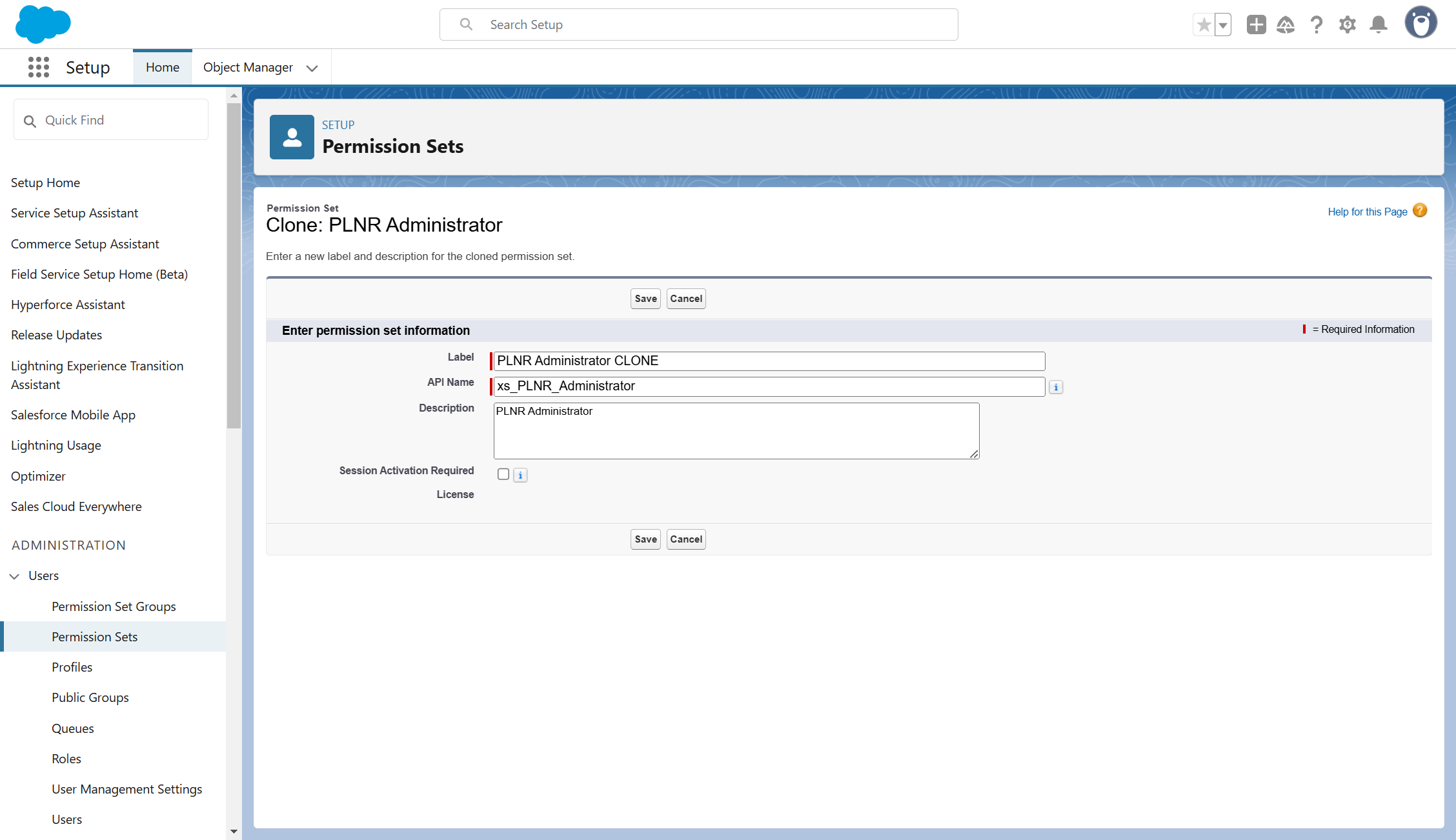
Figure 1.2 - Cloning PLNR Administrator Permission Set
EDIT ACCOUNT PLAN MODEL OBJECT SETTINGS
Steps:
- Select the "Object Settings" option
- Select "Account Plan Model"
- Click the "Edit" button
- Select "Modify All Records"
- Select "Create"
- Click "Save"
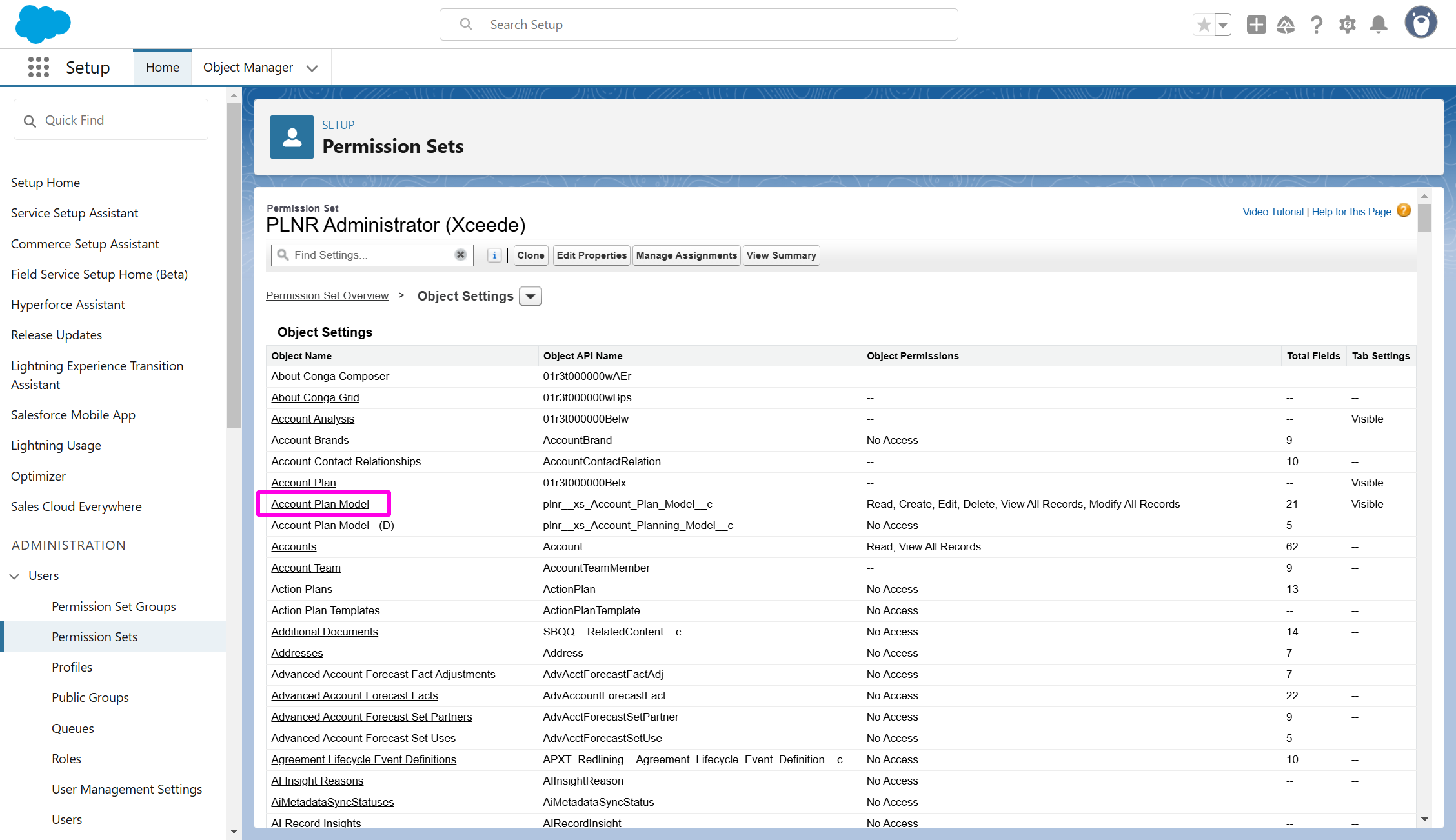
Figure 1.3 - PLNR Administrator Account Plan Model
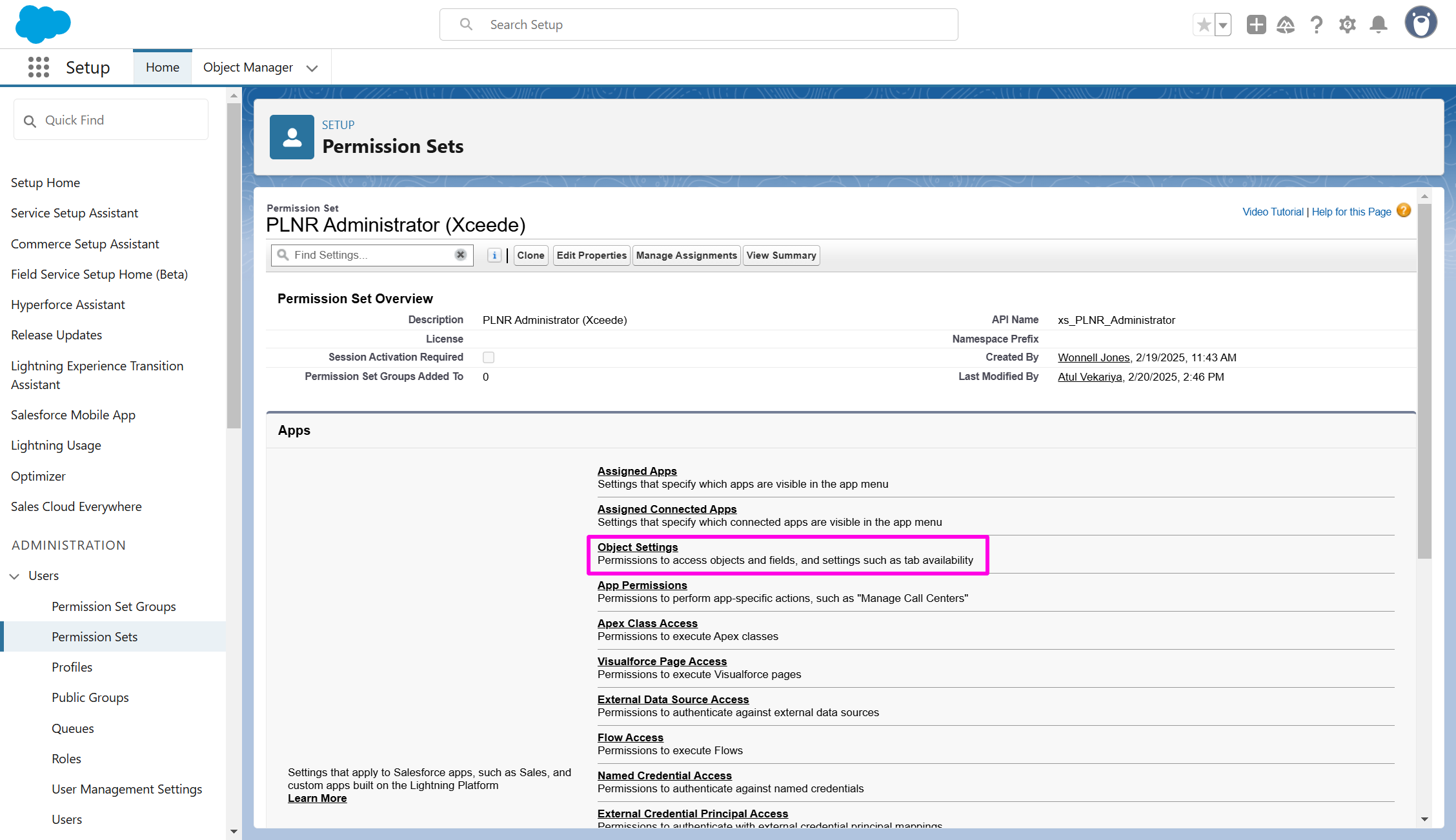
Figure 1.4 - PLNR Administrator Object Settings
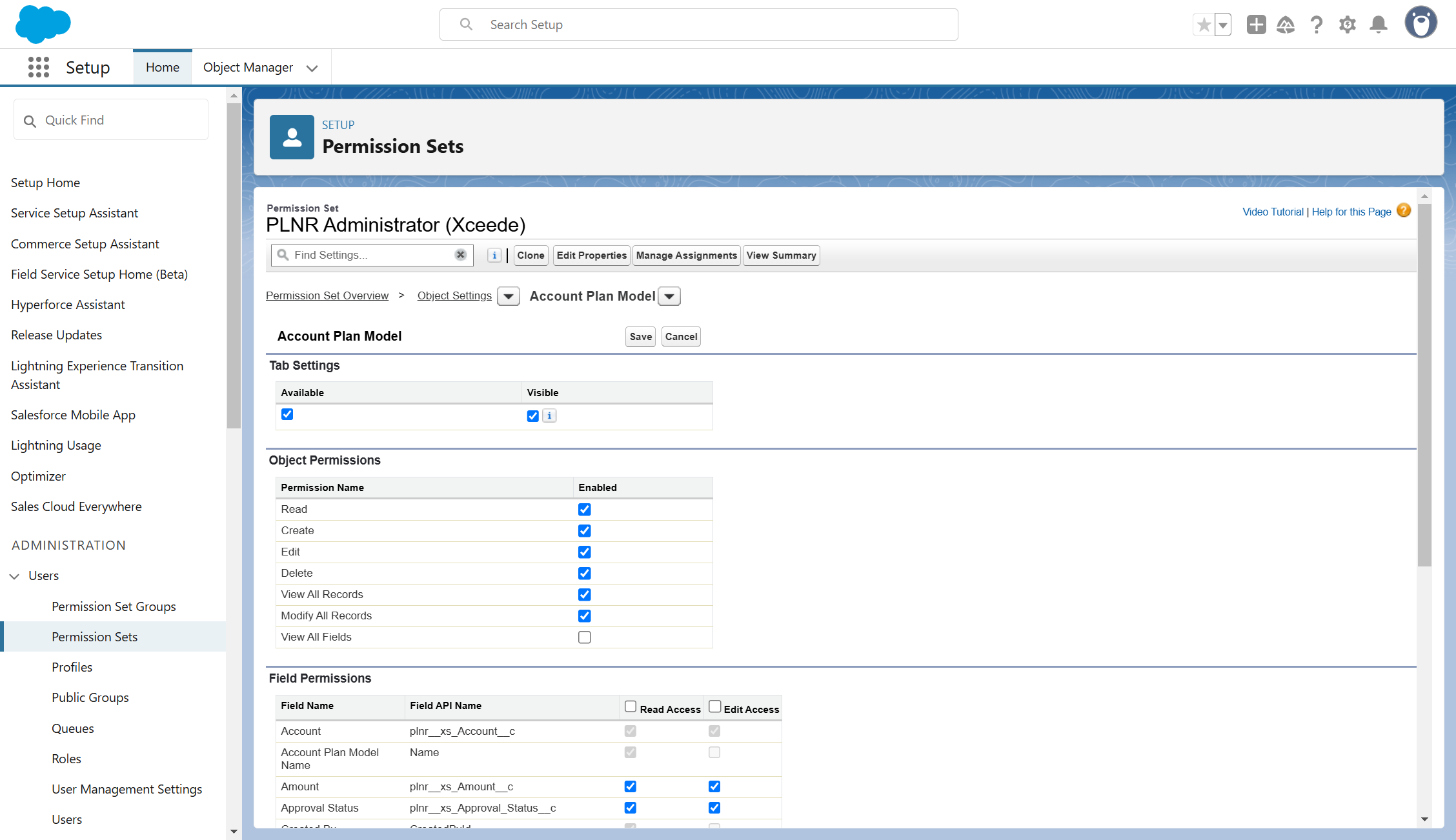
Figure 1.5 - Account Plan Model Object Permissions
EDIT OPPORTUNITY PLAN MODEL OBJECT SETTINGS
Steps:
- Select the "Object Settings" option
- Select "Opportunity Plan Model"
- Click the "Edit" button
- Select "Modify All Records"
- Select "Create"
- Click "Save"
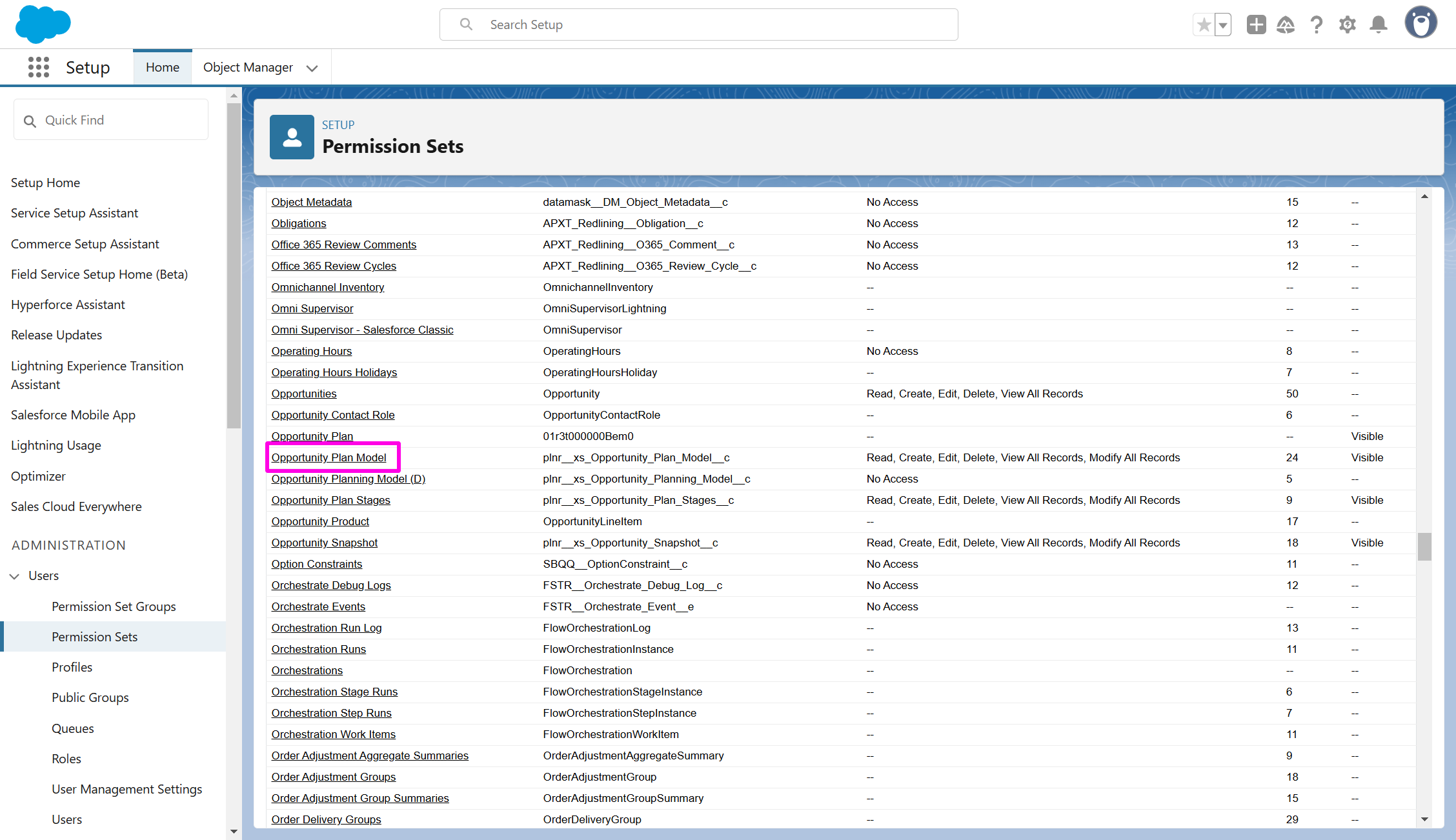
Figure 1.6 - PLNR Administrator Opportunity Plan Model
Figure 1.7 - PLNR Administrator Object Settings
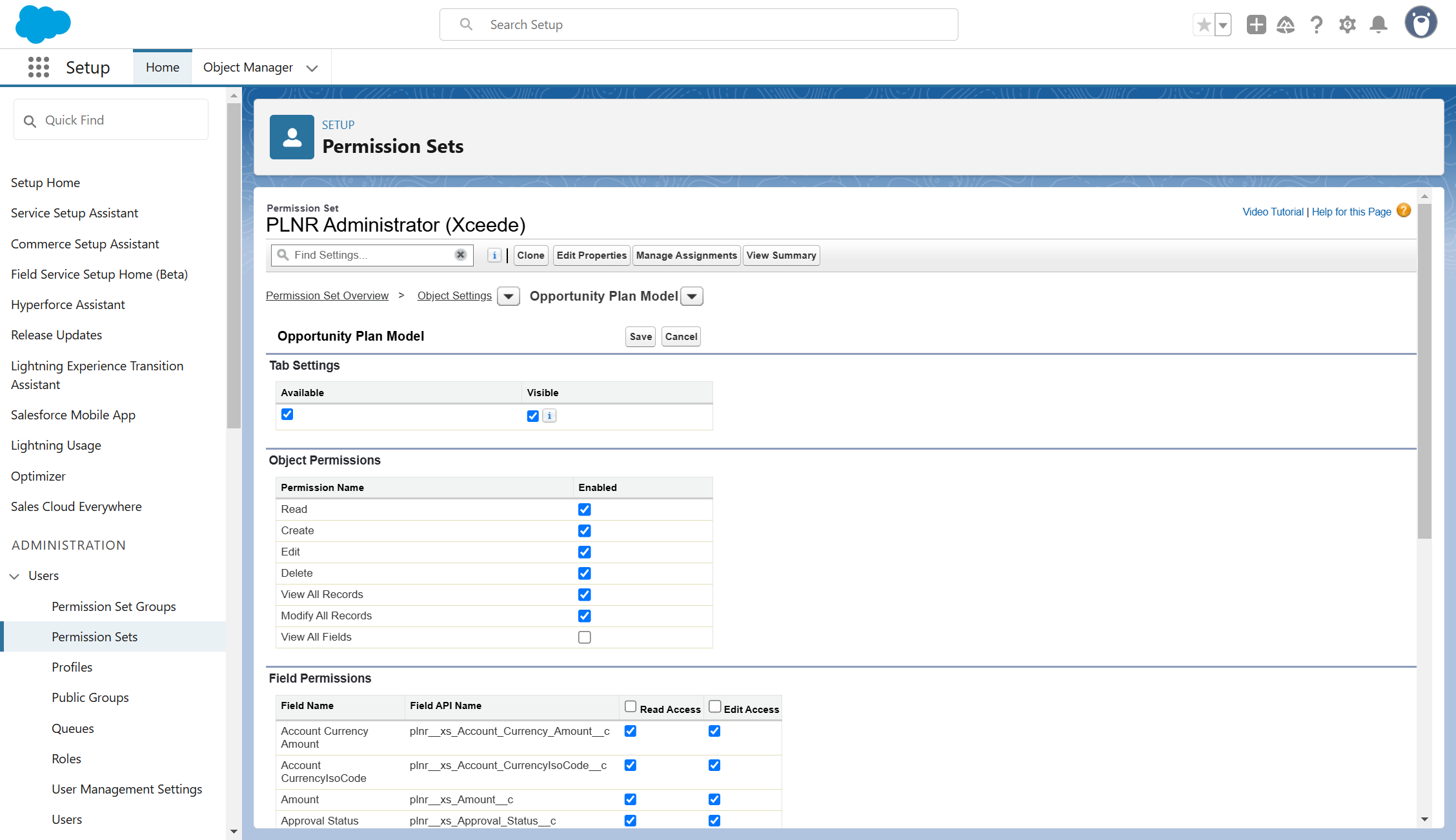
Figure 1.8 - Opportunity Plan Model Object Permissions
Cloning the "PLNR PLANNER" PERMISSION SET
Steps:
- Go to "Setup"
- In the "Quick Find" search bar search for "Permission Sets"
- Search for "PLNR Planner"
- Select the "Clone" option
- Update the "Label" field
- Click "Save"
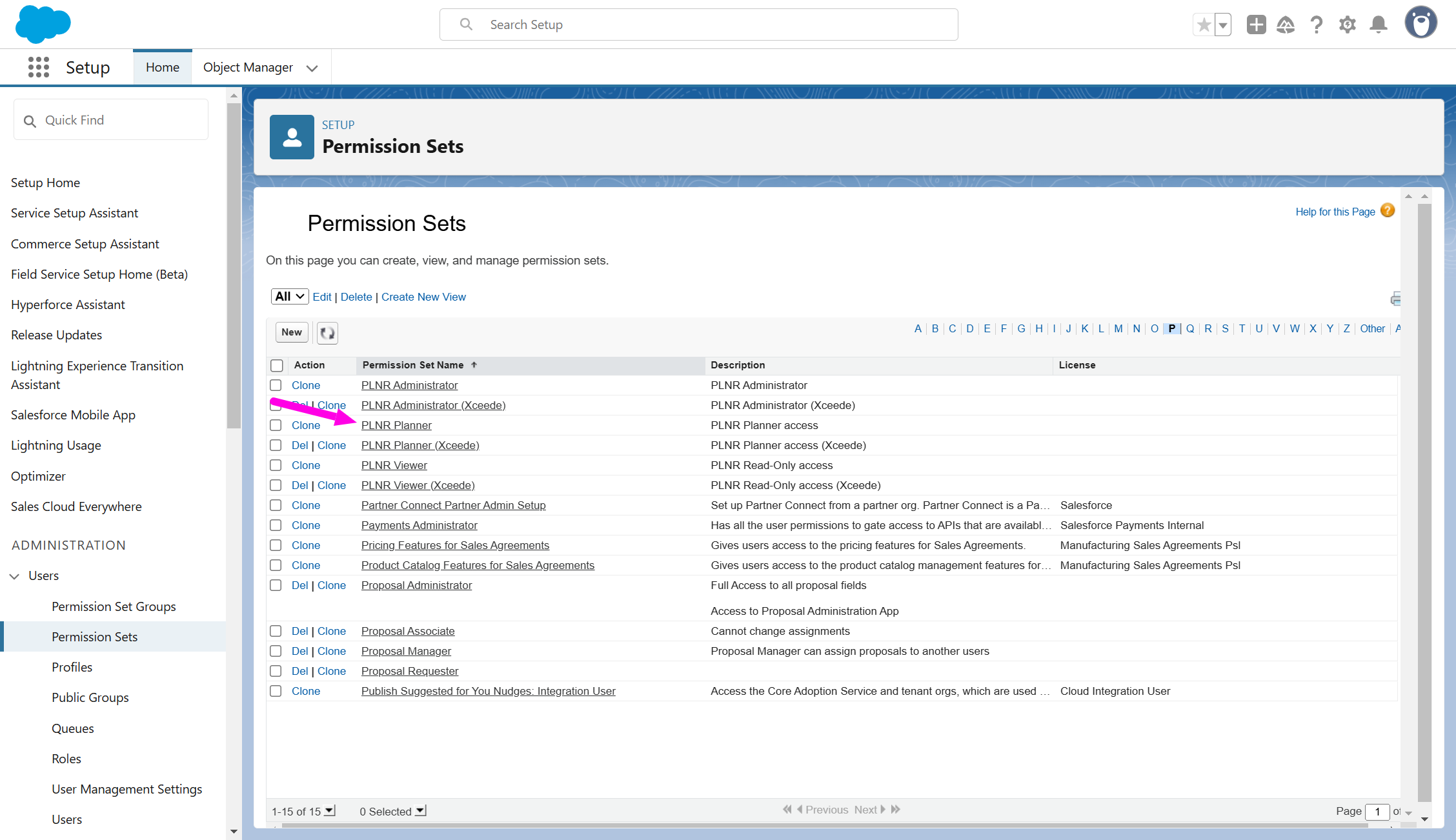
Figure 1.9 - PLNR Planner Permission Set
Make sure you change the name of the Permission Set before you save the Clone
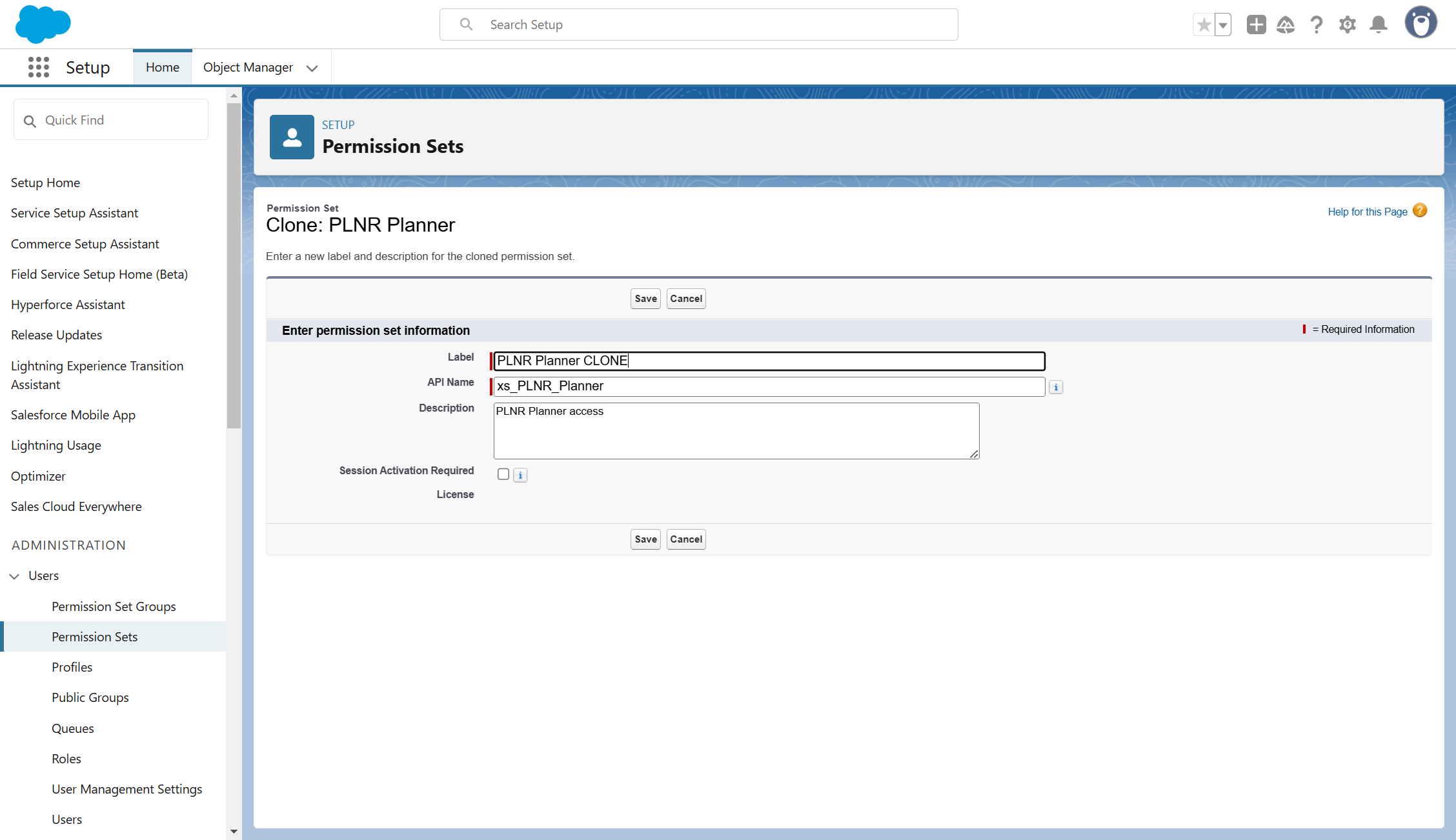
Figure 1.10 - Cloning PLNR Planner Permission Set
EDIT ACCOUNT PLAN MODEL OBJECT SETTINGS
Steps:
- Select the "Object Settings" option
- Select "Account Plan Model"
- Click the "Edit" button
- Select "Read"
- Select "Create"
- Select "Edit"
- Select "Delete"
- Click "Save"
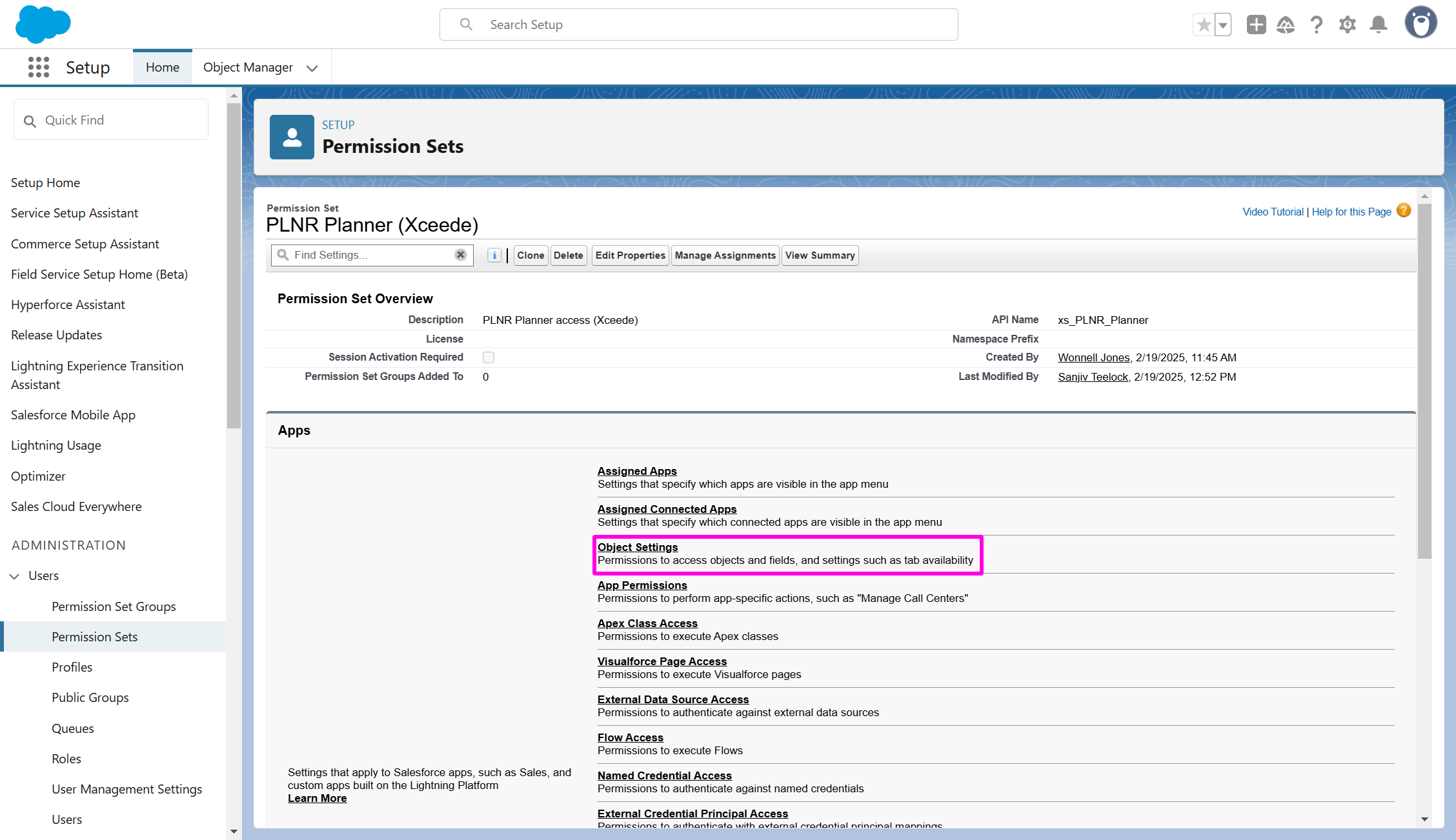
Figure 1.11 - PLNR Planner Object Settings
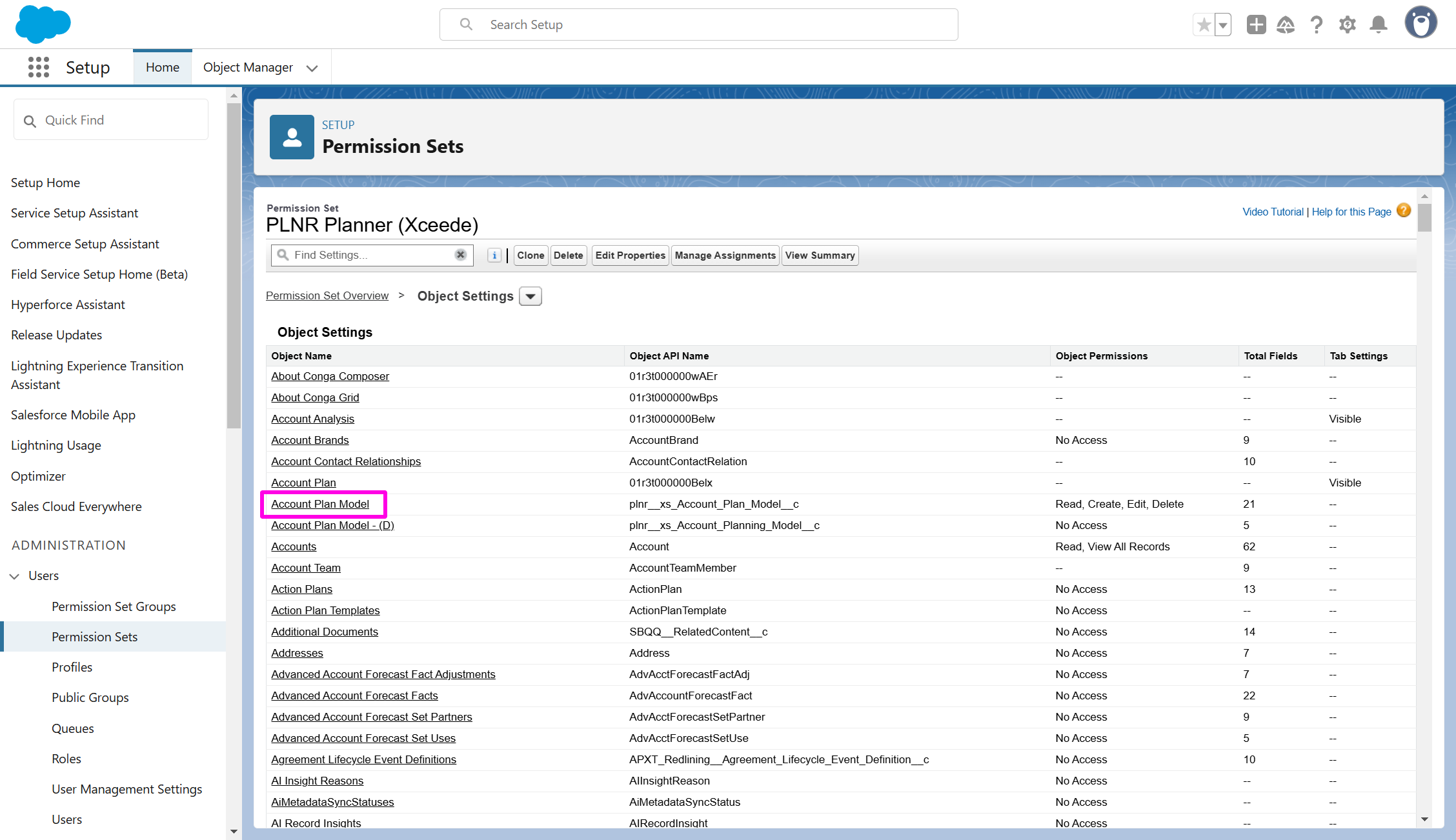
Figure 1.12 - PLNR Planner Account Plan Model
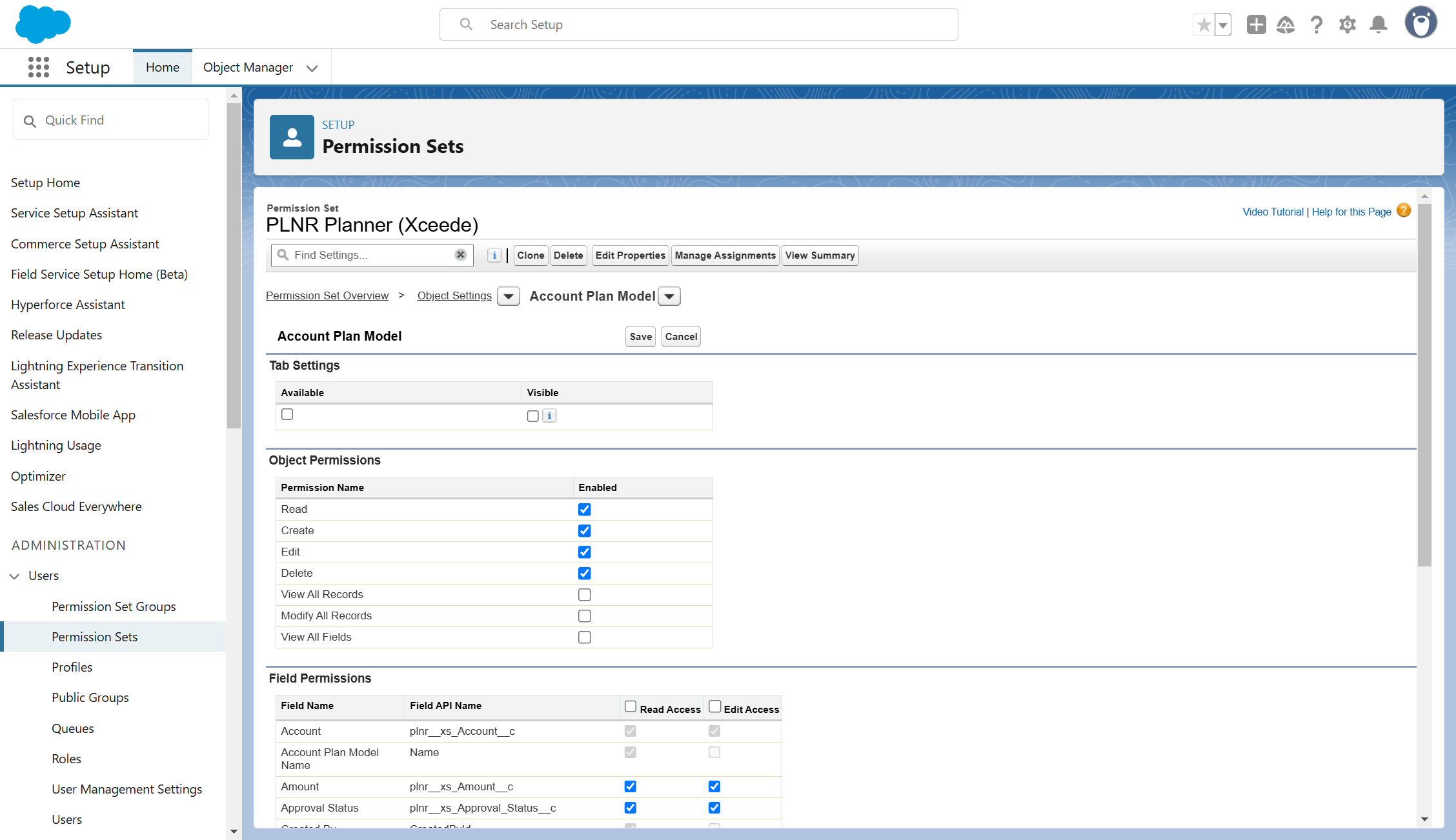
Figure 1.13 - PLNR Planner Object Permissions
EDIT Opportunity PLAN MODEL OBJECT SETTINGS
Steps:
- Select the "Object Settings" option
- Select "Opportunity Plan Model"
- Click the "Edit" button
- Select "Read"
- Select "Create"
- Select "Edit"
- Select "Delete"
- Click "Save"
Figure 1.14 - PLNR Planner Object Settings
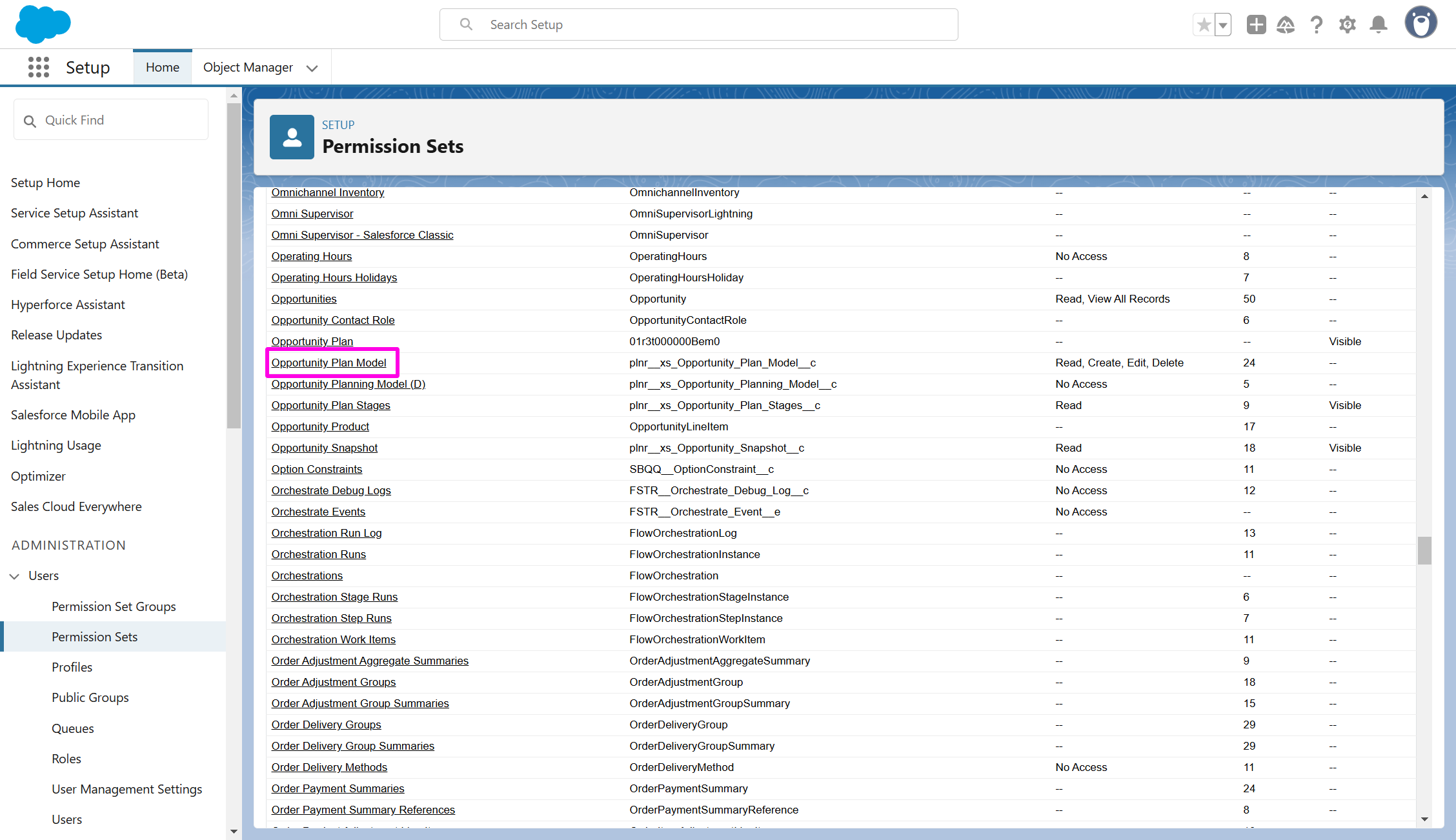
Figure 1.15 - PLNR Planner Opportunity Plan Model
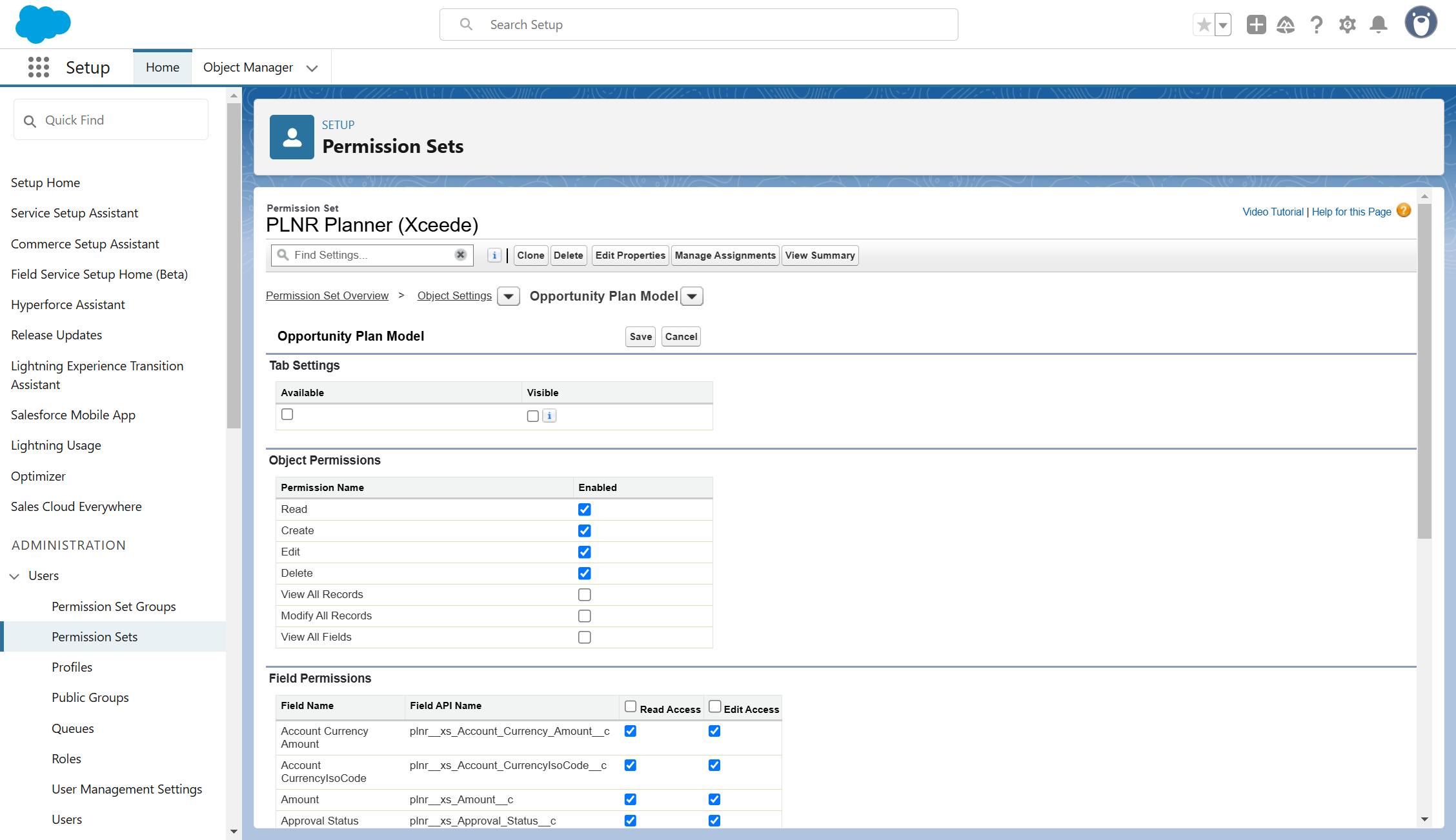
Figure 1.16 - Opportunity Plan Model Object Permissions
Cloning the "PLNR VIEWER" PERMISSION SET
Steps:
- Go to "Setup"
- In the "Quick Find" search bar search for "Permission Sets"
- Search for "PLNR Viewer"
- Select the "Clone" option
- Update the "Label" field
- Click "Save"
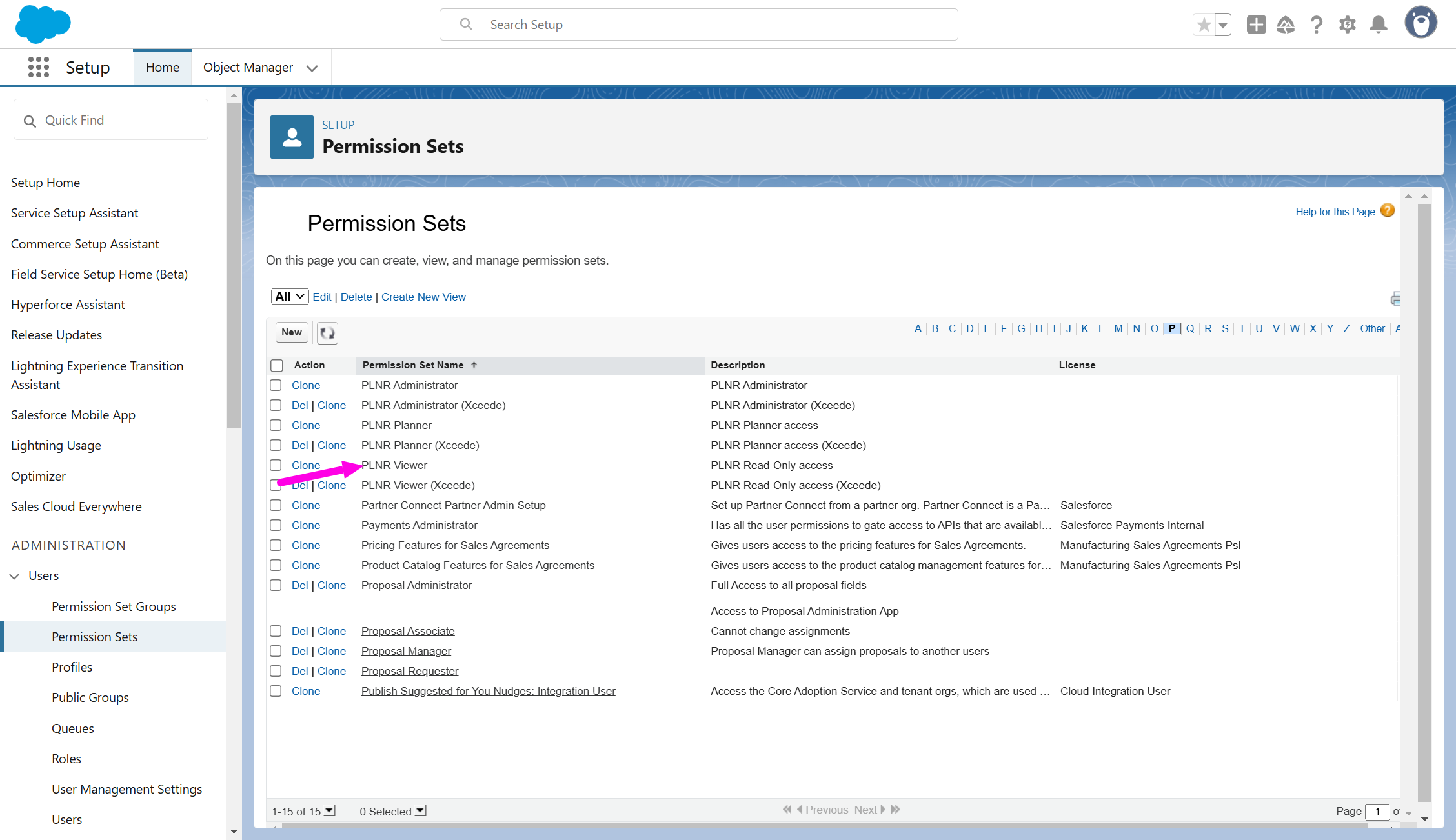
Figure 1.17 - PLNR Viewer Permission Set
Make sure you change the name of the Permission Set before you save the Clone
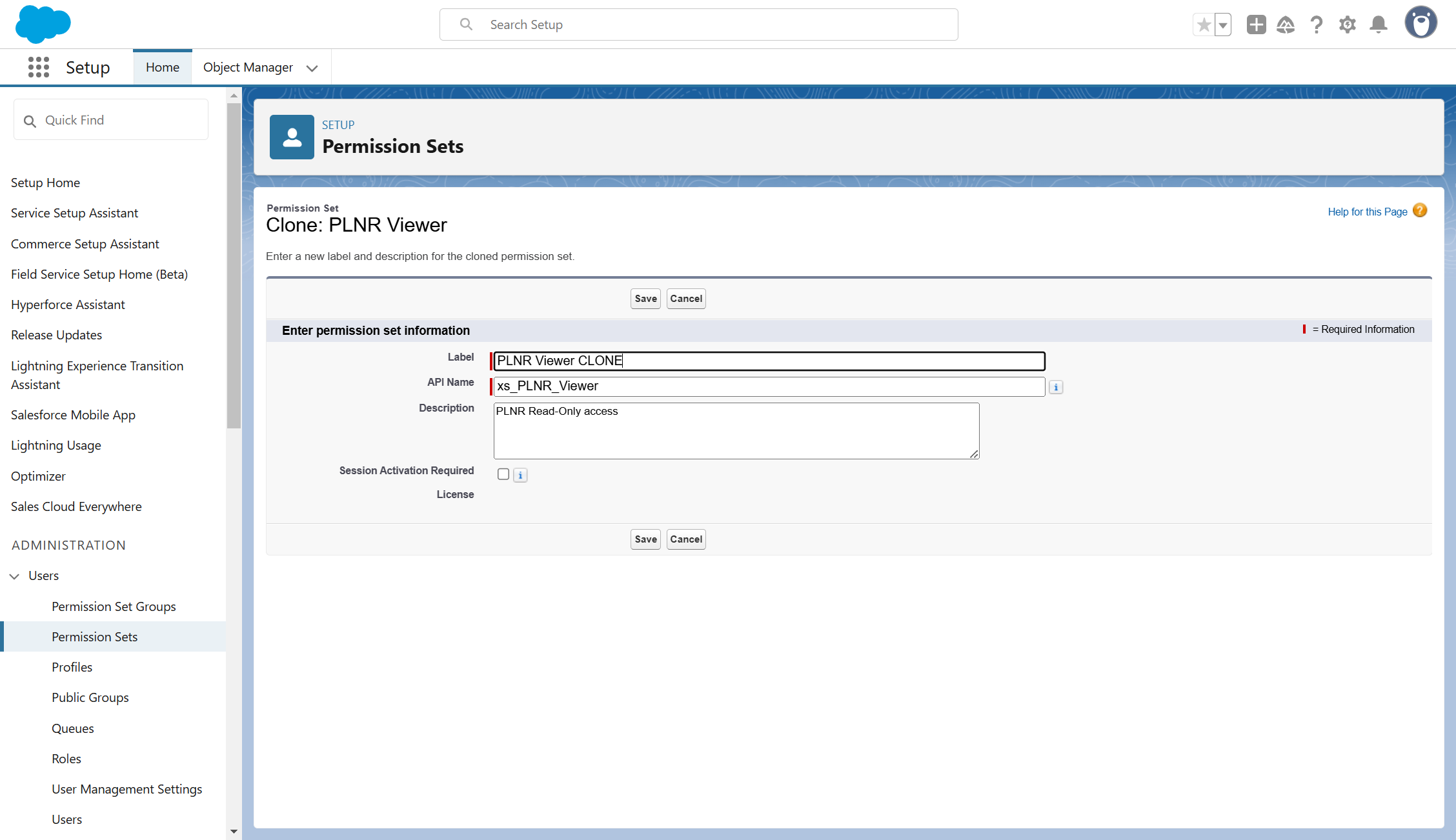
Figure 1.18 - Cloning PLNR Viewer Permission Set
EDIT ACCOUNT PLAN MODEL OBJECT SETTINGS
Steps:
- Select the "Object Settings" option
- Select "Account Plan Model"
- Click the "Edit" button
- Select "Read"
- Click "Save"

Figure 1.19 - Account Plan Model Object Settings
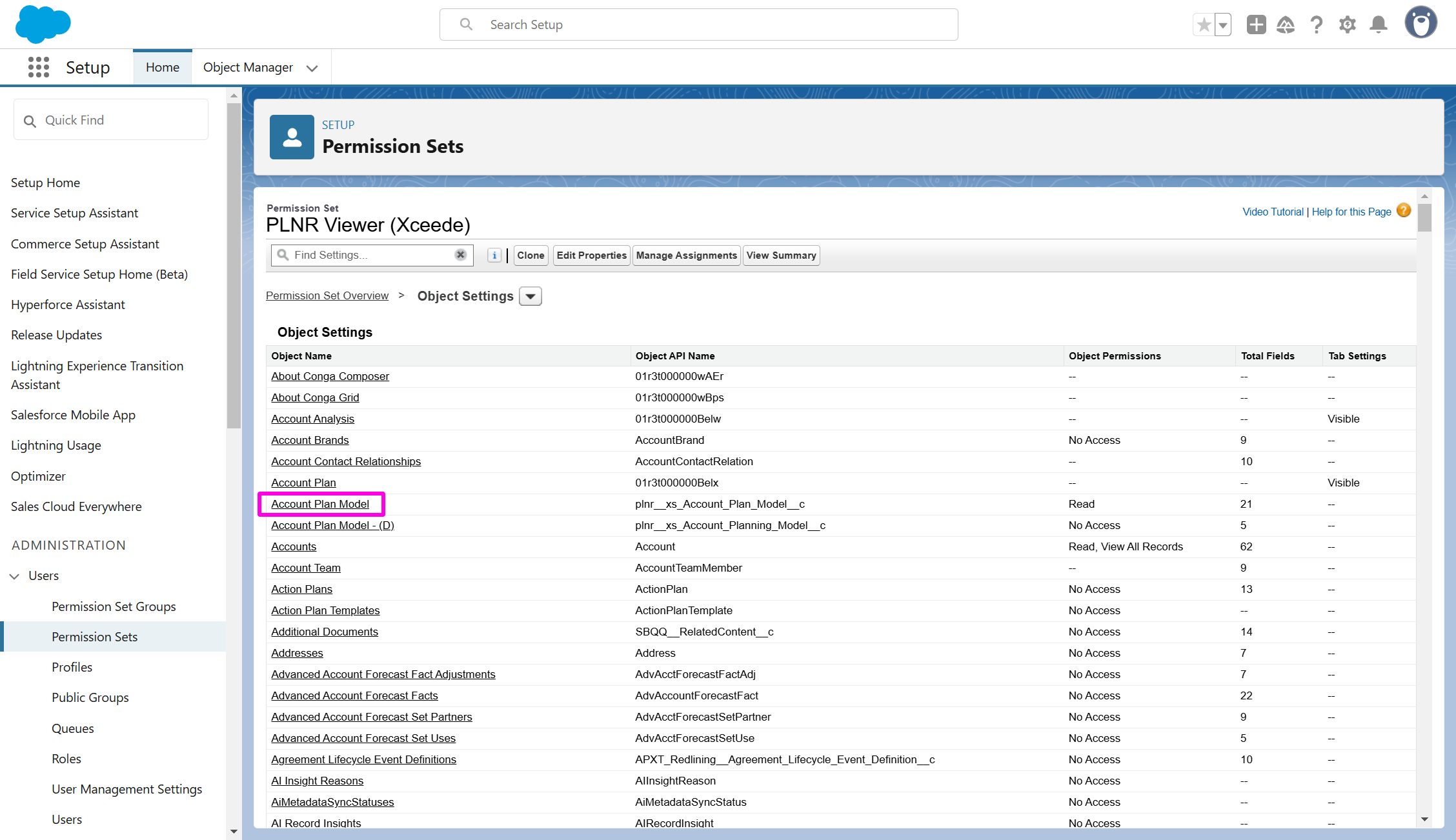
Figure 1.20 - PLNR Viewer Account Plan Model
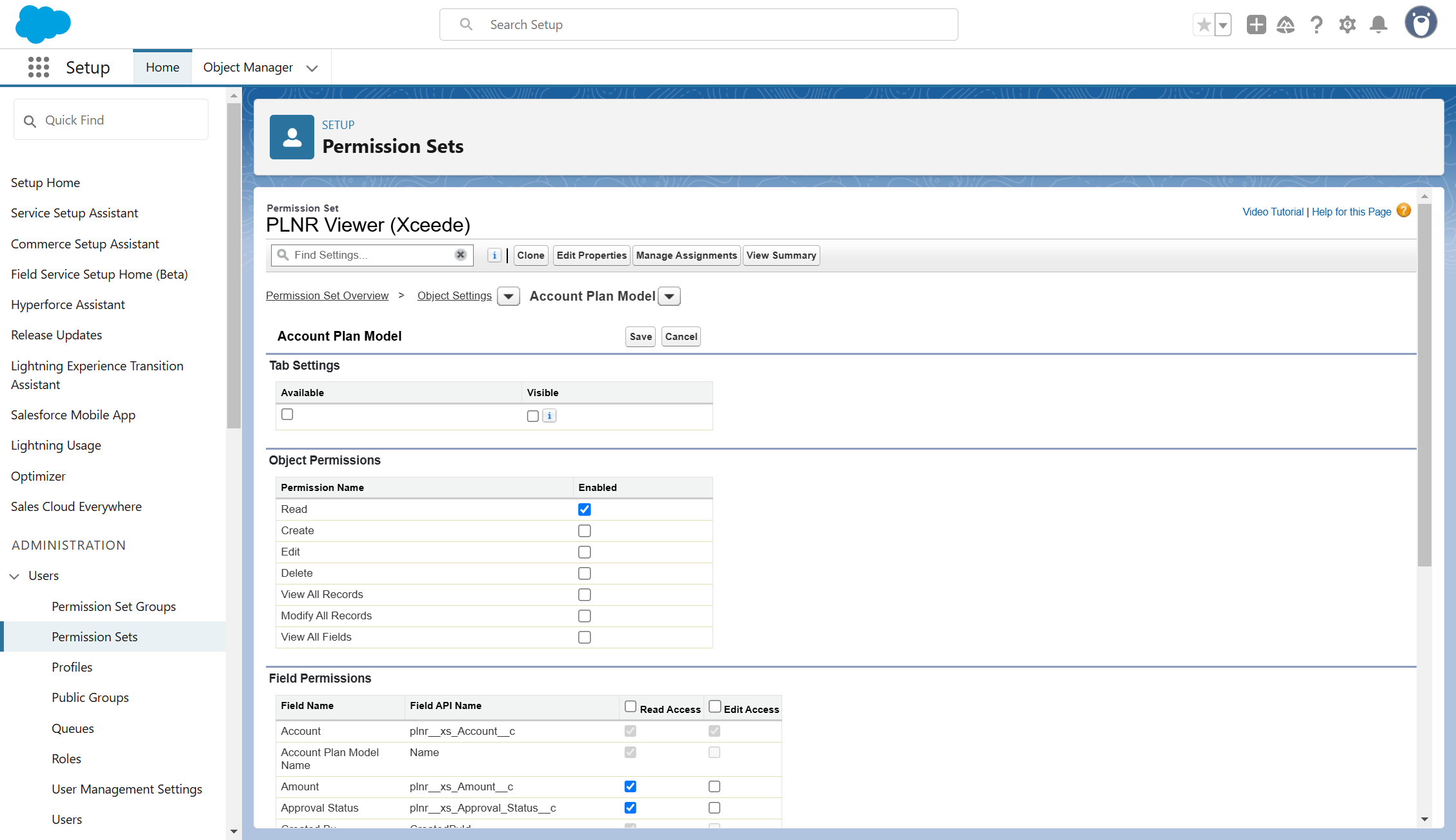
Figure 1.21 - Account Plan Model Object Permissions
EDIT Opportunity PLAN MODEL OBJECT SETTINGS
Steps:
- Select the "Object Settings" option
- Select "Opportunity Plan Model"
- Click the "Edit" button
- Select "Read"
- Click "Save"
Figure 1.22 - Opportunity Plan Model Object Settings
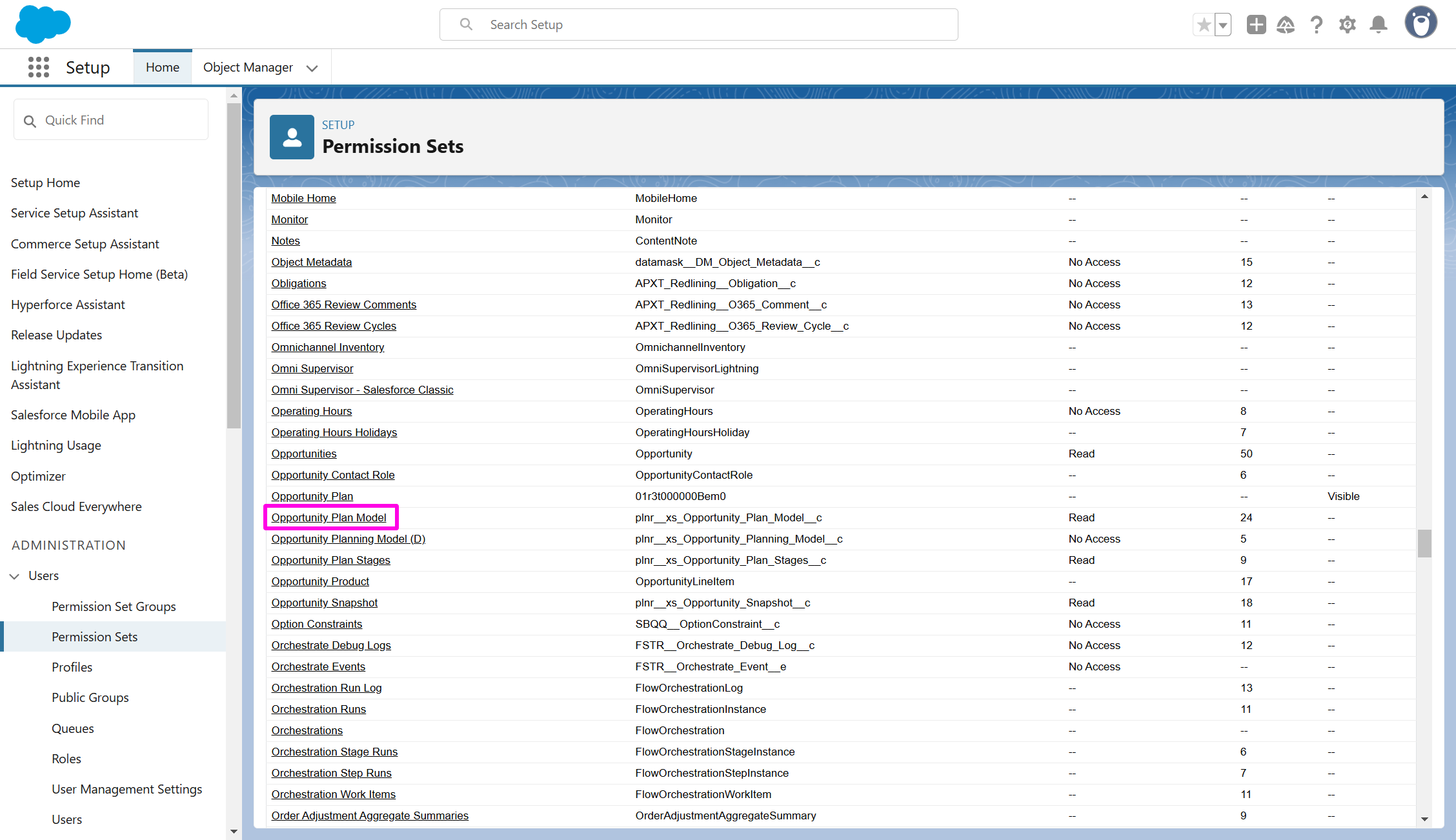
Figure 1.23 - PLNR Viewer Opportunity Plan Model
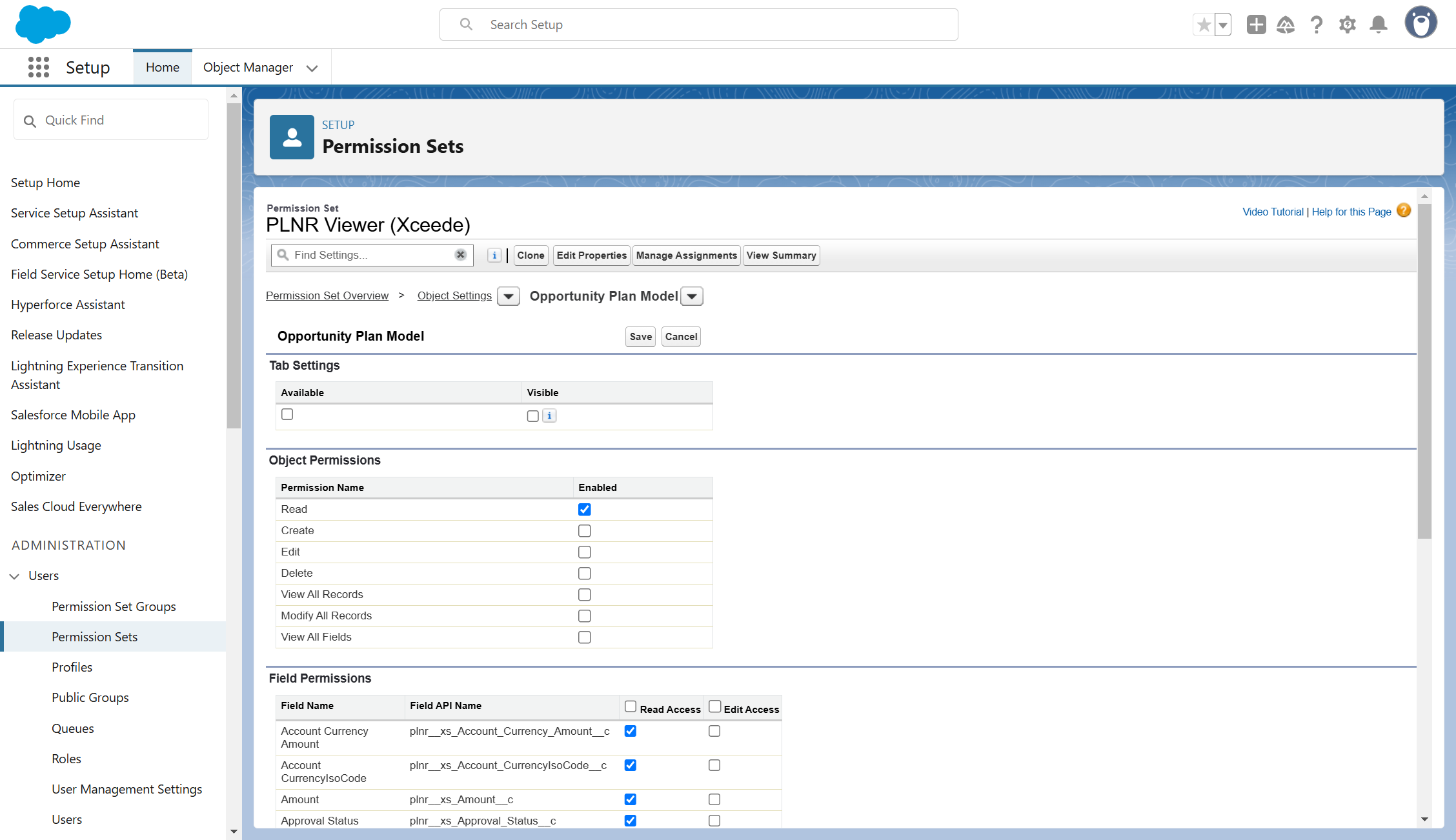
Figure 1.24 - Opportunity Plan Model Object Permissions
You will need to assign the proper Profiles and Permission Sets before you can further configure the application.
Enable Application Triggers
Our Application utilizes various triggers which must be enabled before you start using the Application.
To enable all the Triggers, perform the following steps:
- Select the Administration App for PLNR.
- Navigate to the Application Settings Tab.
- Review the Trigger Settings tab under Installation & Configuration.
- You can enable all the Triggers by using the toggle.
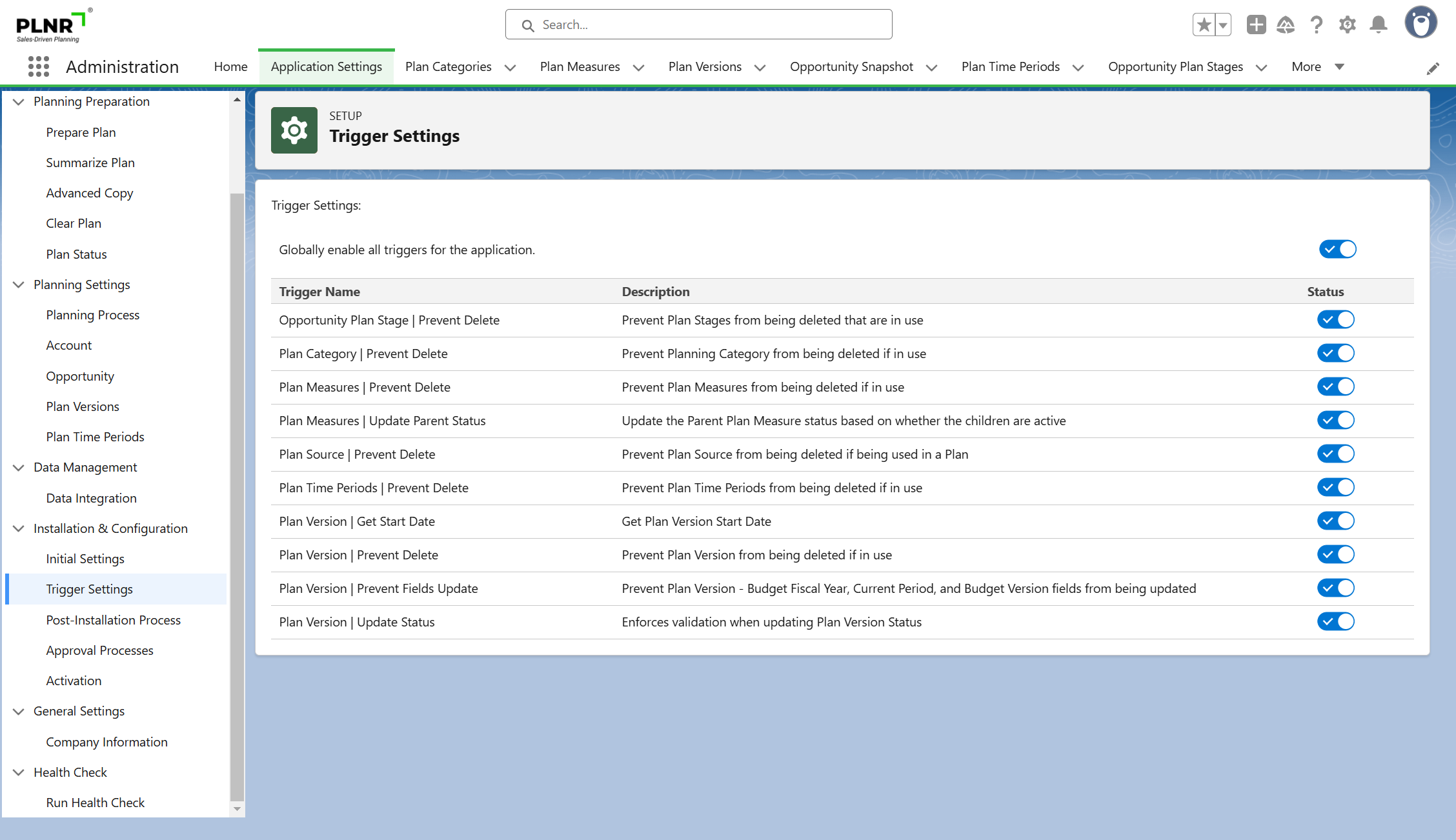
Figure 1.25 - Trigger Settings
Review Settings
Prior to completing the Installation, you need to review and update the Initial Settings.
The Post-Installation process will use these settings to set up your default configuration.
- Navigate to the Application Settings tab.
- Navigate to the Initial Settings tab under Installation & Configuration.
- Click on the Review Settings button to explore the Settings.
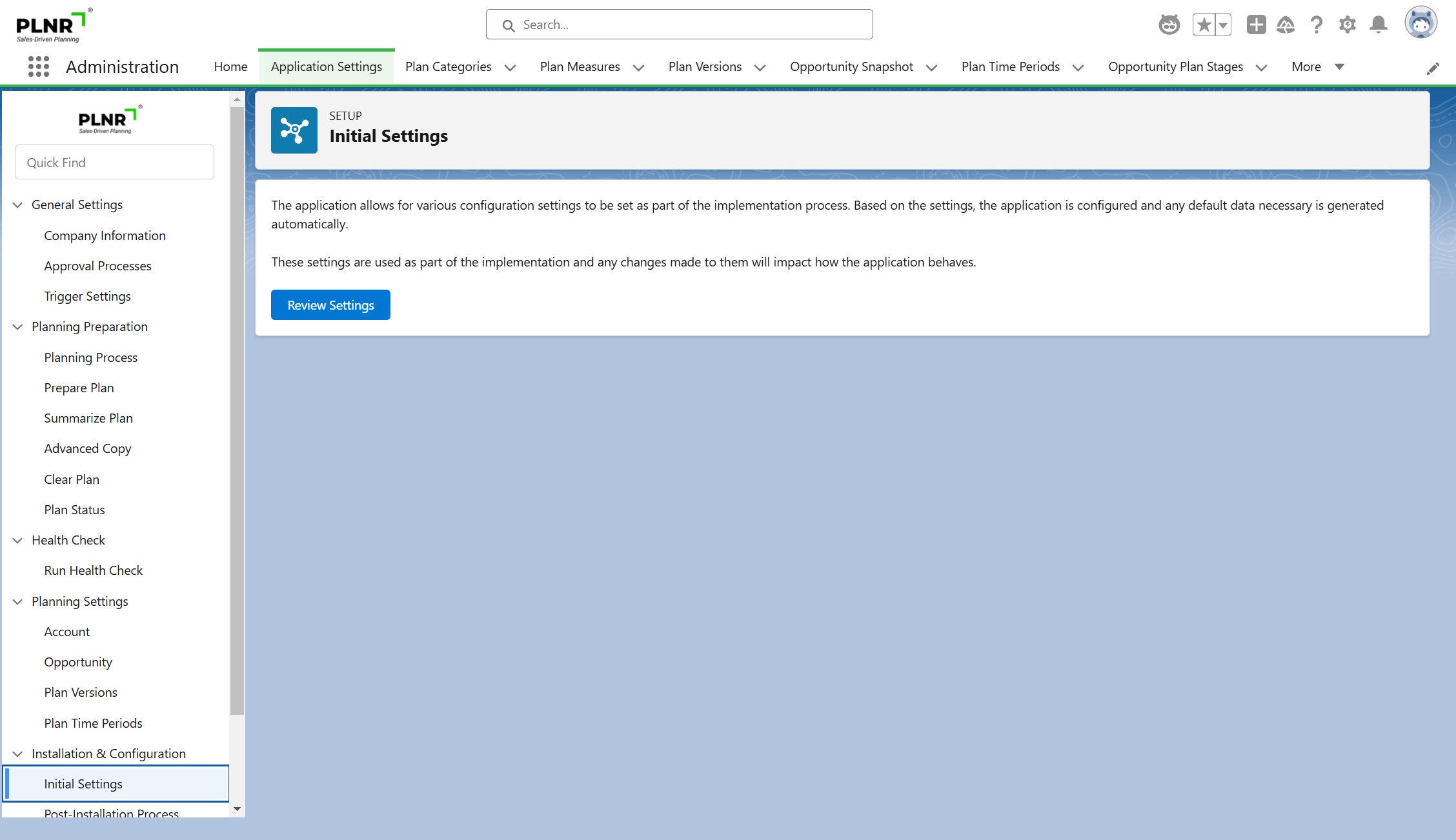
Figure 1.26 - Review Settings
These settings are stored within the Custom Metadata Types section of Salesforce Set Up.
Backlog Fiscal Year Start
- From the list of Custom Metadata Types, click on Install-Backlog Fiscal Year.
- Click on Manage Records.
- Click on Edit for the existing record.
- Enter a default Fiscal Year (4-digit).
- Click "Save"
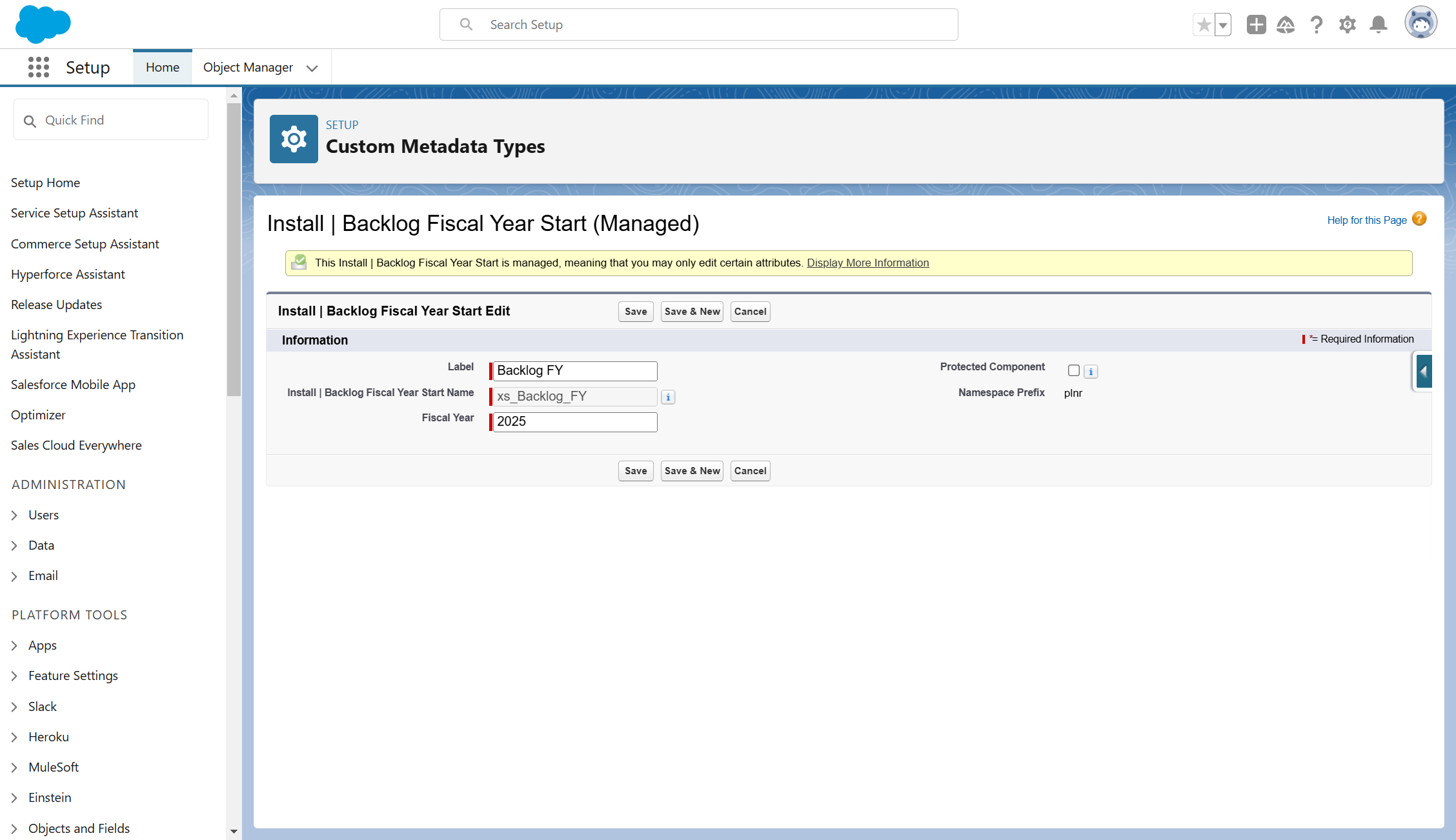
Figure 1.27 - Backlog Fiscal Year Start
This setting will also be used to define Fiscal Years prior to the Current Year when you have Standard Fiscal Year as your main setting in Salesforce.
Opportunity Snapshot Setting
You will need to define a default Contract Term for your opportunities.
- From the list of Custom Metadata Types, click on Config - Opportunity Snapshot Setting.
- Click on Manage Records.
- Click on Edit for the existing record labeled Contract Term.
- Enter a default Contract Term (in Months).
- Enter a default Include Opportunity Created After date.
- Enter whether New Opportunity should be considered by checking the box.
- Enter whether Update Territory should be considered by checking the box. (Update planning data to reflect changes in the Opportunity's assigned Territory)
- Click "Save"
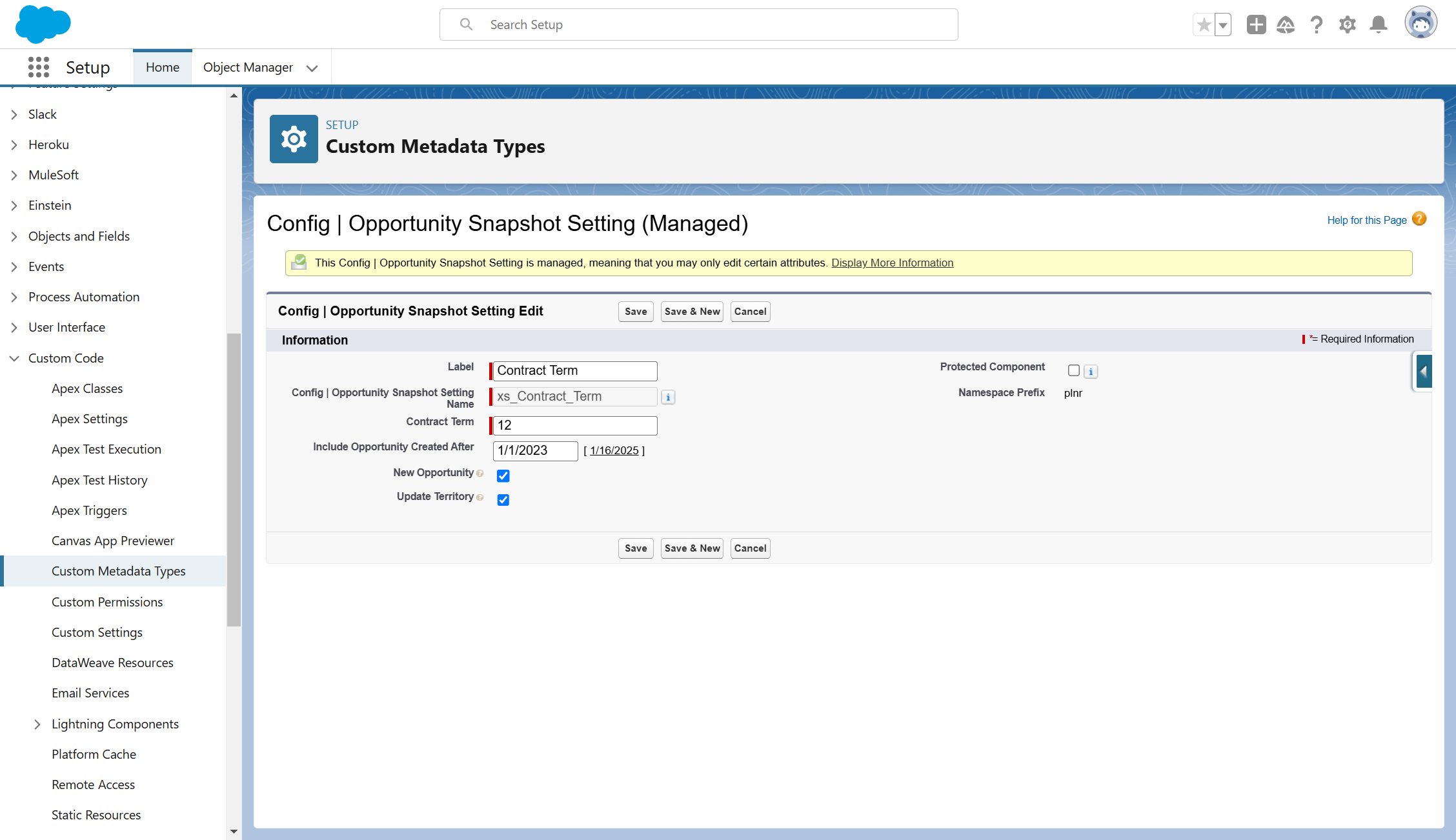
Figure 1.28 - Opportunity Snapshot Setting
This value will be used if you do not specify the Contract Term for each of your Opportunities. The default value is 12 months.
Planning Version
You will need to define various default settings for your Planning Versions.
- From the list of Custom Metadata Types, click on Install - Planning Versions.
- Click on Manage Records.
- Click on Edit for the existing record labeled Plan Version.
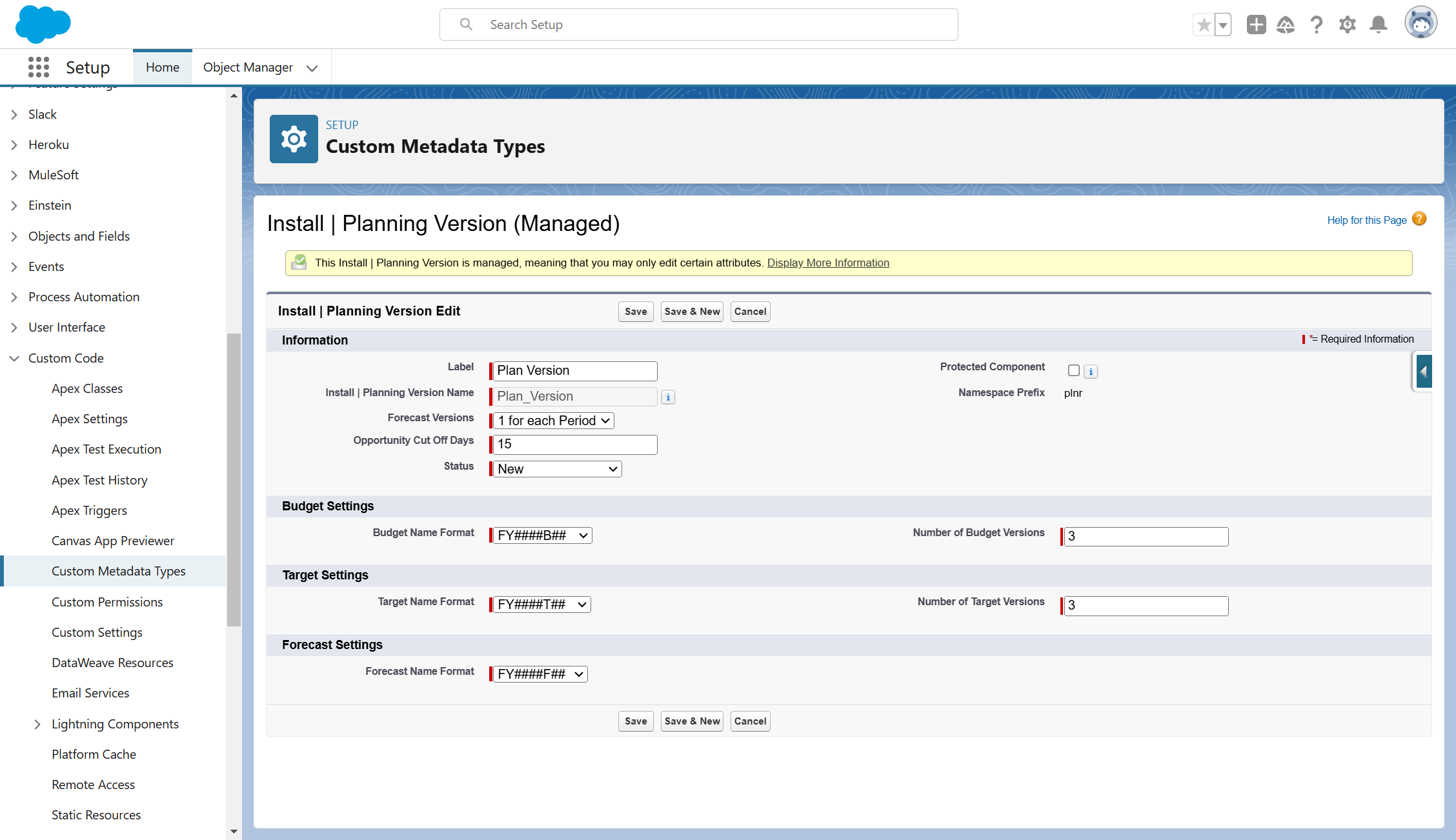
Figure 1.29 - Planning Version
Choose the appropriate values for each of the following Settings:
Forecast Versions
- You can choose the number of Planning Versions to create for each Time Period.
- The default setting is 1 per period.
Opportunity Cut Off Days
- You can choose the number of days from the start of the month as the cut off point for automatically including Opportunities as part of the Planning Process.
- Opportunities with a creation date after the number of cut off days will not be included.
- The default setting is 15 days.
Status
- When Planning Versions are created, they will adopt a default status.
- You can choose from the following:
- New
- Data Management
- The default setting is New.
Target Name Format
- When Planning Versions are created, they will adopt a name based on the format selected.
- You can choose from the following options:
- FY####T## (e.g. FY2020T02)
- T-##-FY#### (e.g. T-02-FY2020)
- The default setting is FY####T##.
Budget Name Format
- When Planning Versions are created, they will adopt a name based on the format selected.
- You can choose from the following options:
- FY####B## (e.g. FY2020B02)
- B-##-FY#### (e.g. B-02-FY2020)
- The default setting is FY####B##.
Number of Target Versions
- When Planning Versions are created, the process will create several versions based on the number specified.
- The default setting is (3).
Number of Budget Versions
- When Planning Versions are created, the process will create several Versions based on the number specified.
- The default setting is (3).
Forecast Name Format
- When Planning Versions are created, they will adopt a name based on the format selected.
- You can choose from the following options:
- FY####F## (e.g. FY2020F03)
- F##-FY#### (e.g. F03-FY2020)
- The default setting is FY####F##.
Plan Time Period
These settings are only relevant when you are using Standard Fiscal Year setting in your Salesforce Organization.
Fiscal Years
You will need to set the number of Fiscal Years to be defined as part of the Initial Implementation.
- From the list of Custom Metadata Types, click on Install - Plan Time Period.
- Click on Manage Records.
- Click on Edit for the existing record labeled Plan Time Metadata.
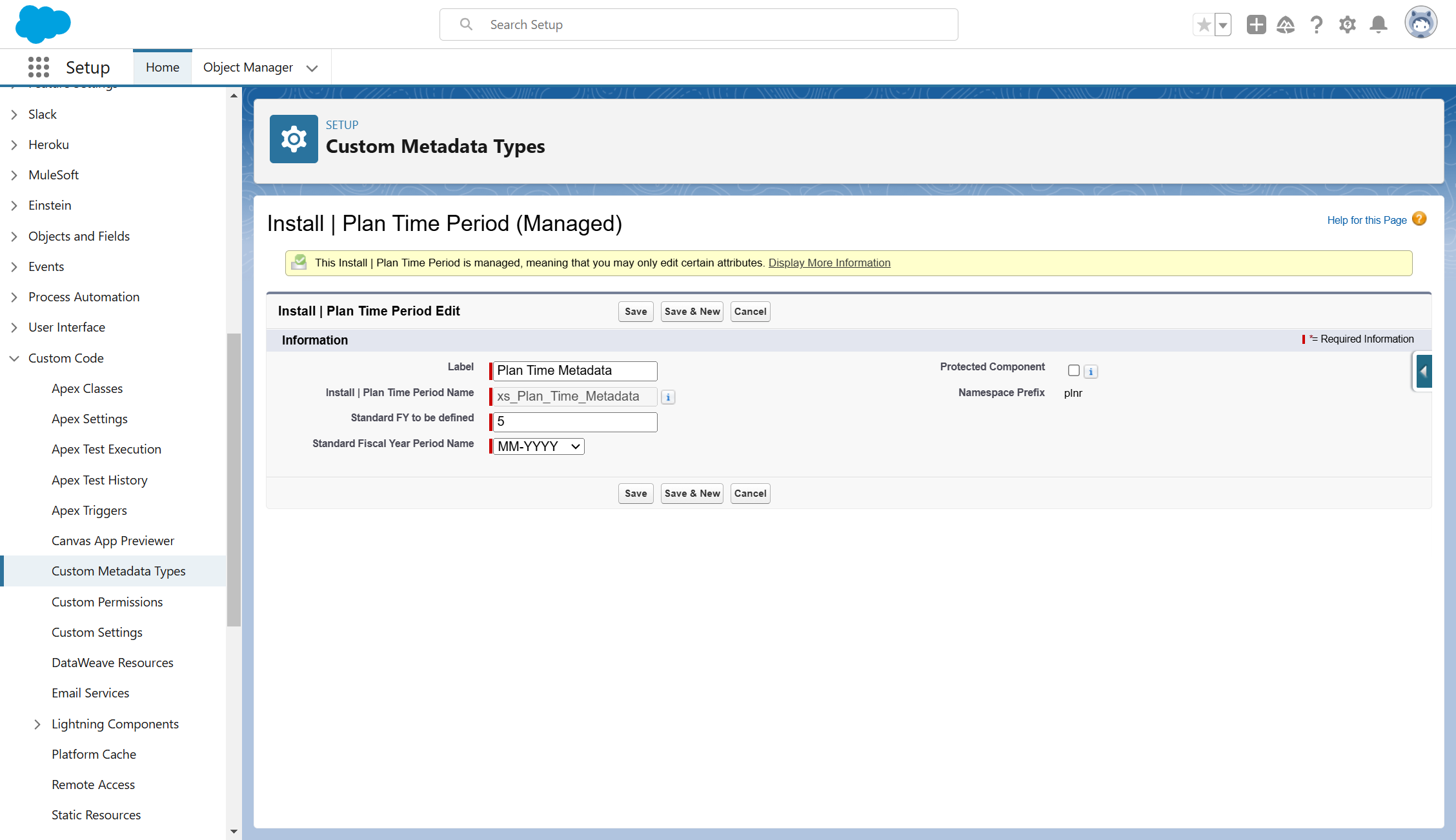
Figure 1.30 - Plan Time Period
Choose the appropriate values for each of the following Settings:
Standard FY to be defined
- Enter the initial set of Fiscal Year Time Periods to be defined in the system. You will be able to create additional ones as part of the Application Settings.
- The default number of years is set to (5) years.
Time Period Naming Convention
- Choose the default naming convention for the Time Period Name.
- MM-YYYY
- MON-YY
- MON-YYYY
- YYYY-MON
- YYYY-MM
- The default setting is MM-YYYY.
- Click "Save" (after changes are made)
Post-Installation Process
Once you have completed the Post-Installation Settings, you need to run the Post-Installation Process so that the application is set up with all the necessary data by performing the following:
- Navigate to the Application Settings tab.
- Navigate to the Post-Installation Process tab under the Installation & Configuration menu.
- Click on the Post-Installation Process button.
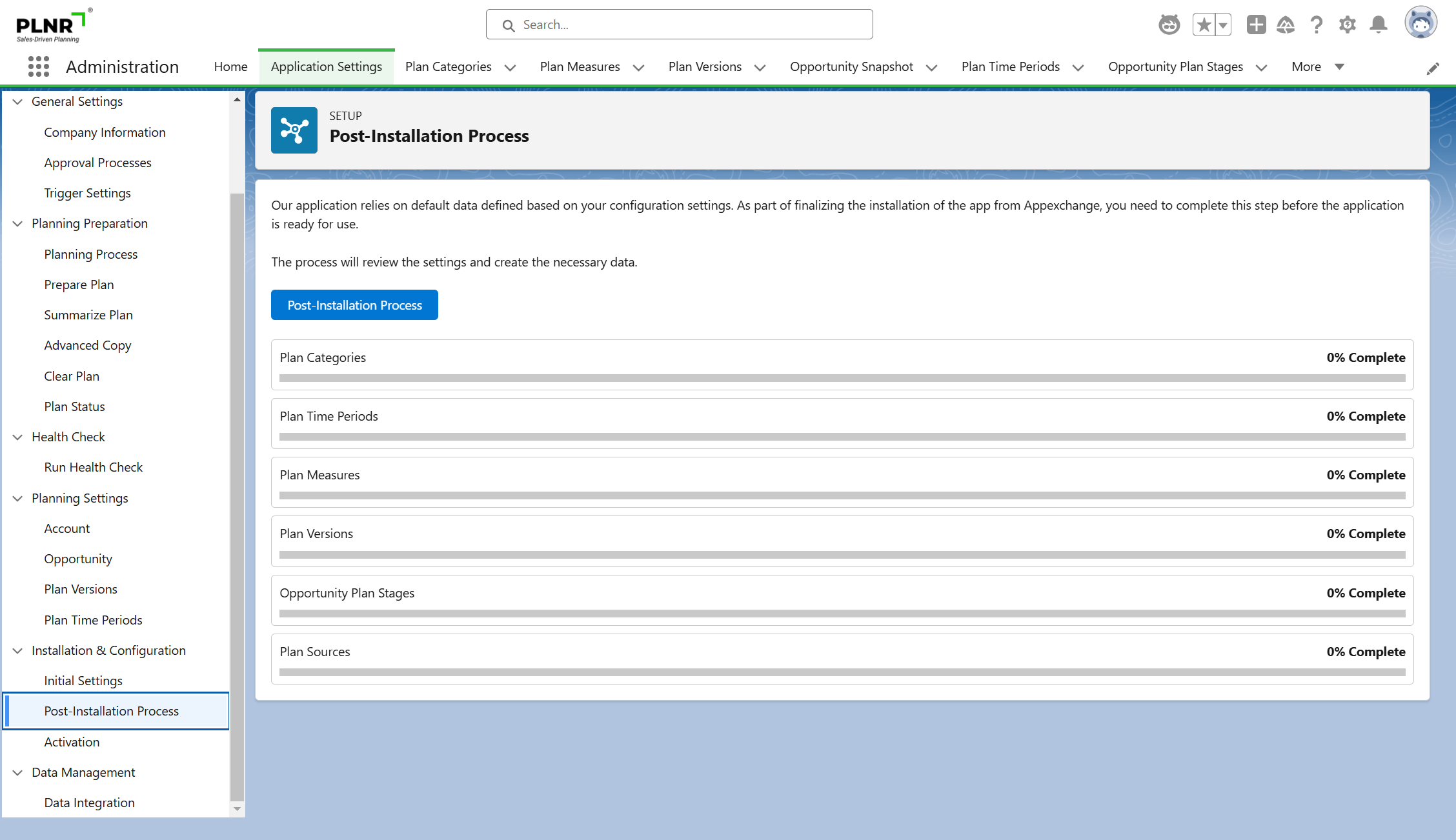
Figure 1.31 - Post-Installation Process (Before)
Once completed, you will see the Progress Bars for each of the items at 100%.
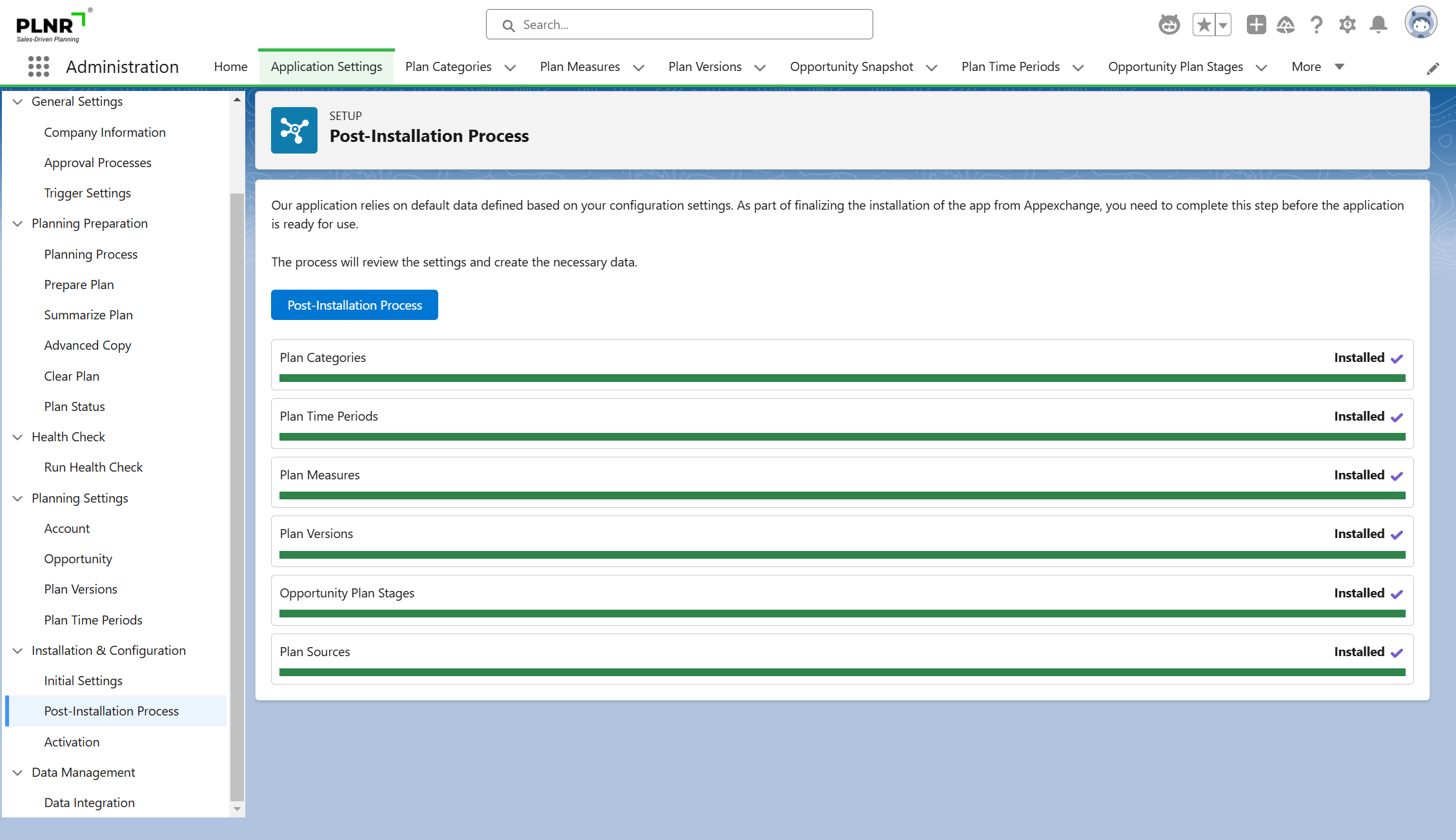
Figure 1.32 - Post-Installation Process (After)
Set Up the Approval Processes
Download PLNR Approval processes
- In the Administration App, navigate to the “Application Settings” tab.
- In the left-side menu, click on “Approval Processes”.
- Click on “Download Zip”
Re-ROUTE TO PLNR WEBSITE
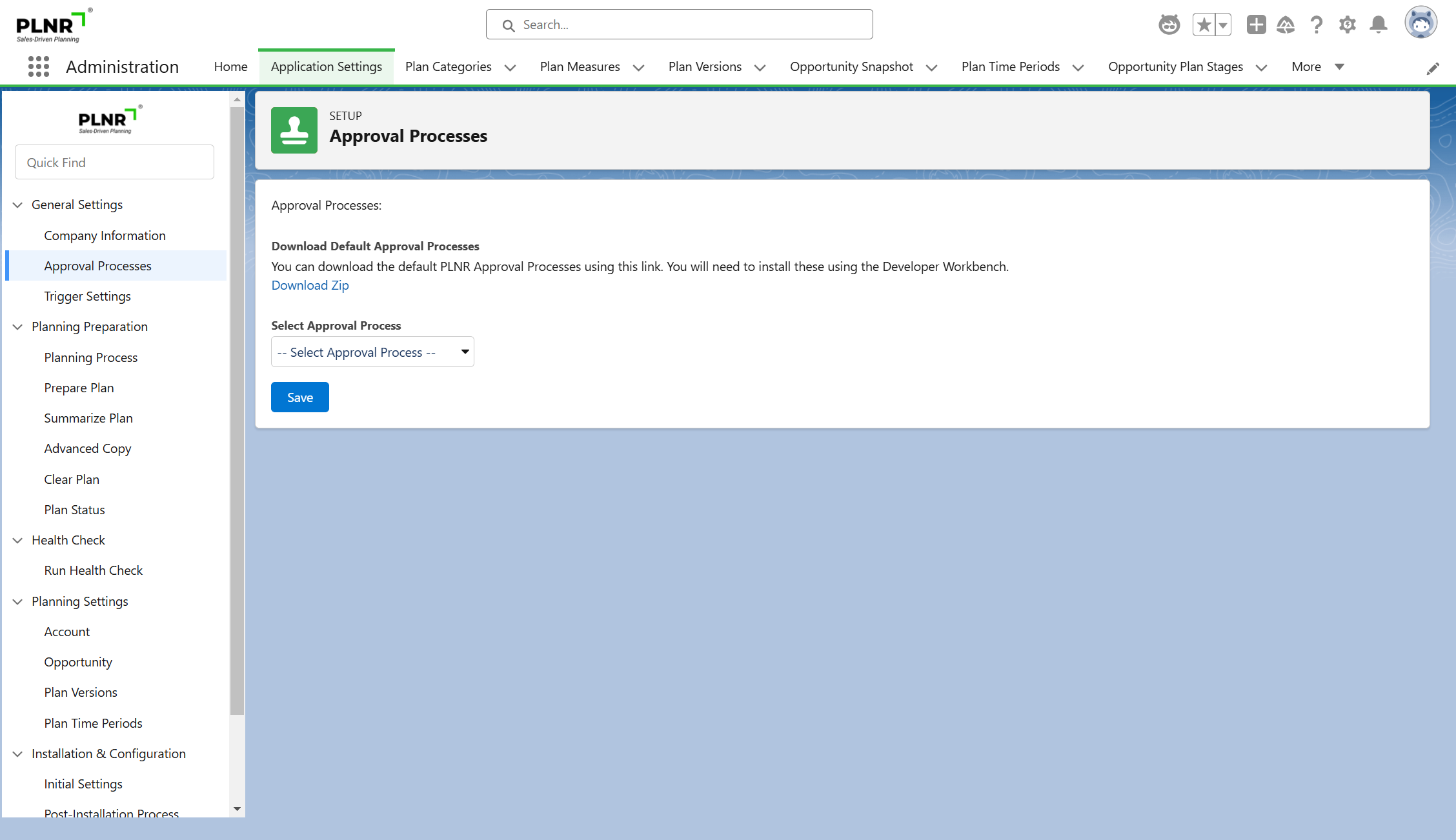
Figure 1.33 - Approval Processes - Download Zip
You will be navigated to access our Help Page where you can download the .zip file to your computer.
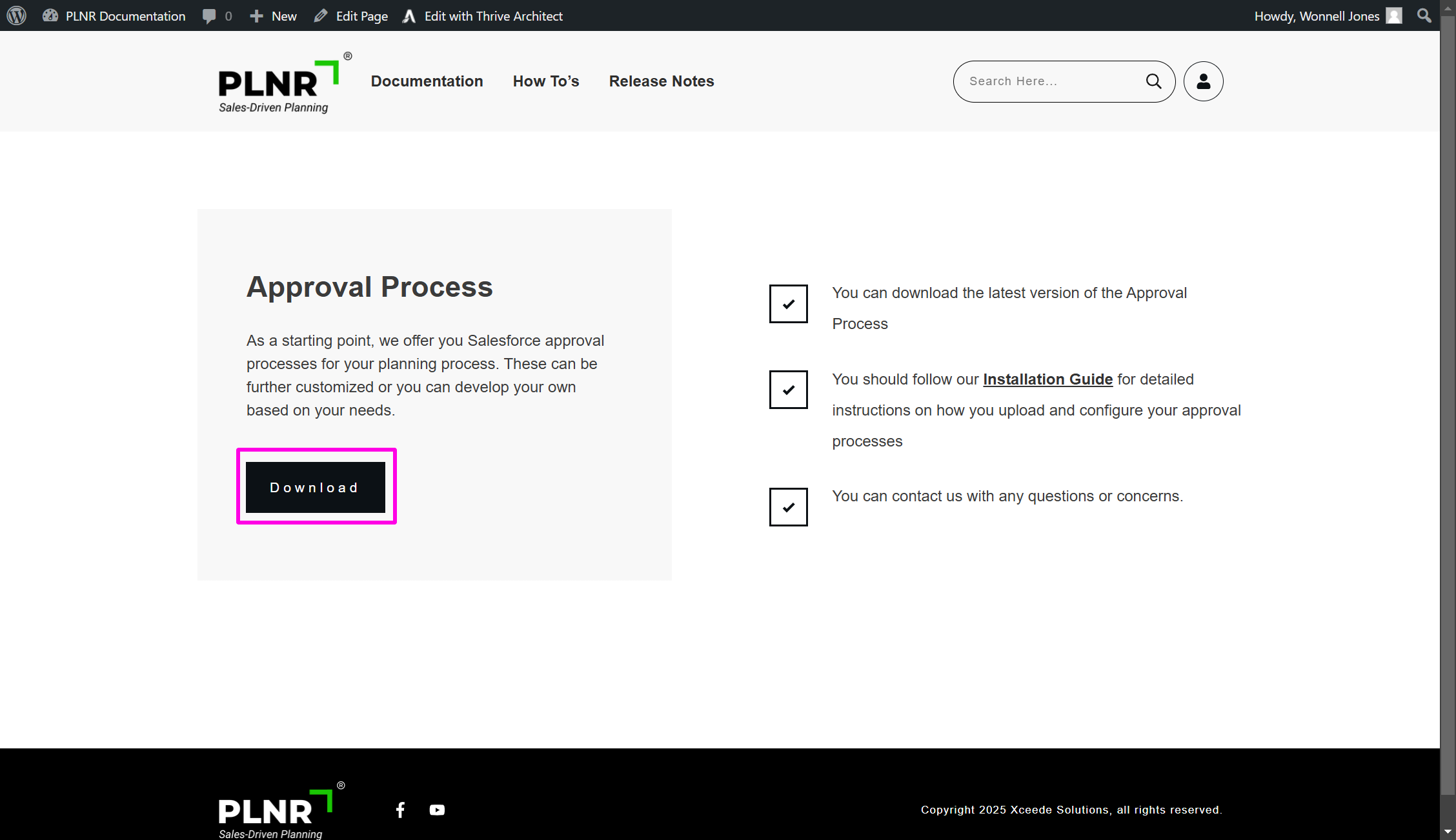
Figure 1.34 - PLNR Website "Download" Button
Upload PLNR Approval processes USING WORKBENCH
- Visit https://workbench.developerforce.com/.
- In the “Environment” drop-down menu, select the appropriate deployment environment for your organization
- Check the option “I agree to the terms of service”
- Click on the “Login with Salesforce” button
- If you are prompted to “Allow Access?”, click “Allow”
- In the top menu, hover your mouse over the “Migration” tab
- Select “Deploy”
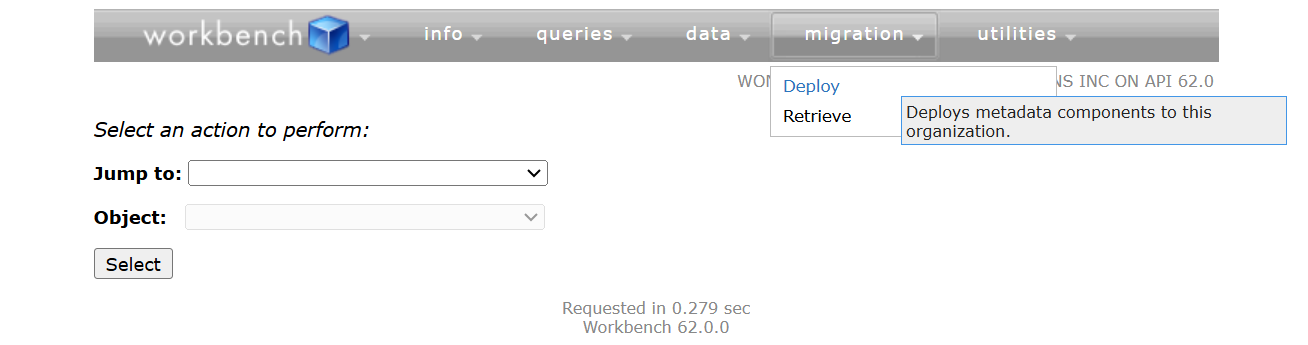
Figure 1.35 - Migration Tab - Select Deploy
DEPLOYING PLNR Approval processes USING WORKBENCH
- Click on the “Choose File” button
- Select the .zip file you saved to your computer in step 3.
- Make sure the option “Rollback On Error” option is checked.
- Click on the “Next” button.
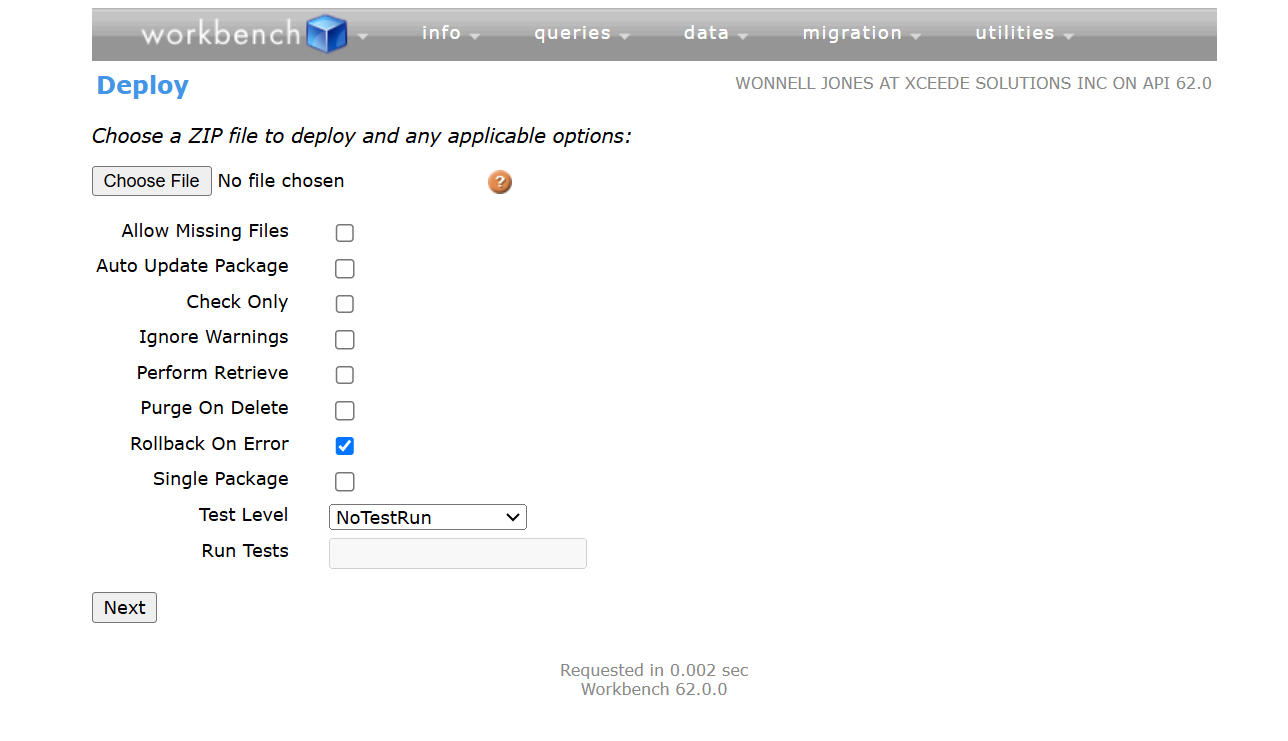
Figure 1.36 - Deploy - Rollback On Error
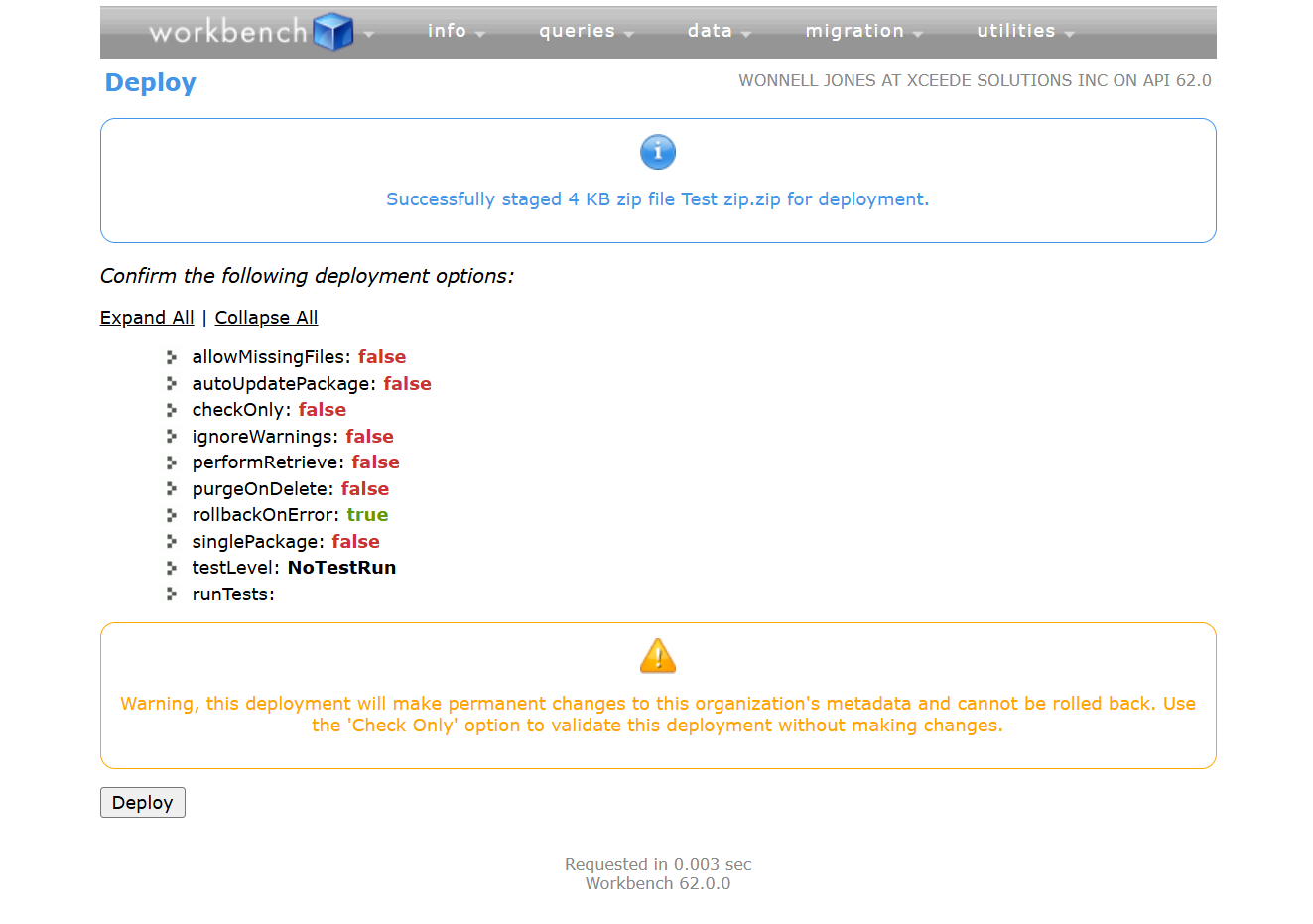
Figure 1.37 - Deploy - Confirm Deployment Options
DEPLOYING PLNR Approval processes USING WORKBENCH
- Click “Deploy”.
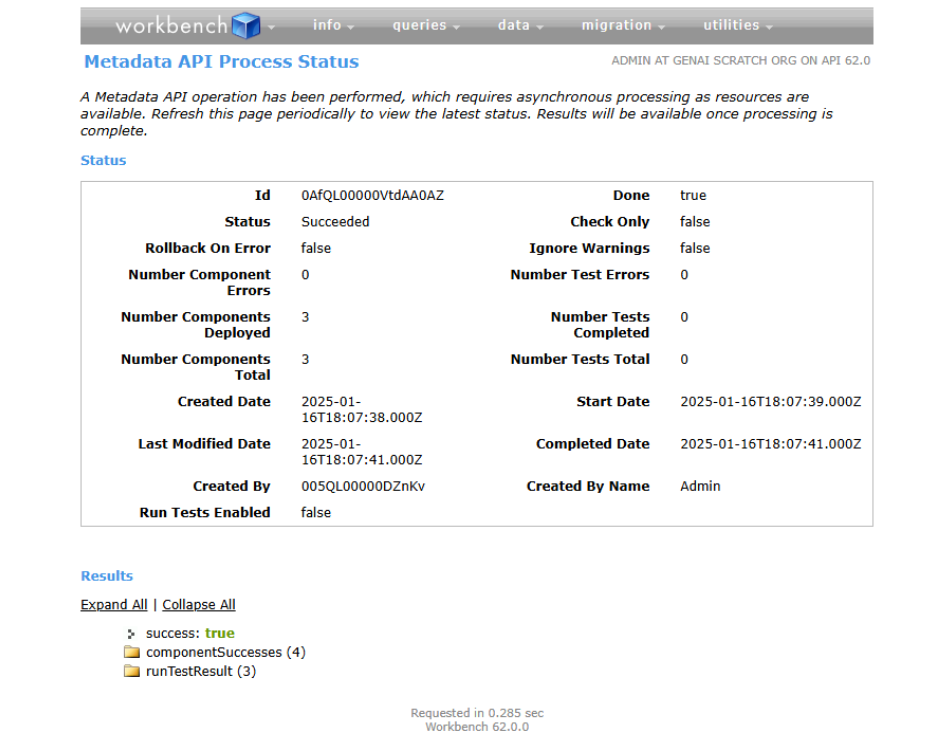
Figure 1.38 - Metadata API Process Status
SETUP Approval processes
- Come back to the Administration Application within Salesforce.
- Navigate to “Setup”.
- In the Quick Find box, type “Approval Processes”.
- In the left menu, click on “Approval Processes”.
- In the “Manage Approval Processes For” drop-down menu, select “Plan Approval”.
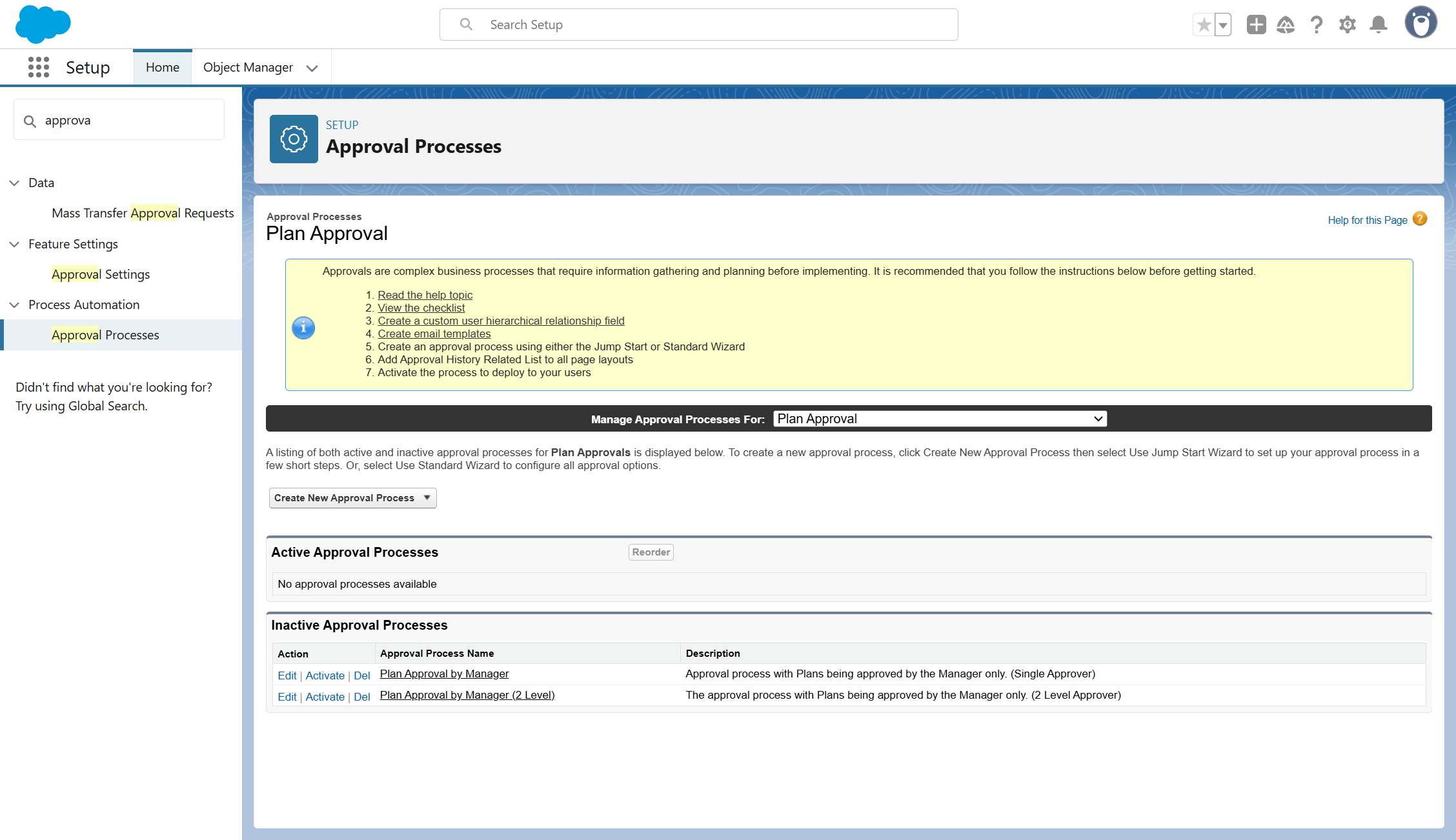
Figure 1.39 - Activate Approval Processes
ACTIVATE APPROVAL PROCESSES
- In the “Inactive Approval Processes” section, click on “Activate” for the “Plan Approval by Manager” Approval Process.
- Click "Ok" in the pop-up window
- Return to the Administration Application within Salesforce, navigate to the “Application Settings” tab and, in the left-side menu, click on “Approval Processes”. (If you are already on that page, click “Refresh” in your browser and then navigate to that section.)
- Under the “Approval Processes” section, in the “Select Approval Process” drop-down menu, select the option “Plan Approval by Manager”. Click on “Save” (You will then get a success message at the top of the screen.)
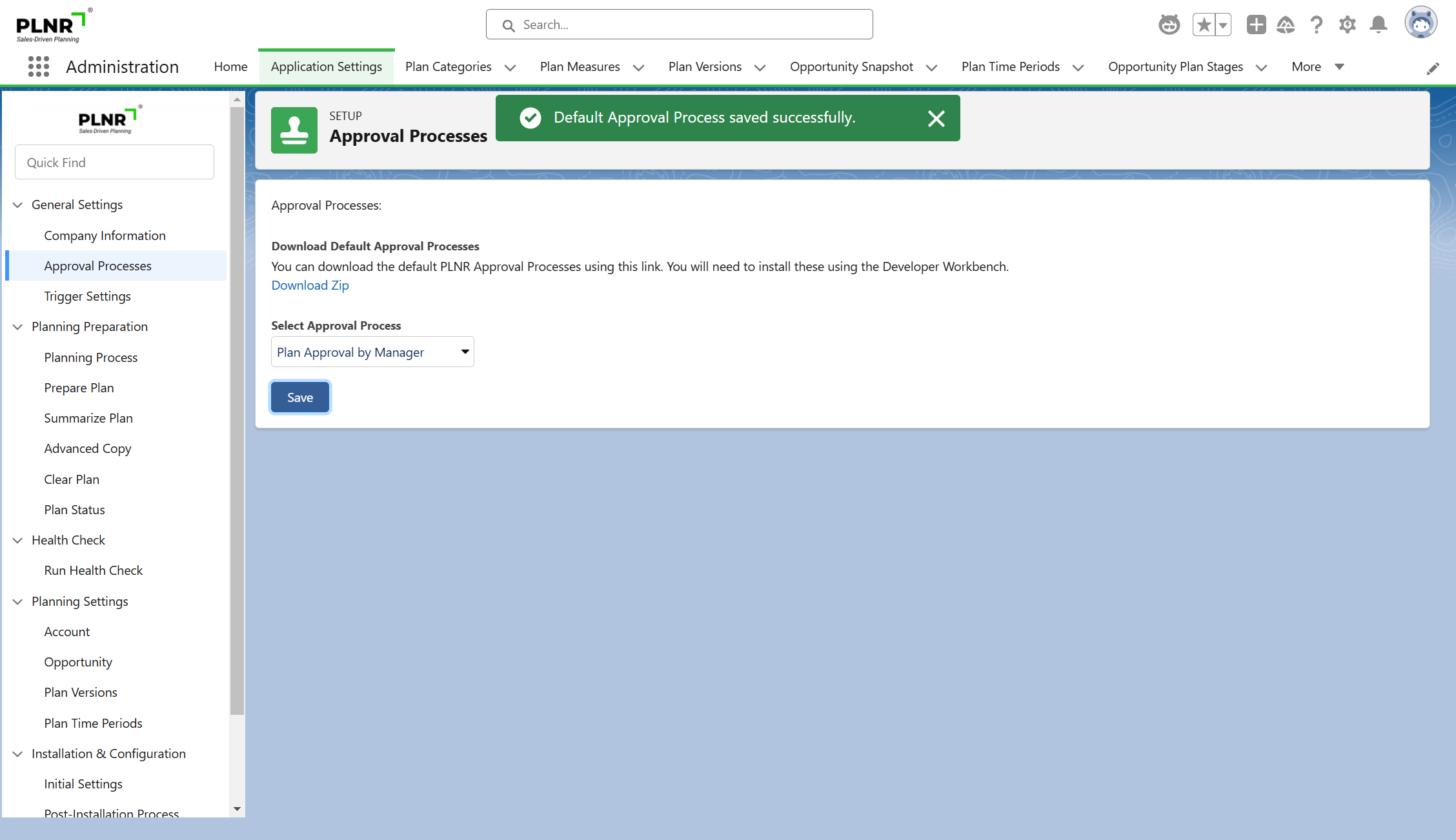
Figure 1.40 - Select Approval Process
Activate Default Planning Measures
Steps:
- Go into the Administration App
- Go into Planning Measures
- Select "All" in the List View options
- In the "Active" column click the checkbox for each default Planning Measure
- Click "Save"
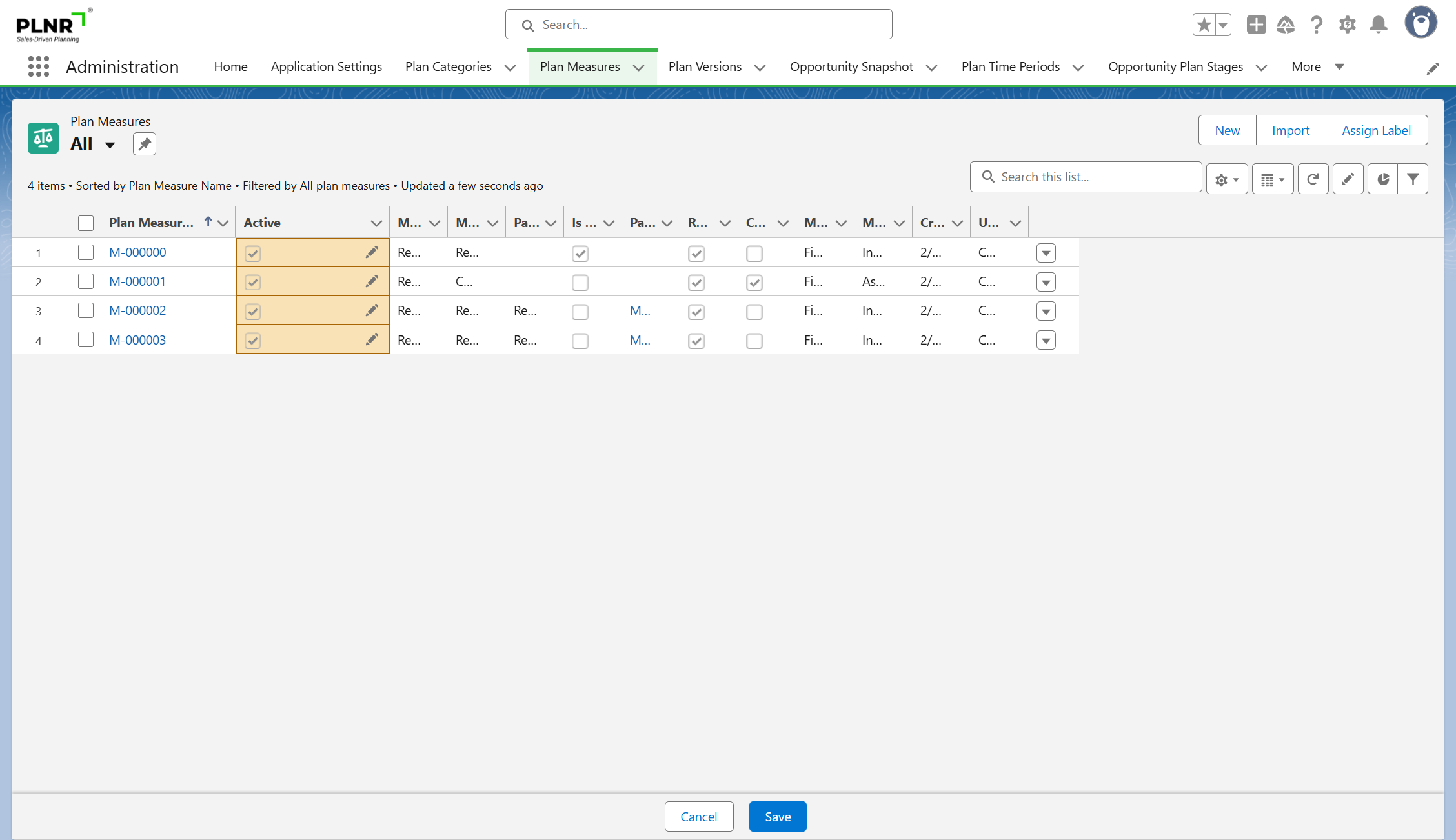
Figure 1.41 - Select Approval Process
Opportunity Plan Stages
Including opportunity plan stages in planning
- Select the "More" tab
- Select "Opportunity Plan Stages"
- Edit the "Used In Planning?" column for the relevant Opportunity Plan Stage(s) (Populate the Checkbox)
- Click "Save"
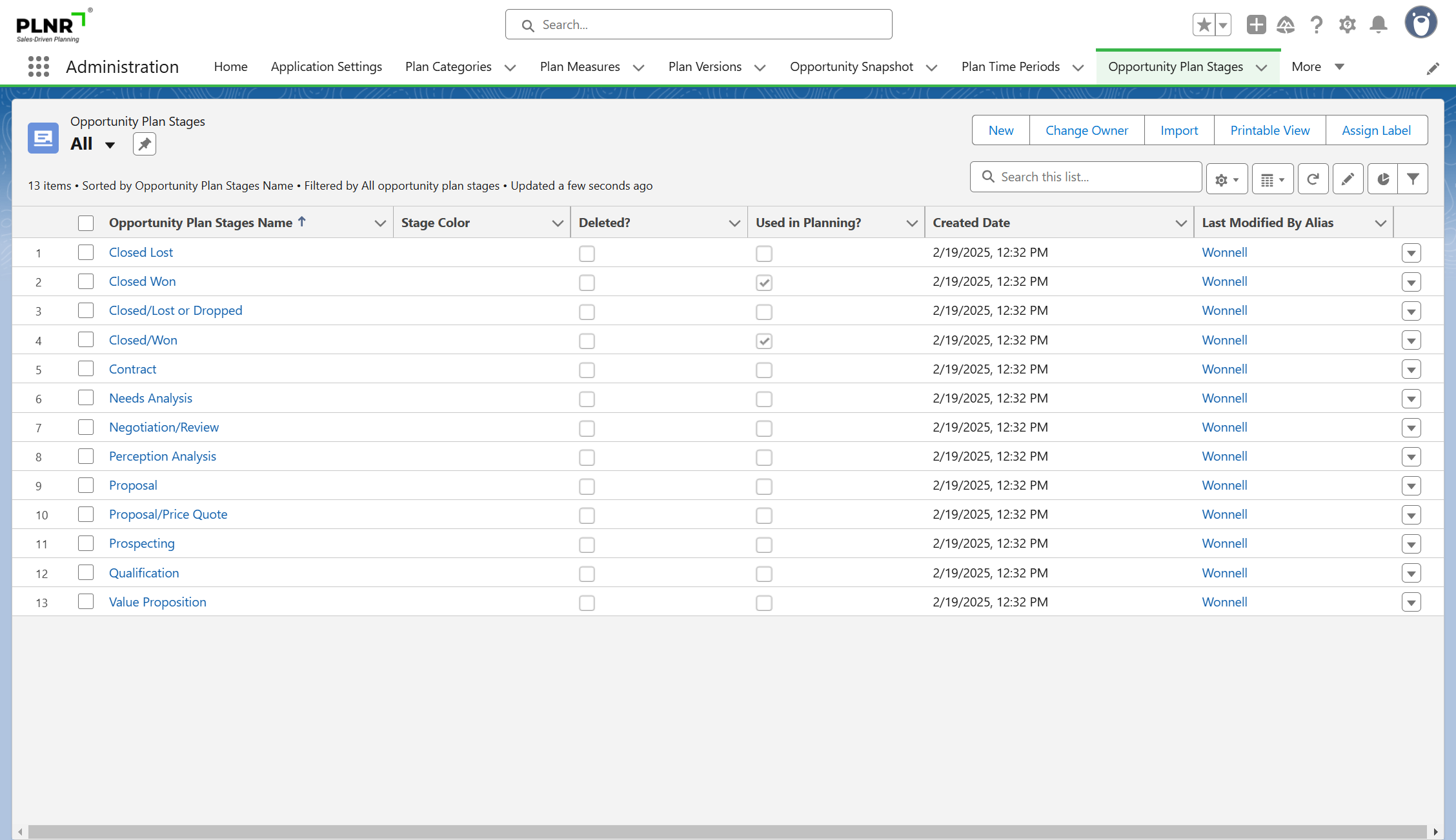
Figure 1.42 - Include Opportunity Plan Stages In Planning
SELECT opportunity plan stages COLOR
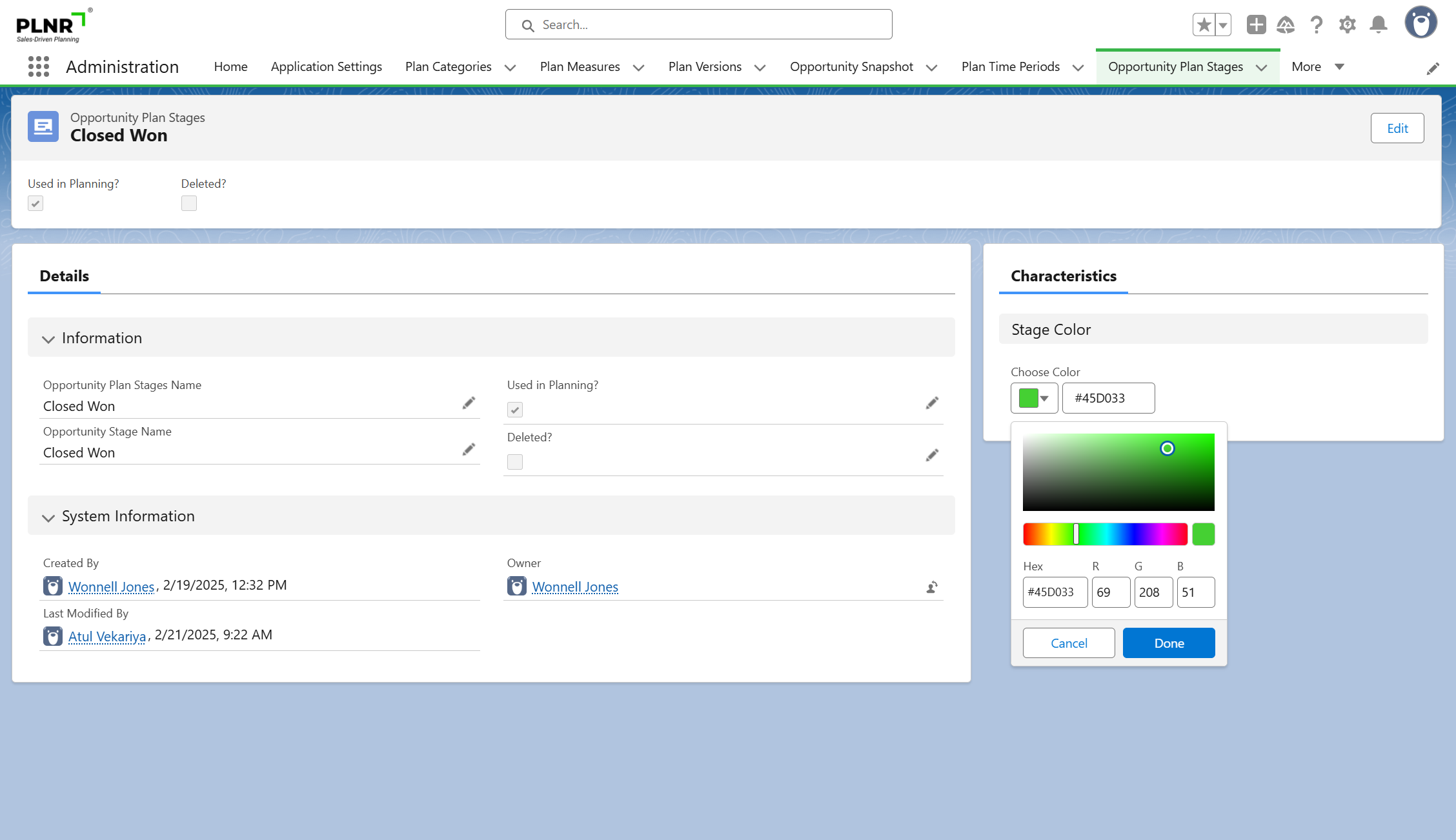
Figure 1.43 - Updating Opportunity Plan Stage Colors
The Stage Color # (Hex Code) will be populated automatically once your color is selected
Activate PLNR
Before you can start using the application, you need to Activate your instance by performing the following:
- Navigate to the Application Settings tab.
- Navigate to the Activation tab under the Installation & Configuration menu.
- Click on the Activate button.
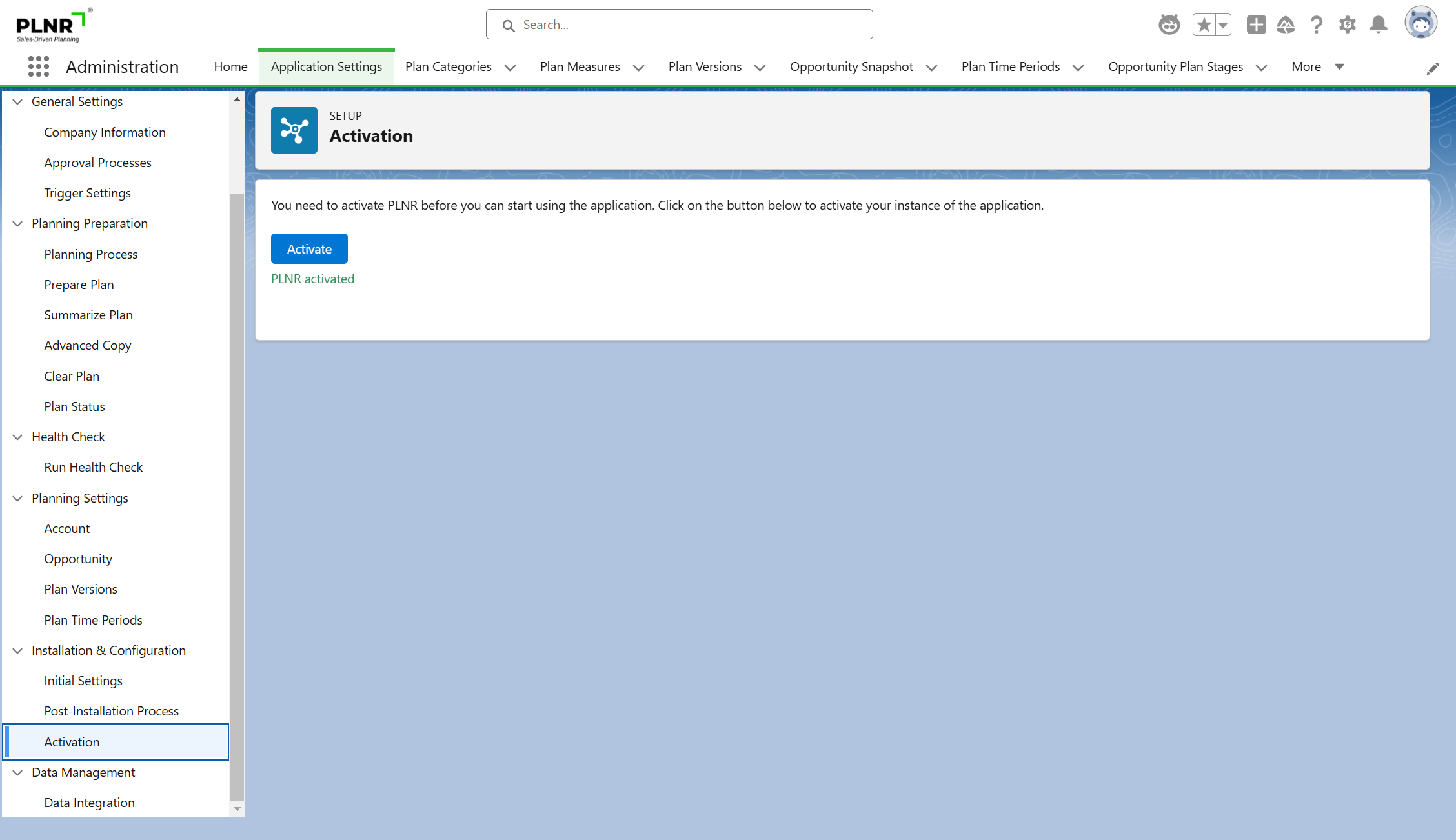
Figure 1.44 - PLNR Activate Button
Configuration
Email Template Logo
- Navigate to "Application Settings".
- In the left menu, click on “Company Information”.
- Under the “Email Template Logo URL”, enter the URL of the logo you would like to use in the email communications. (Note that the URL should be public).
- Click the “Save Changes” button.
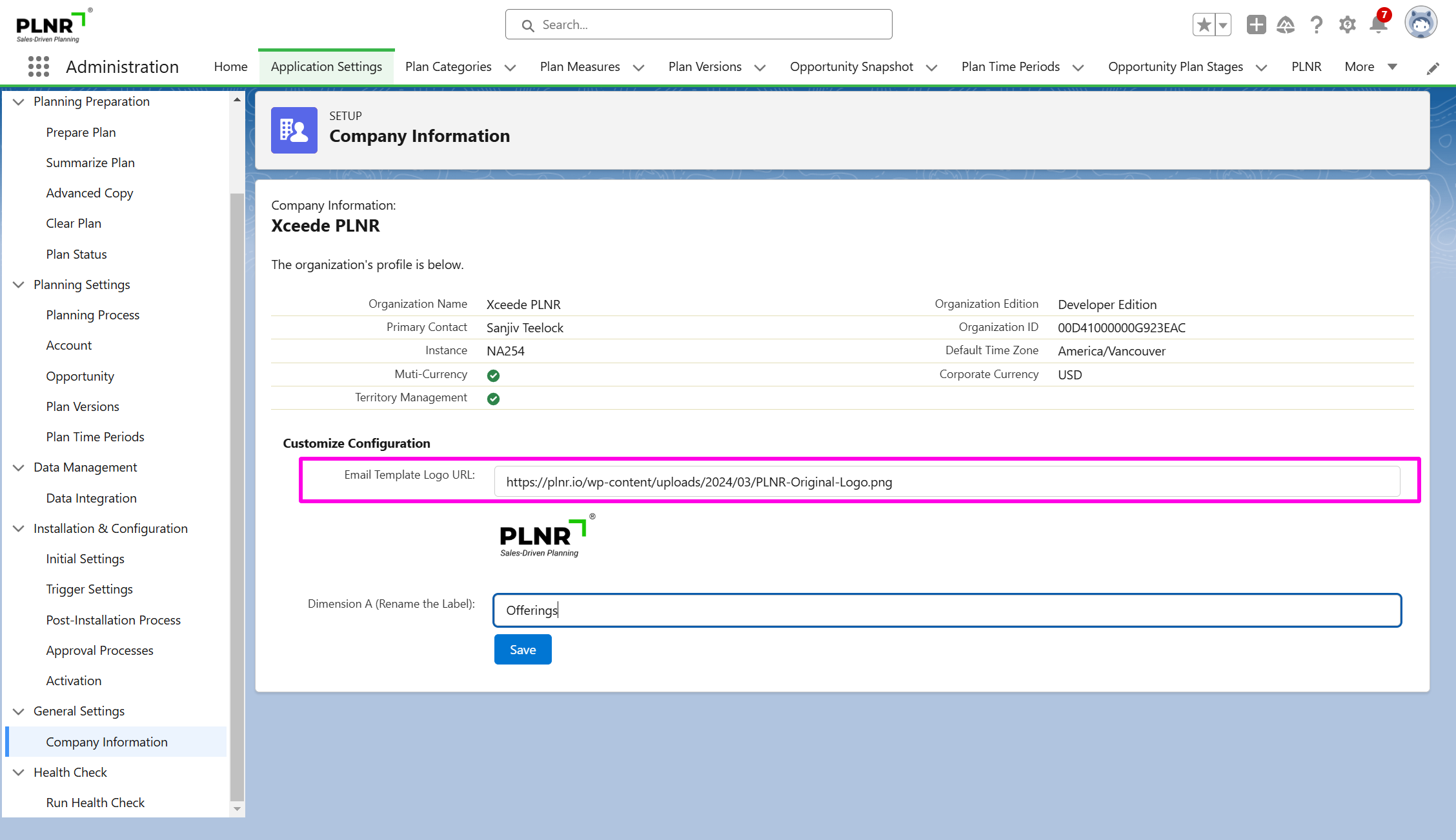
Figure 1.45 - Email Template Logo URL
Dimension A (Rename the Label)
- Navigate to "Application Settings".
- In the left menu, click on “Company Information”.
- Under the “Dimension A (Rename the Label)”, enter a name for the additional dimension you would like to use.
- Click the “Save” button.
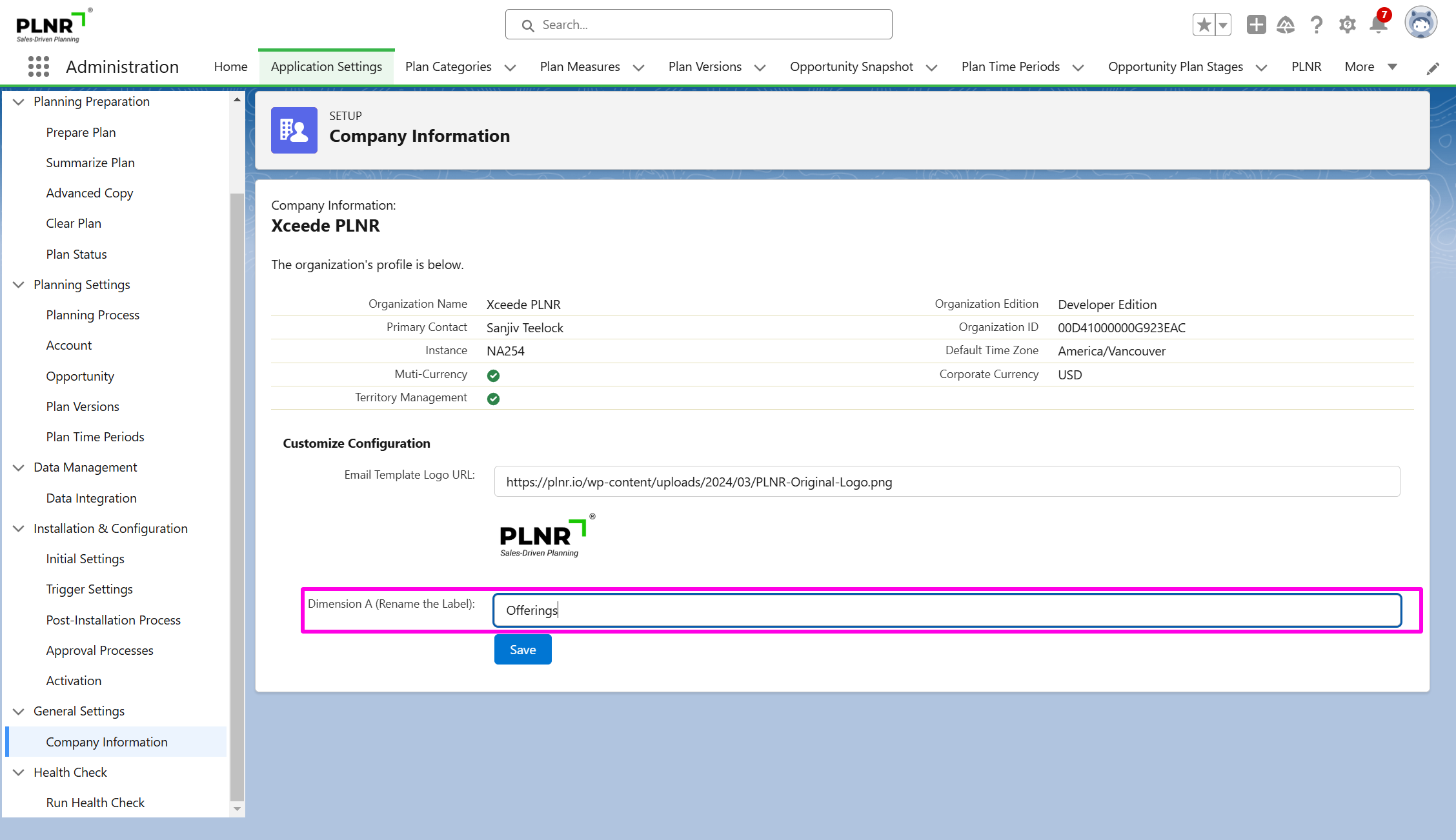
Figure 1.46 - Dimension A (Rename the Label)
Email Permissions
- Navigate to "Setup".
- In the “Quick Find” box, type “Deliverability”.
- In the left menu, click on “Deliverability” (be careful not to mistake it with “Test Deliverability”).
- Under the “Access to Send Email (All Email Services)”, in the “Access level” drop-down menu, ensure that the option “All email” is selected. If another option is selected, change it to “All email”.
- Click the “Save” button.
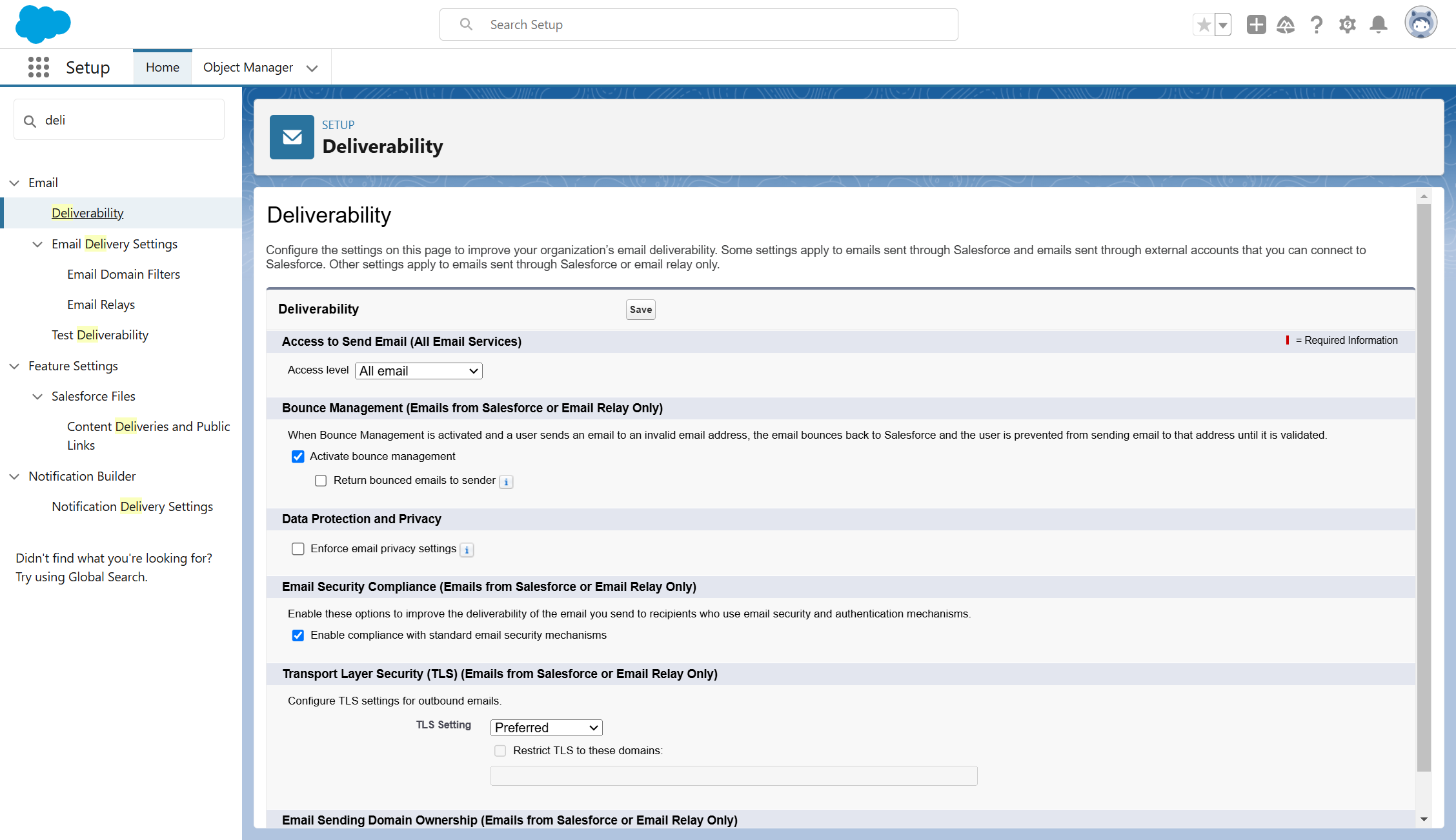
Figure 1.47 - Deliverability
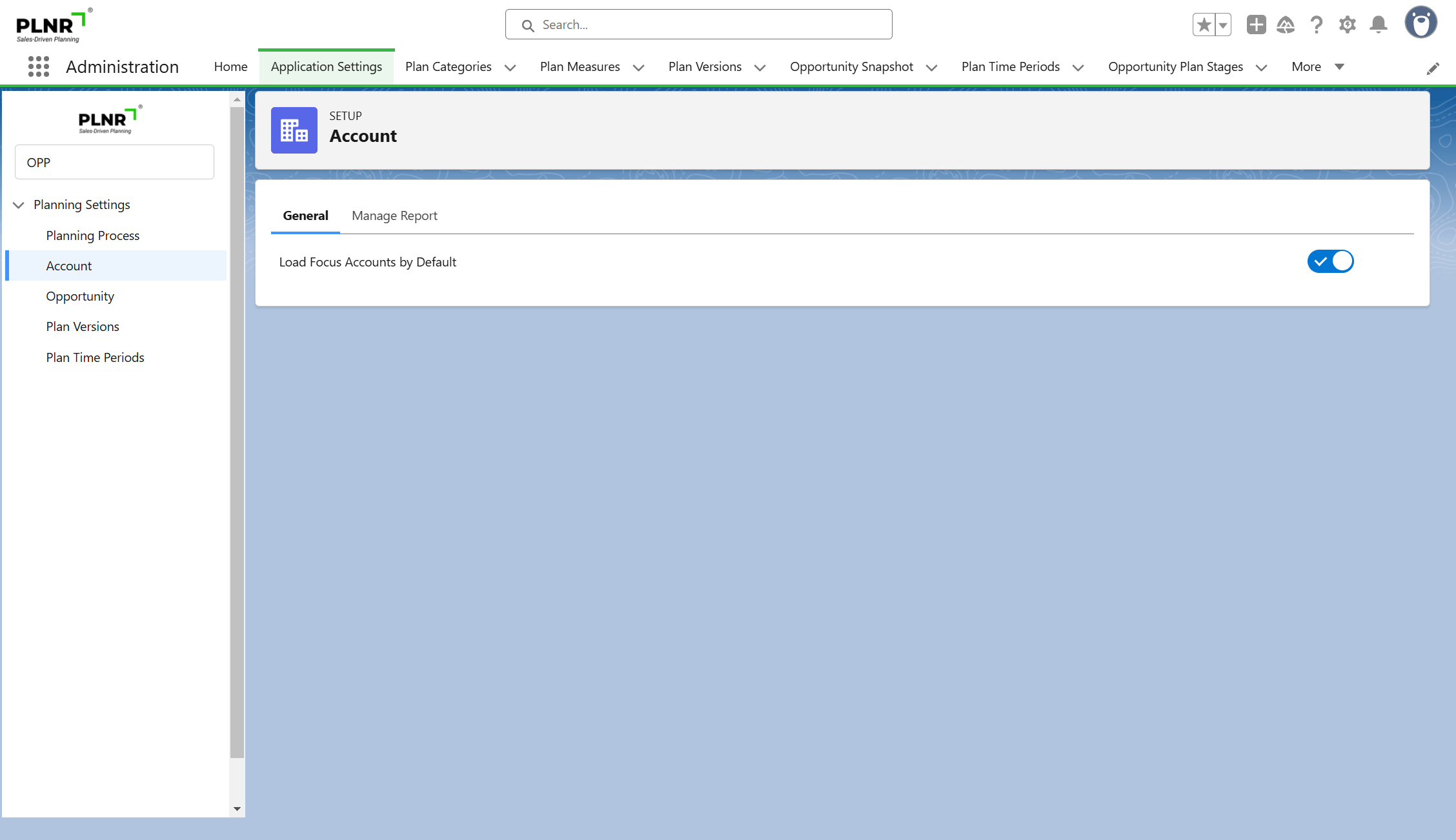
Setup Account
ADD STEPS/CONTENT
General
Steps:
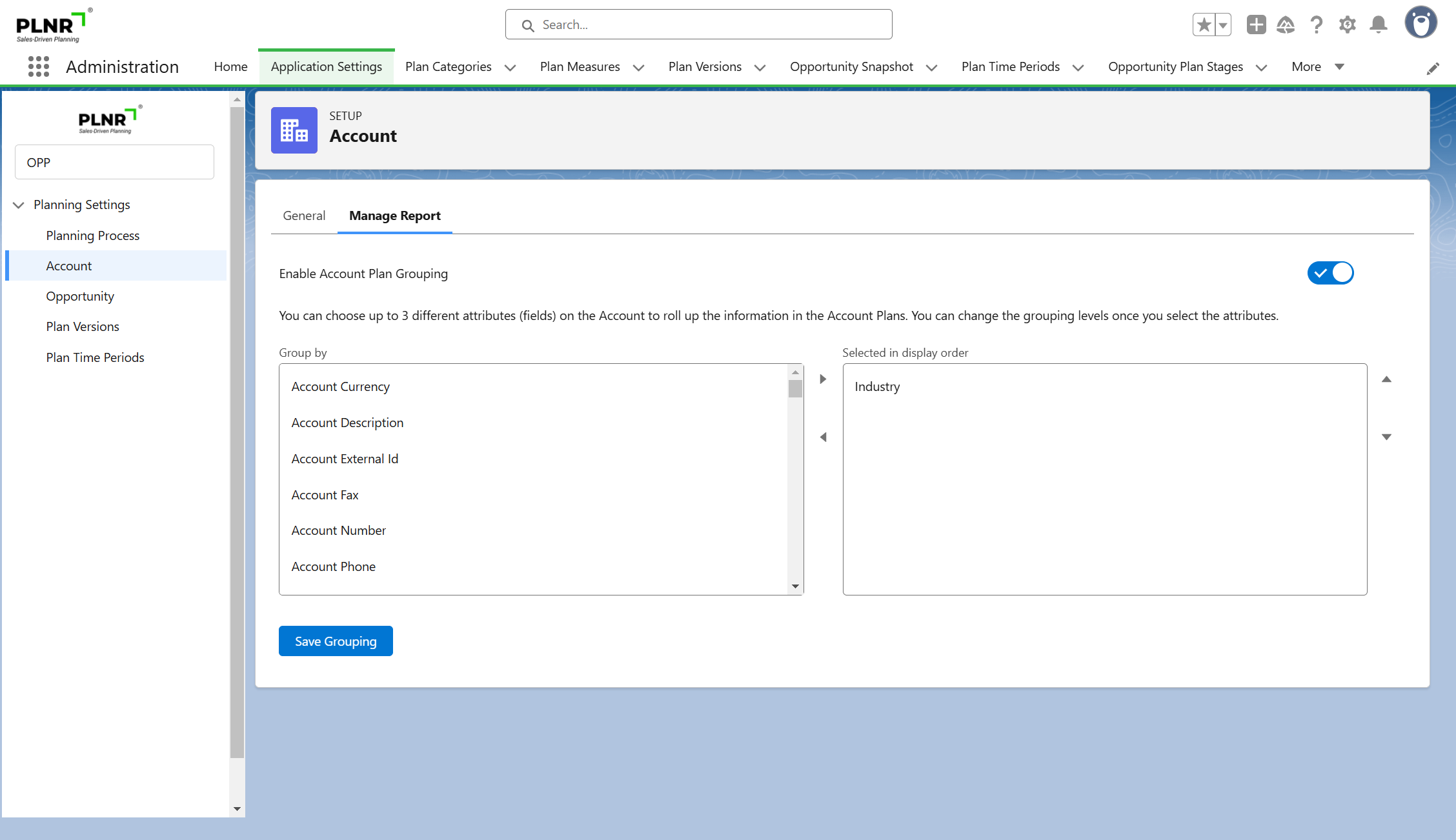
Manage Report
Steps:
Setup Opportunity
ADD STEPS/CONTENT
General
Steps:
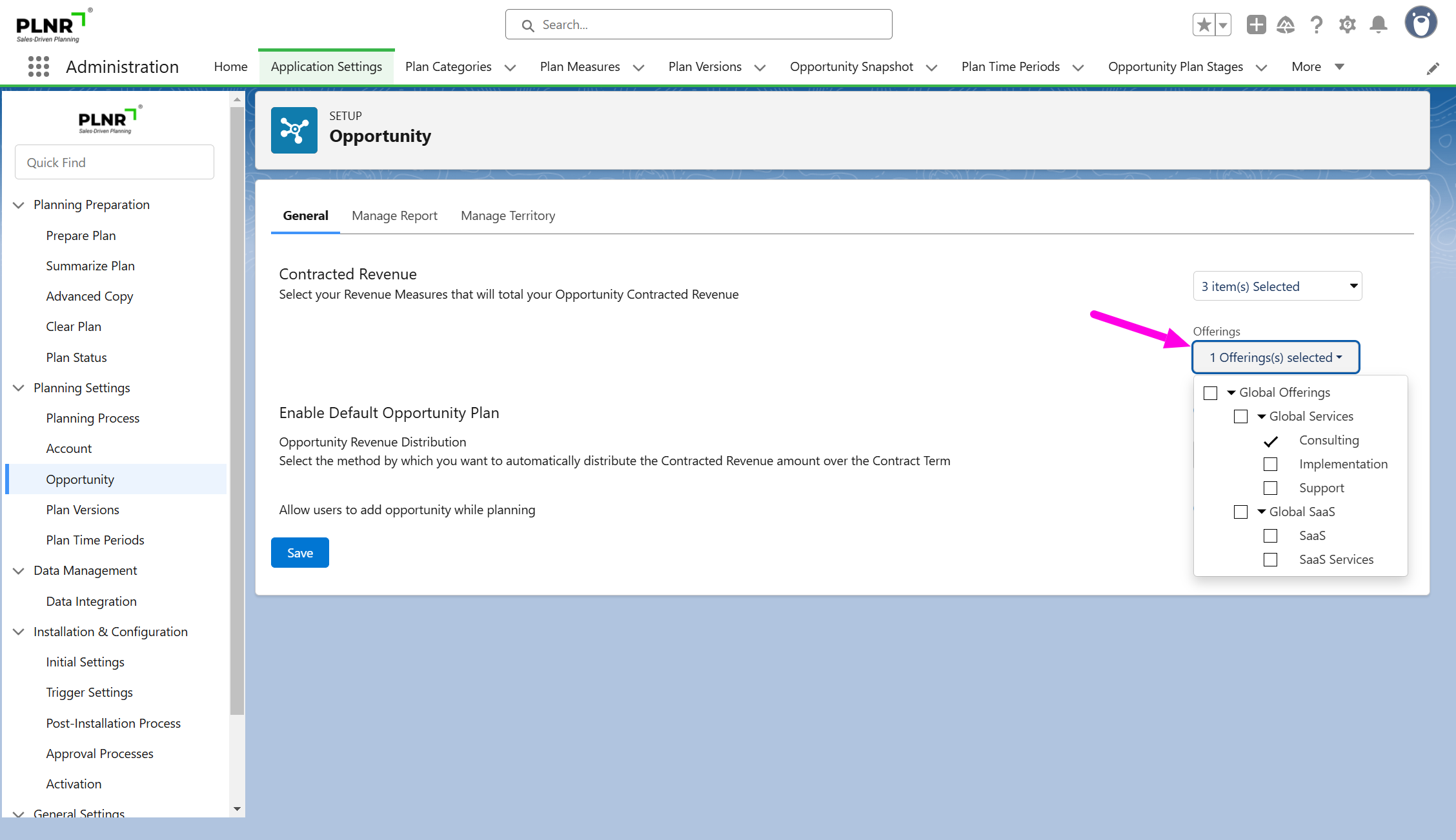
- In the Administration application select the "Application Settings" tab
- Select the "Opportunity" option on the left-hand side of the page
- The page will load up and default on the "General" page
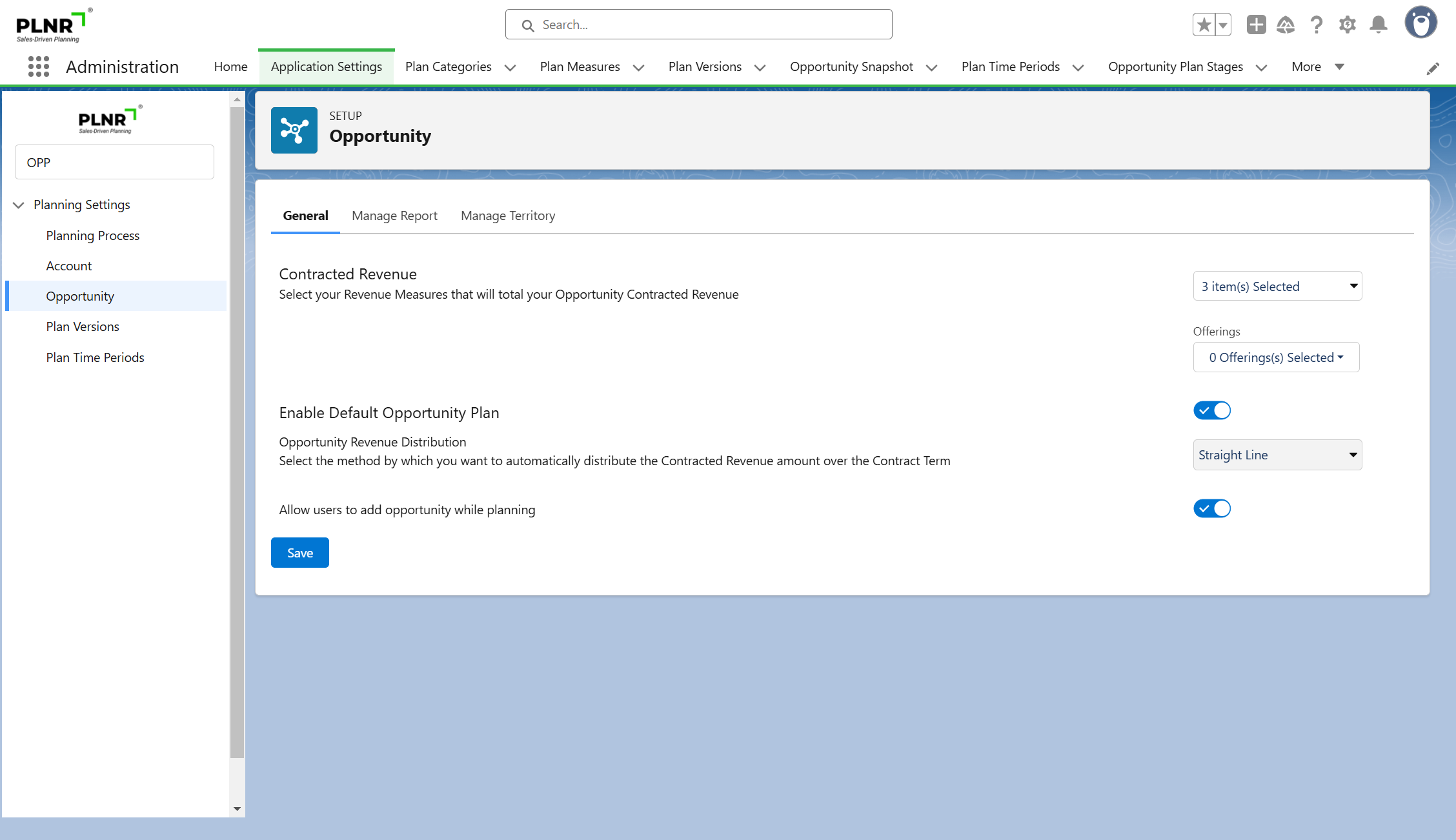
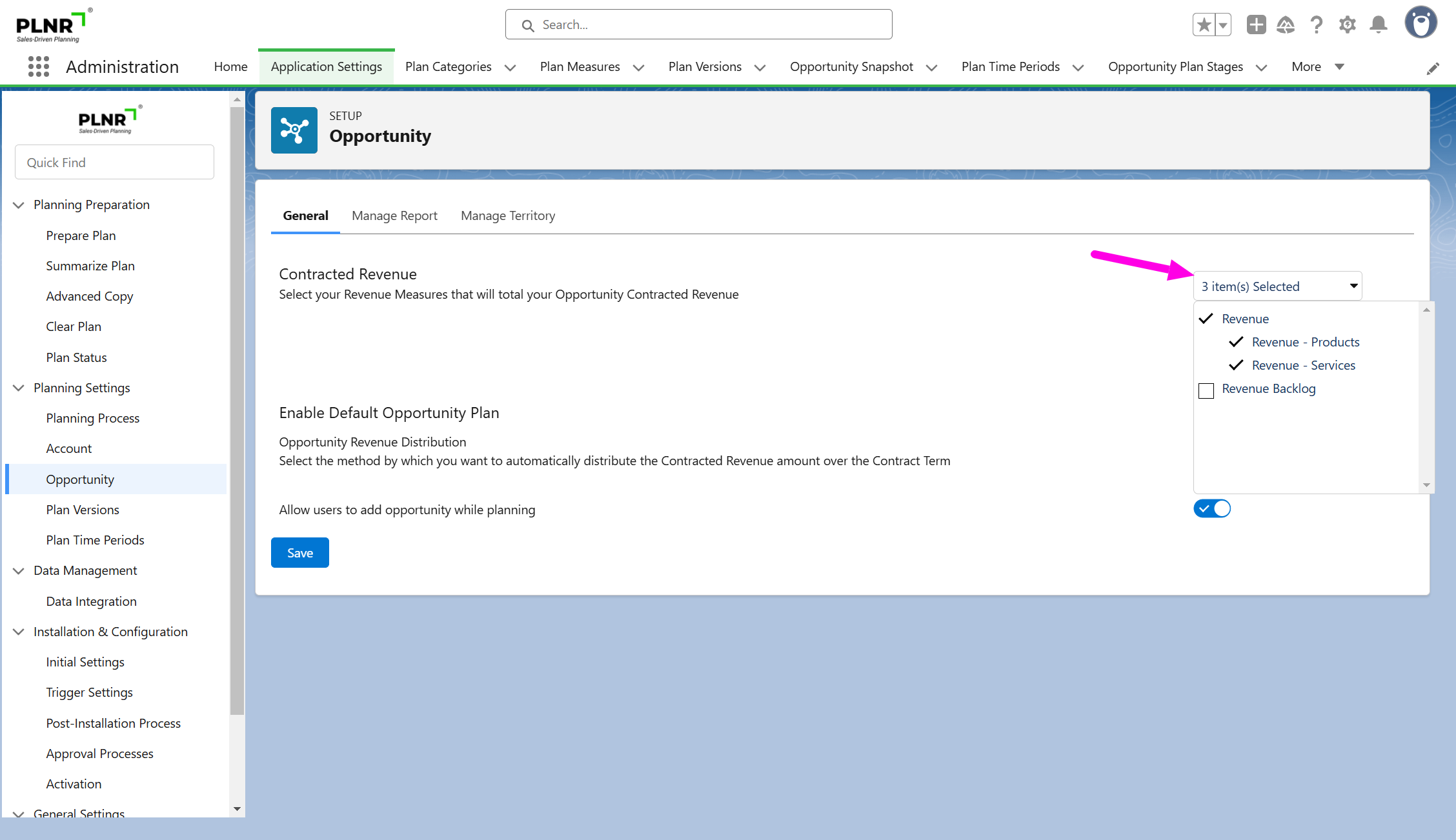
Users will have the option to select the default "Contracted Revenue" options (Measures & Offerings)
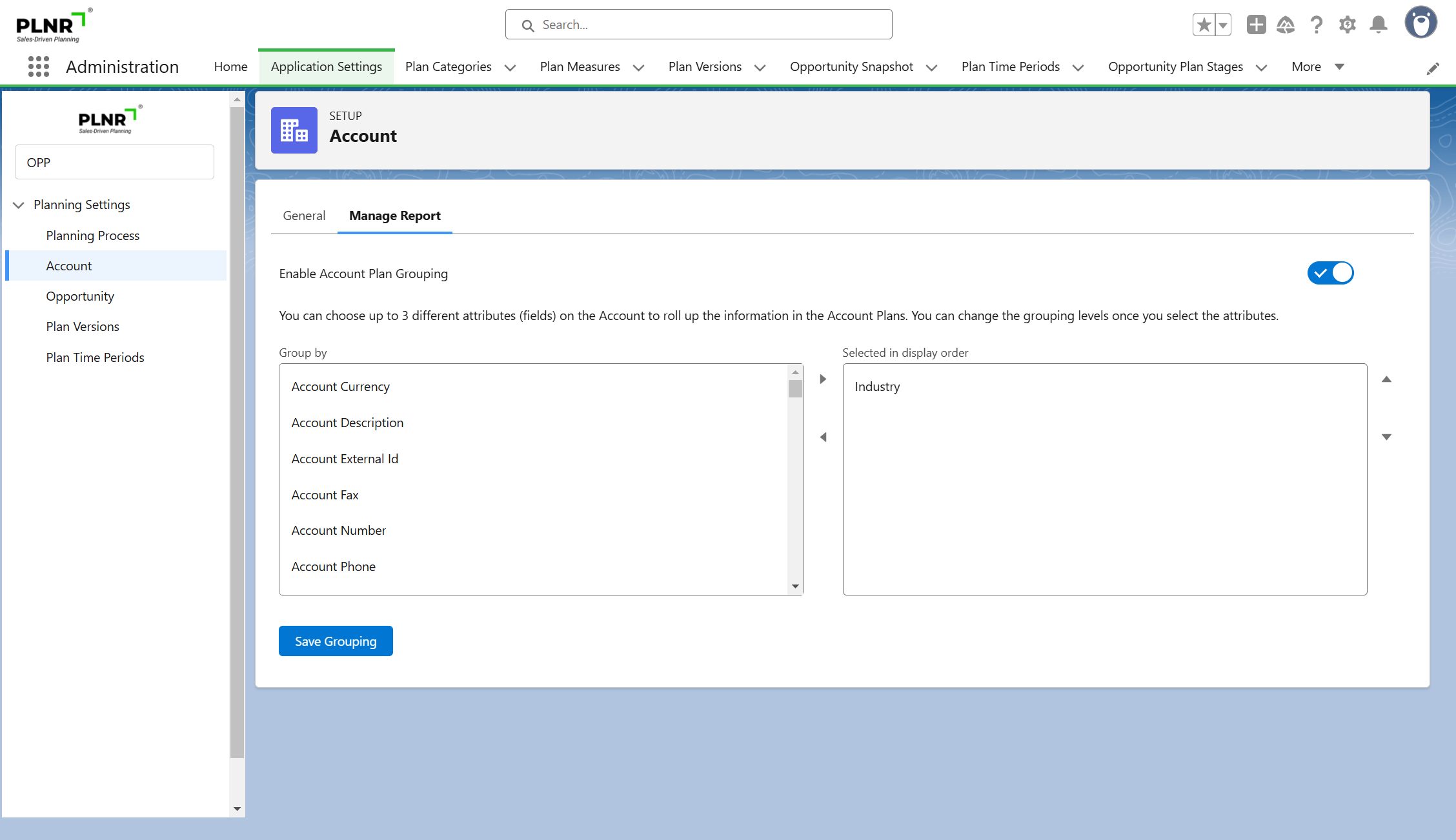
Manage Report
Steps:
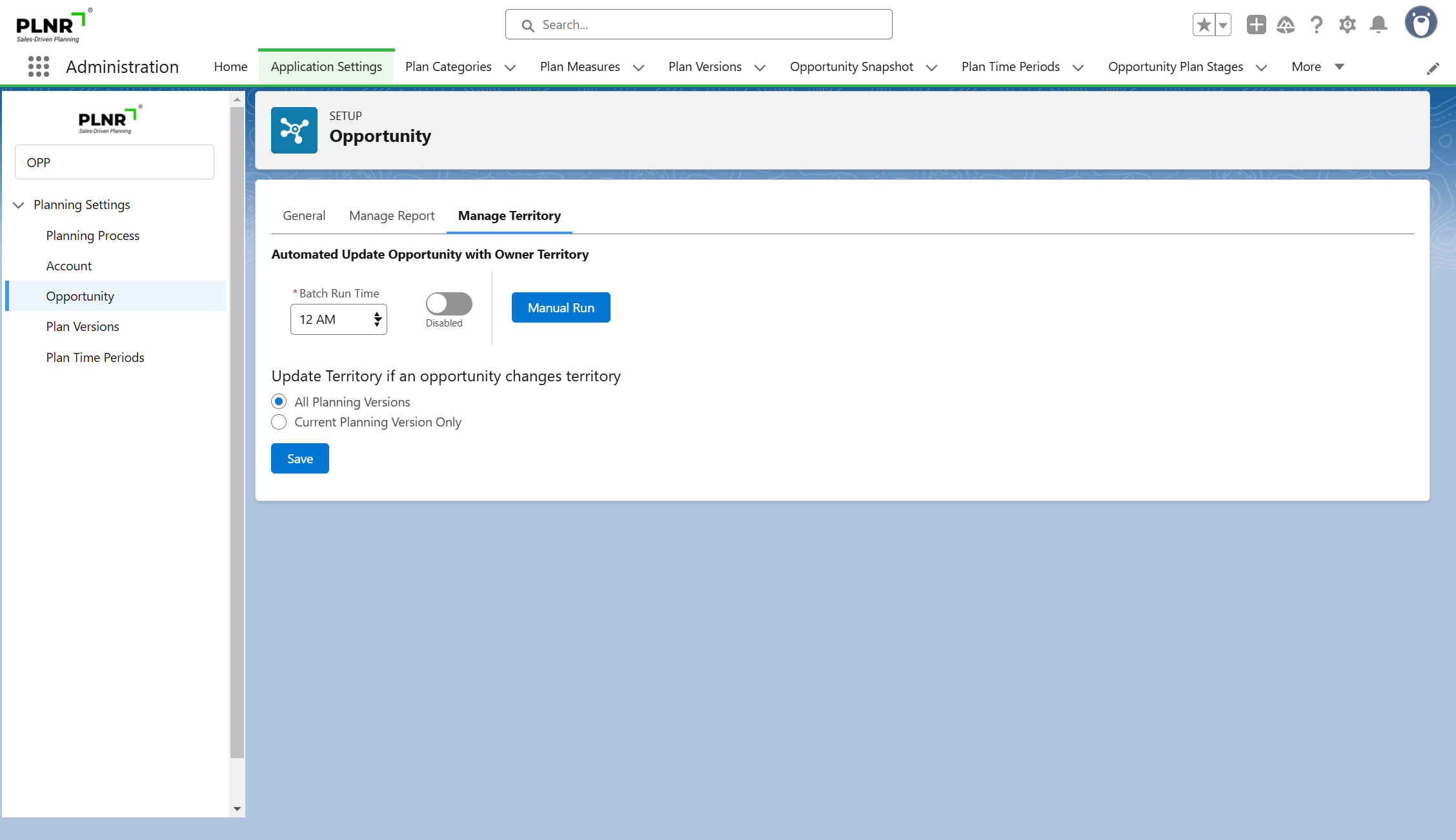
Manage Territory
Steps:
User Interface
Account Management
Show PLNR Fields
- Edit the Account Lightning Record Page
- Open the Lightning App Builder
- Select the "Fields" tab
- Click and drag the "Field Section" option onto the Account page layout
- Enter "Planning" into the "Custom Label" field
- Drag the "Focus Account" field into the "Planning" section
- Drag the "Include in Planning" field into the "Planning" section
- Click "Save" on the Lightning App Builder page
- Go into the Account record, and check the "Include in Planning" checkbox
- Click "Save" on the Account page
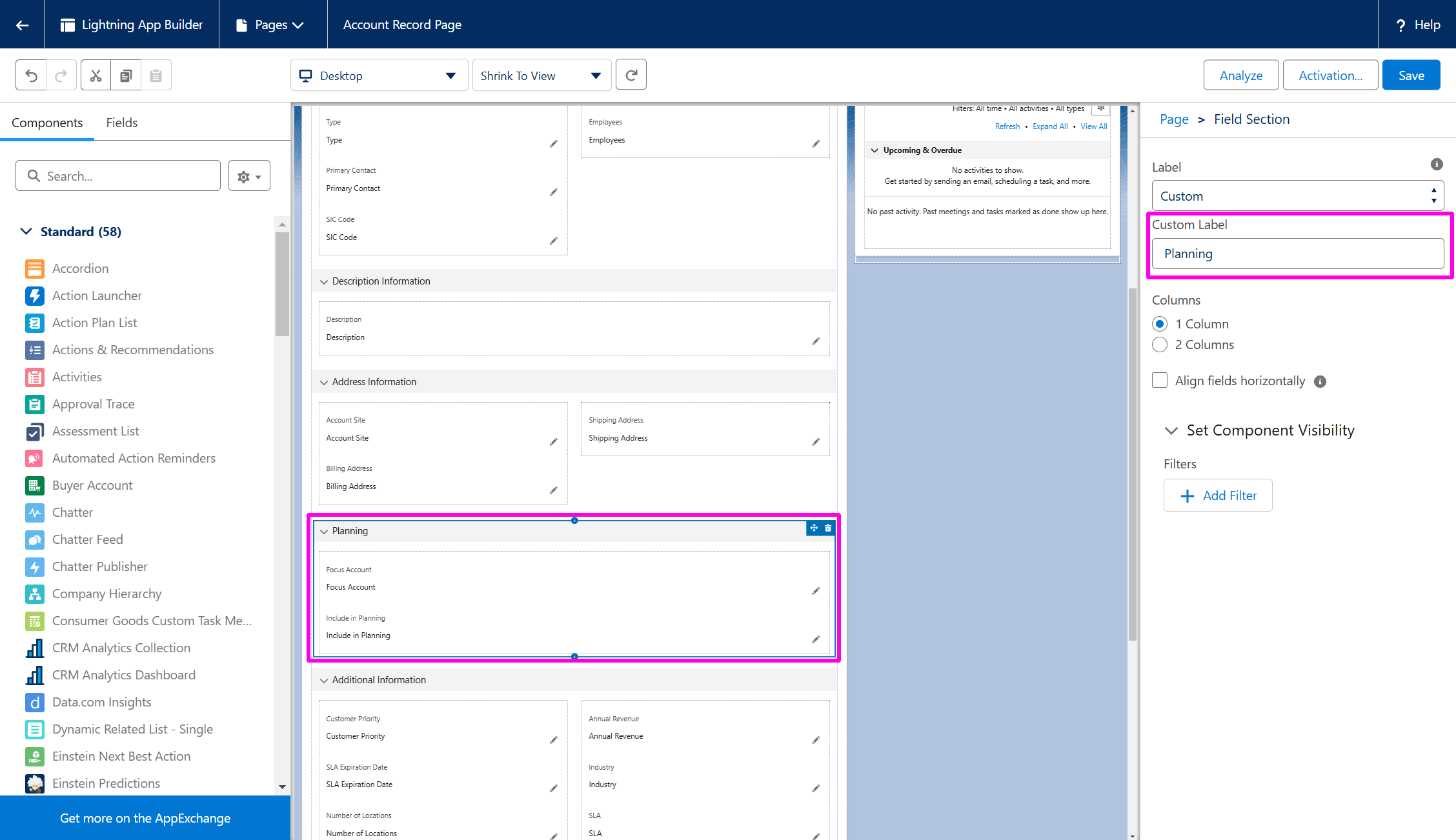
Figure 1.47 - Adding Planning Fields Section and Planning Fields
You must include the Account into the planning model, or you will receive an error message when adding the PLNR | Account and Opportunity Plan Visual Force page
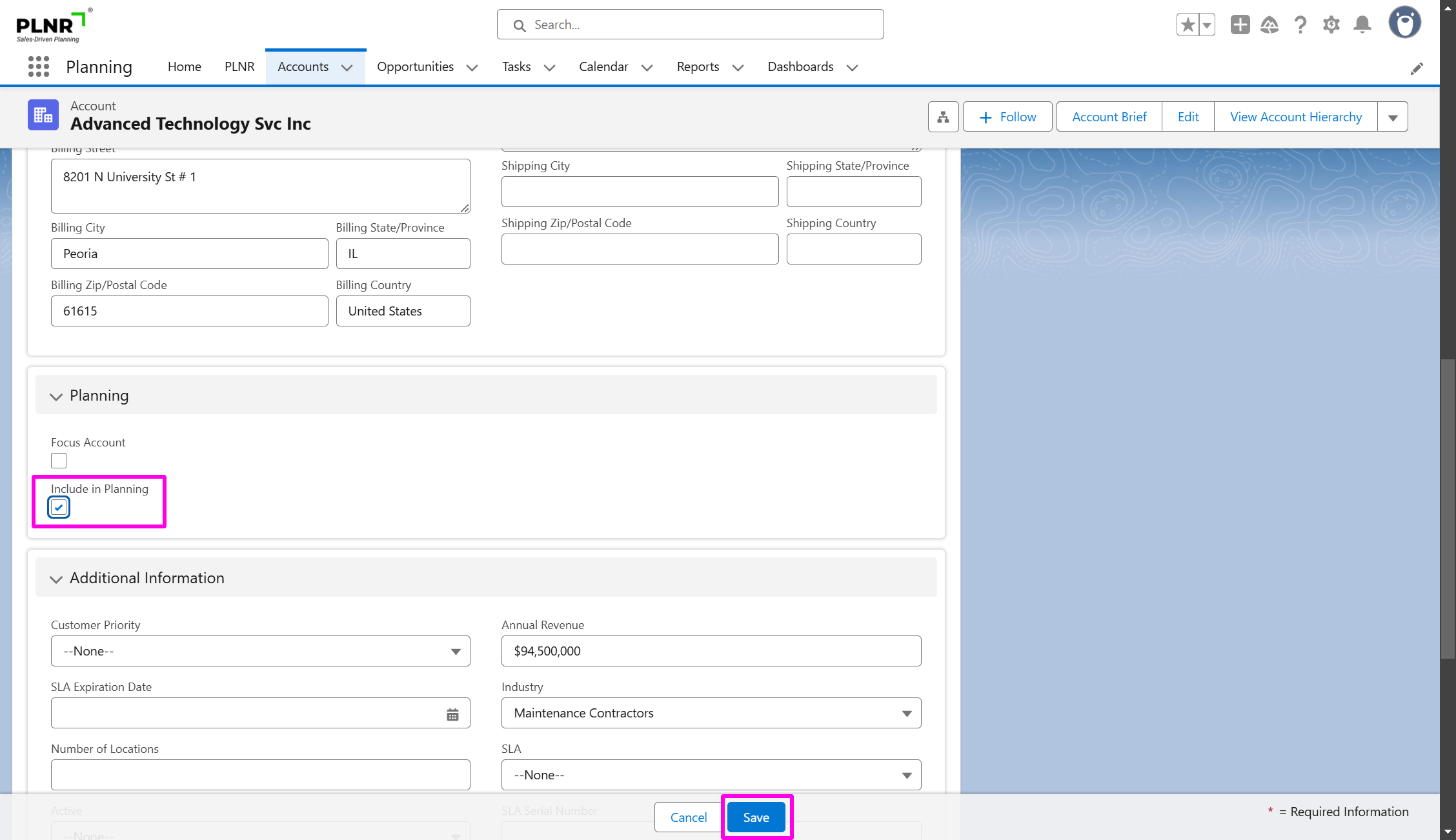
Figure 1.48 - Include In Planning Checkbox
Add Account Planning Component
- Open the Lightning App Launcher
- Select the content box that contains the "Details" tab
- Select the "Add Tab" button on the right-hand side
- Once the new "Details" tab shows up (at the bottom of the list), click the "Details" tab
- Select "Tab Label", then select "Custom"
- Change the "Tab Label" to "Planning"
- Click "Done"
- Click and drag a new Visual Force page (on the left-hand side) into the new "Planning" tab
- In the Visualforce Page Name field, select "PLNR | Account and Opportunity Plan MC" (If your Salesforce organization is set up for Multi-Currency)
- In the Visualforce Page Name field, select PLNR | Account and Opportunity Plan (If your Salesforce organization is NOT set up for Multi-Currency)
- Click "Save"
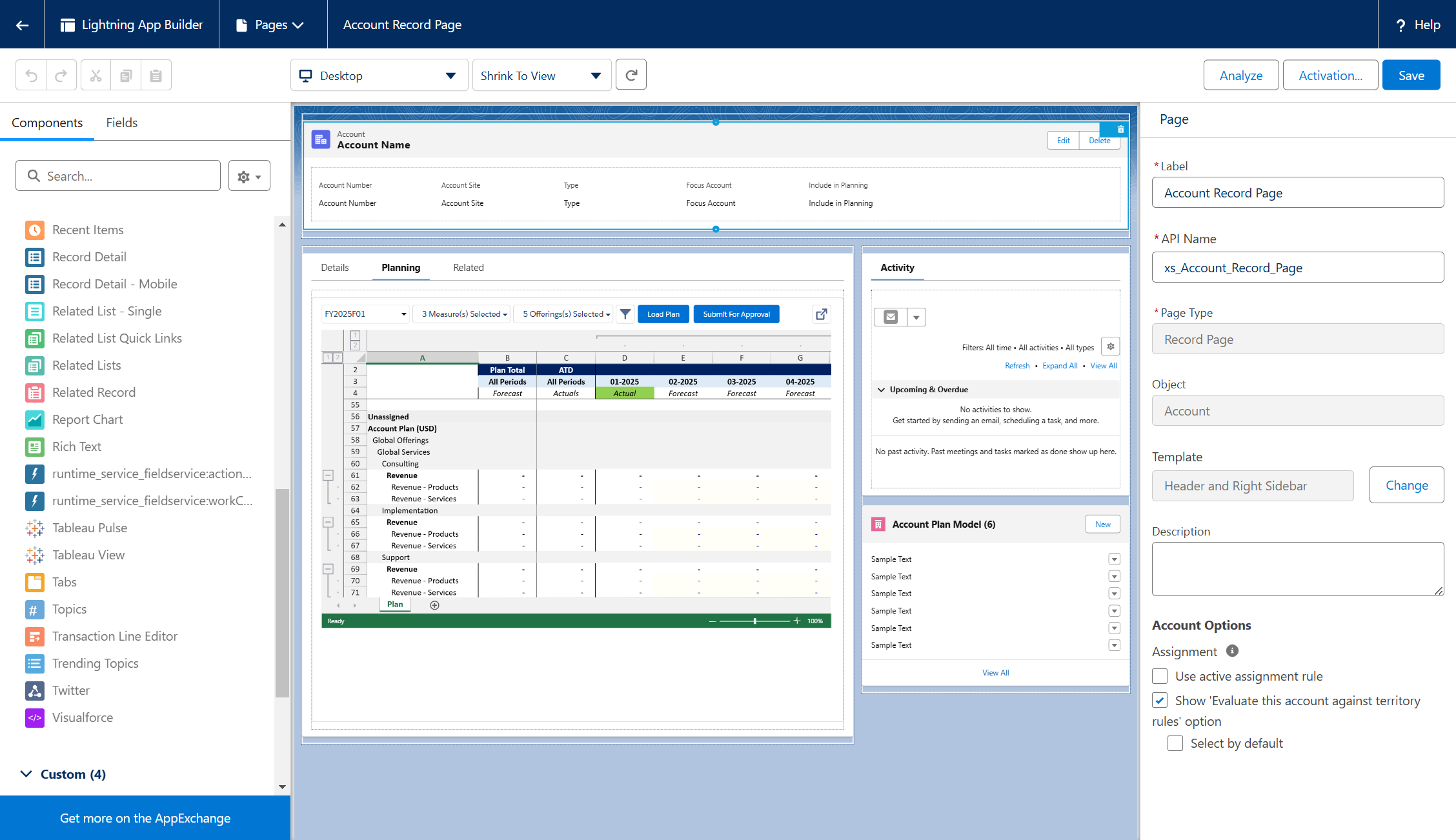
Figure 1.49 - Account Planning Component
Opportunity Management
Show PLNR Fields
- Revenue Contract Term
- Revenue Contract Value
- Revenue Start Date
- Revenue End Date
- Planning As Of Date
- Planning Exclude As Of Date
- Exclude From Planning
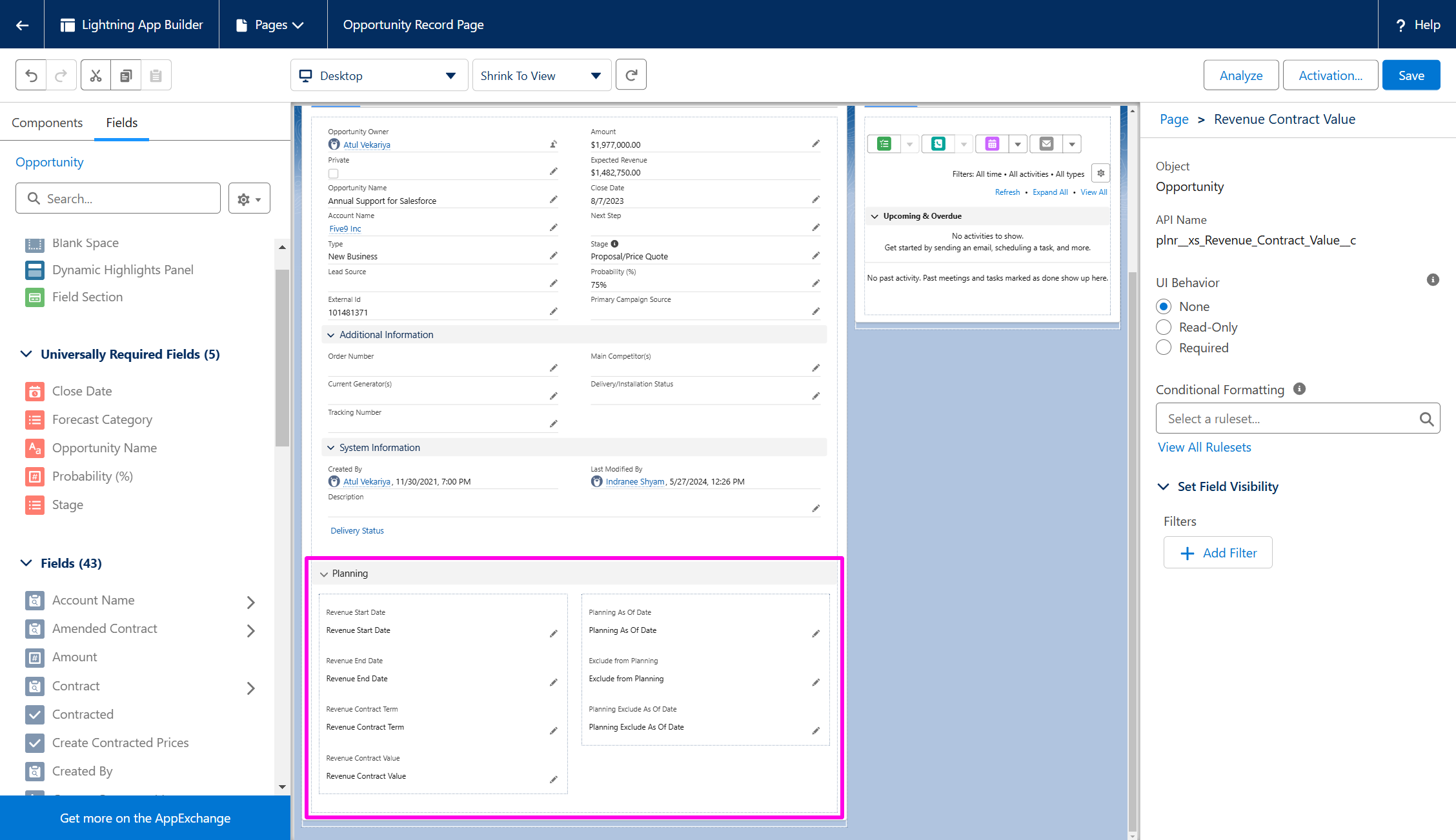
Figure 1.50 - Adding Planning Fields Section and Planning Fields
Add Opportunity Planning Component
- Open the Lightning App Launcher
- Select the Content Box that contains the "Details" tab
- Select the "Add Tab" button on the right-hand side
- Once the new "Details" tab shows up (at the bottom of the list), click the "Details" tab
- Select "Tab Label", then select "Custom"
- Change the "Tab Label" to "Planning"
- Click "Done"
- Click and drag a new Visual Force page (on the left-hand side) into the new "Planning" tab
- In the Visualforce Page Name field, select "PLNR | Opportunity Plan"
- Click "Save"
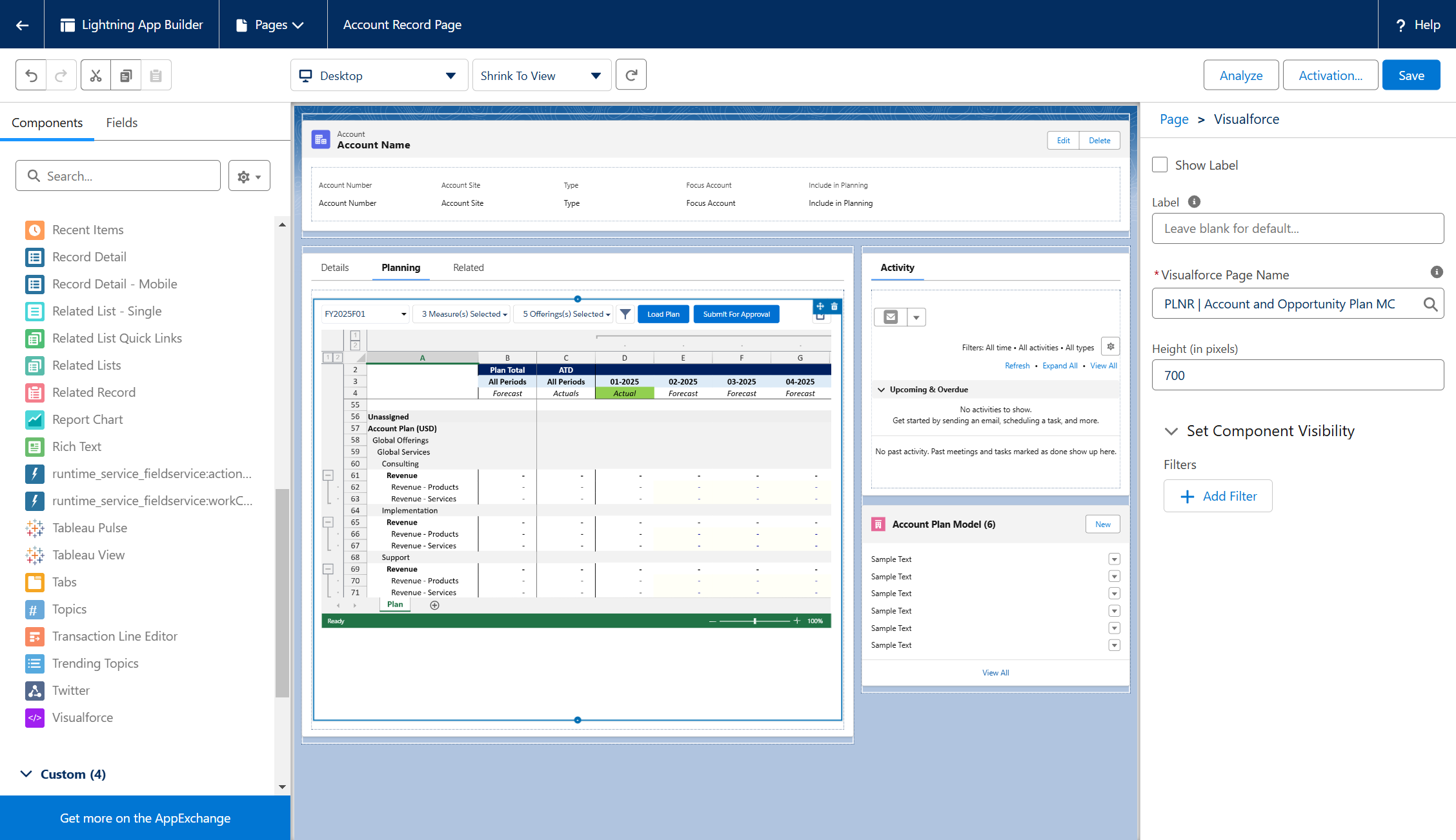
Figure 1.51 - Opportunity Planning Component
Territory Assignment
- Add the "PLNR Territory Assignment" option in the "Custom Apps" section (on the left-hand side of the page)
- A Territory pop-up window will appear on the screen
- (Update Component Visibility Steps)
- Click "Save"
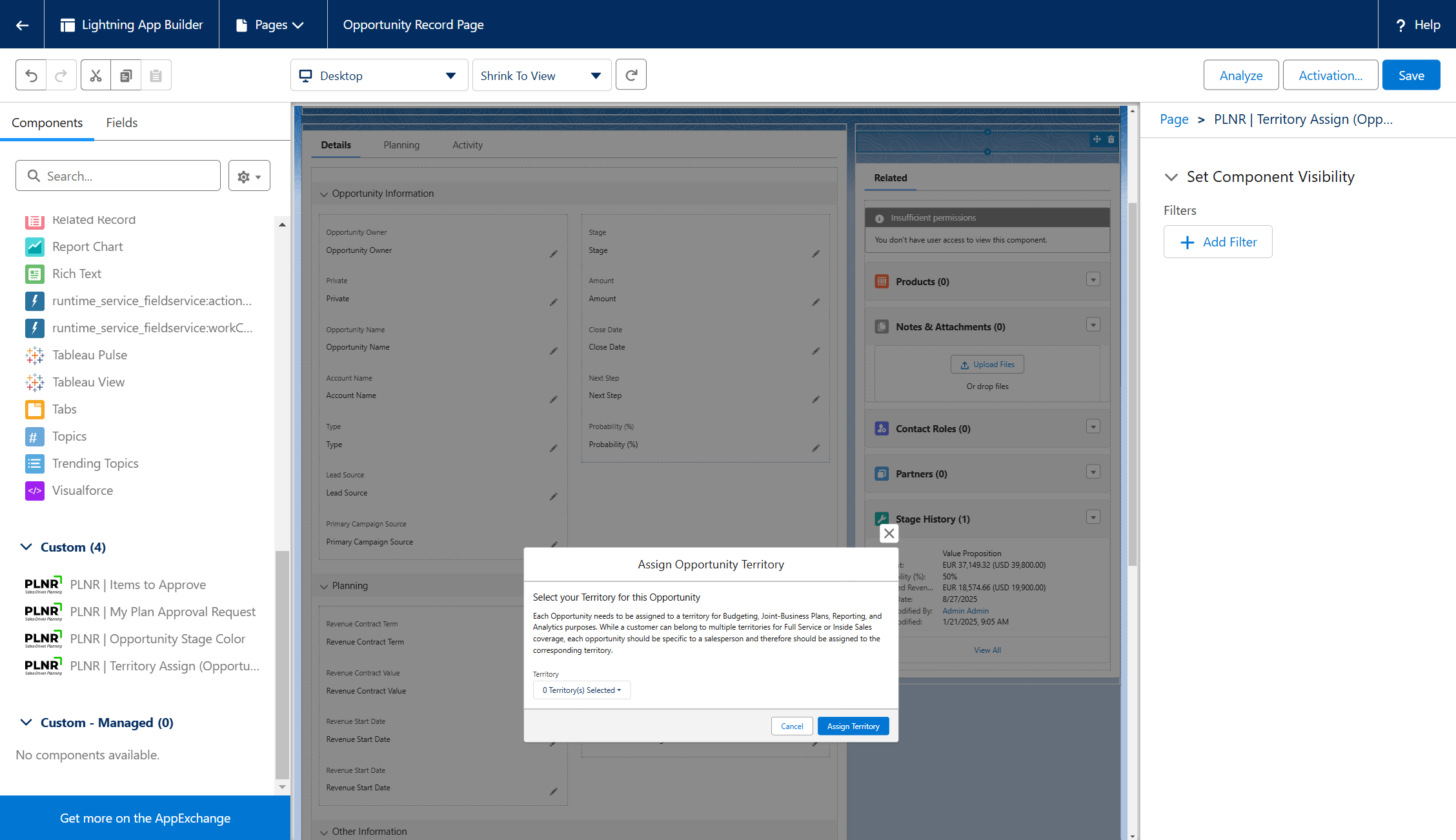
Figure 1.52 - Opportunity Territory Assignment
Items to Approve
1. In the “Planning” App, navigate to the “Home” tab.
2. Click on “Edit Page” in the Setup menu.
3. In the Components left pane of the screen, navigate down to the “Custom – Managed” section.
4. Drag the component “PLNR | Items to Approve” onto the page layout.
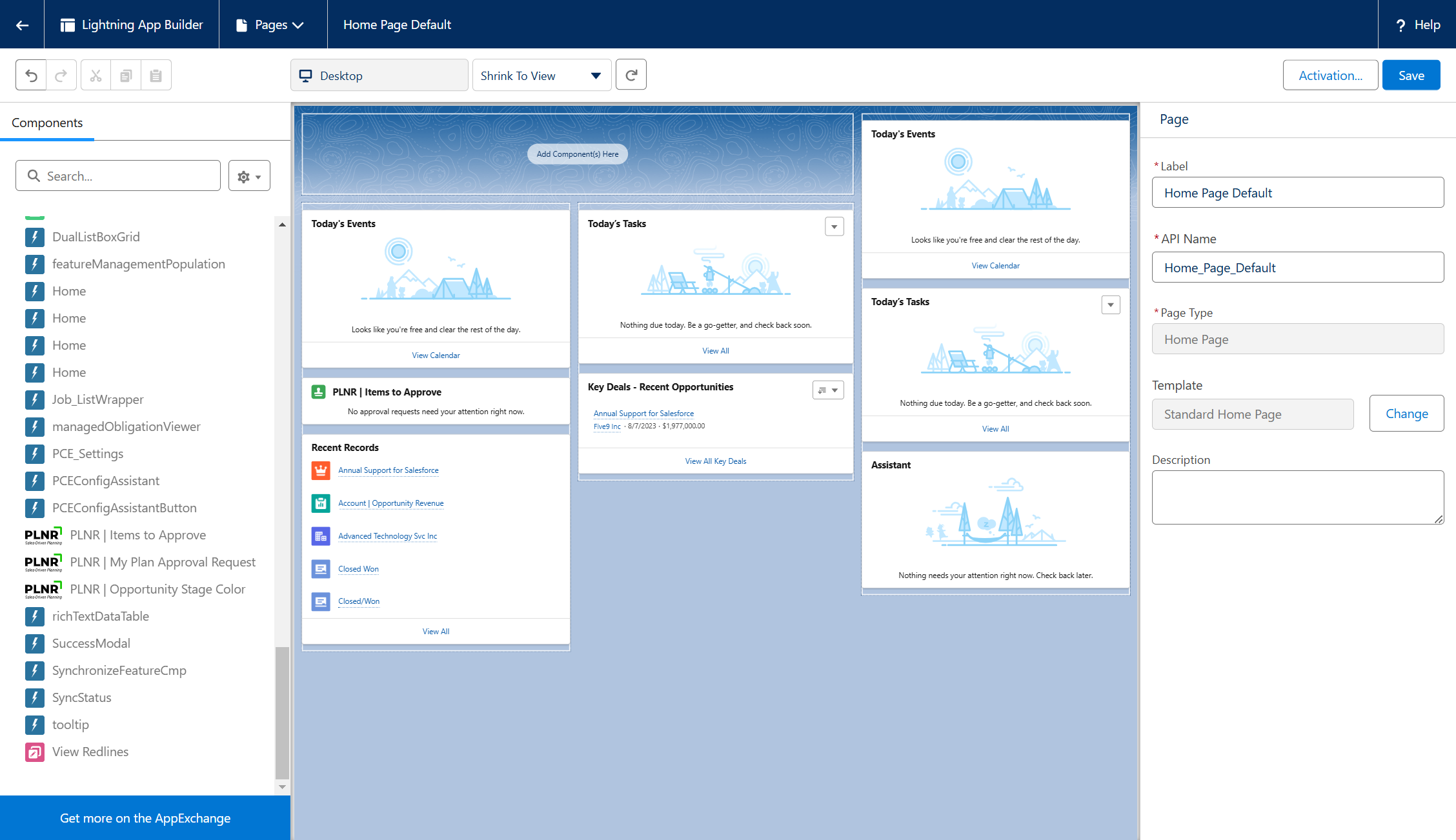
Figure 1.53 - Adding the PLNR | Items to Approve Component
5. Click on the “Save” button.
6. Click on the left arrow at the top left of the screen to return to the Home Screen of the Planning App. Notice that the PLNR Component is now showing up on the page.
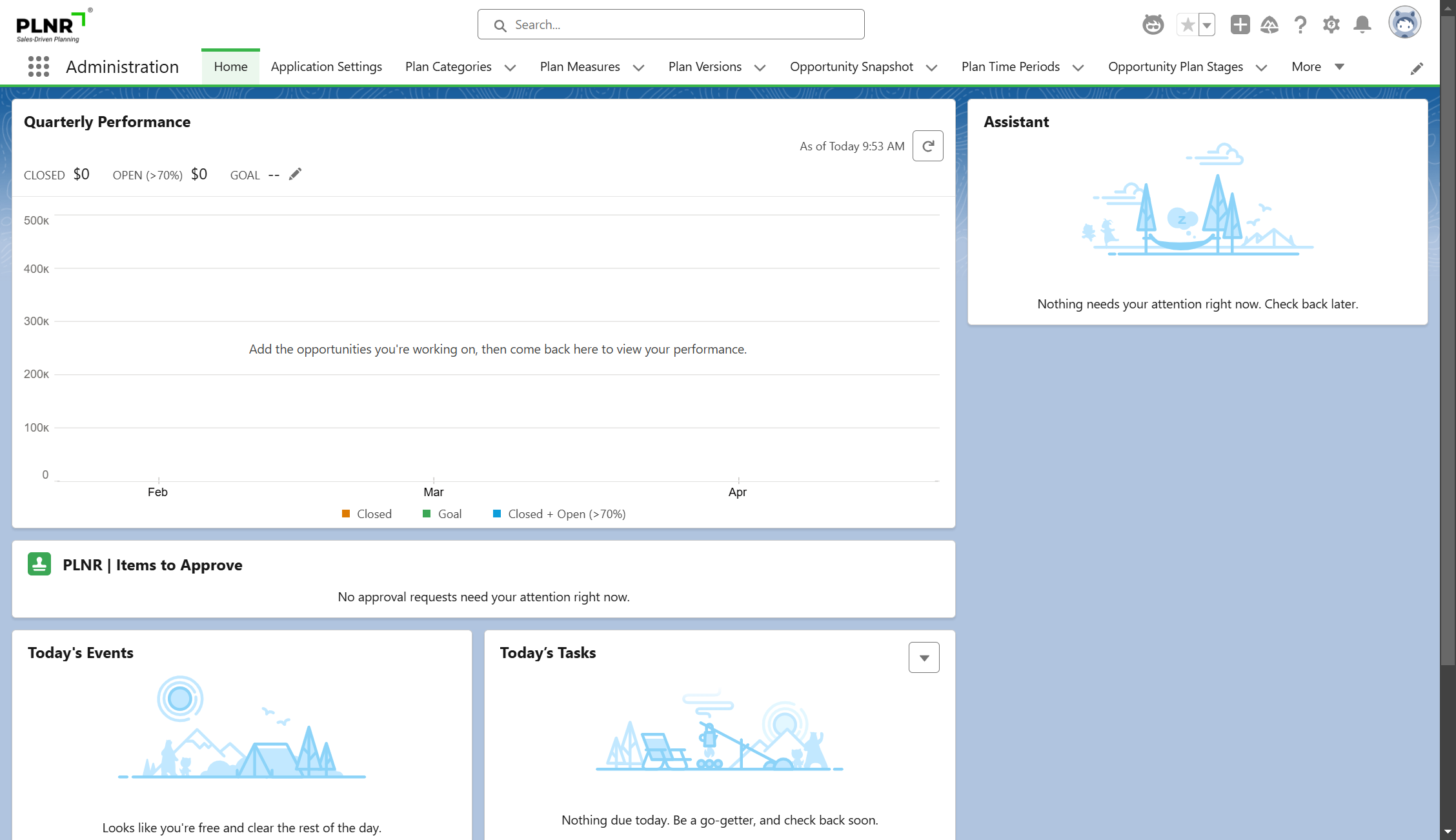
Figure 1.54 - PLNR | Items to Approve Component Display