
Planning Guide
A guide to planning for Administrators
Planning Preparation
Preparing Your Planning Version
In order to start your Planning Cycle, you need to select a Planning Version that your Sales, Marketing, and Operations teams will use to capture their input. As part of this process, you will usually prepare the Planning Version with historical and/or actual performance data so that your teams have a starting point of reference for their Planning Activities.
Pre-Requisites
- You will need to have the PLNR Administration permission set assigned to your user.
- You should be able to view the PLNR Administrator app.
Select your Planning Version
- Select the Planning Version Tab from the navigation bar.
- Select the Planning Version you would like to designate for Planning.
- Update the status to “Data Management”.
- Save the Planning Version.
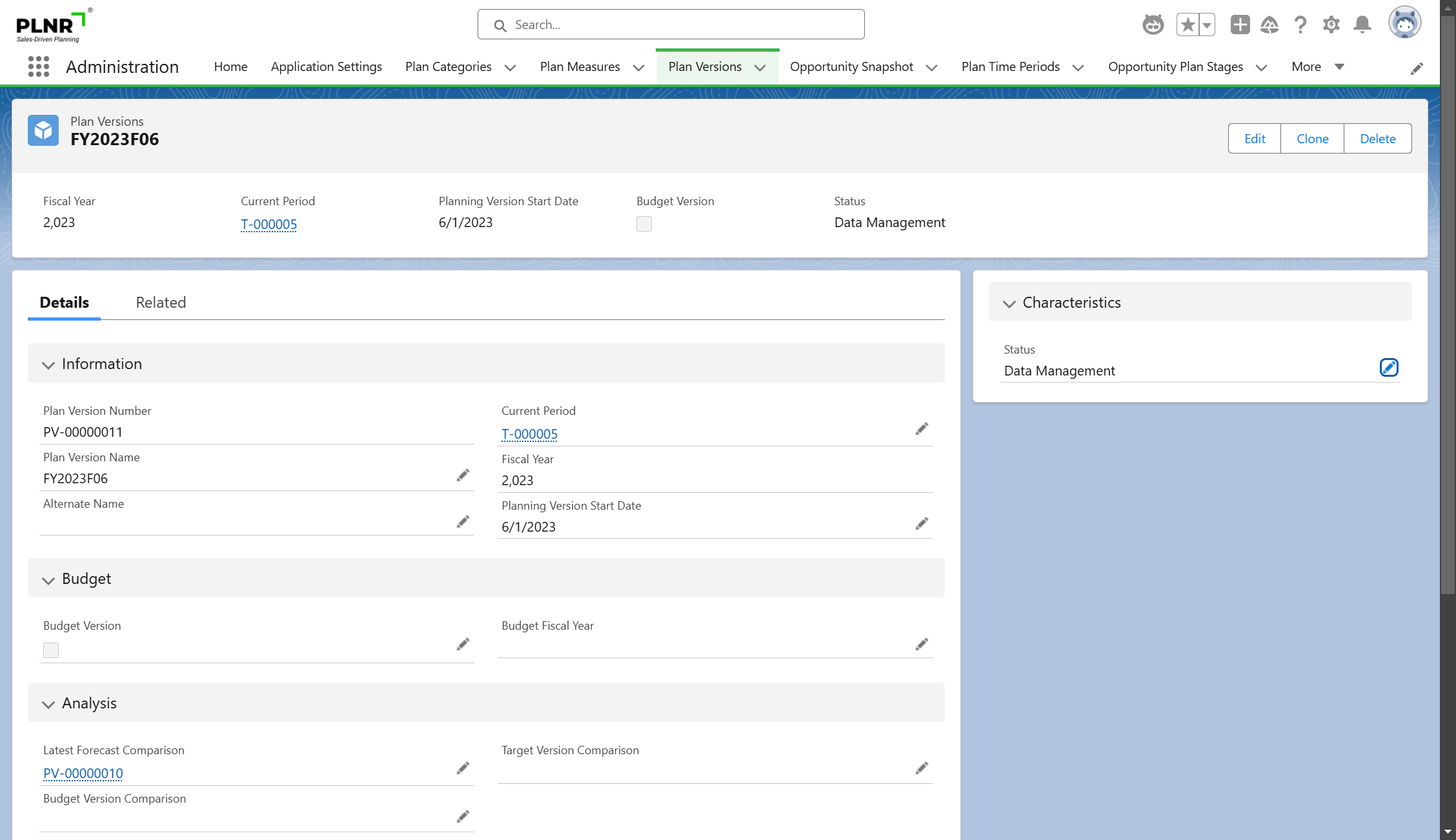
Figure 1.1 - Update Planning Version Status
Ready Planning Version with Data and Snapshots
- Navigate to Application Settings tab.
- Under “Planning Preparation”, select the “Prepare Plan” sub menu.
- Choose the Planning Version from the previous step.
- Click "Next".
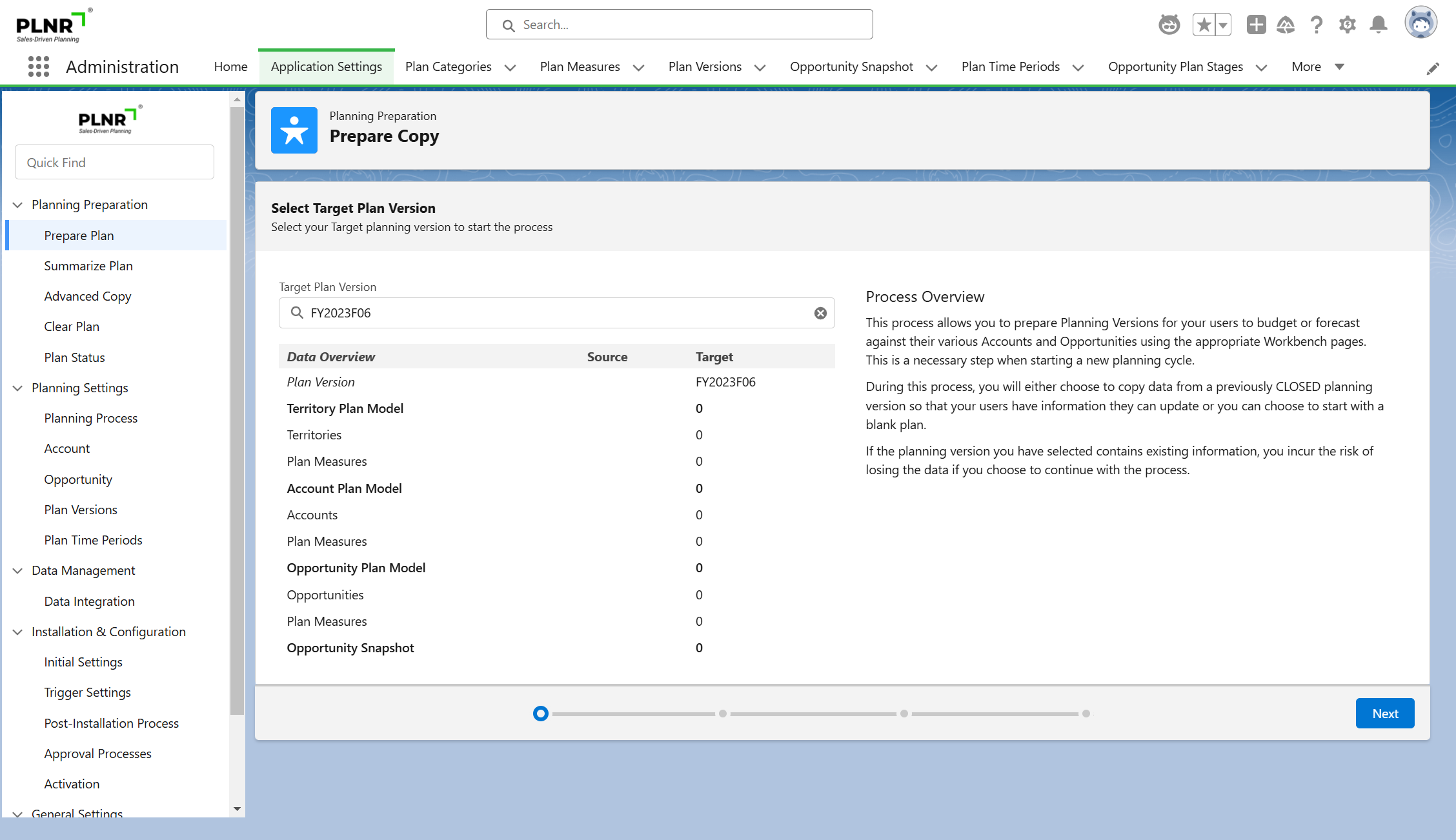
Figure 1.2 - Select Planning Version
The data contained within the Opportunity Snapshot, Opportunity Planning Model, and Account Planning Models, all reflect (0) records. This ensures that you don’t have any existing data within this planning version.
Copy Data to your Planning Version
You have the ability to copy data from a previously “Closed” Planning Version as a basis for your Planning Version. This will allow your teams to have the Planning Version pre-populated with historical or actual performance data.
You can also choose to skip this step on the Planning Preparation, which will provide your teams with an empty Planning Version.
Steps:
- Select the Planning Version from which to copy data.
- Click Copy Data or Skip Step.
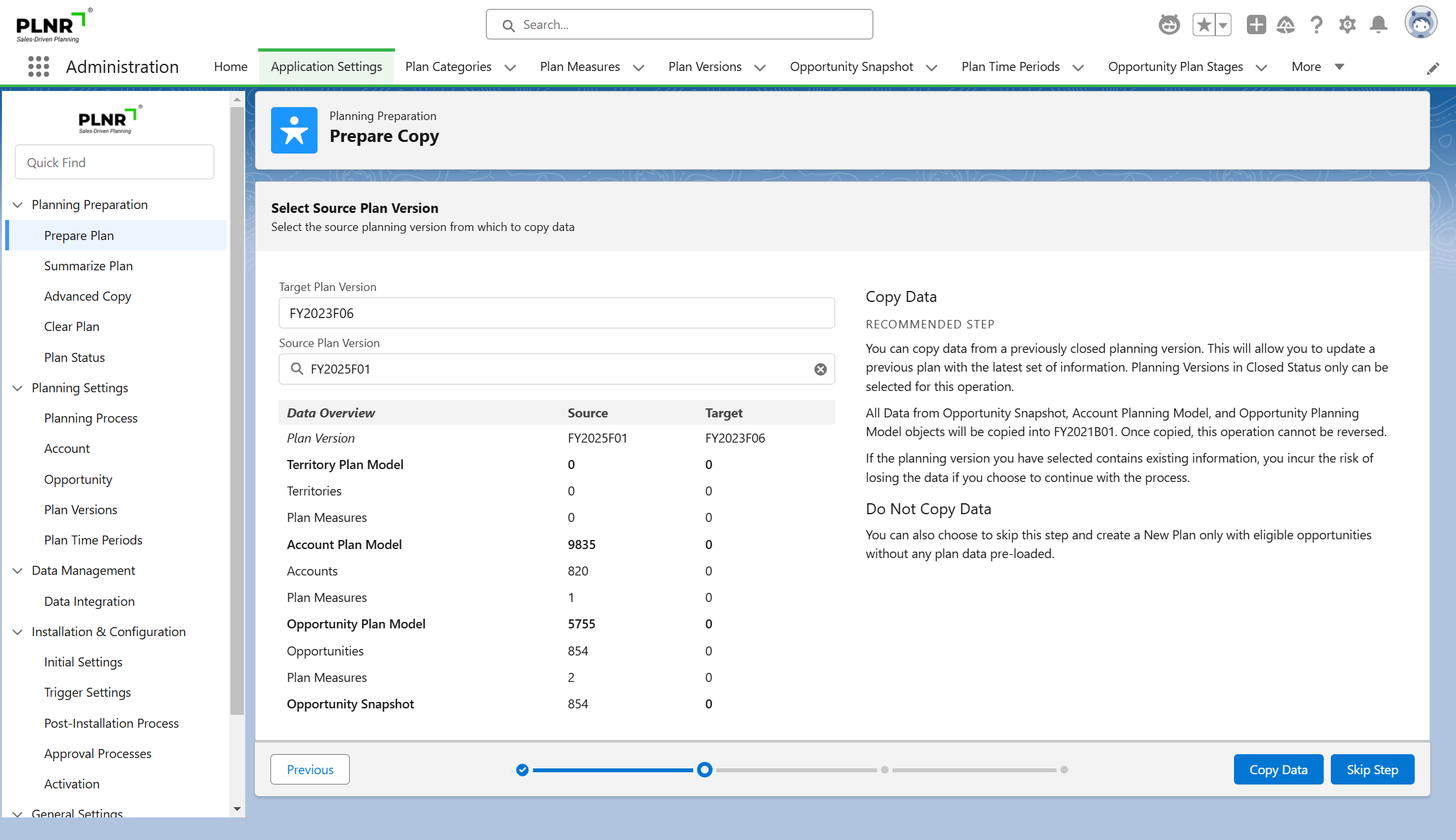
Figure 1.3 - Prepare Copy
If you have selected to copy from an existing “Closed” planning version, this step will also display the number of records that will be copied.
Copy Data Process Progress
You will see the Copy Data progress through the various steps of the process.
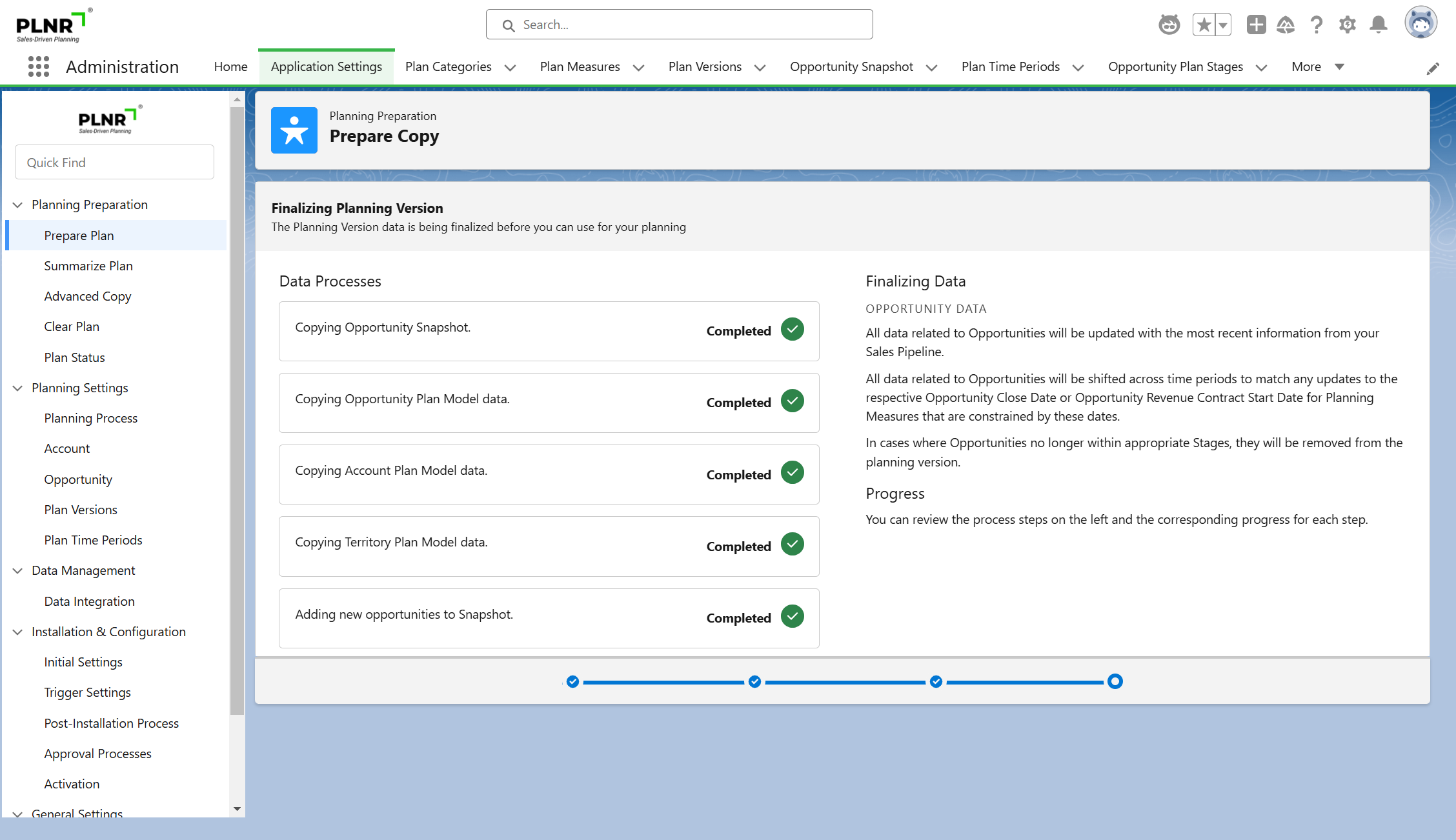
Figure 1.4 - Copy Data Progress
You will also receive an Email Notification when the process completes.
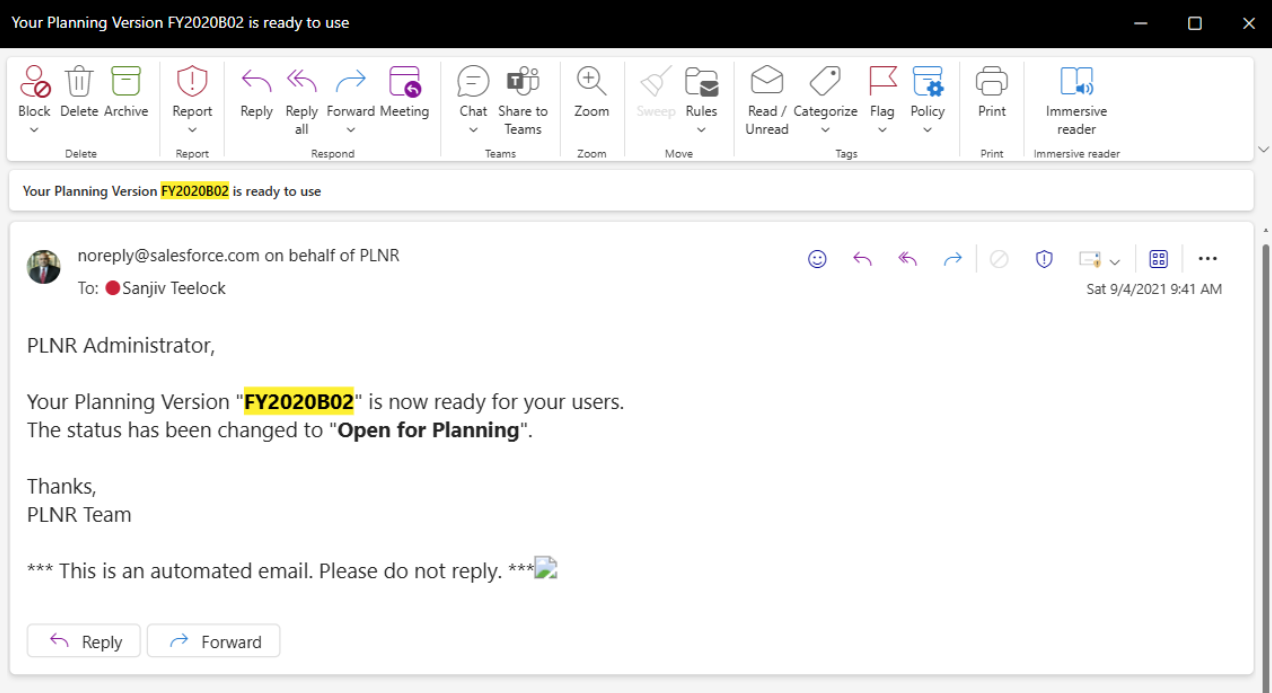
Figure 1.5 - Prepare Copy Status Email
Check Processing Status for Planning Version
Once you submit processes, such as Planning Preparation, you can verify the Processing Status.
Steps:
- Navigate to the "Application Settings" tab.
- Select the “Plan Status” option under “Planning Preparation” submenu.
- In the “Planning Version” field, type in the name of your Planning Version or select it from the drop-down suggested values.
The Progress Status will show up on the right side of the window
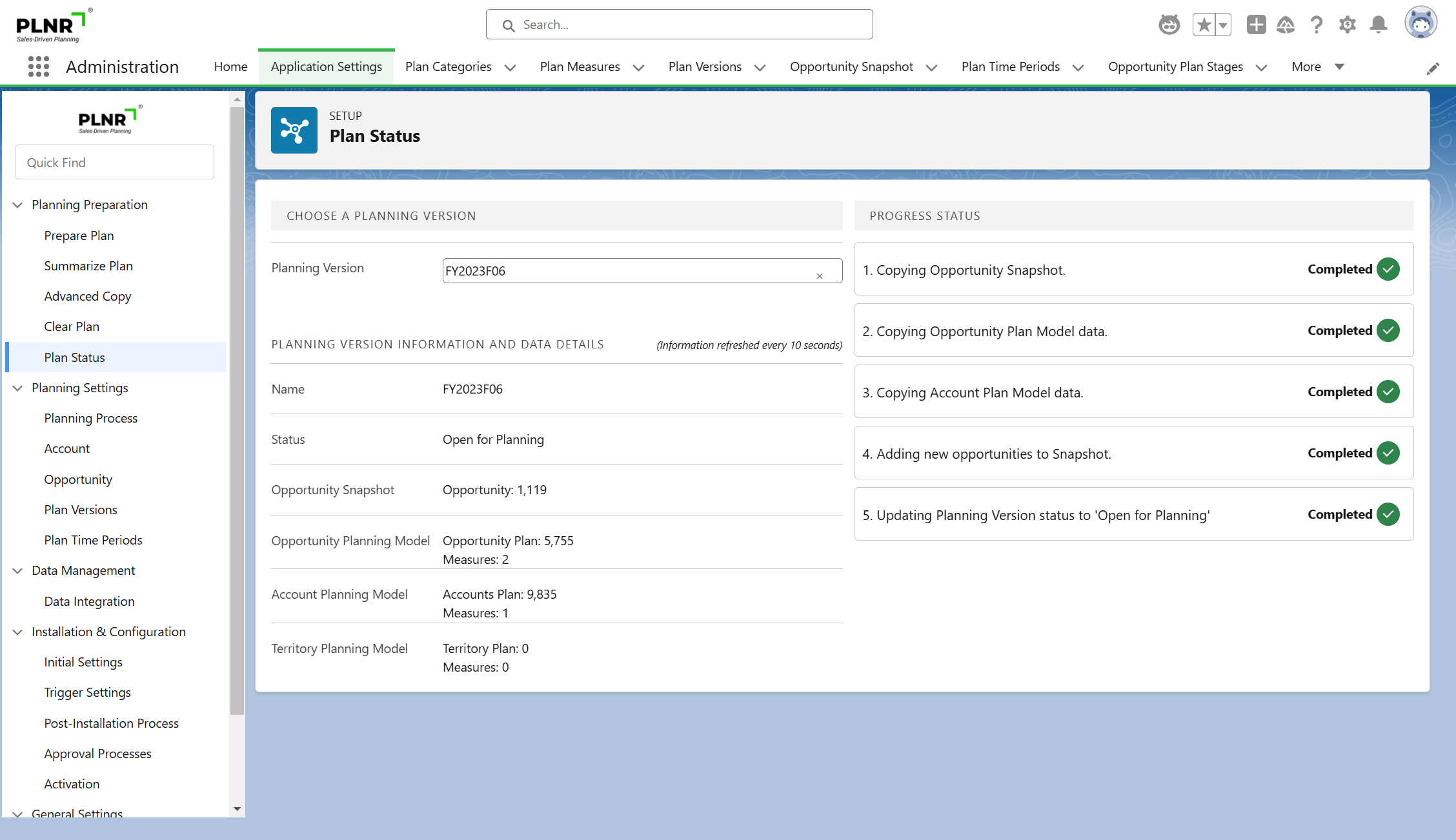
Figure 1.6 - Check Processing Status for Planning Version
You will see the Progress Status for each of the processes related to the Planning Version you selected.
Set the Default Planning Version
In order to ensure that the teams are using the correct Planning Version, you can set a default Planning Version as well as Planning Measures they should use.
Steps:
- Navigate to "Application Settings" tab.
- Under the “Planning Settings” sub menu, click on “Planning Process”.
- Under the “For Planning View” section, select the Planning Version along with Planning Measures.
- Click “Save Plan Settings”.
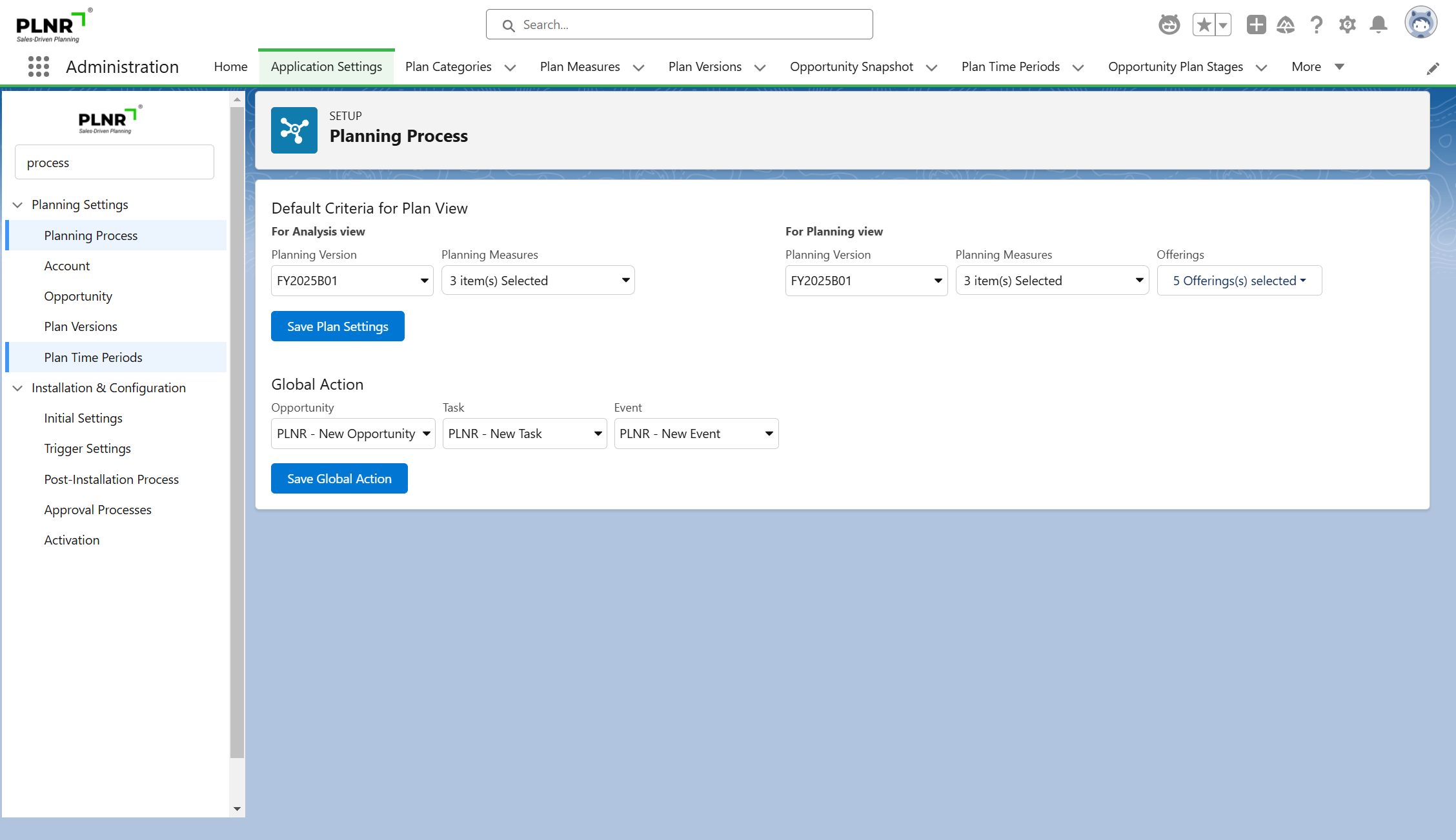
Figure 1.7 - Save Plan Settings
Your team can now proceed with their Planning Activities
Territory Planning
Territory Plan
The Territory Planning model is a record that is available for organizations that have the Territory Planning functionality activated for their organization.
Selected users in organizations that have the Territory Management functionality activated, will be assigned to all Accounts and Opportunities in that assigned Territory.
This configuration will be completed by your System Administrator behind the scenes, Users will not have access to make this selection.
Accessing Your Territory Plan
PLNR Tab
Steps:
- Select the PLNR tab
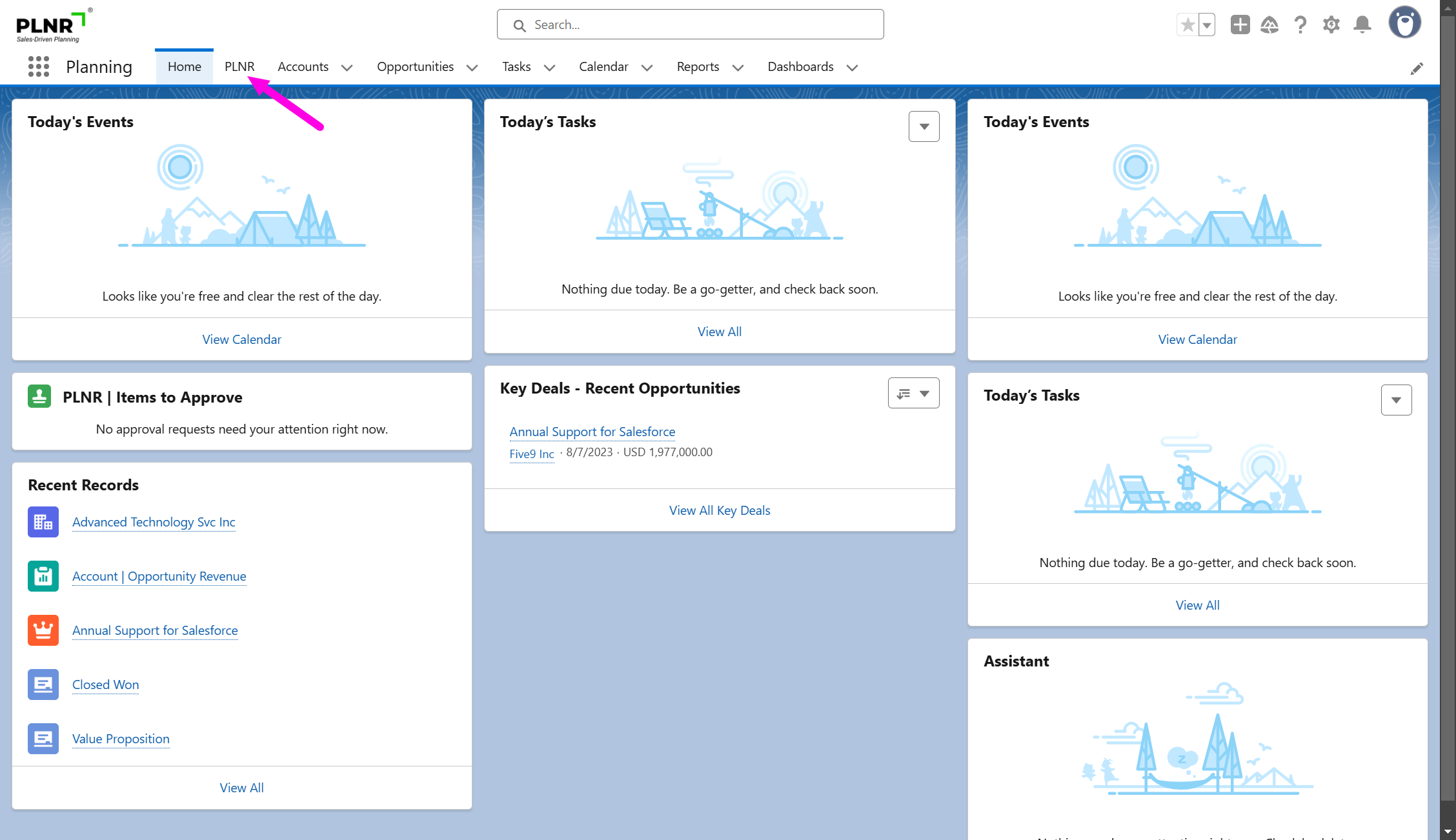
Figure 1.8 - Selecting PLNR Dashboard
Accessing the Territory Planning Model
Users will have the ability to access the Territory Planning model by selecting the PLNR dashboard, be aware that there is no tab at the top of the screen for the Territory Planning model.
Steps:
- Select the "My Dashboard" dropdown
- Hover your cursor over the "Planning" option
- Select "Territory Planning"
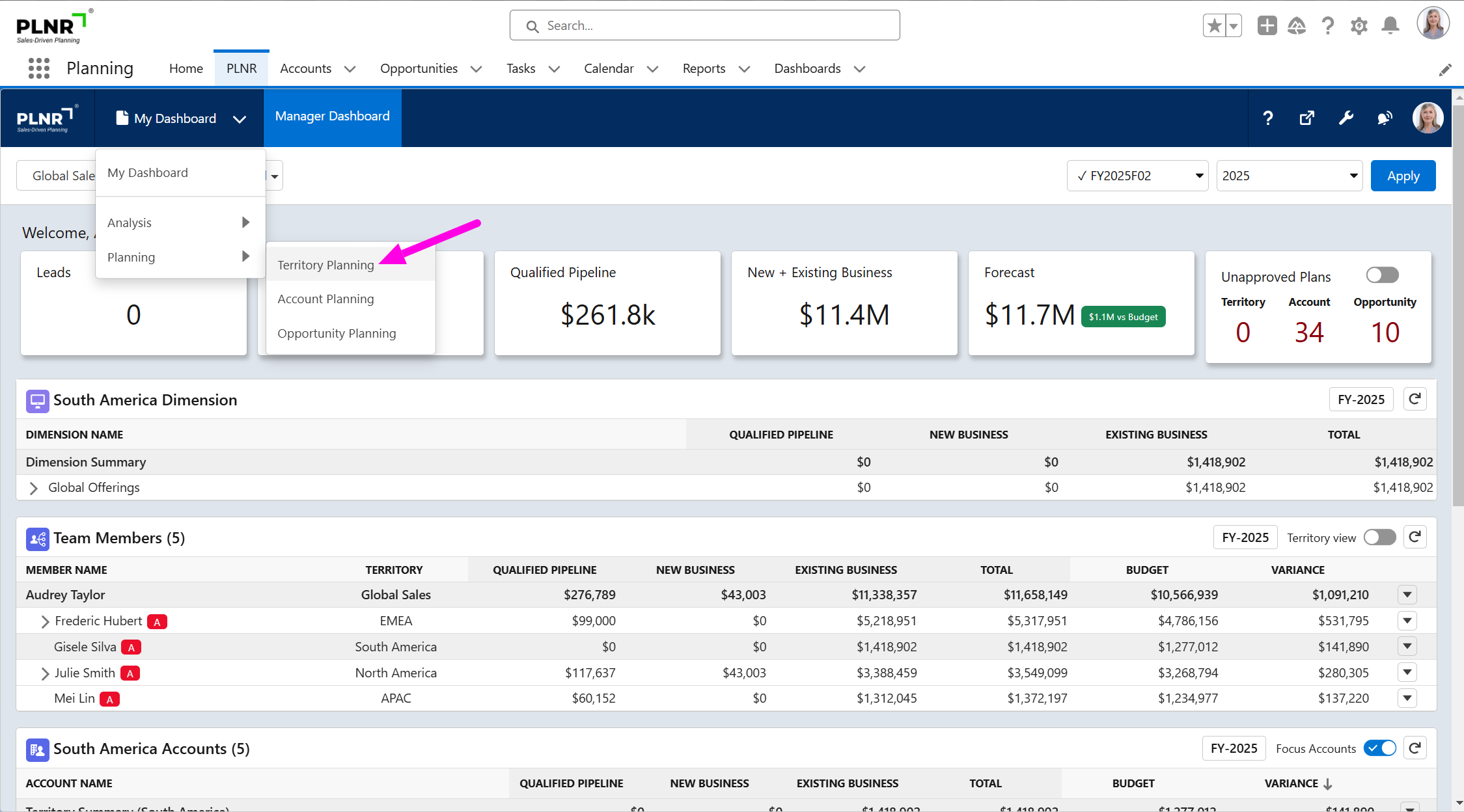
Figure 1.9 - Selecting Territory Planning
Viewing Your Territory Plan
- Selecting a Planning Version
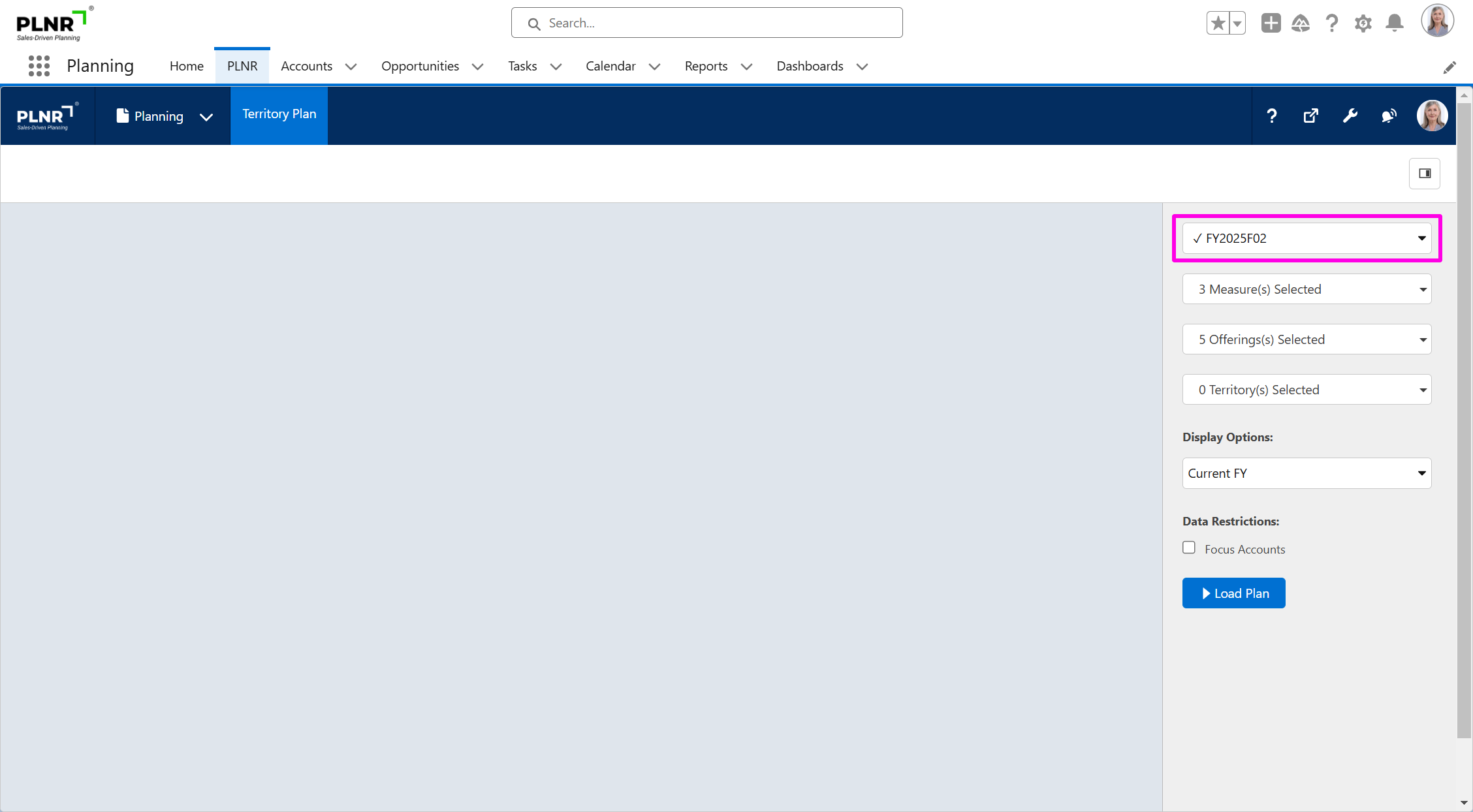
Figure 1.10 - Selecting a Planning Version
- Selecting Planning Measures
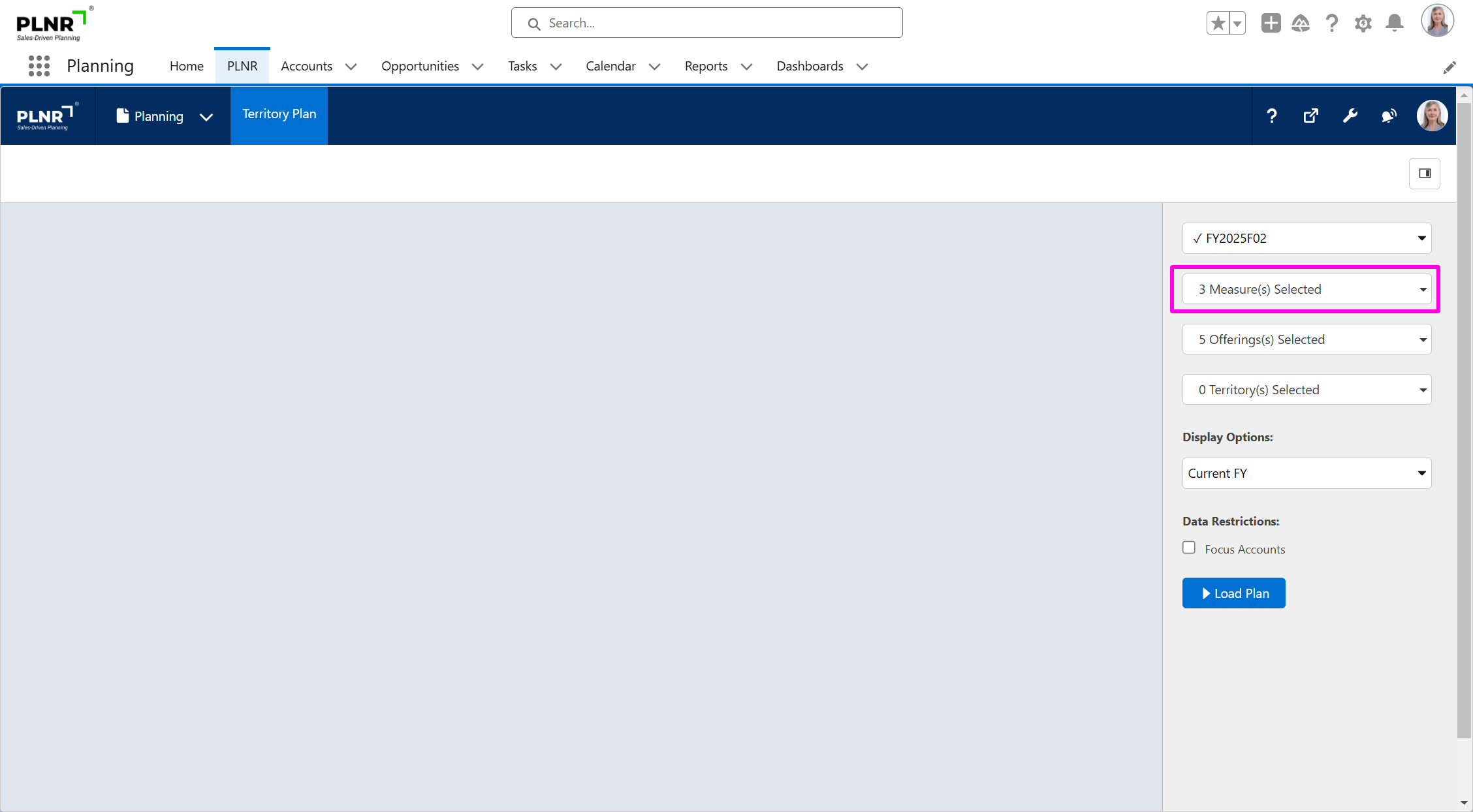
Figure 1.11 - Selecting a Planning Measure
- Selecting Plan Offerings
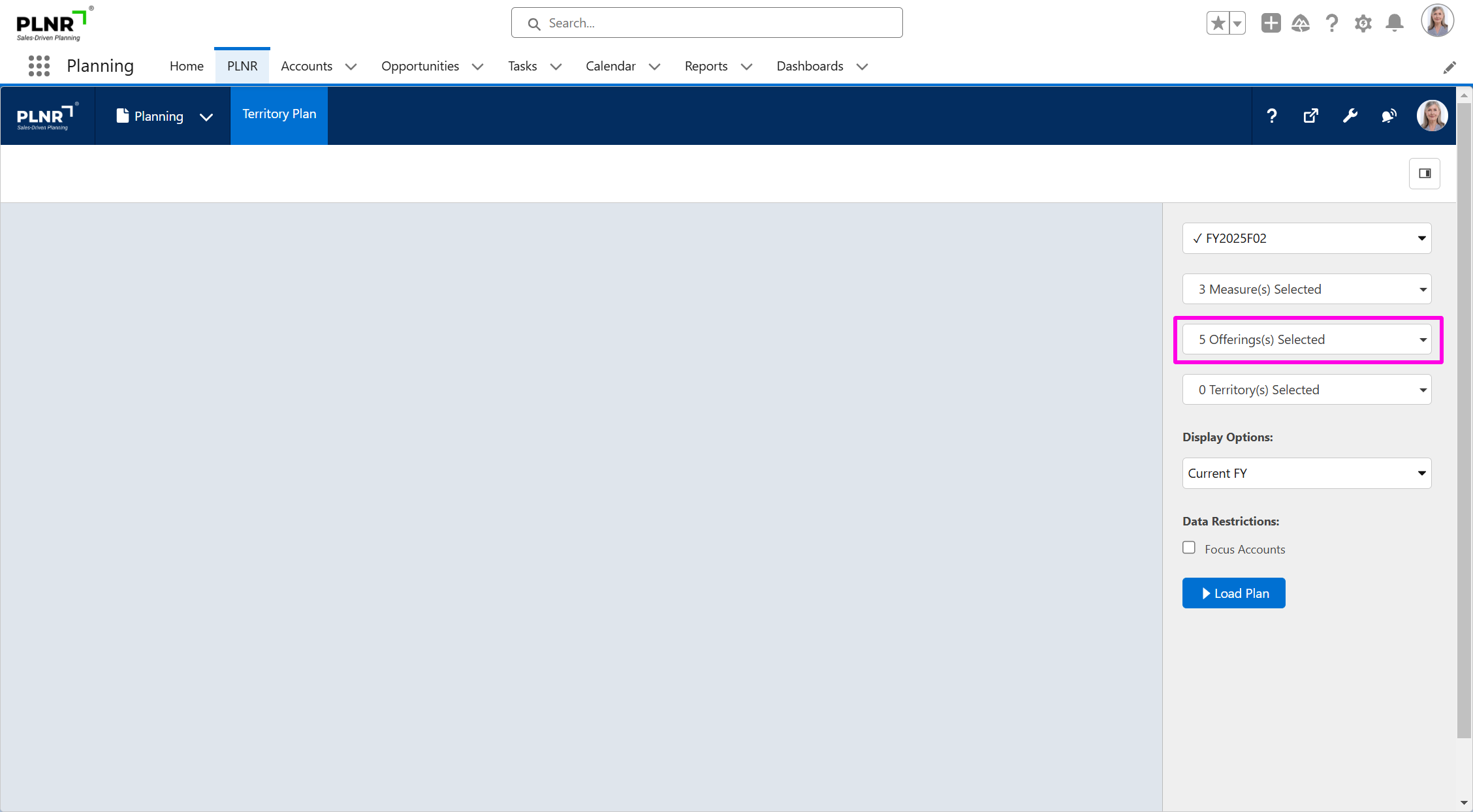
Figure 1.12 - Selecting Planning Offerings
- Selecting a Territory (Users have the ability to select multiple Territories, if needed)
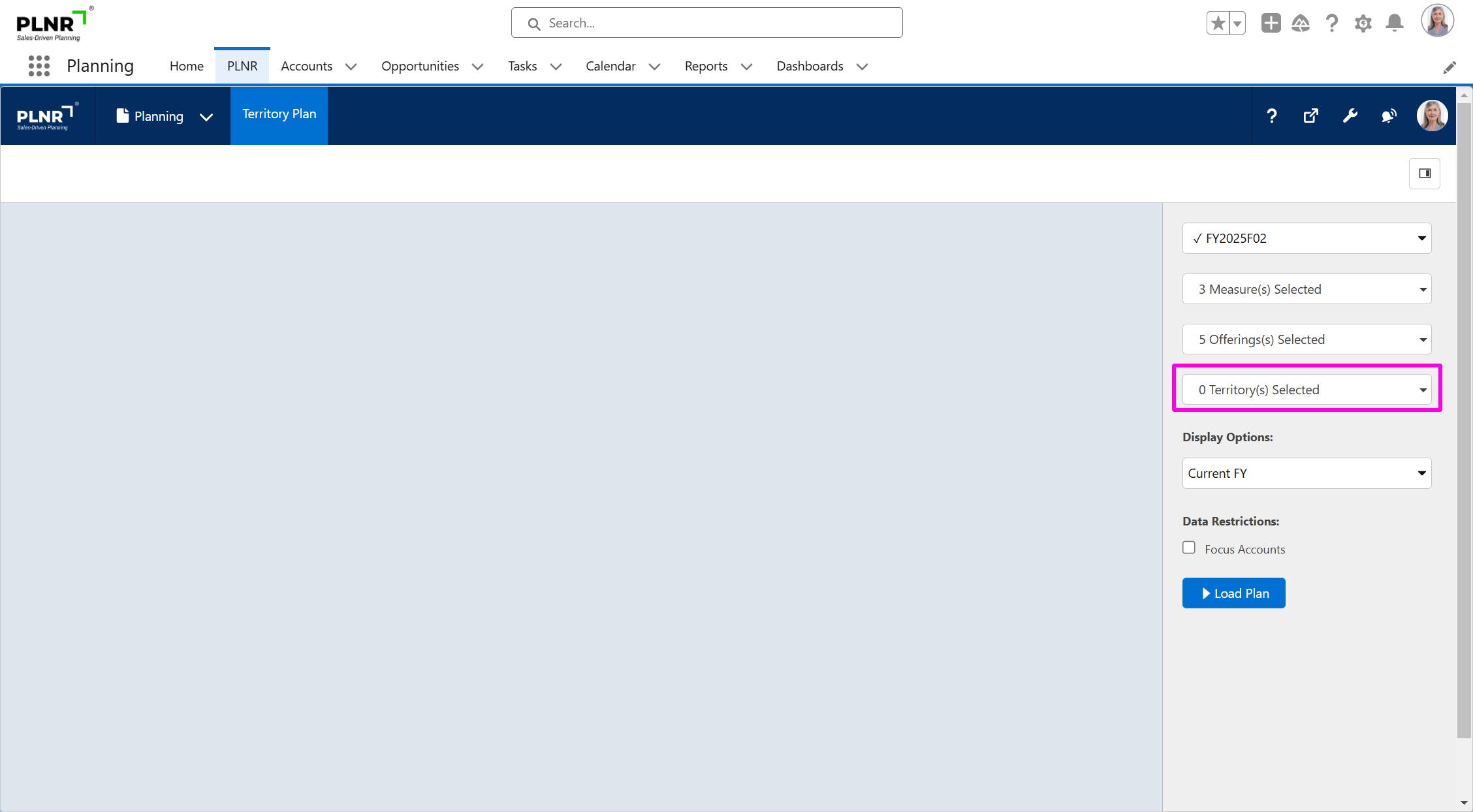
Figure 1.13 - Selecting Planning Territories
These selections will determine what data will or will not be displayed based on the Territory Plan view.
Display Options
Steps:
- Select a Display Options
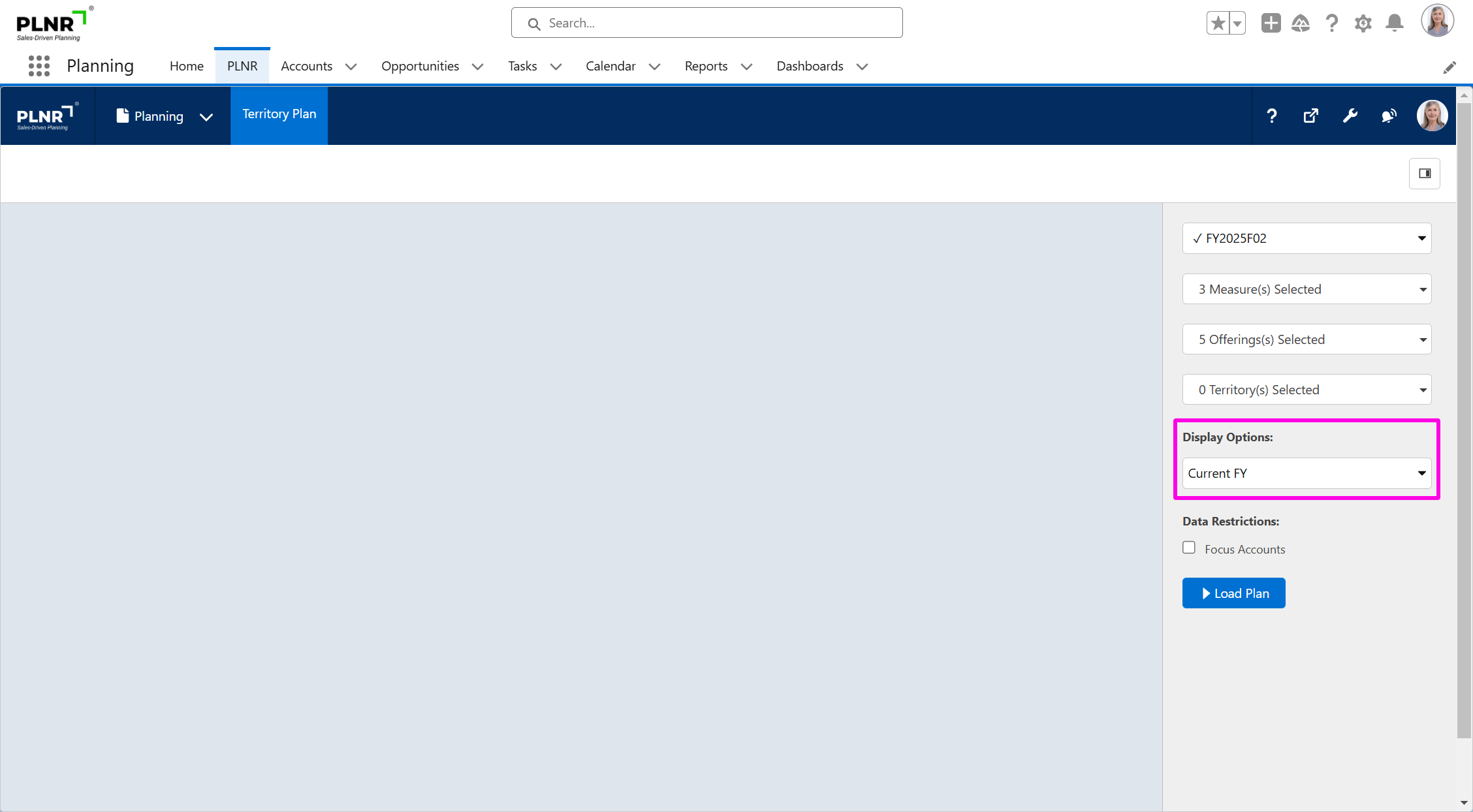
Figure 1.14 - Display Options
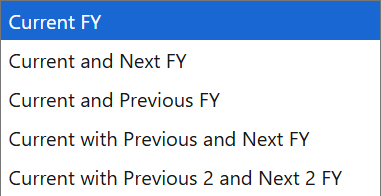
Figure 1.15 - Territory Plan Display Options Filter
The Display Options allow users to see data from different years.
Data Restrictions
Steps:
- Populate the "Focus Account" checkbox (if applicable)
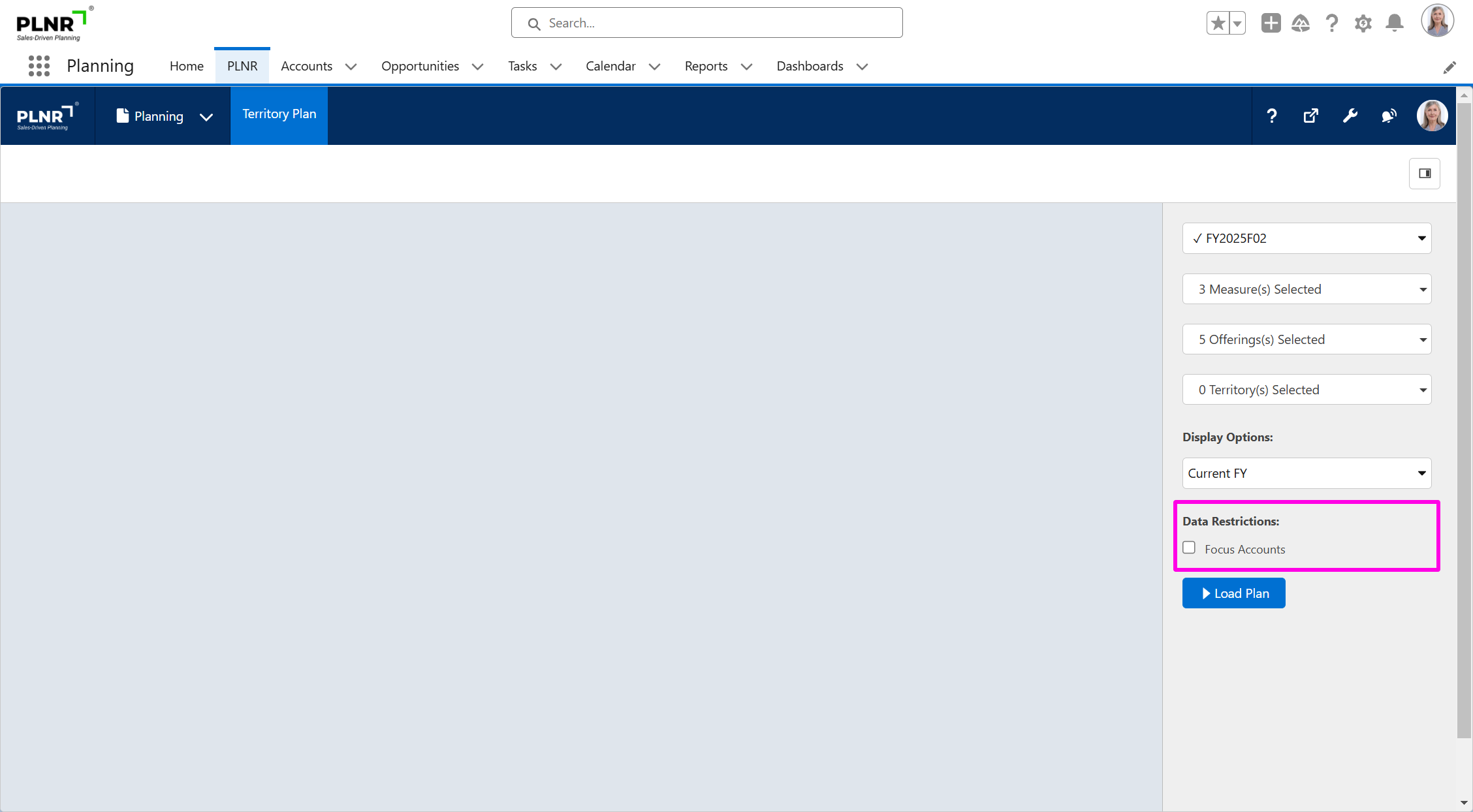
Figure 1.16 - Territory Plan Data Restrictions
This selection will determine if the Territory Plan view will display ALL accounts related to the selected fields, or if the Territory Plan view will only display Focus Accounts related to the selected Territory or Territories.
Load the Territory Plan View
Steps:
- Select the "Load Plan" button
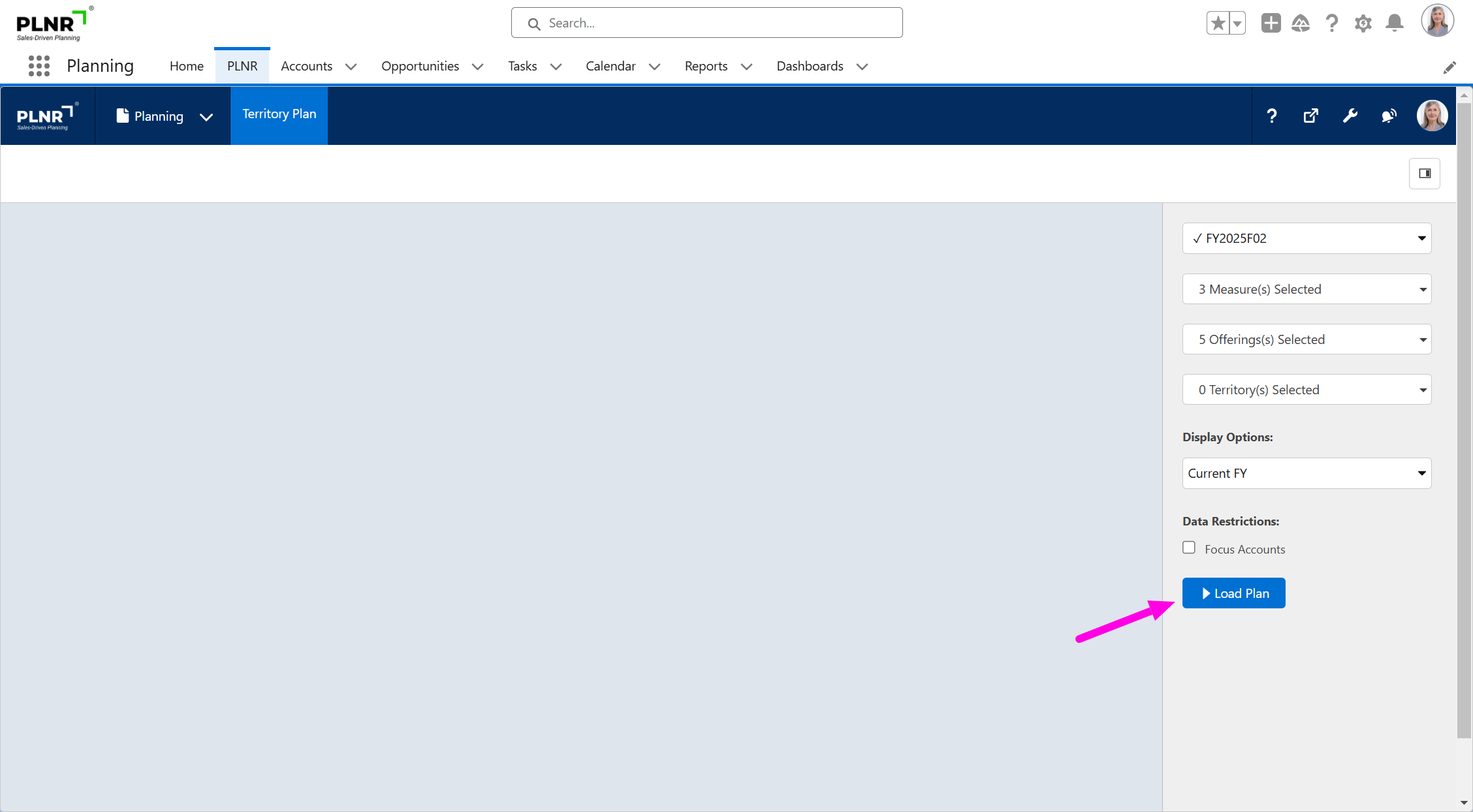
Figure 1.17 - Territory Plan Load Plan Button
The Territory Plan view will appear in a wide-screen view, based on the filters that were selected.
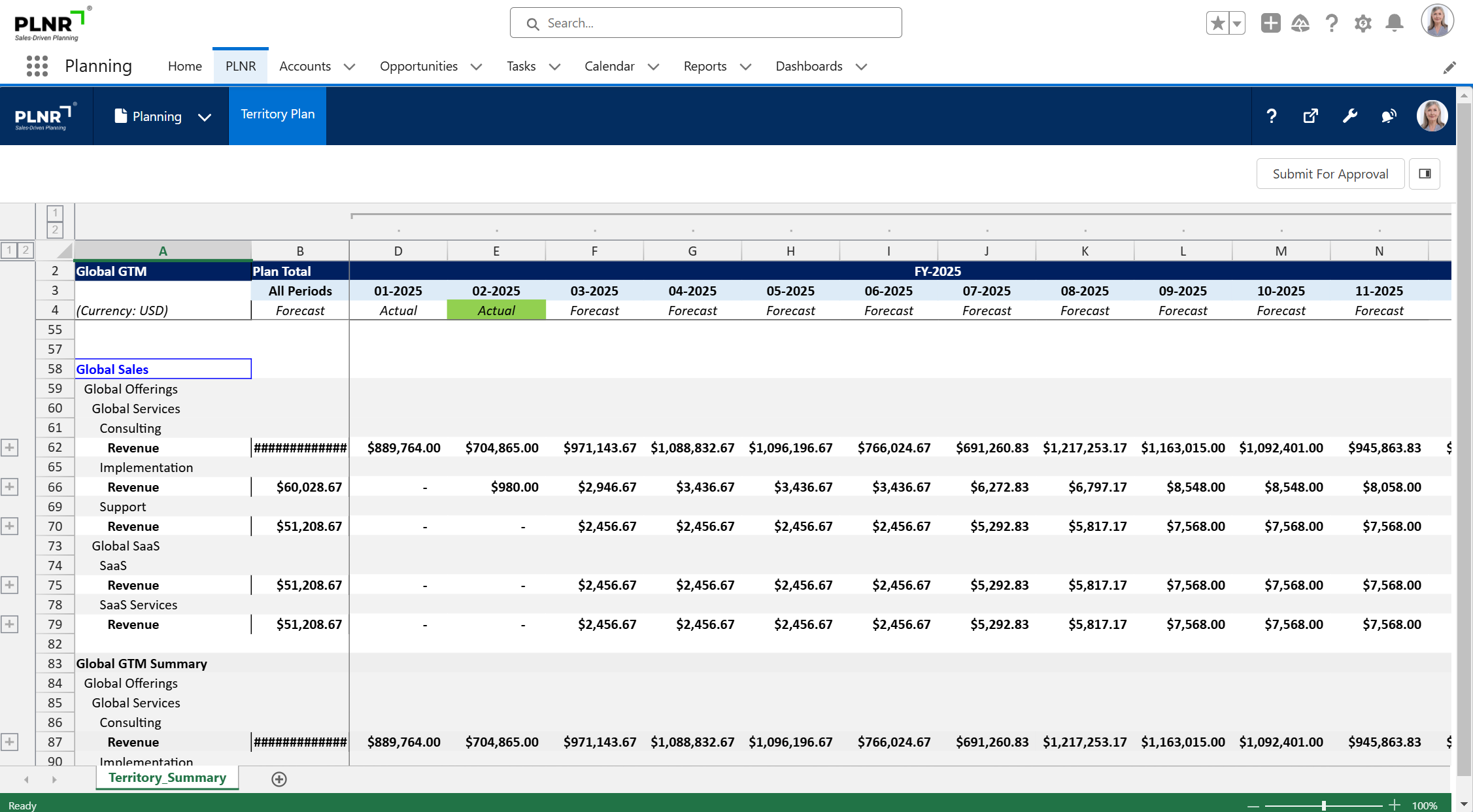
Figure 1.18 - Territory Plan Display
Choosing Your Territory Plan Options
If you desire to see a different set of data on the Territory Plan, please adjust your selections in any of these fields by selecting the "Settings" button.
Steps:
- Select to "Settings" button
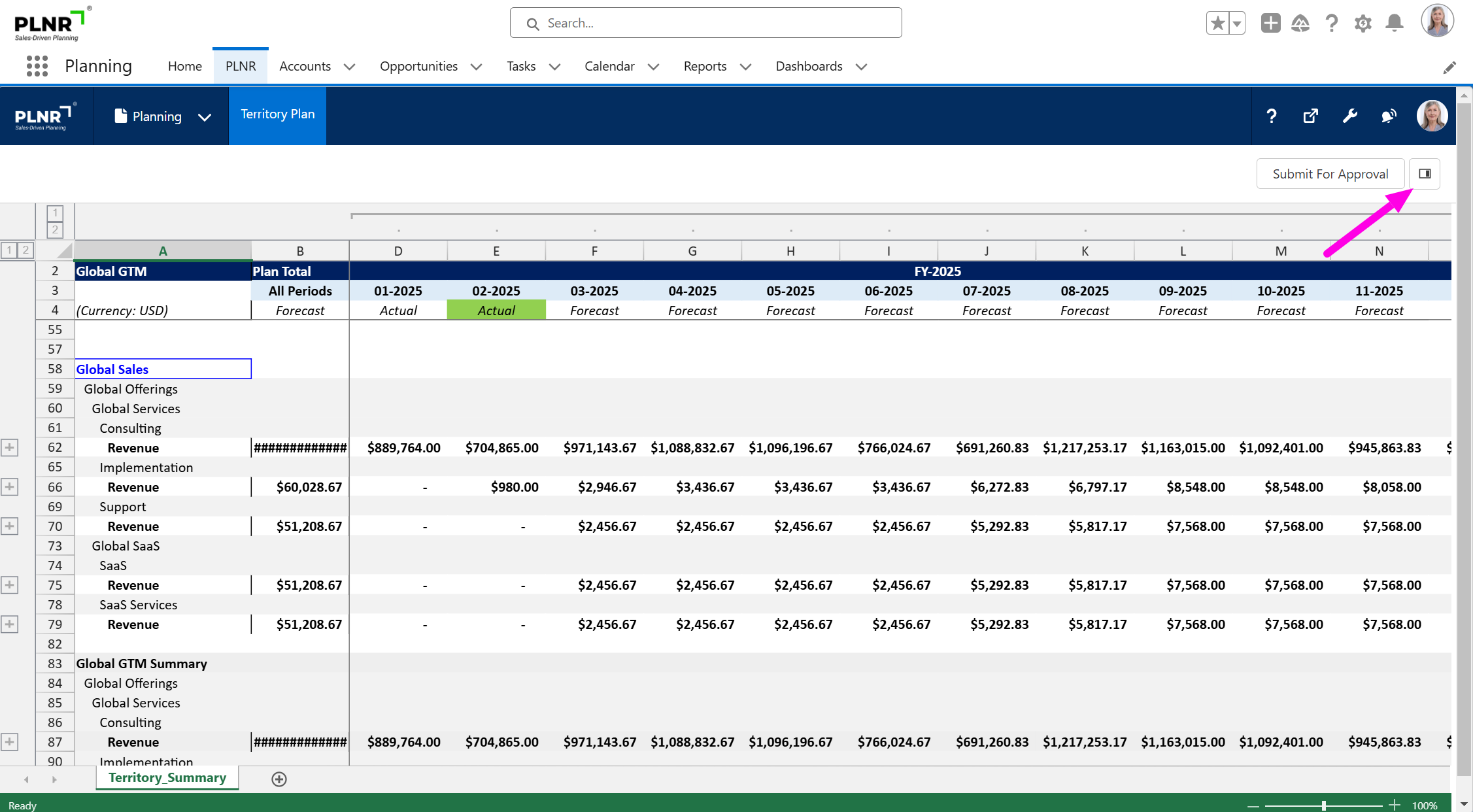
Figure 1.19 - Territory Plan Options Button
Update the Territory Plan options (as necessary)
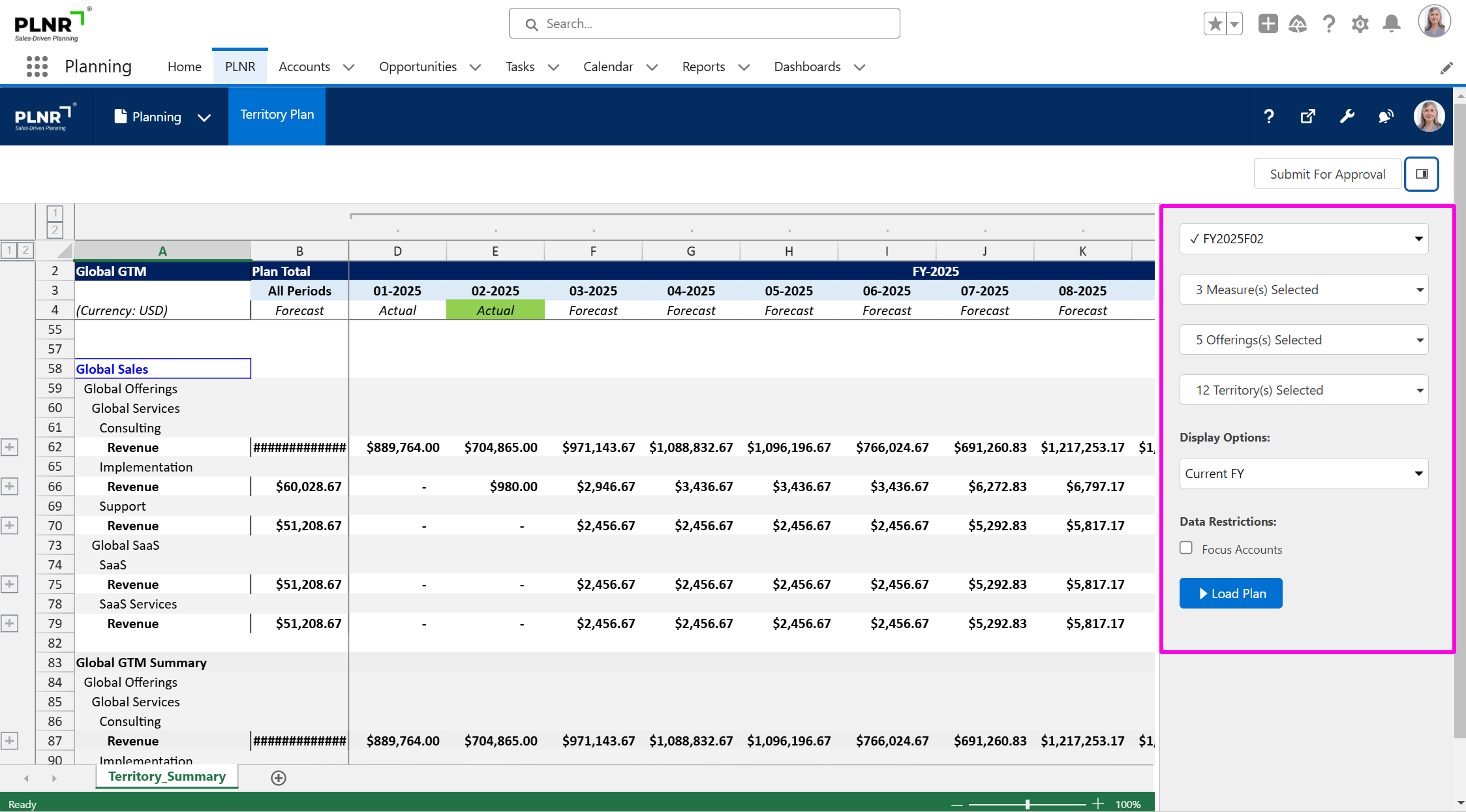
Figure 1.20 - Territory Plan Options Display
Submit For Approval
Steps:
- Click the "blue" Territory Hyperlink
- Select the "Submit For Approval" button
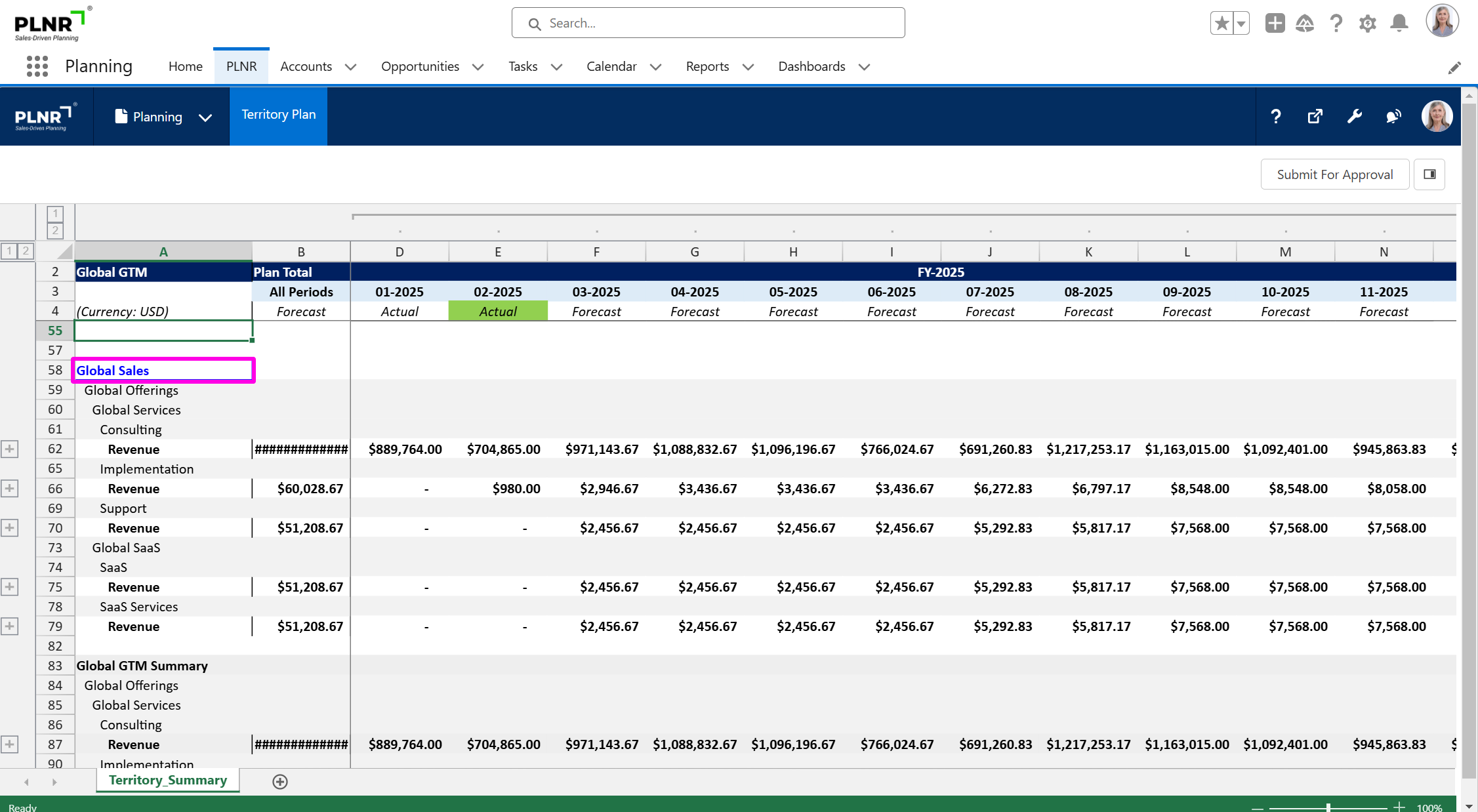
Figure 1.21 - Territory Plan Hyperlink
Once the Territory hyperlink is selected you will be routed to a new screen
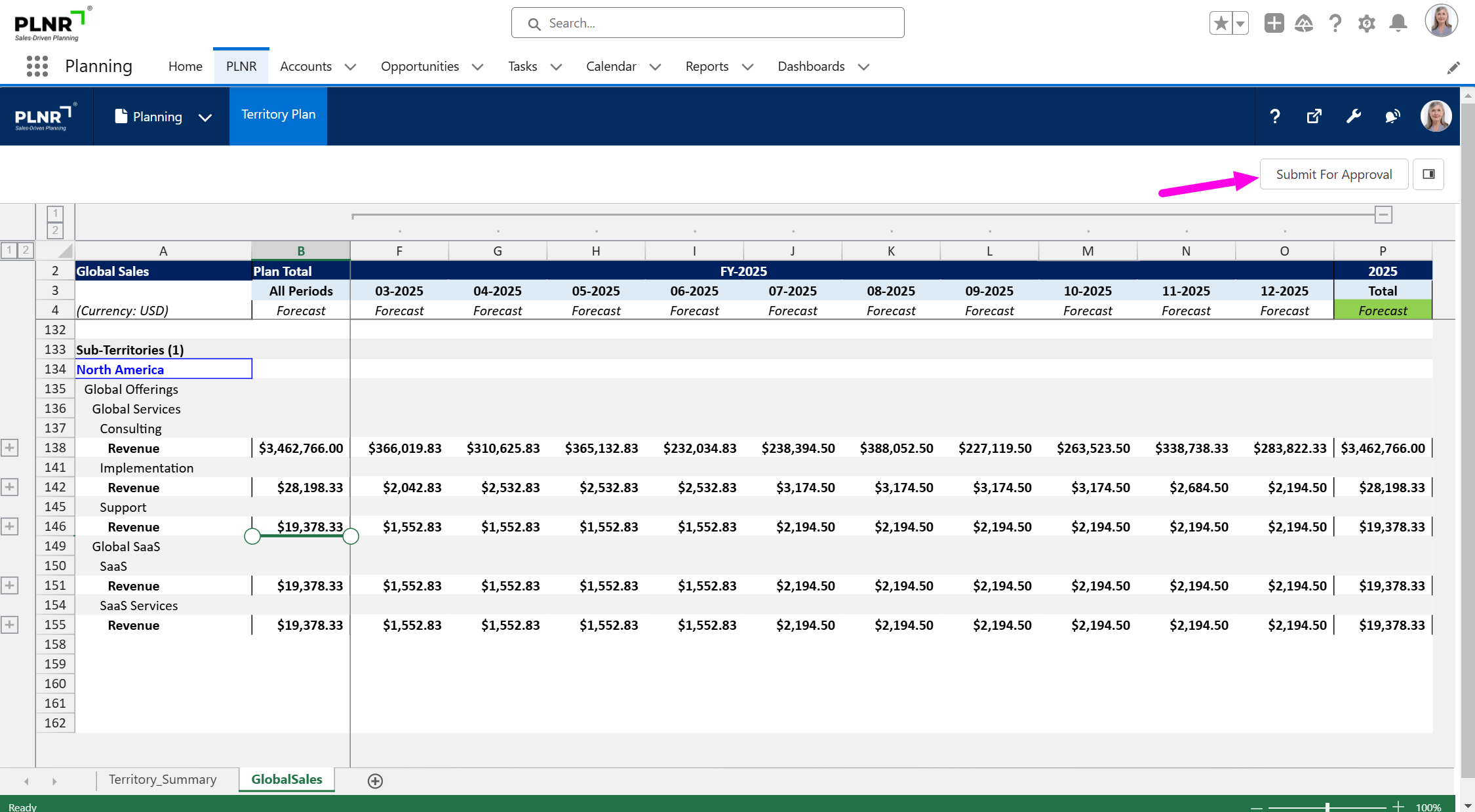
Figure 1.22 - Territory Plan Submit For Approval
Approval Process Pop-Up Window
Steps:
- Click the desired Territory Checkbox
- Type Comment (if necessary)
- Select the "Submit For Approval" button
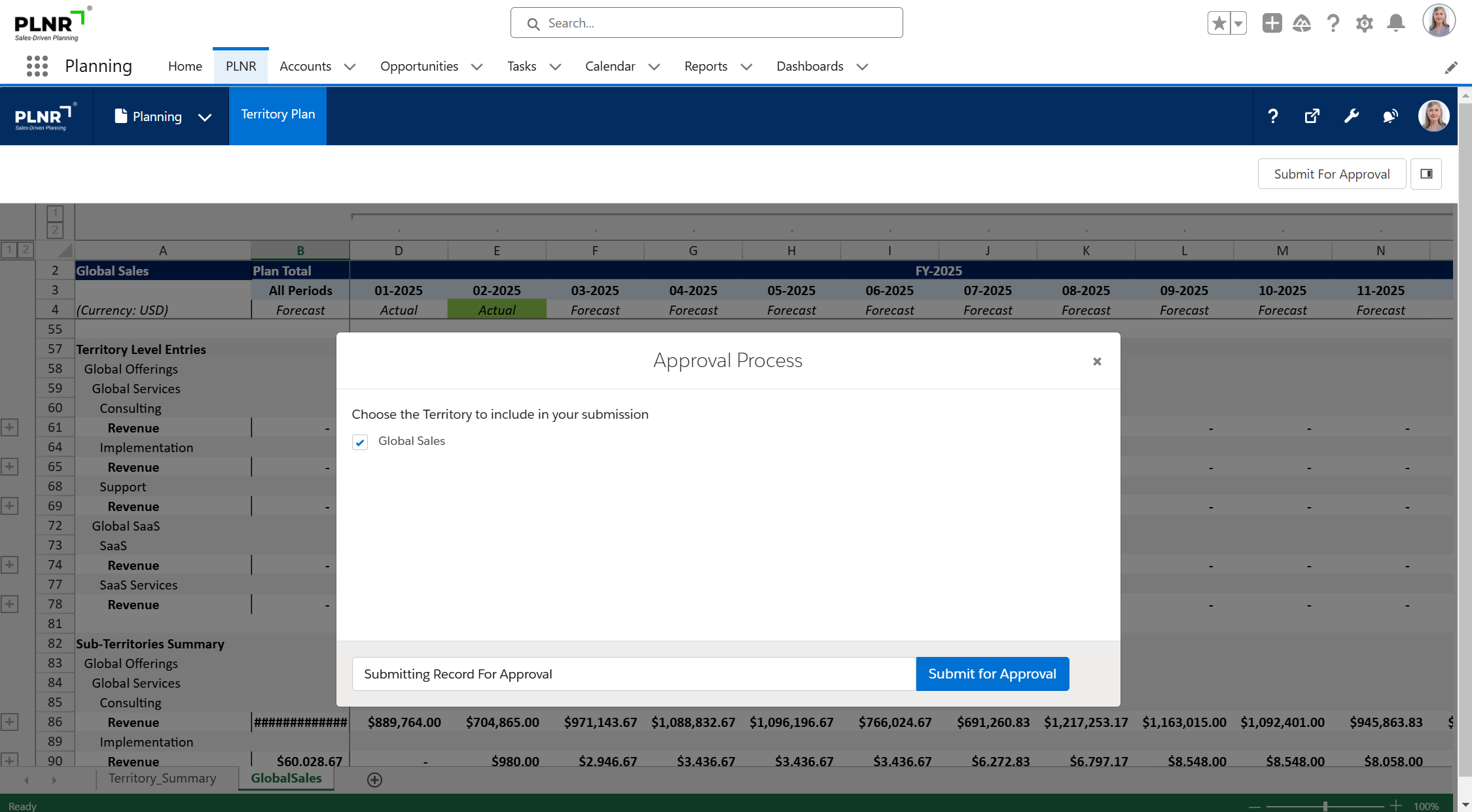
Figure 1.23 - Territory Plan Approval Process Pop-Up Window
Your assigned manager will receive the Territory Plan approval email
Account Planning
Your Sales, Marketing, and Operations teams can plan against their assigned Accounts.
We offer two views from which they can plan:
- Account Plan - This Planning View allows the user to enter information for a list of Accounts.
- Account and Opportunity Plan - This Planning View allows the user to enter information for a single account along with associated Opportunities and is usually found on the Account record.
Account Plan
Accessing Your Account Plan
Steps:
- Navigate to Account Plan tab.
The Account Plan automatically loads data for the default Planning Version and Planning Measures.
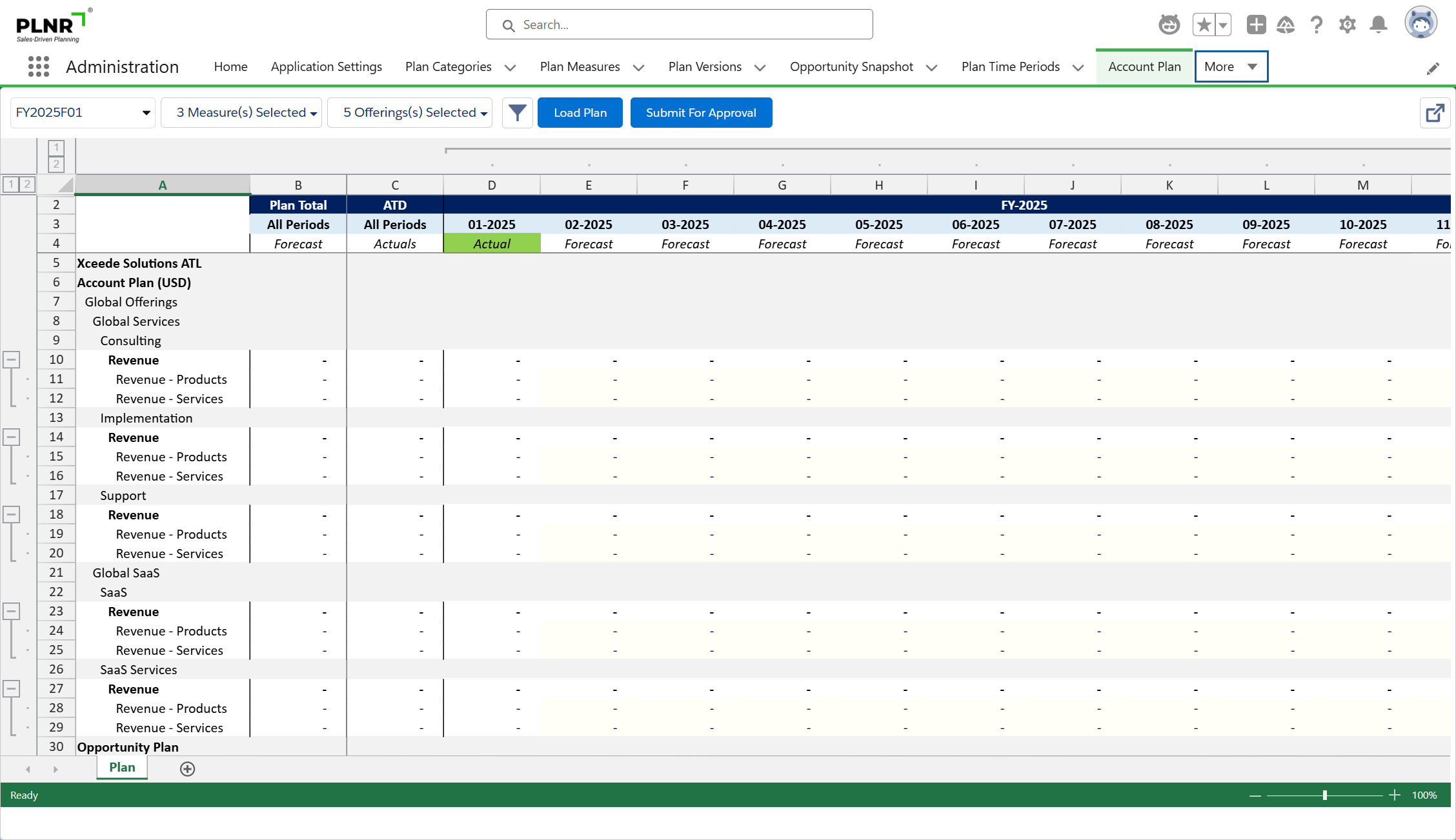
Figure 1.24 - Accessing Your Account Plan
Choosing Your Account Plan Options
- Planning Versions
- Planning Measures
- Planning Time Period
- Additional data filters
- Maximize planning view

Figure 1.25 - Choosing Your Account Plan Options
You are able to select other Planning Versions that are in the “Open for Planning” status.
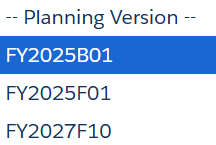
Figure 1.26 - Selecting Other Planning Versions
You are able to select Planning Measures.
When choosing a “Parent” measure, all the “Children” measures are automatically selected.
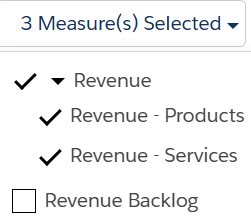
Figure 1.27 - Selecting Account Planning Measures
You are able to select Planning Time Periods to be displayed:
- Current FY
- Current and Next FY
- Current and Previous FY
- Current with Previous and Next FY
- Current with Previous 2 and Next 2 FY
Based on your selection, the Planning Time Periods are displayed across the top of the planning sheet.
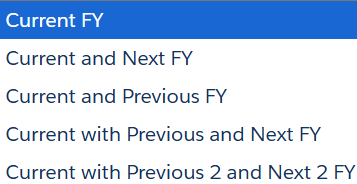
Figure 1.28 - Account Planning Time Periods
You are able to select additional data filter options.
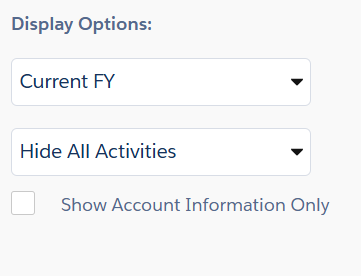
Figure 1.29 - Account Plan Display Options
Display Options:
Show Account Information Only - This option will display only the planning information entered at the Account level. All information related to Opportunities will not be displayed.
Show All Tasks/Events - You can also choose to display only Open Tasks and Events or Hide All Activities.
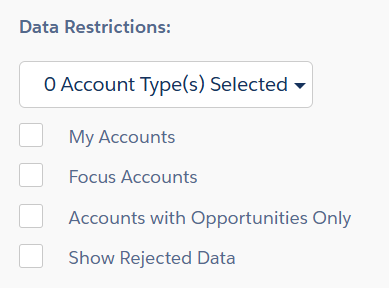
Figure 1.29 - Account Plan Data Restrictions
Data Restrictions:
- Select Accounts Only - This option will only display Accounts that have the “Include in Planning” checkbox checked on the Account record.
- Accounts with Opportunities Only - This option will only display Accounts that have Opportunities associated.
You are able to maximize the planning view.

Figure 1.30 - Maximize Account Plan Button
This will open the Planning View in a new screen
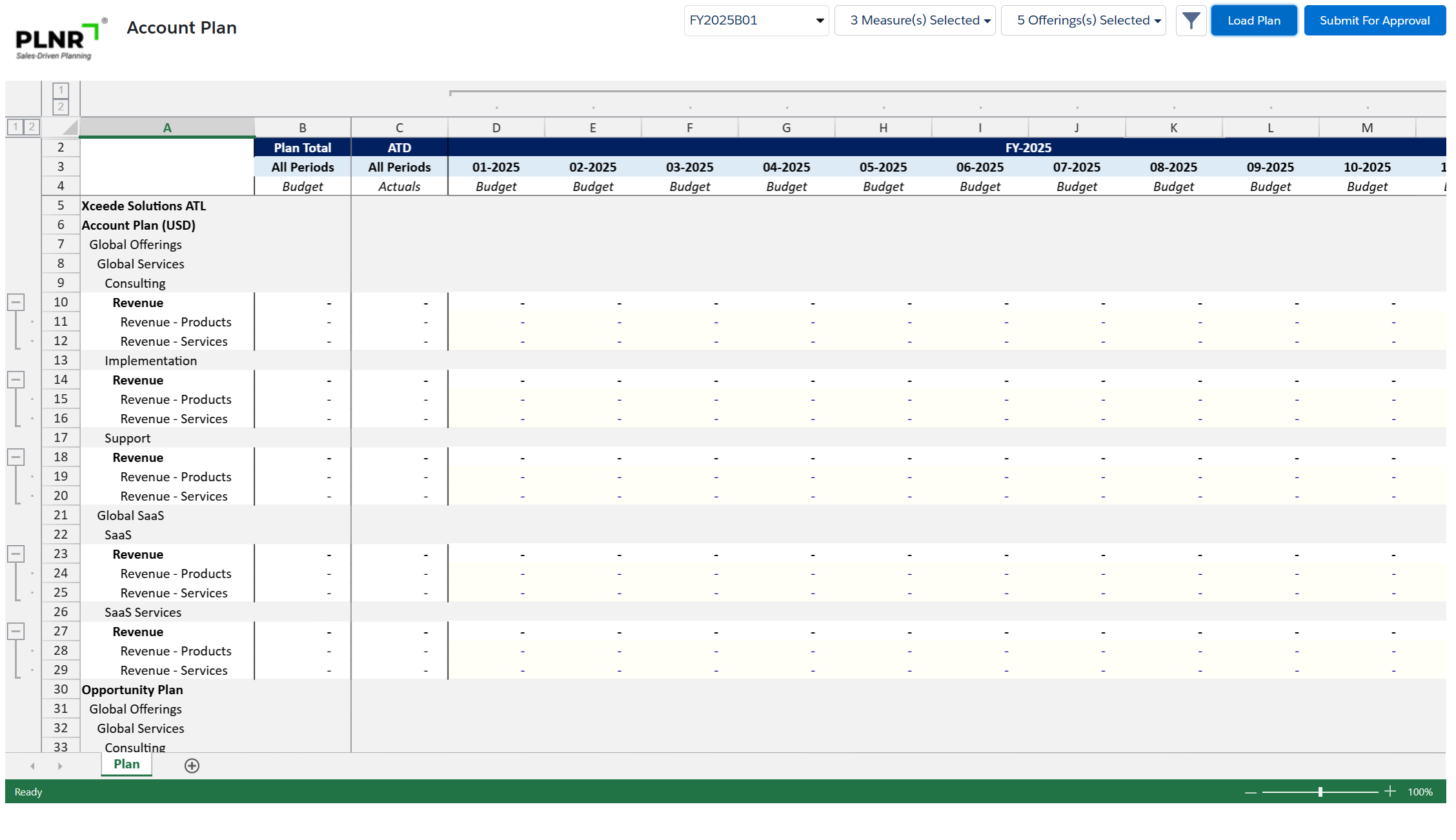
Figure 1.31 - Maximize Account Plan View
Once you have selected your options, you click on “Load Plan” to reload the Planning View.
Account and Opportunity Plan
Accessing your Account and Opportunity Plan
The Account and Opportunity Plan view is accessible via the Account record.
Steps:
- Navigate to an Account record
- Select the "Planning" tab
The Account and Opportunity Plan view automatically loads data for the default Planning Version and Planning Measures for the Account.
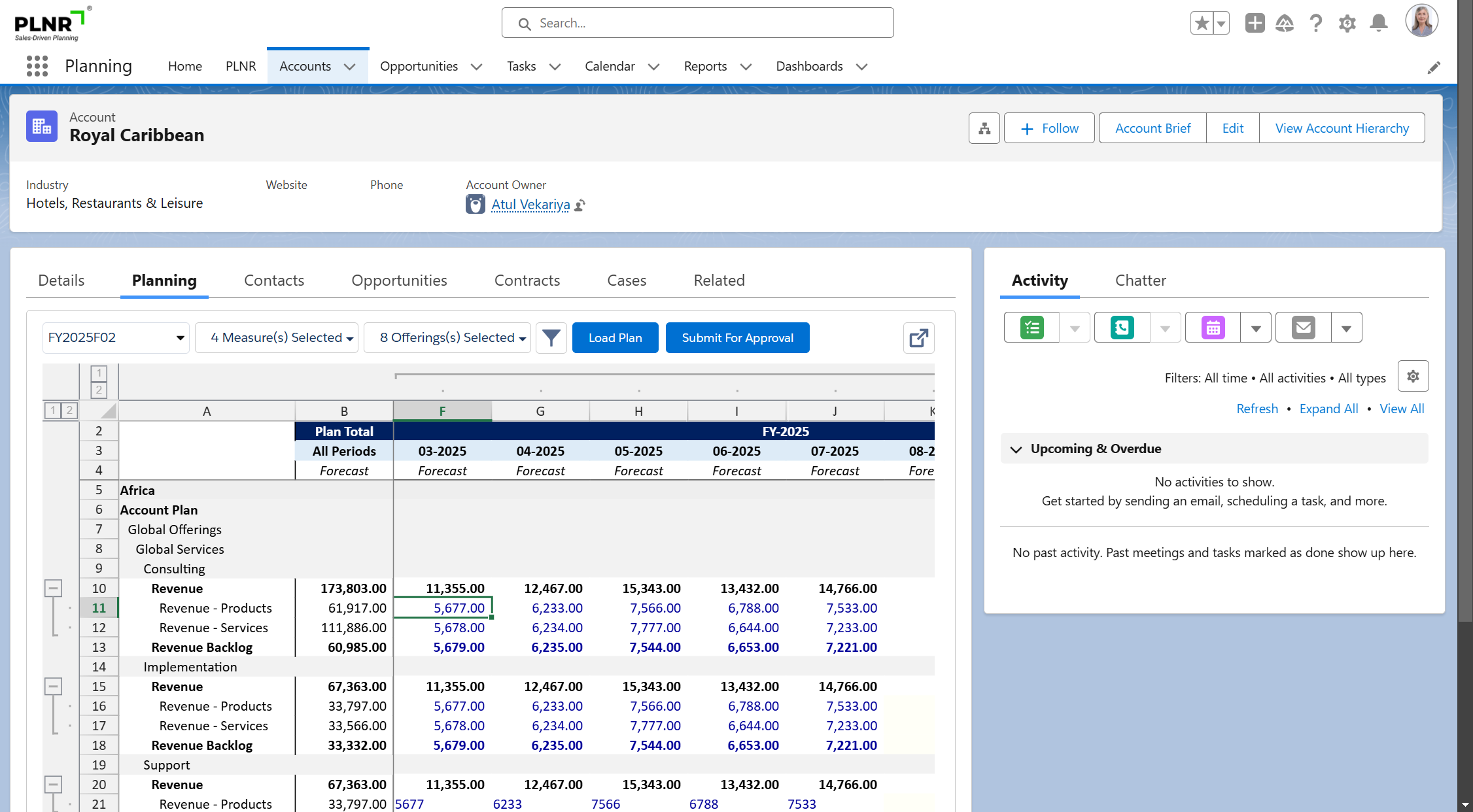
Figure 1.32 - Account Plan View
Choosing your Account and Opportunity Plan Options
- Planning Versions
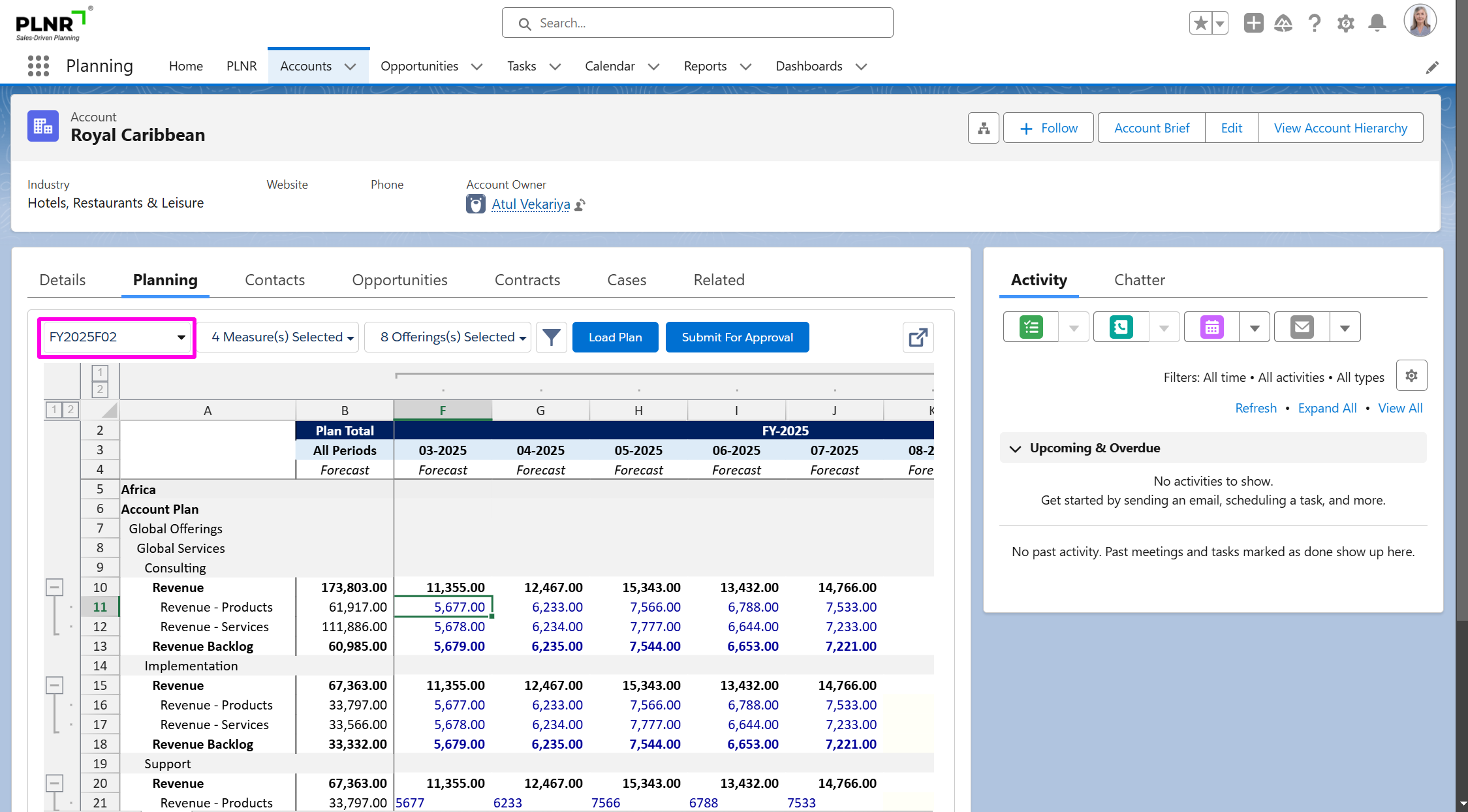
Figure 1.33 - Account Plan Planning Versions
- Planning Measures
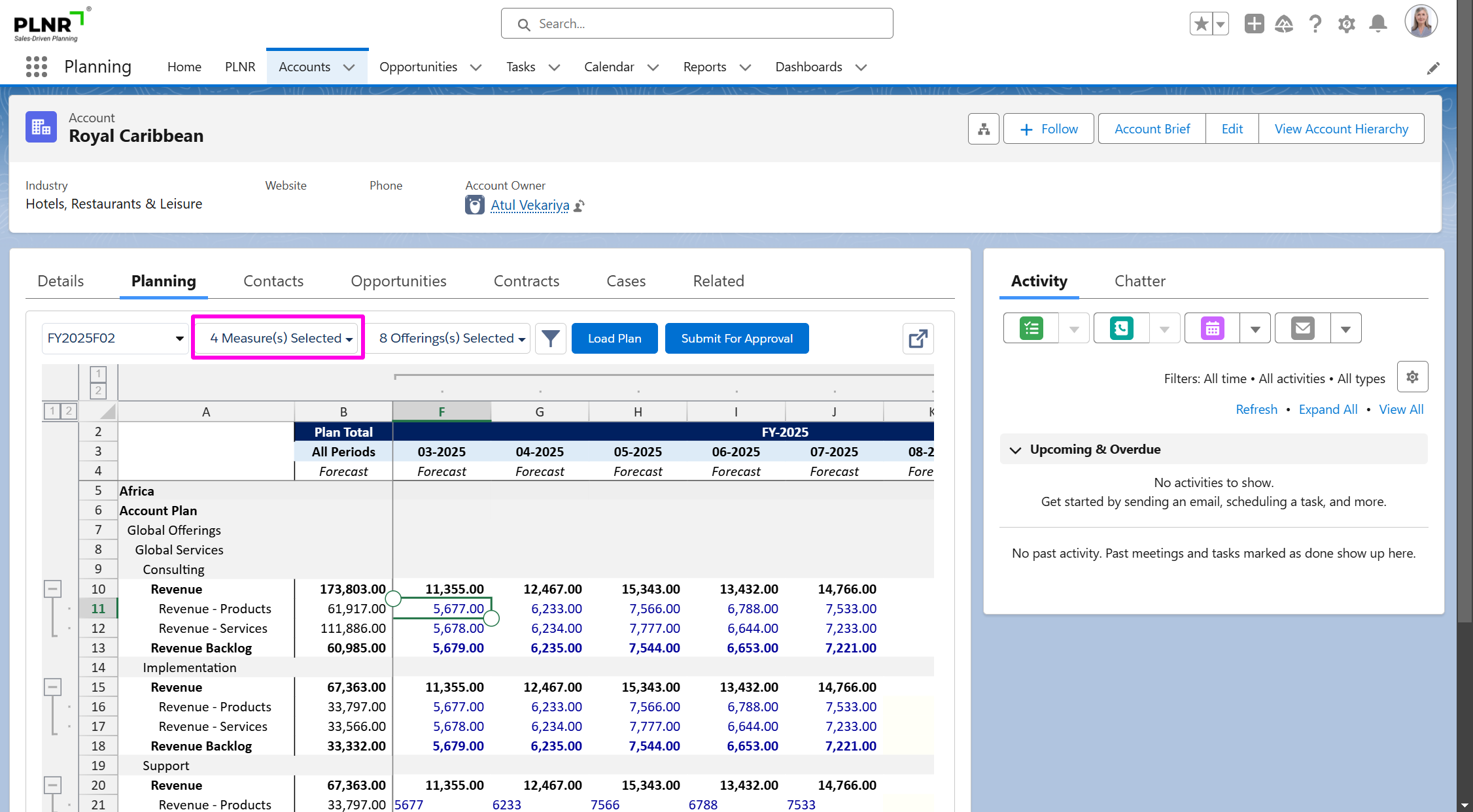
Figure 1.34 - Account Plan Planning Measures
- Planning Offering(s)
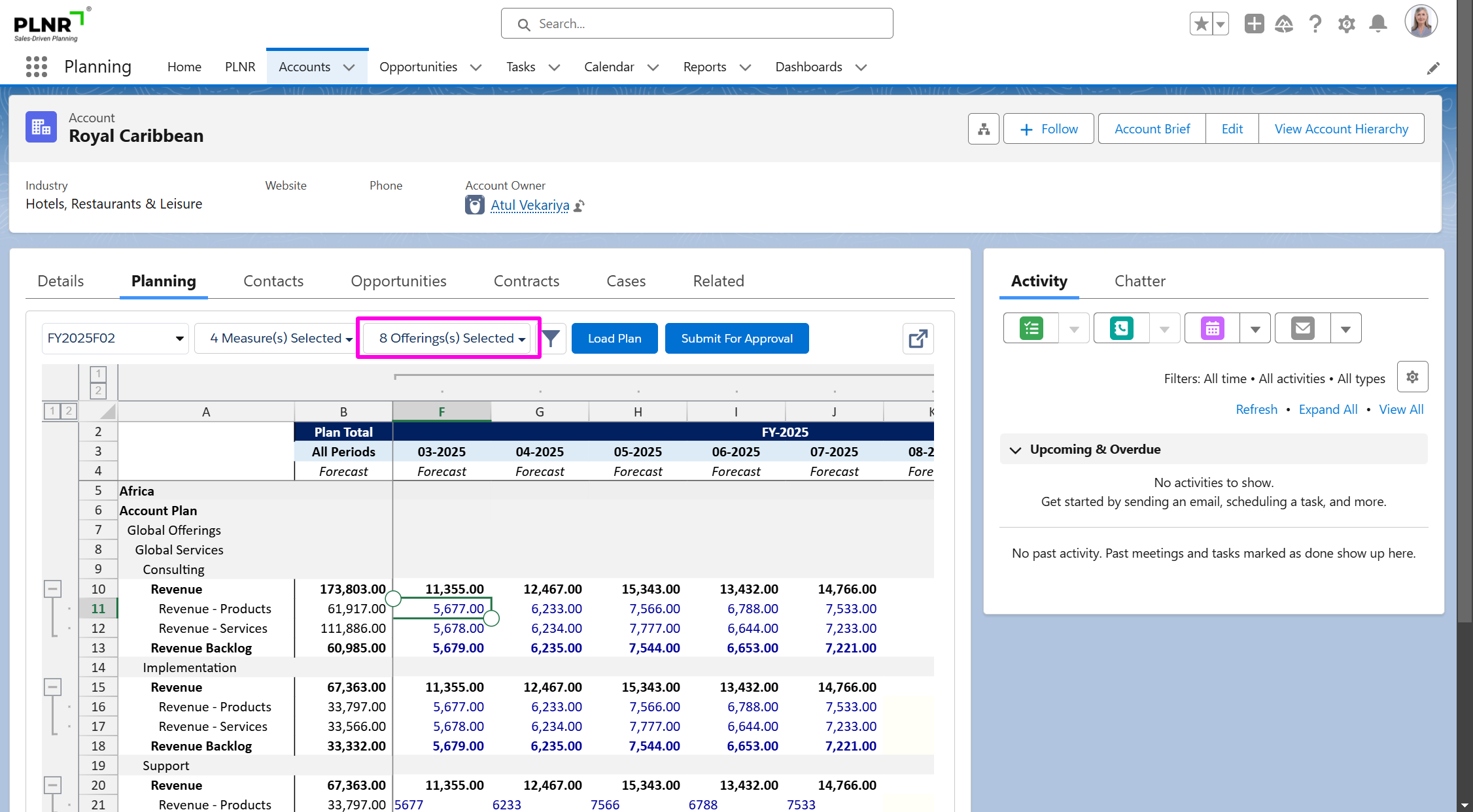
Figure 1.35 - Account Plan Planning Offerings
- Additional data filters
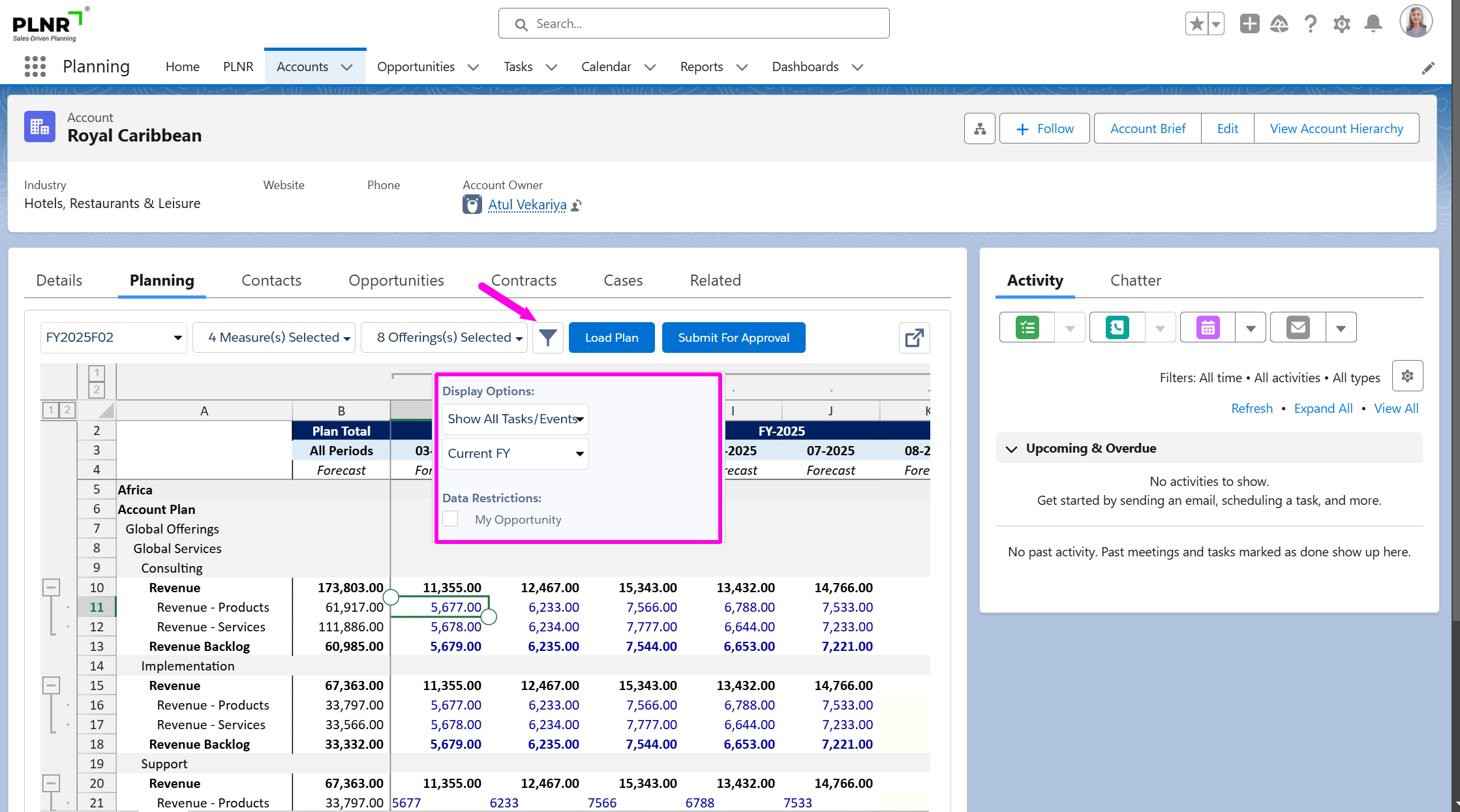
Figure 1.36 - Account Plan Additional Data Filters
Given then this view shows all information related to a single Account along with Opportunities
The additional data filters options are limited to:
- Hide All Activities
- Show All Tasks/Events
- Show Open Tasks/Events
Users can access all of the Account Plan functionality from this screen OR the user can expand the Account Plan into a wider screen
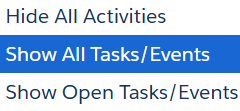
Figure 1.37 - Account Plan Display Options
You can choose to display only Open Tasks and Events or Hide All Activities.
- Maximize planning view
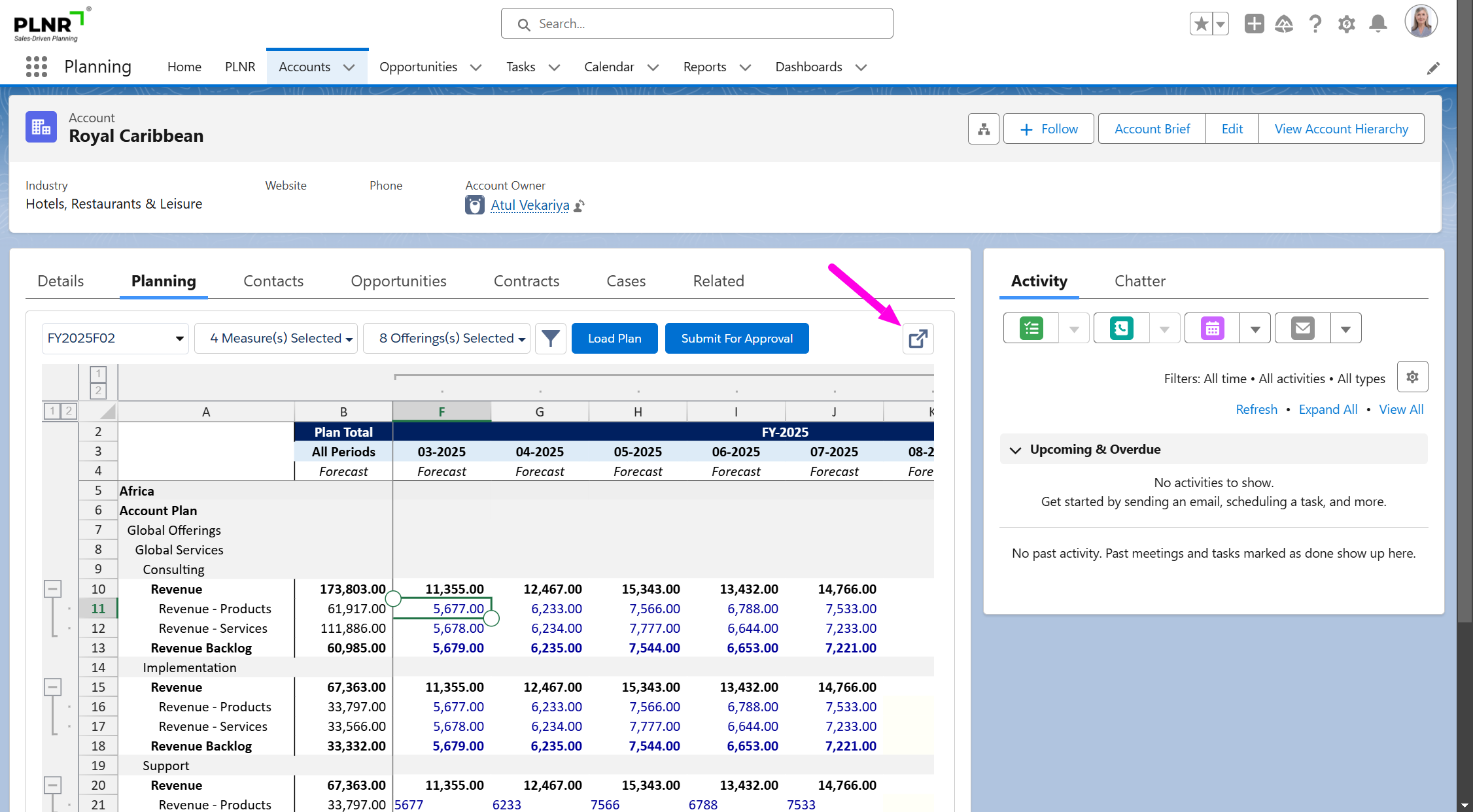
Figure 1.38 - Account Plan Maximize Button
Once you have selected your options, you click on “Load Plan” to reload the Planning View.
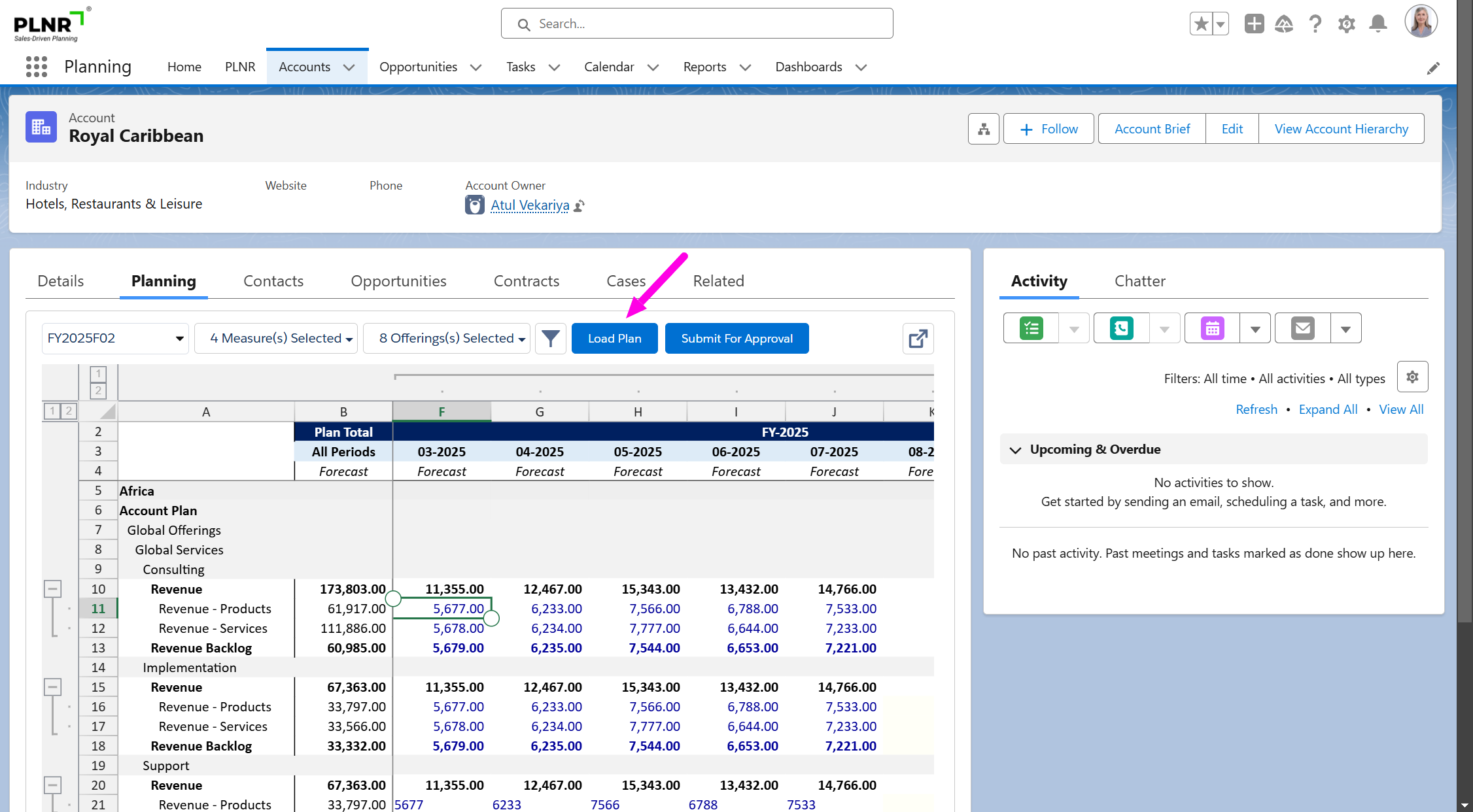
Figure 1.39 - Account Plan Load Button
Opportunity Planning
Your Sales, Marketing, and Operations teams can plan against their Opportunities.
We offer two views from which they can plan:
- Opportunity Plan - This planning view allows the user to enter information for a list of accounts.
- Account and Opportunity Plan - This planning view allows the user to enter information for a single account along with associated opportunities and is usually found on the Account record.
Guidance for this Planning View is covered under the Account Planning section.
Opportunity Plan
Accessing your Opportunity Plan
Steps:
- Navigate to Opportunity Plan tab.
The Opportunity Plan automatically loads data for the default Planning Version and Planning Measures.
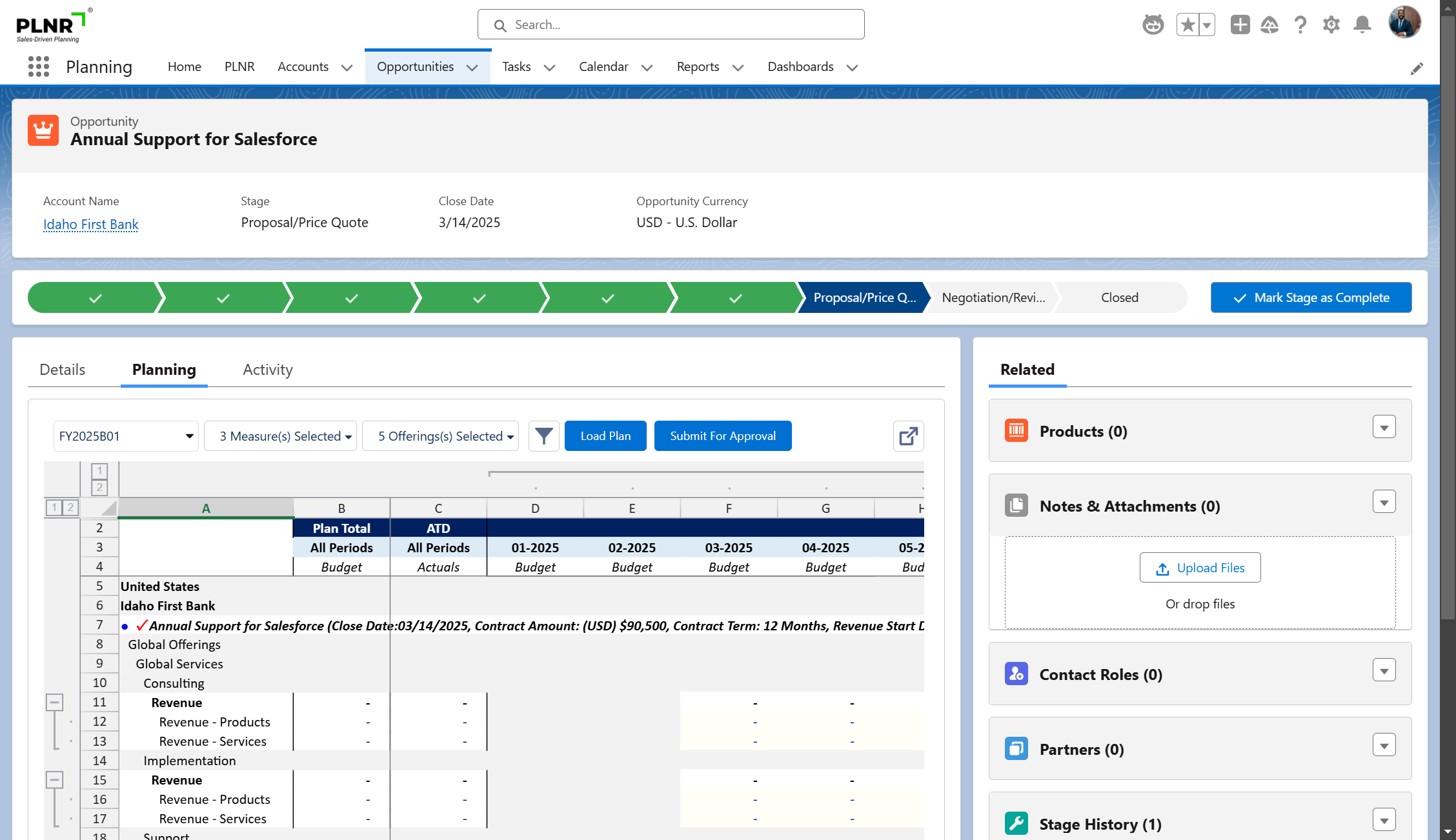
Figure 1.40 - Opportunity Planning View
Based on your permissions, you will see the list of Opportunities against which you are able to plan.
Choosing your Opportunity Plan Options
The Opportunity Plan view offers several options to display planning related information for your Planning Process similar to the Account Plan view:
- Planning Versions
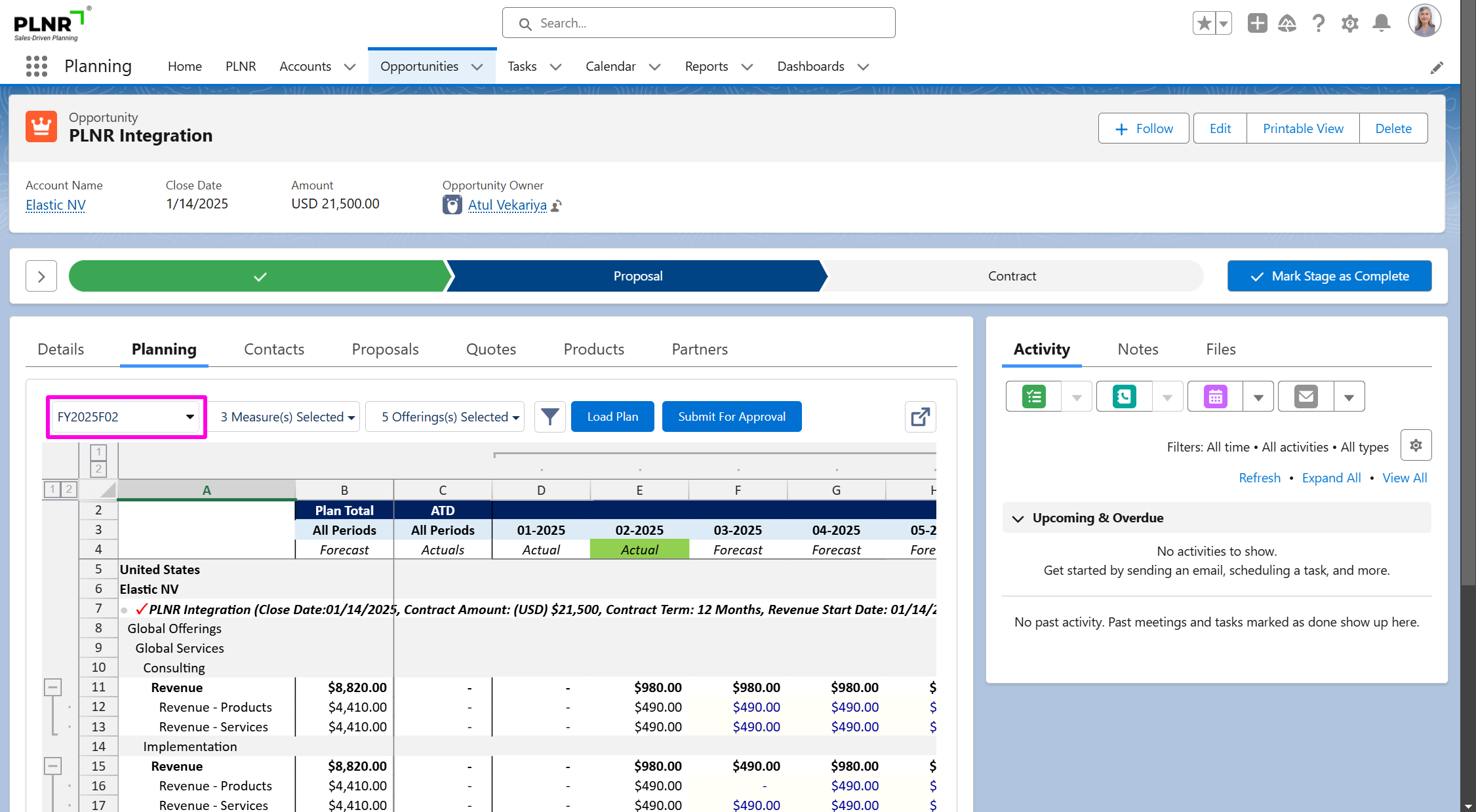
Figure 1.40 - Opportunity Plan Planning Versions
- Planning Measures
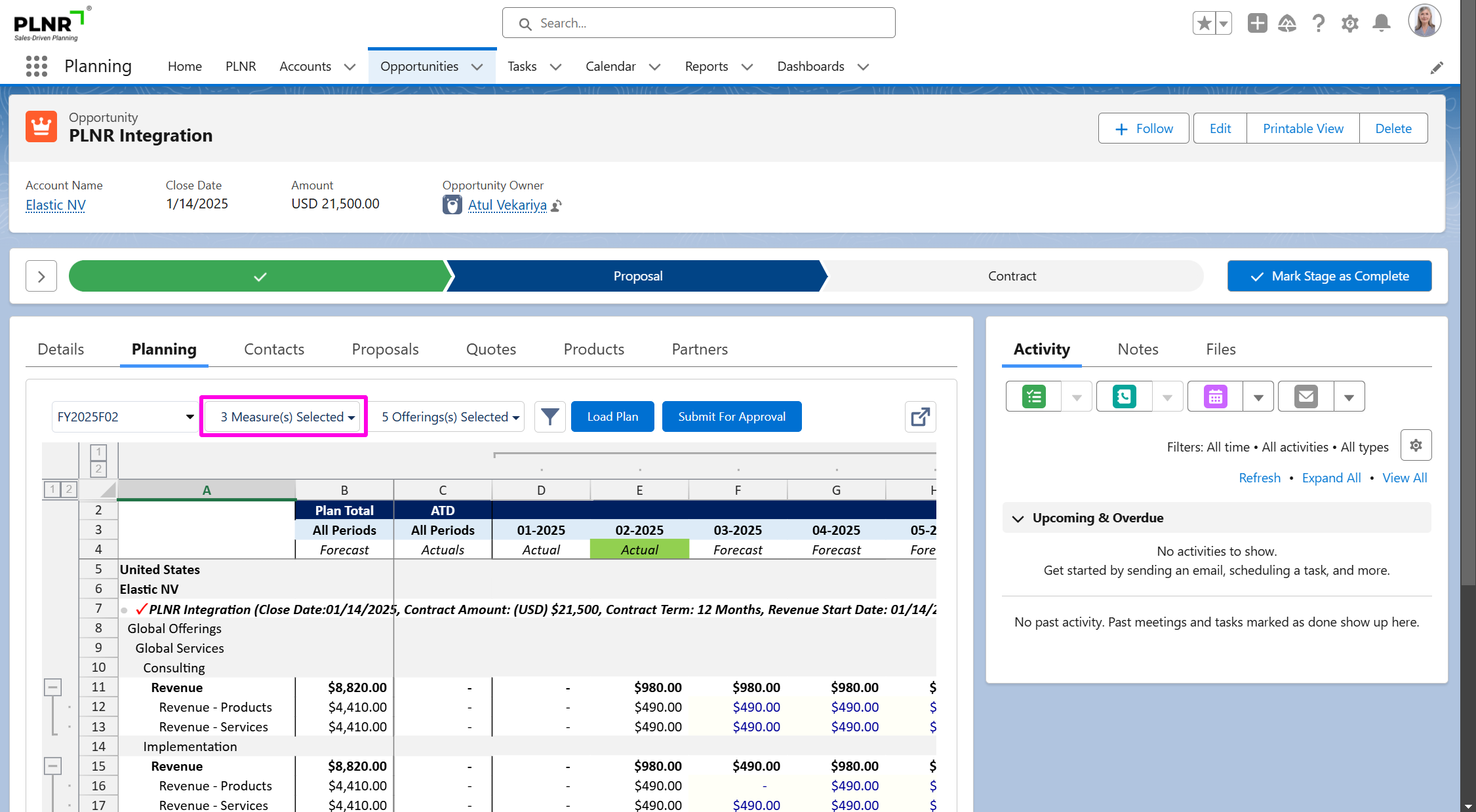
Figure 1.41 - Opportunity Plan Planning Measures
- Planning Offerings
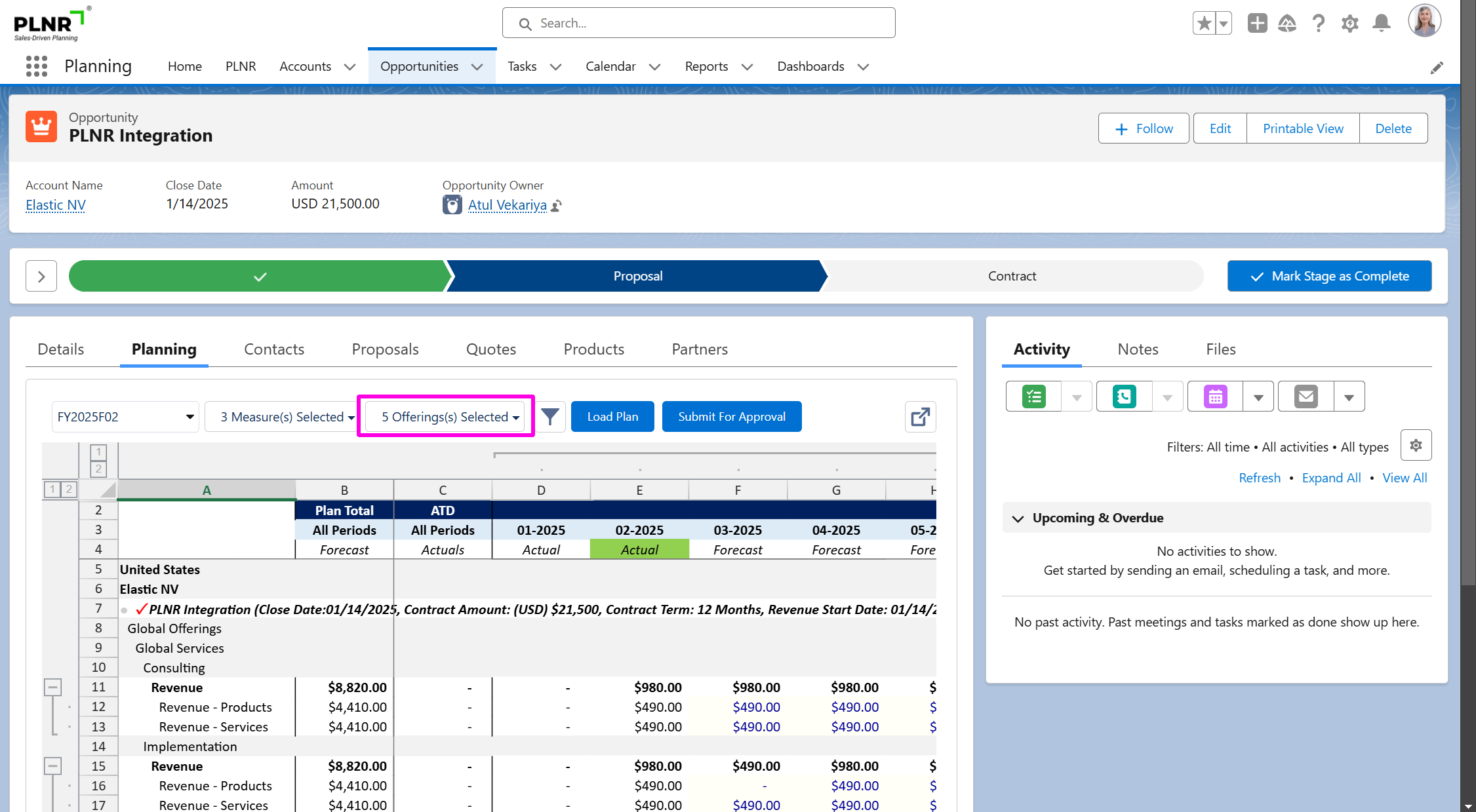
Figure 1.42 - Opportunity Plan Planning Offerings
- Additional data filters
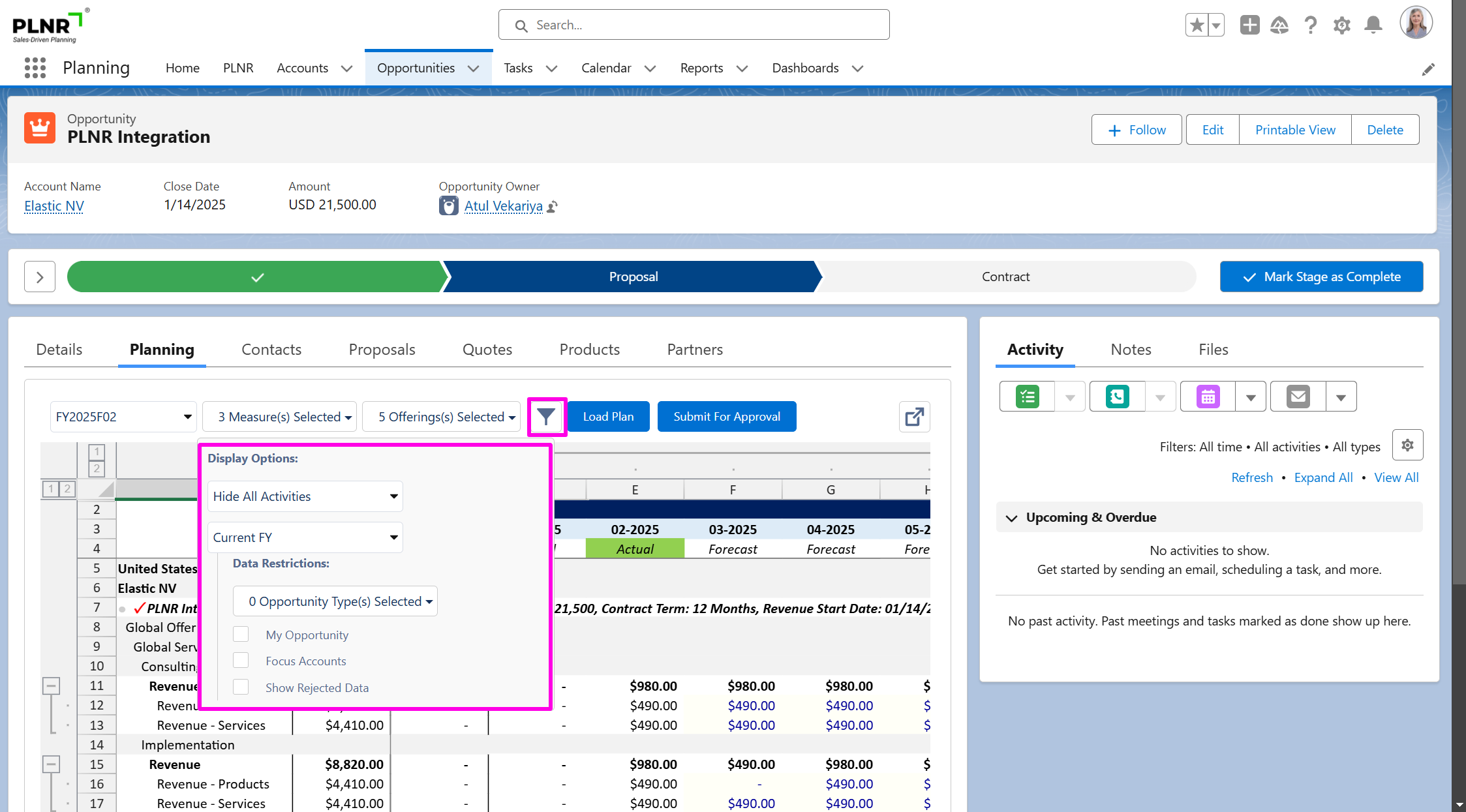
Figure 1.43 - Opportunity Plan Additional Data Filters
- Time Periods
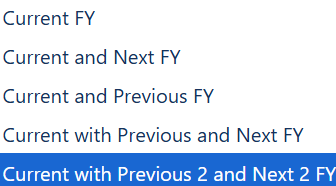
Figure 1.44 - Opportunity Plan Planning Time Periods
- Maximize planning view
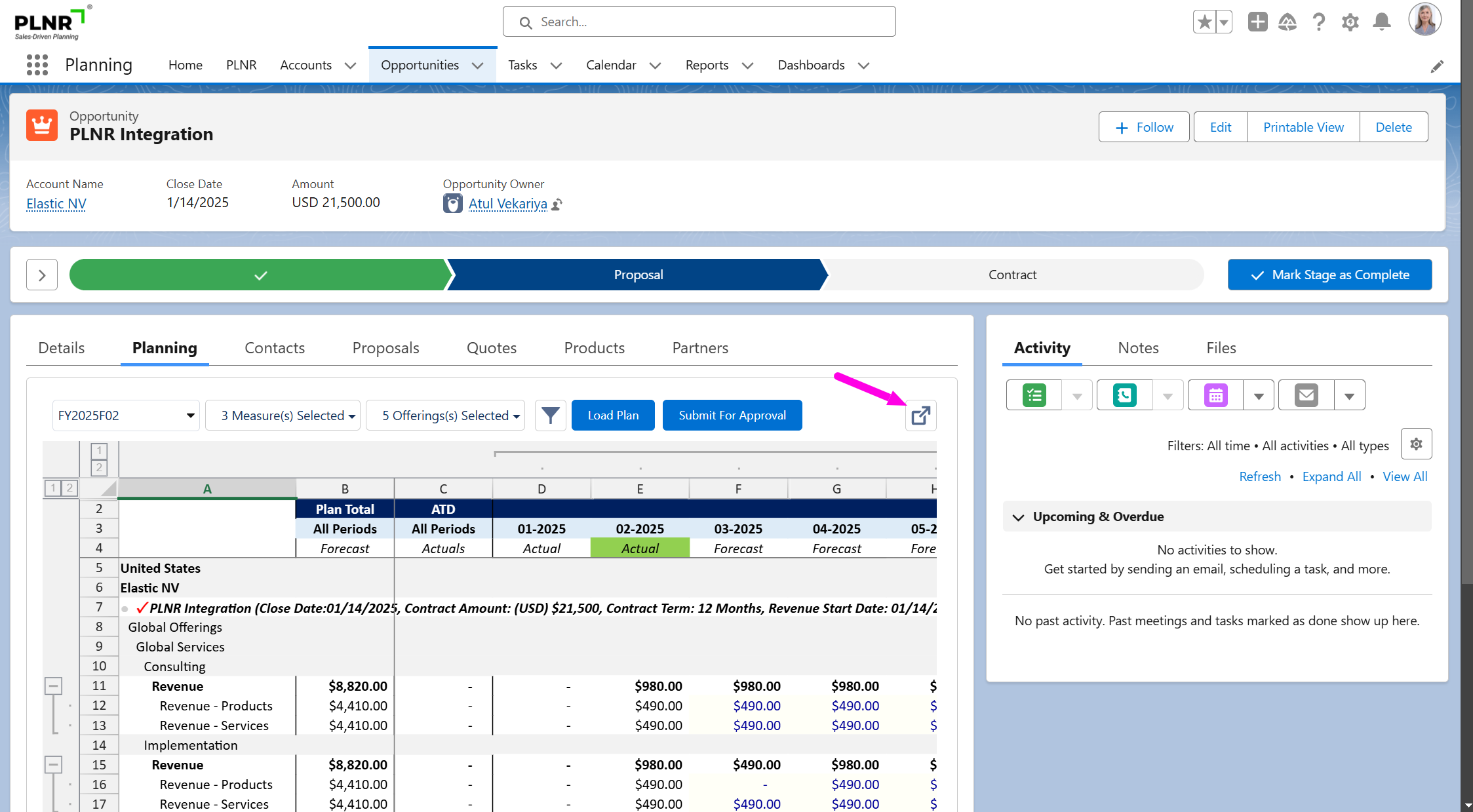
Figure 1.45 - Opportunity Plan Maximize Button
You are able to select some other Additional Data Filter Options.
Data Restrictions:
Restrict to Select Accounts Only
This option will only display Accounts that have the “Include in Planning” checkbox checked on the Account record.
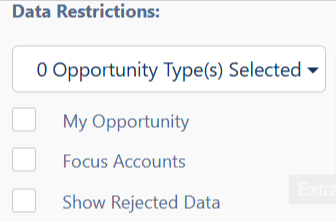
Figure 1.46 - Opportunity Planning Data Restrictions Filter
Display Options:
- Hide All Activities
- Show All Tasks/Events
- Show Open Tasks/Events
You can also choose to display only Show Open Tasks and Events or Show All Tasks/Events.
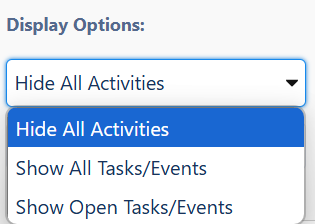
Figure 1.47 - Opportunity Planning Display Options
Once you have selected your display options, you click on “Load Plan” to reload the Planning View.
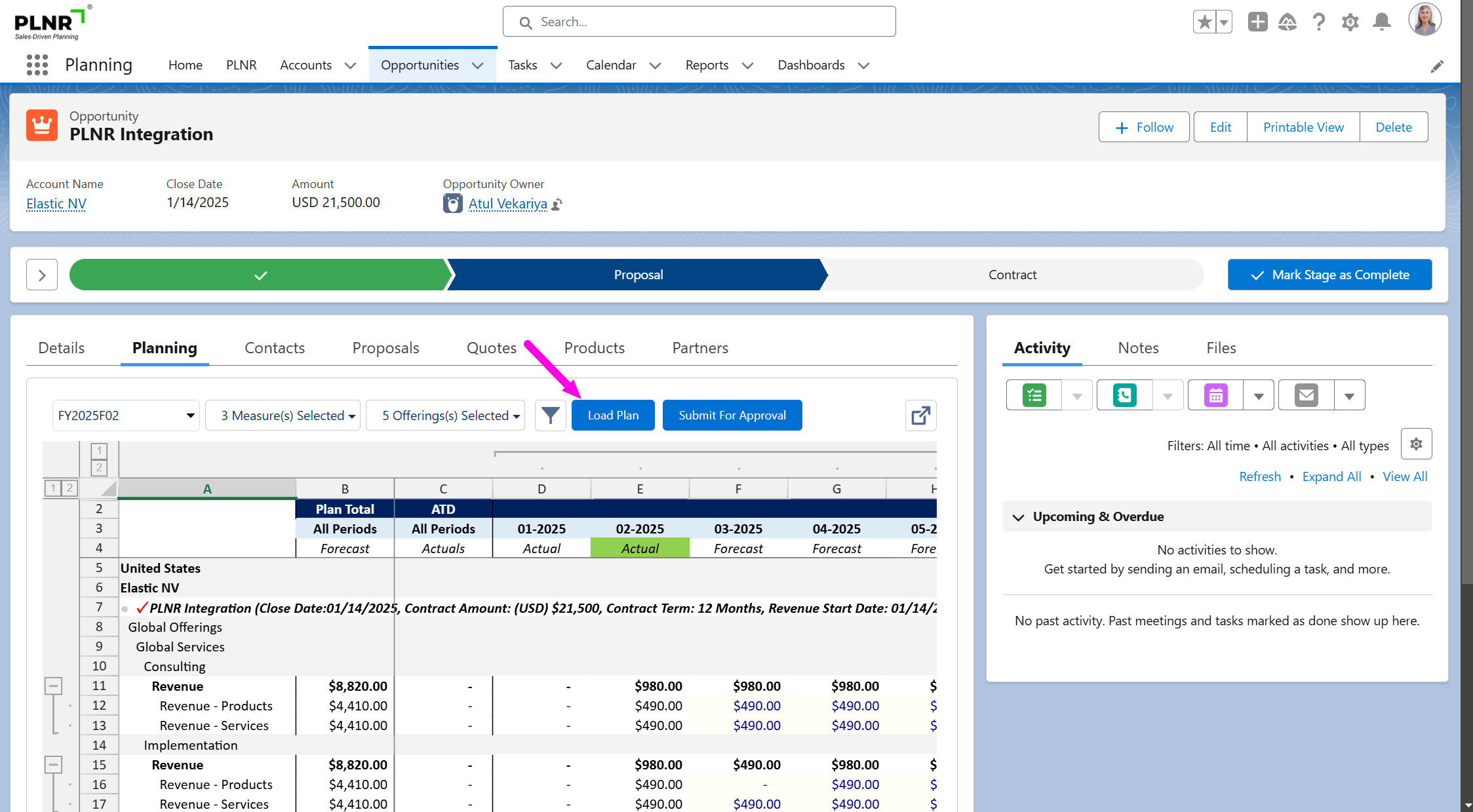
Figure 1.48 - Opportunity Planning Load Plan Button
Submitting Your Opportunity Plan
Steps:
- Select "Submit For Approval"
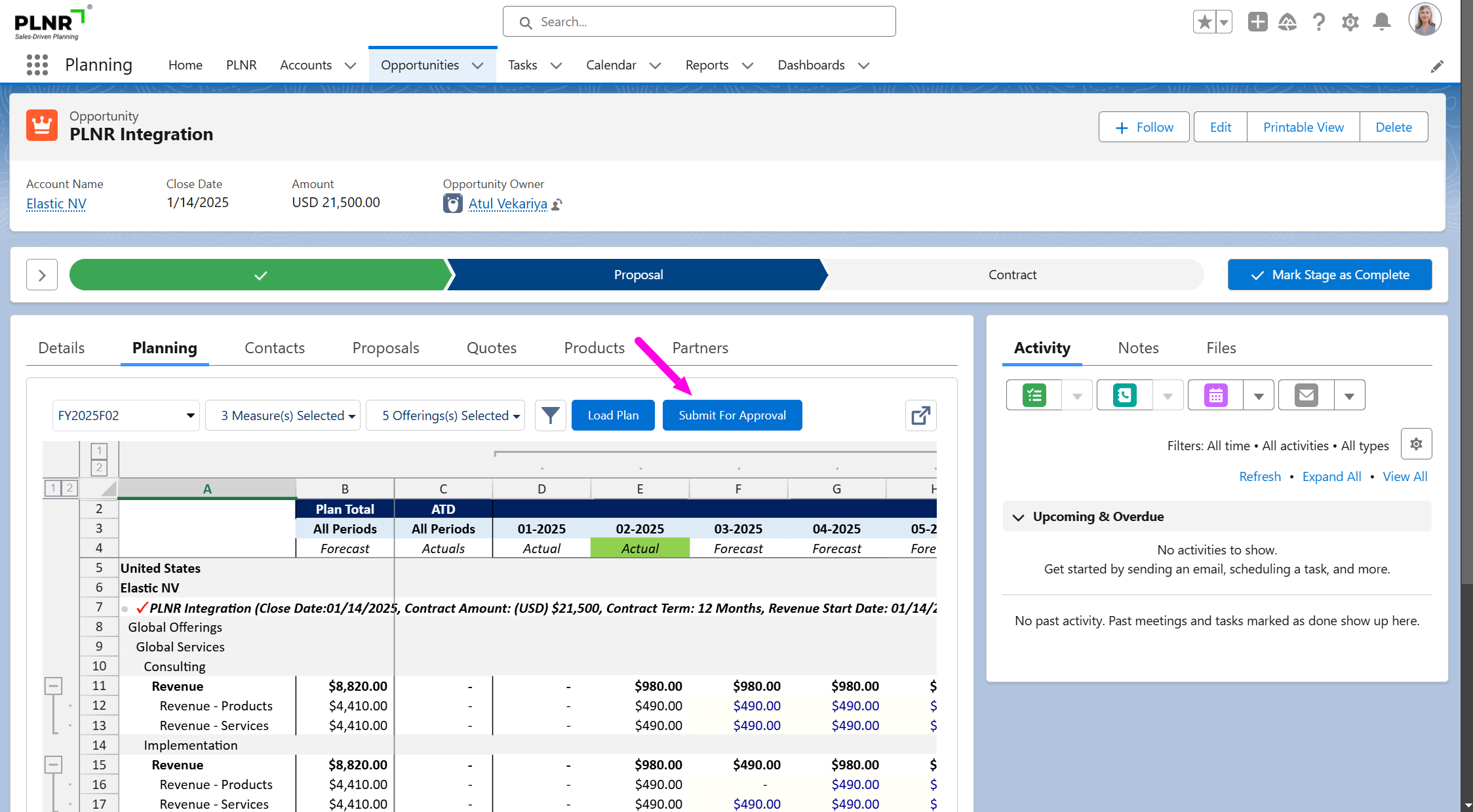
Figure 1.49 - Opportunity Planning Submit For Approval Button
Steps:
- Choose the Opportunities to include in your Submission (Select either "Submit All Pages" or "Submit Current Page Only")
- Type in Comments (if necessary)
- Click the "Submit For Approval" button
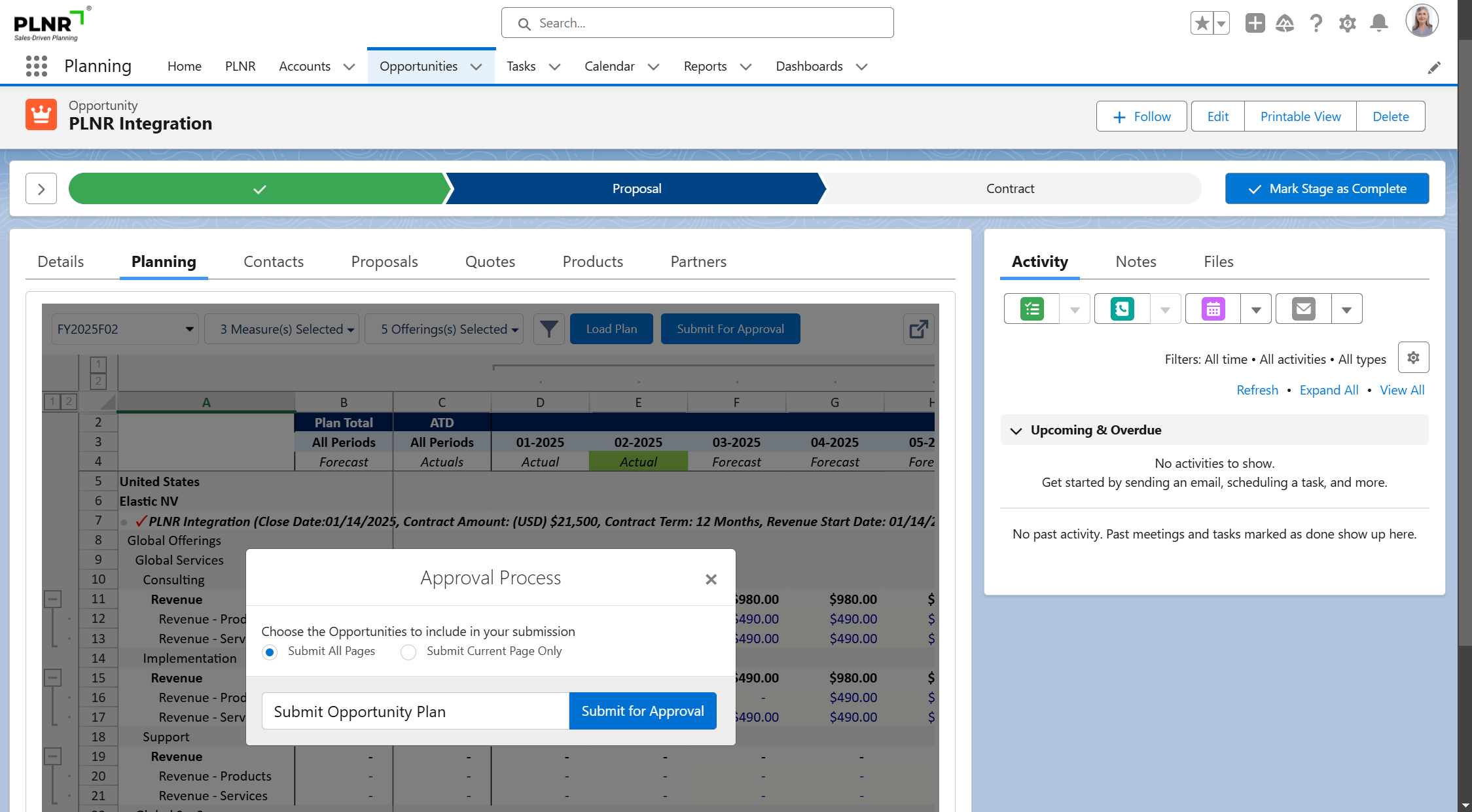
Figure 1.50 - Opportunity Planning Approval Process Pop-Up Window
Planning Activities
Planning User Interface
Your Sales, Marketing, and Operations teams can plan against their Accounts and Opportunities.
We offer three views from which they can plan:
- Account Plan - This planning view allows the user to enter information for a list of accounts.
- Opportunity Plan - This planning view allows the user to enter information for a list of opportunities.
- Account and Opportunity Plan - This planning view allows the user to enter information for a single account along with associated opportunities and is usually found on the Account record.
Guidance for this Planning View is covered under the Account and Opportunity Planning sections respectively.
Entering Your Plan
Overview of User Interface
Once you have your appropriate Planning Views loaded, you can review and enter your planning data within the Planning Version using the Excel-like user interface.
Key Excel-like functionalities include:
- Resizing Columns and Rows
- Collapsing/Expanding Columns and Rows
- Copy/Paste values
- Zoom In/Out
In addition, we have Planning Related Actions that can be performed via right-click menu:
Excel actions:
- Copy
- Cut
- Paste Options
- Clear Contents
- Sort
PLNR actions:
- Comments
- Tasks
- Events
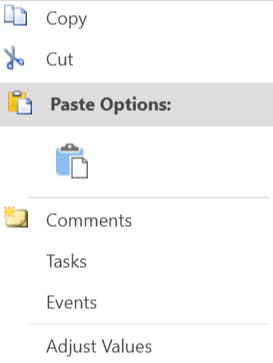
Figure 1.51 - Opportunity Planning Content Pop-Up Box
PLNR Actions: Managing Comments
You can enter Comments on planning views, when looking at a particular cell on the Excel-like interface.
Input Data Into Cells
Steps:
Select the input cell and Right-Click.
If there are Existing Comments, the cell should have an indication at the top-right corner.
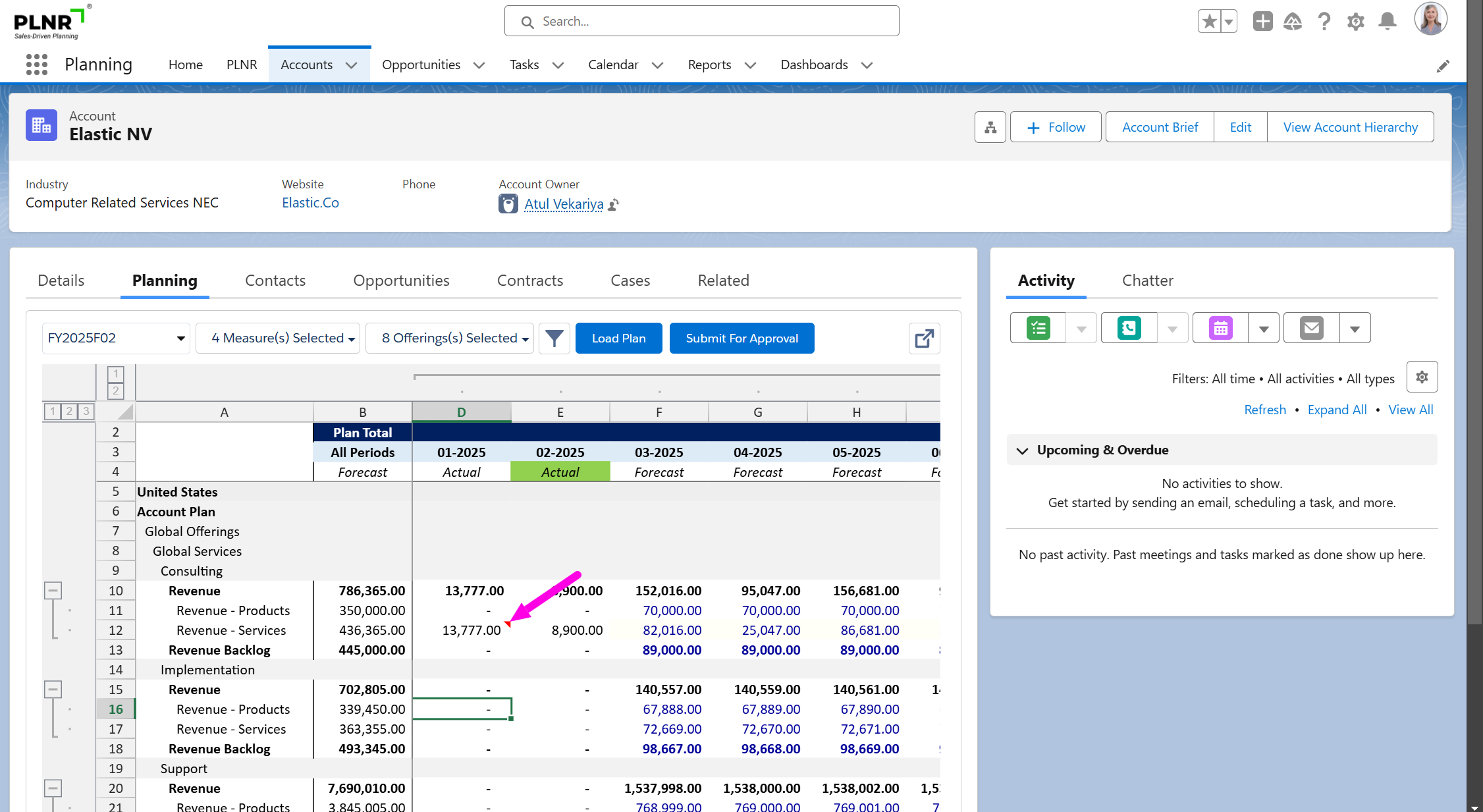
Figure 1.52 - Opportunity Planning Existing Comment Indicator
MENU Actions
You will see the menu with Actions you can perform.
Steps:
- Click on “Comments”.
This will pop up the Comments box and display any Existing Comments on the cell.
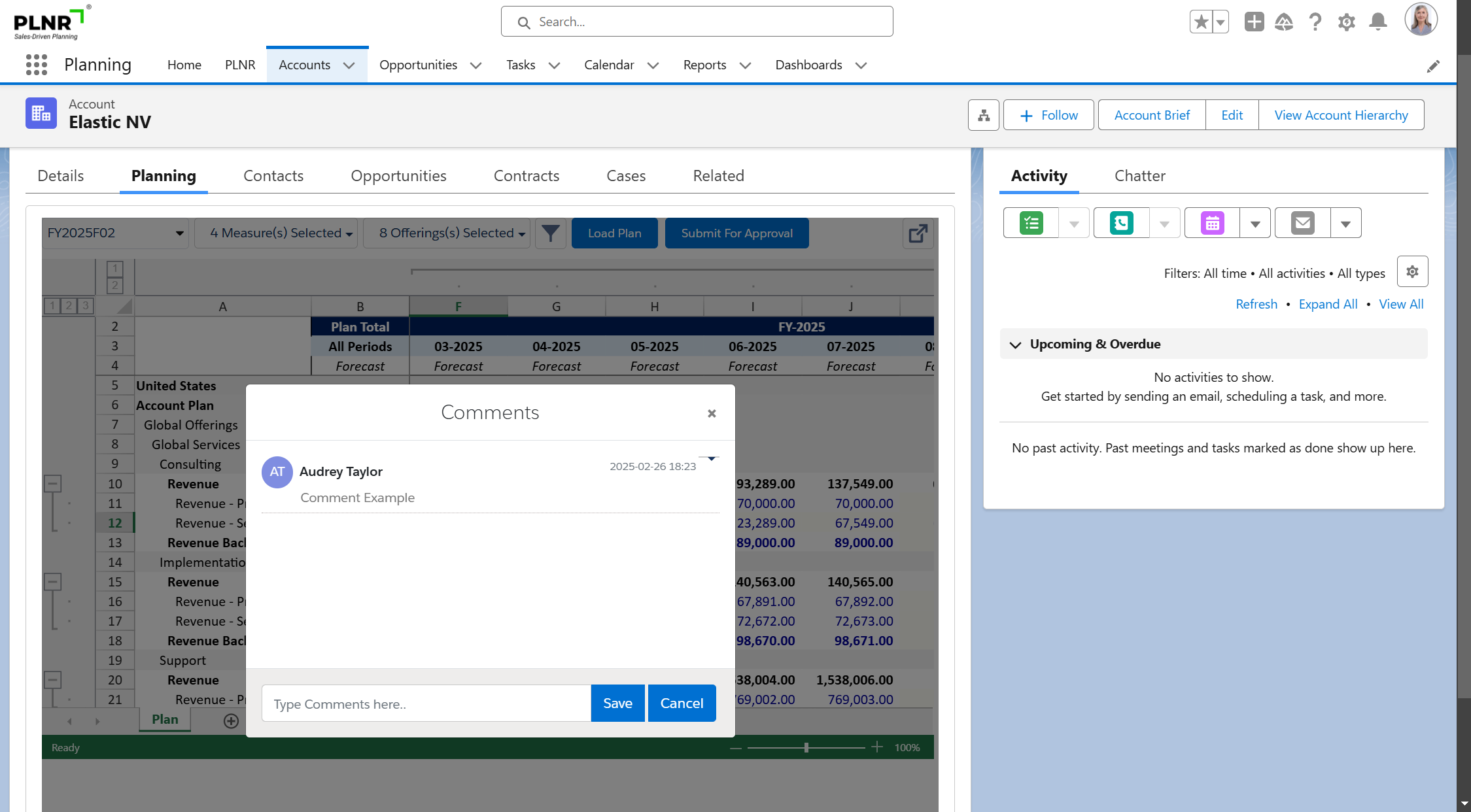
Figure 1.53 - Opportunity Planning Existing Comments Display
If Existing Comments are present that you previously entered, you can review the comment and choose to “Edit” or “Delete” it.
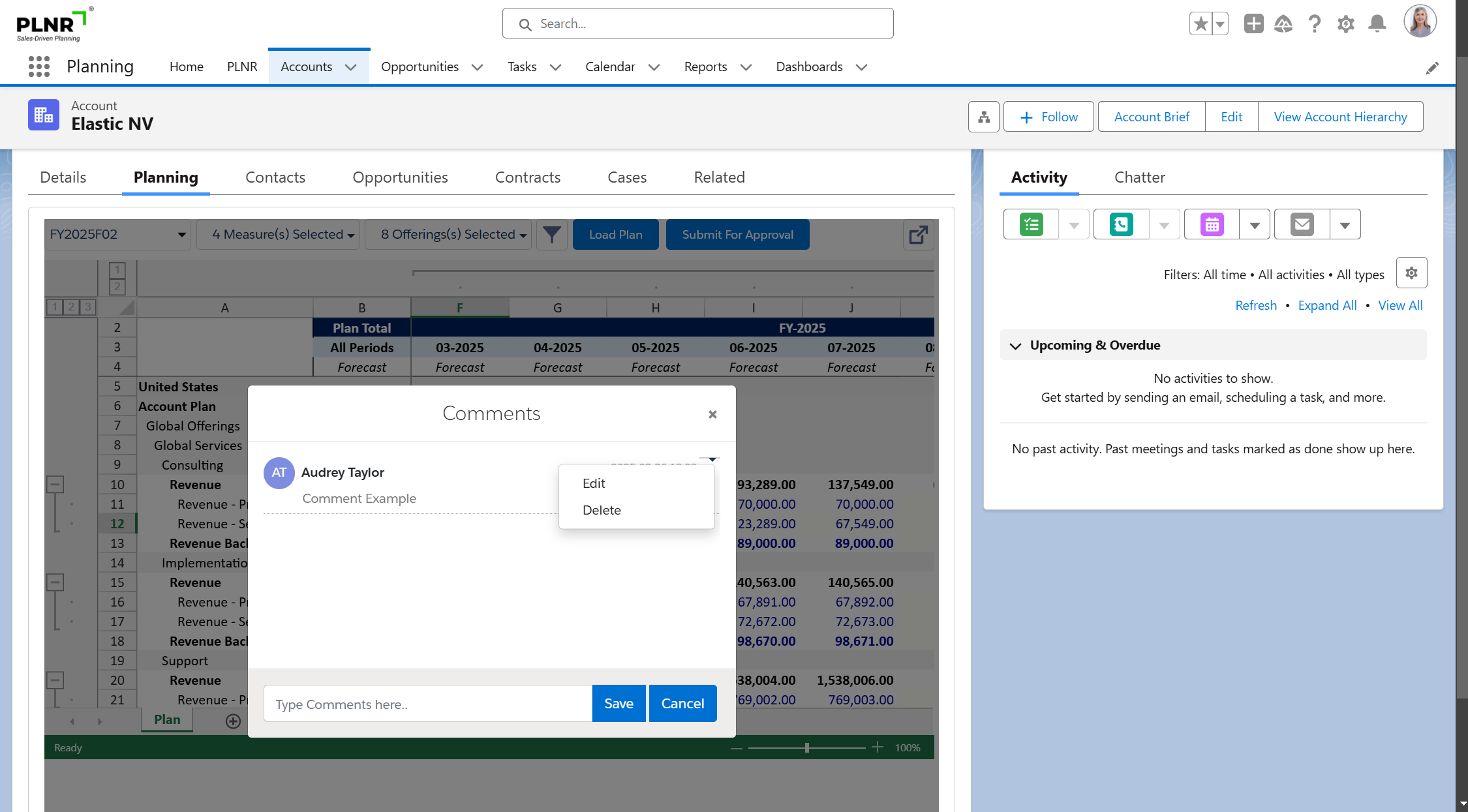
Figure 1.54 - Opportunity Planning Existing Comments
Save COMMENTS
Steps:
- You can enter your comments and click “Save”.
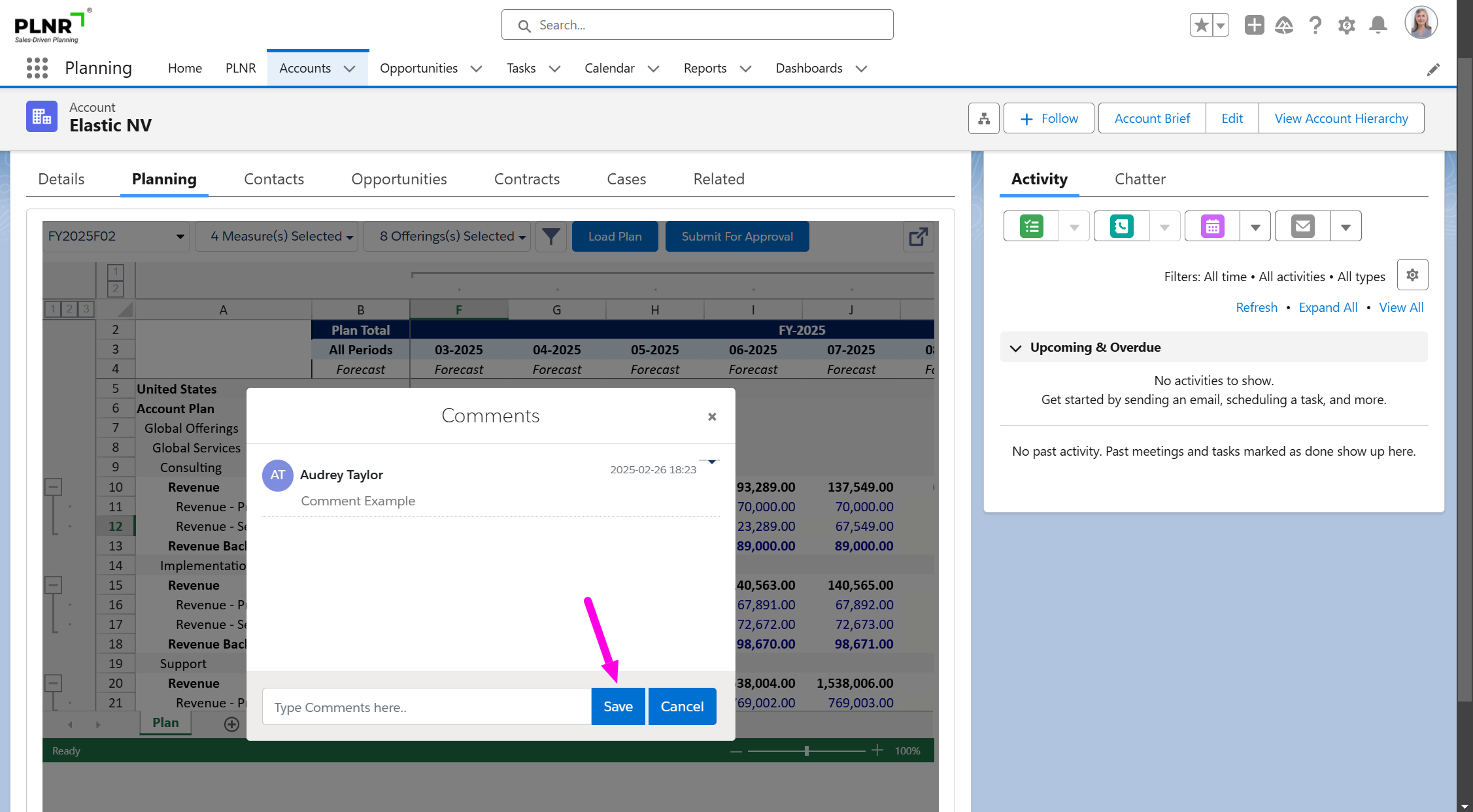
Figure 1.55 - Opportunity Planning Comments Save Button
PLNR Actions: Managing Tasks
You can enter and review Tasks on planning views, when looking at a particular Time Period for an Account or Opportunity on the Excel-like interface.
You have to ensure that you have Activities currently being display in the Planning View so you can see any existing Tasks.
Selecting the task option
Steps:
- Select the input cell and Right-Click.
- Choose “Tasks”
You will see a window pop-up that allows you to create a Task
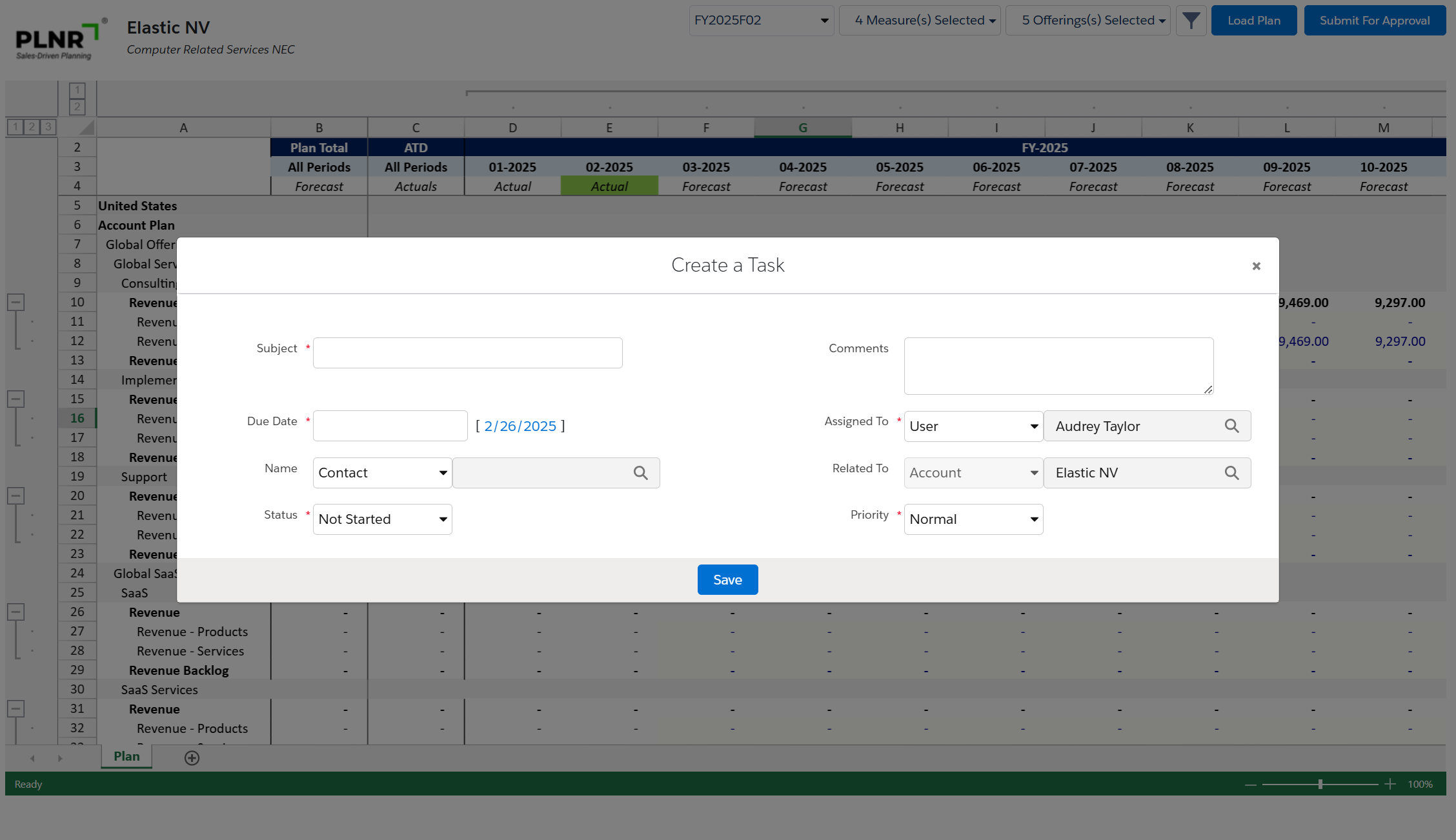
Figure 1.56 - Opportunity Planning Creating A Task
INPUT TASK DATA
Steps:
- Select the Input Cell and Right-Click.
- Subject
- Assigned To (This field is automatically populated with your user. You can always assign the task to another member of your team)
- Related To (If you clicked on a cell under the account section, the Related To field will automatically relate the task to the account)
- Priority
- Comments
- Due Date (Based on the Due Date chosen, the Task will appear under the corresponding Time Period on the plan)
- Name (Contact/Lead - You can search for a Contact related to the Account for this specific Task, if applicable)
- Status
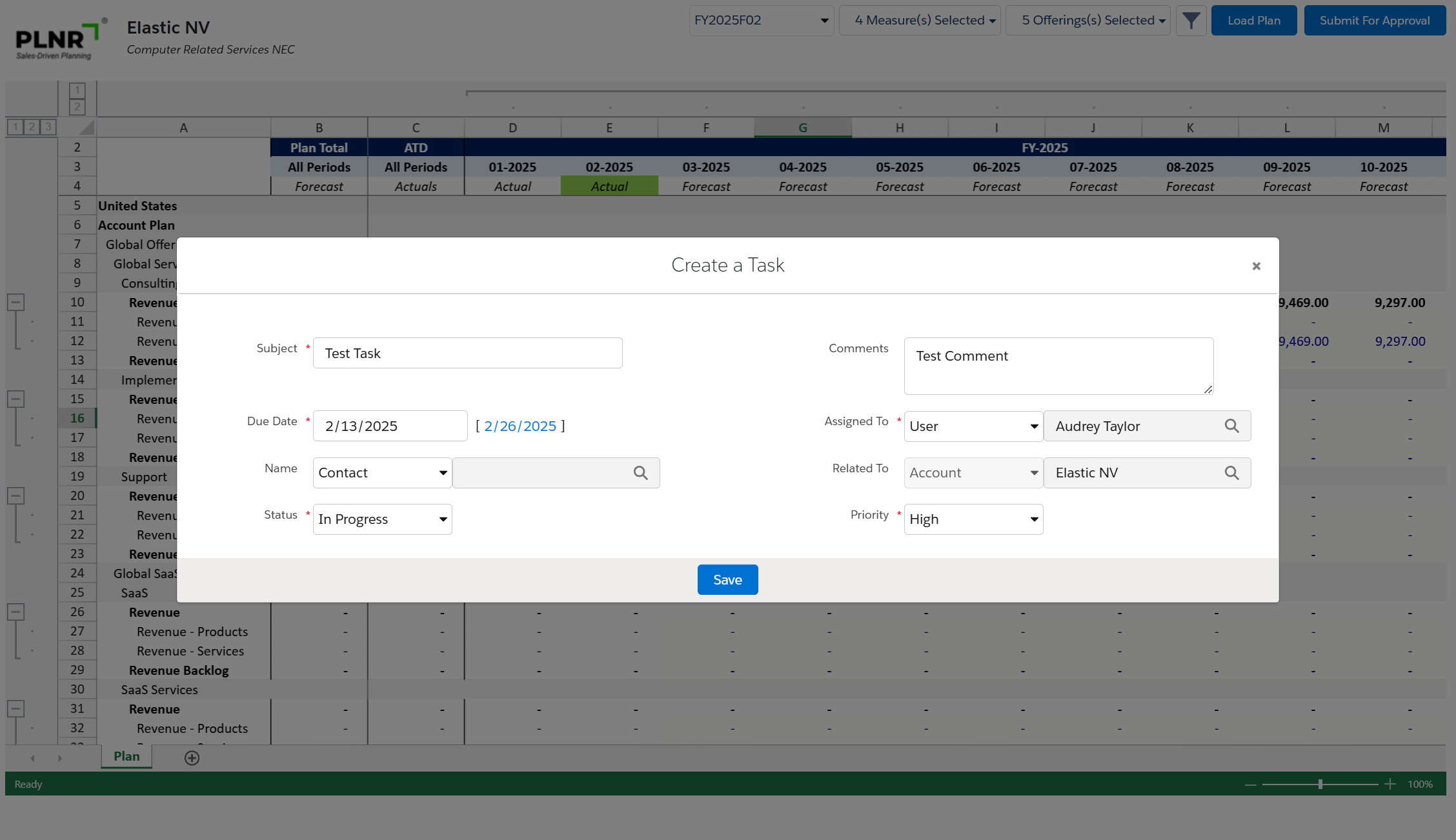
Figure 1.57 - Opportunity Planning Task Details
Once you create the new Task, it will be displayed on your Plan.
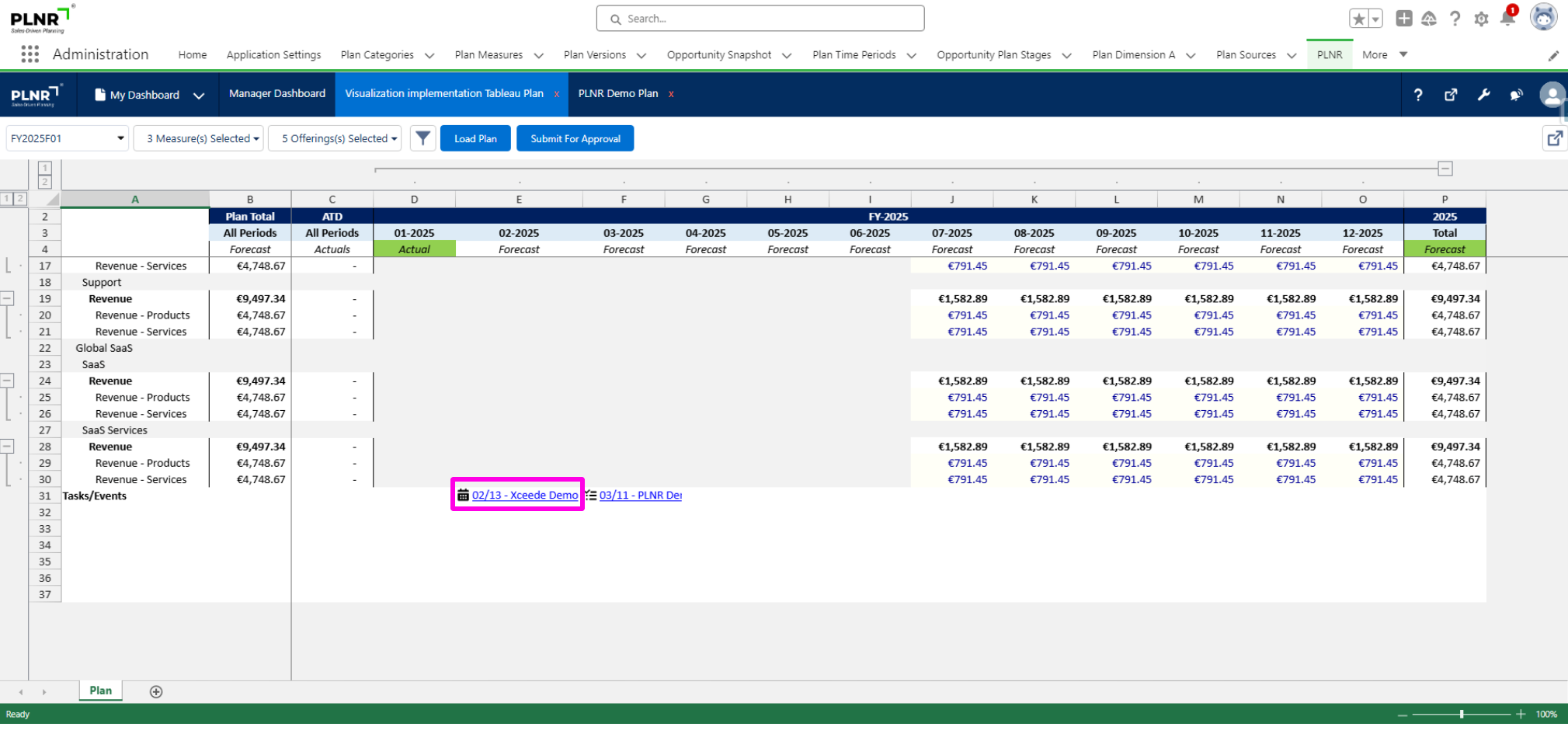
Figure 1.58 - New Task Display
PLNR Actions: Entering Events
You can enter and review Events on Planning Views when looking at a particular Time Period for an Account or Opportunity on the Excel-like interface.
You must ensure that you have Activities currently being display in the Planning View so you can see any existing Events.
Creating An Event
Steps:
- Select the input cell and Right-Click.
- Choose “Events”
You will see a window pop-up that allows you to create an Event.
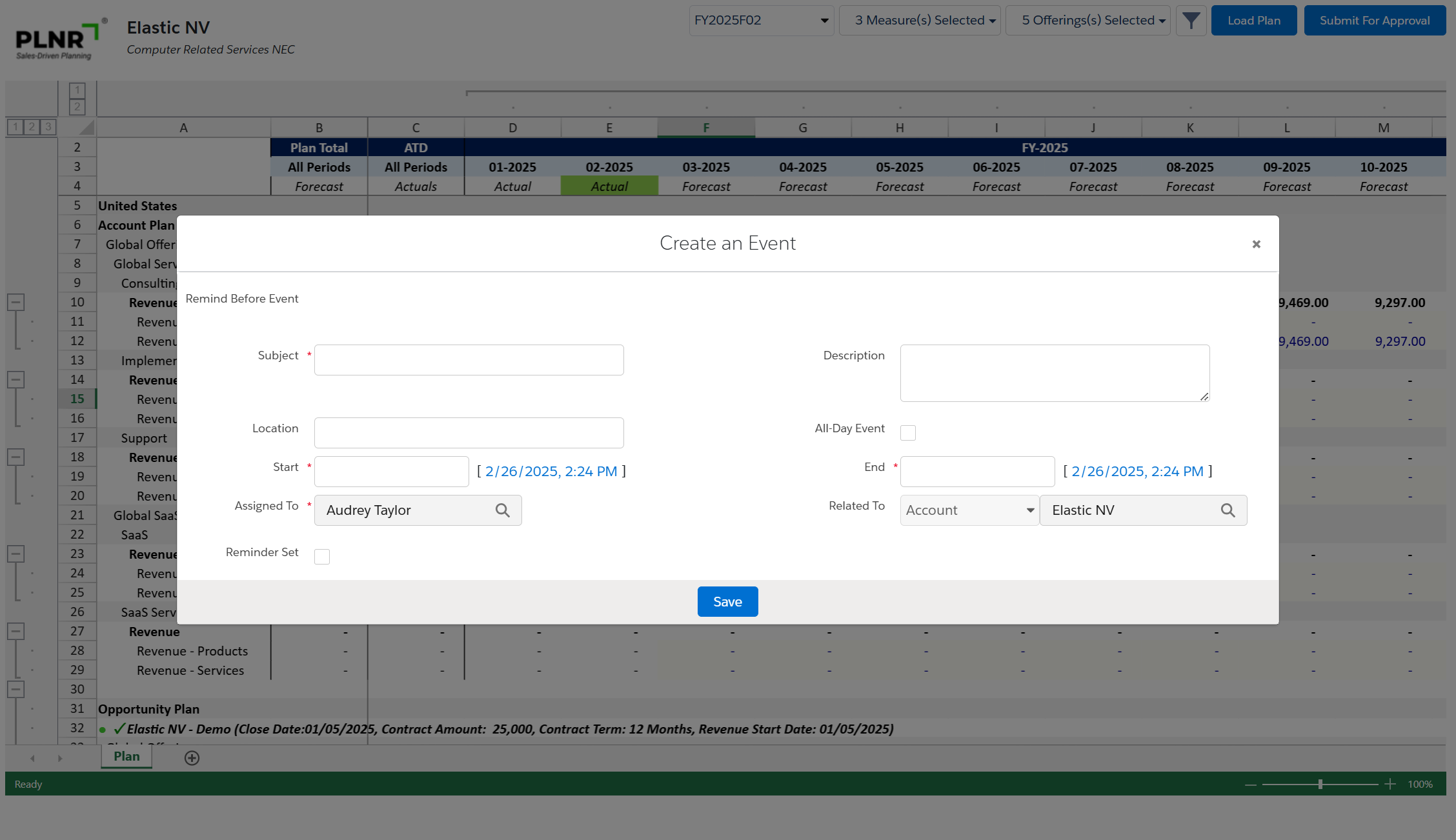
Figure 1.59 - Opportunity Planning Creating An Event
ENTER Event INFORMATION
Steps:
- Enter the following information for the Event:
- Subject
- Location
- Start Date/Time
- Assigned To (This field is automatically populated with your user. You can always assign the task to another member of your team)
- Name (Contact -You can search for a Contact related to the Account for this specific Task, if applicable)
- Reminder Set
- Description
- All Day Event
- End Date/Time
- Related To (If you clicked on a cell under the account section, the Related To field will automatically relate the task to the account)
- Remind Before Event
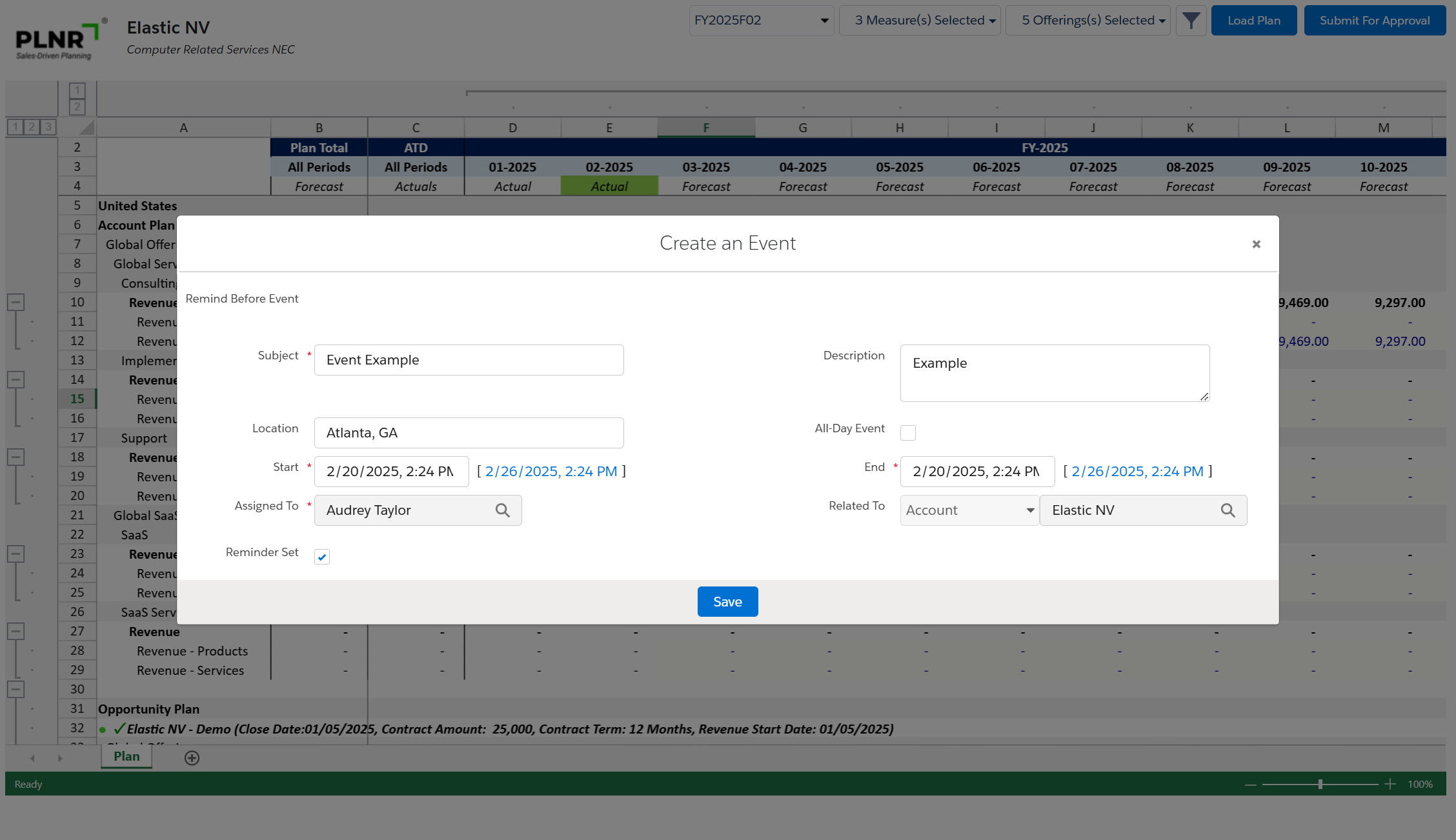
Figure 1.60 - Opportunity Planning Event Details
Once you create the new Event, it will be displayed on your Plan.
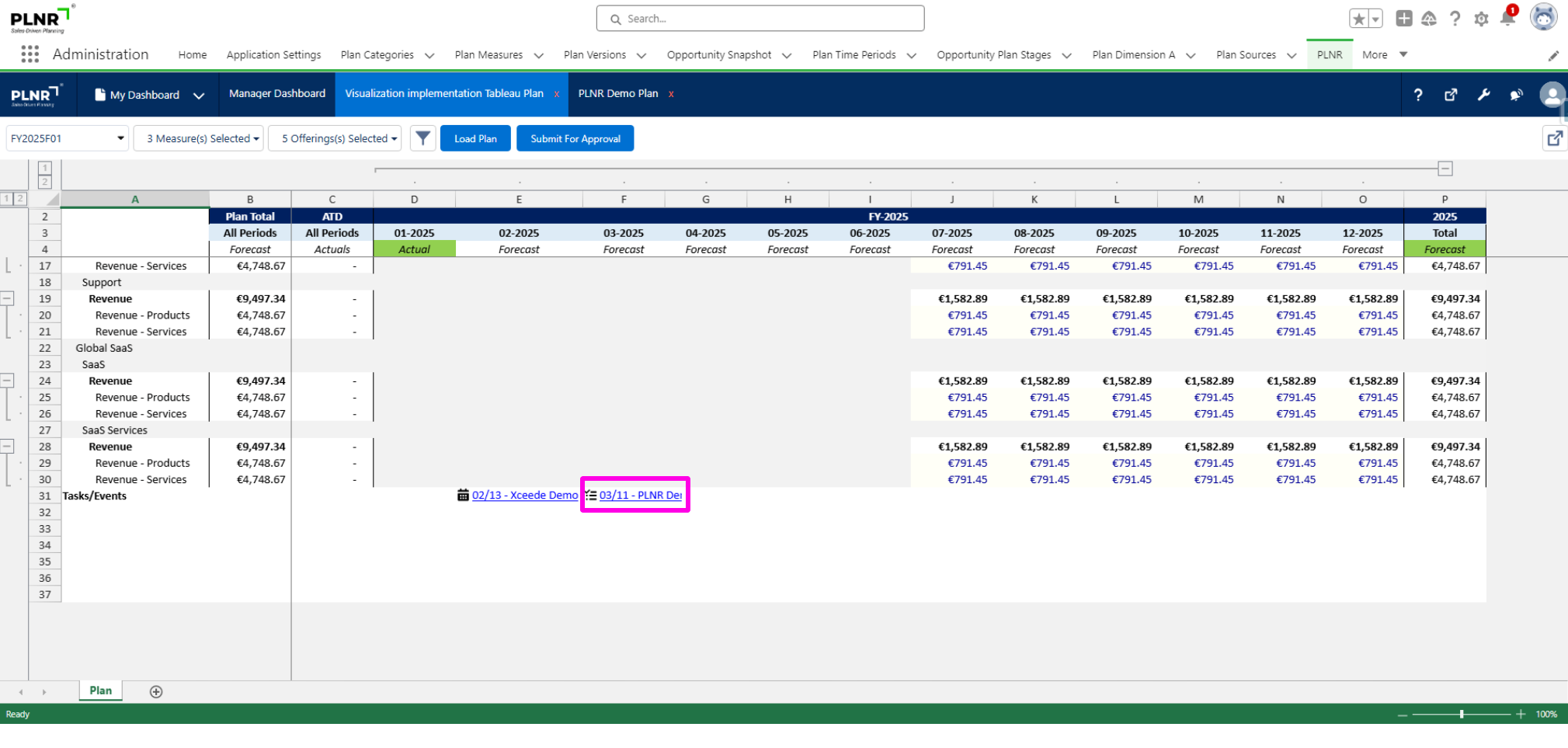
Figure 1.61 - New Event Display
Submit your Plan for Approval
Overview of Approval Process
Once your Plan is ready, you can submit it for approval. You can submit plans at the Account level and at the Opportunity level.
Account Approval Request
You can submit a plan at the Account level.
Submit for Approval
Steps:
- Click on the “Submit for Approval” button
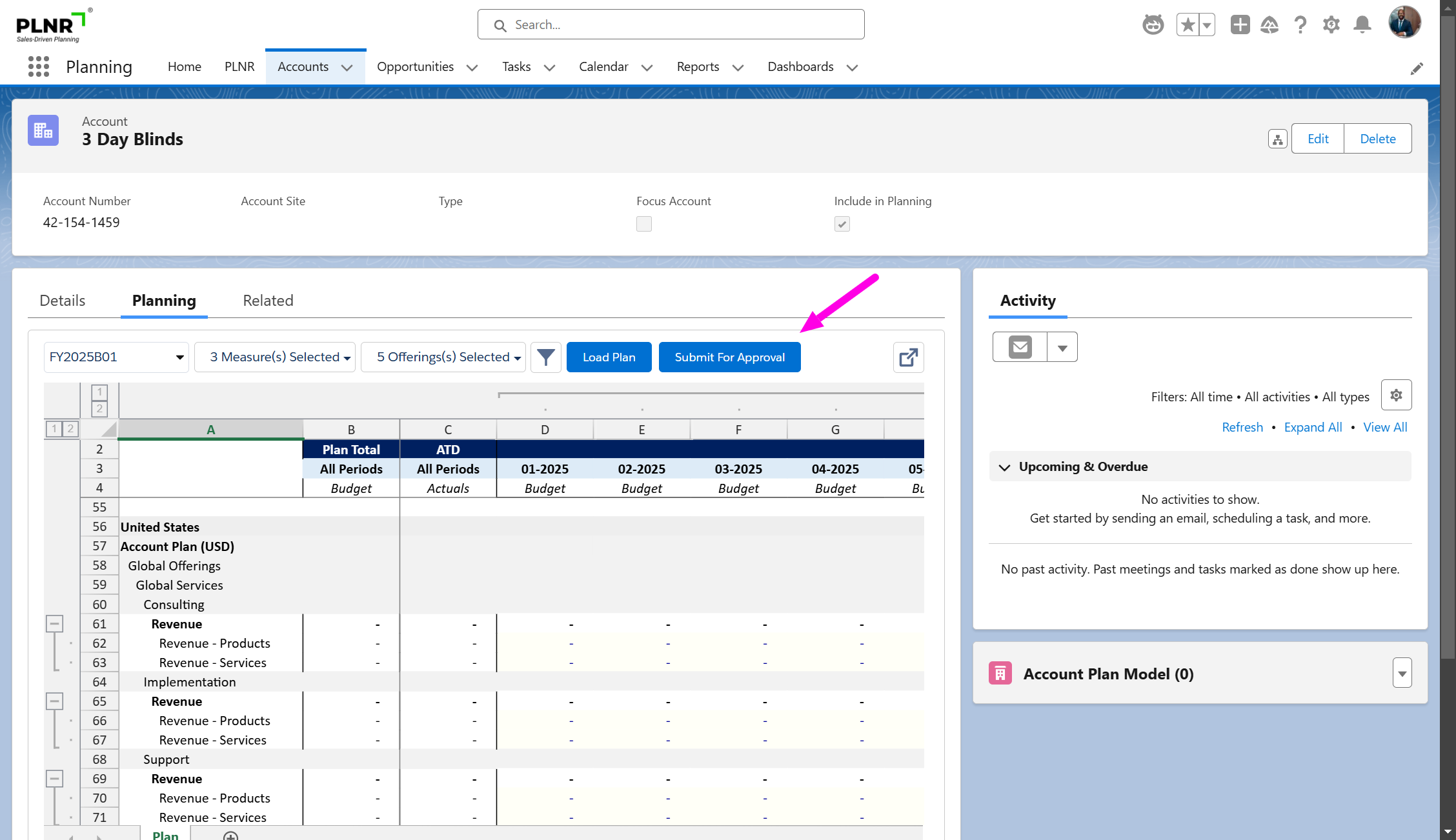
Figure 1.62 - Submit Account Plan For Approval
Pop-Up Window
Steps:
- You will see an Approval Process pop-up window.
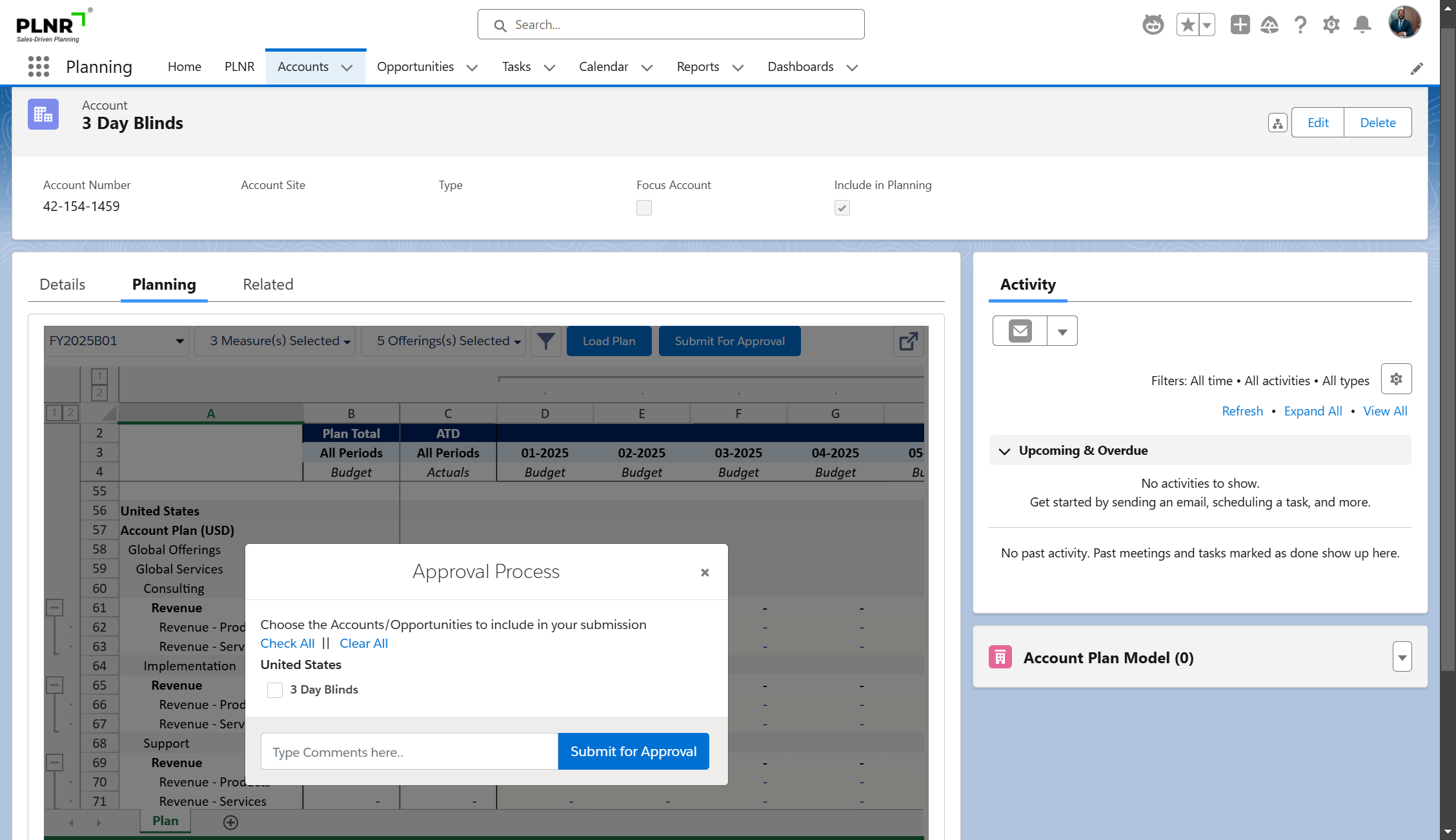
Figure 1.63 - Submit For Approval Pop-Up Window
- Select whether you want to submit all pages of the Plan (used when submitting comprehensive plans or alterations) or only the current page (used when submitting modifications of smaller scope).
- Add Comments to the text box (optional).
- Click on the “Submit for Approval” button.
Submission Confirmation
Steps:
- Your Account Plan has been submitted for Approval.
Opportunity Approval Request
You can submit a plan at the Opportunity level.
Submit For Approval
Steps:
- Click on the “Submit for Approval” button
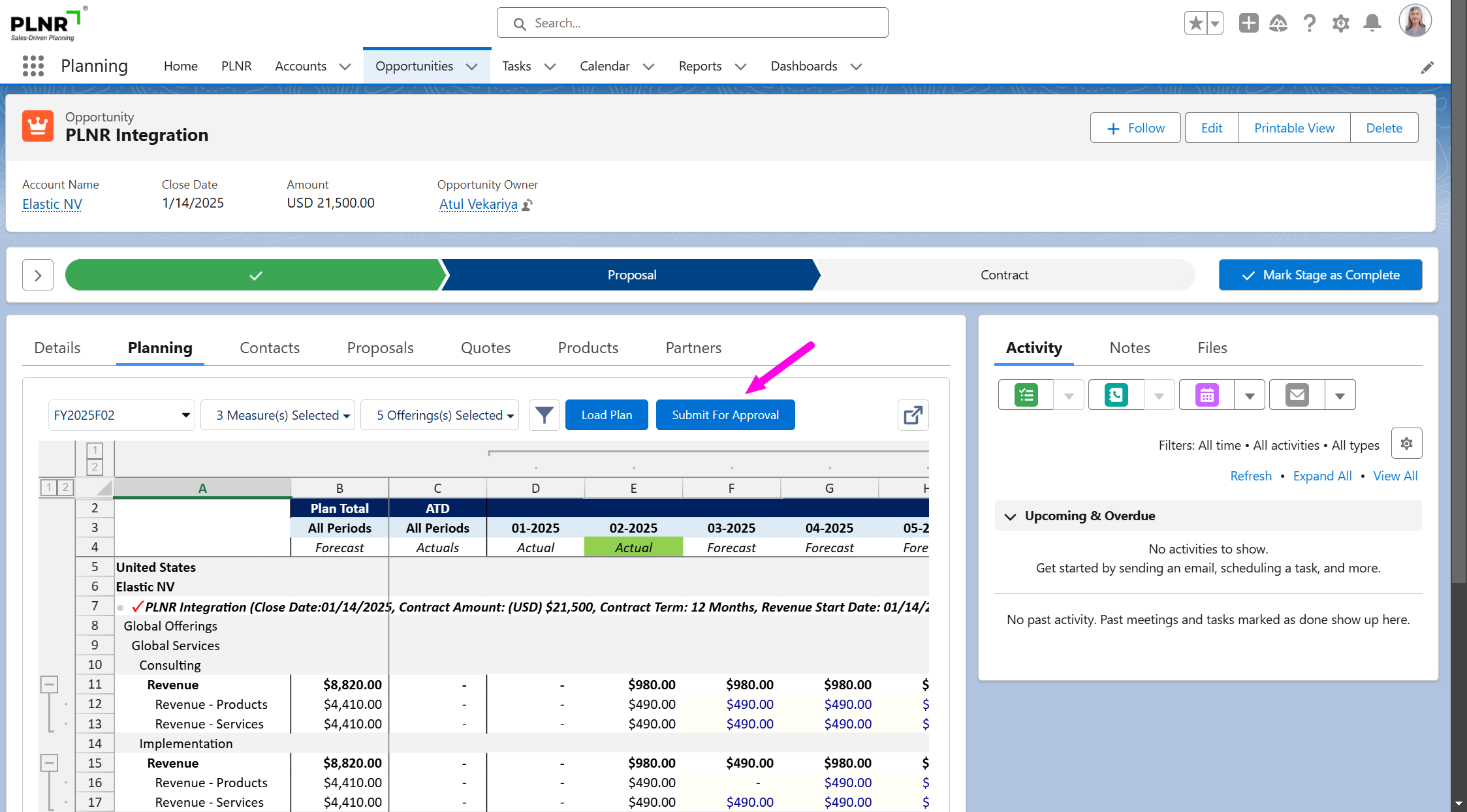
Figure 1.64 - Opportunity Planning Submit For Approval Button
Approval Pop-Up Window
- You will see an Approval Process pop-up window.
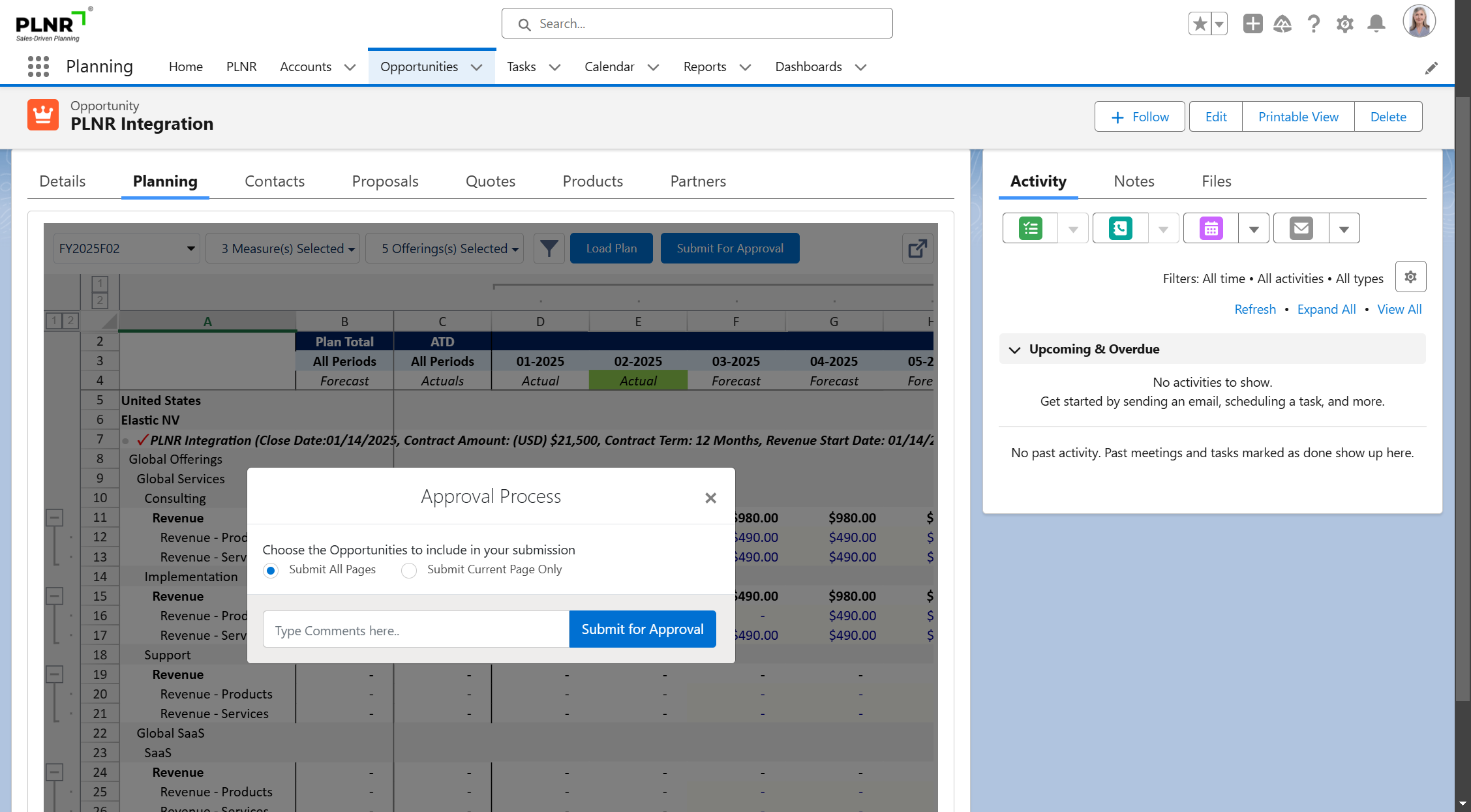
Figure 1.65 - Opportunity Planning Approval Process Pop-Up Window
- Select whether you want to Submit All Pages of the Plan (used when submitting comprehensive plans or alterations) or only the Current Page (used when submitting modifications of smaller scope).
- Add Comments to the text box (optional).
- Click on the “Submit for Approval” button.
Submitted For Approval
- Your Opportunity Plan has been submitted for Approval.
Once the Opportunity Plan is submitted, the assigned Manager will receive an email
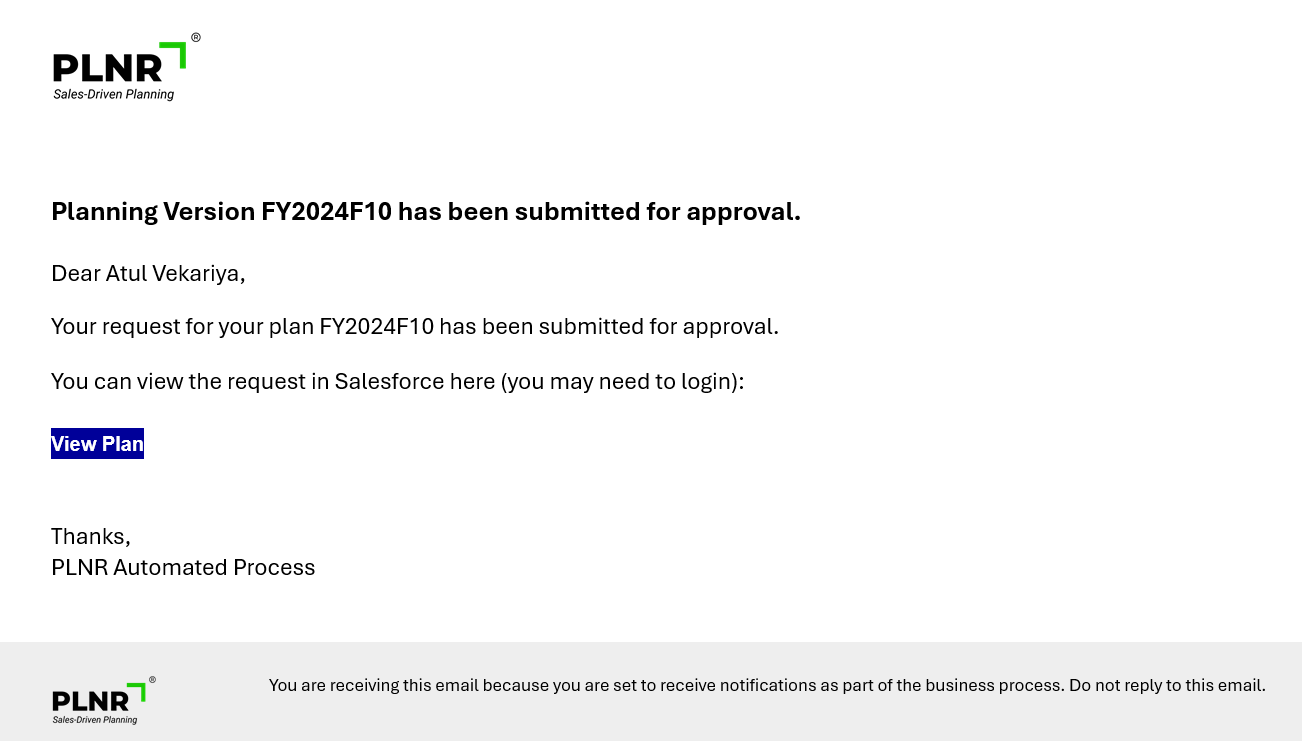
Figure 1.66 - Manager Approval Email
Reviewing Feedback and Resubmitting
After a Manager reviews a submitted plan and Approves or Rejects it, the team member receives an email notification inviting them to review the feedback and re-submit. This entails the same steps detailed above.
Planning Approval
Manager Approval Processes
Once a member from the Sales team submits an Opportunity Plan or an Account Plan for approval, a Manager can review the Plan, make comments on certain plan entries and make an Approval decision on the Plan.
Approval Requests
Email Notification
Anytime a team member submits a plan for Approval, their Manager receives an Email Notification.
View Request Button
- Click on the “View Request” button to go to the Plan Approval screen

Figure 1.67 - View Plan Button
Plan View Link
- Click on the "View Plan" link to go to the Plan.
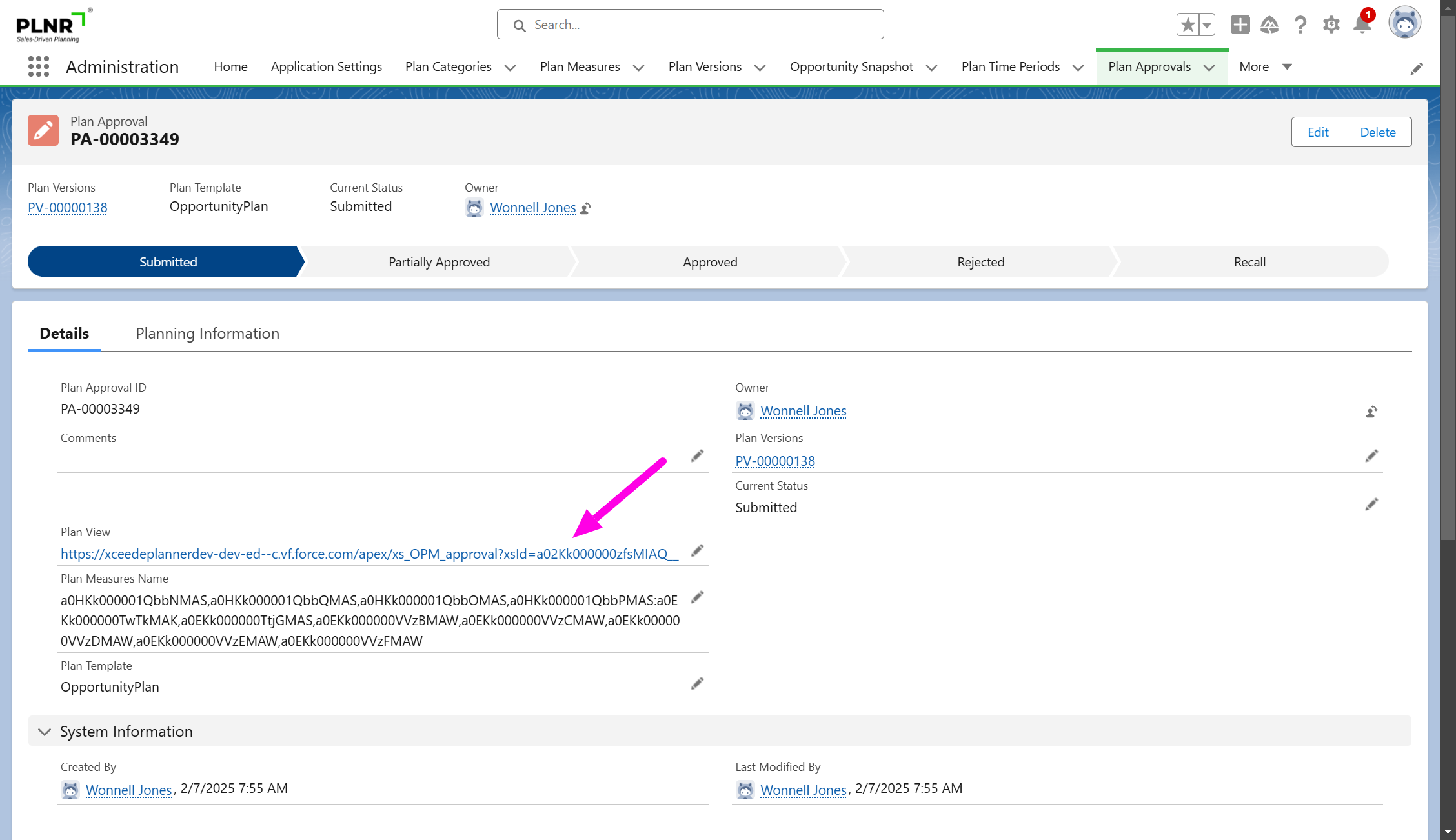
Figure 1.68 - Plan View Link
Items to Approve
Besides receiving an email, a Manager also sees a section with PLNR Items to Approve.
Steps:
- Click on the “View Request” button to go to the Plan Approval screen.
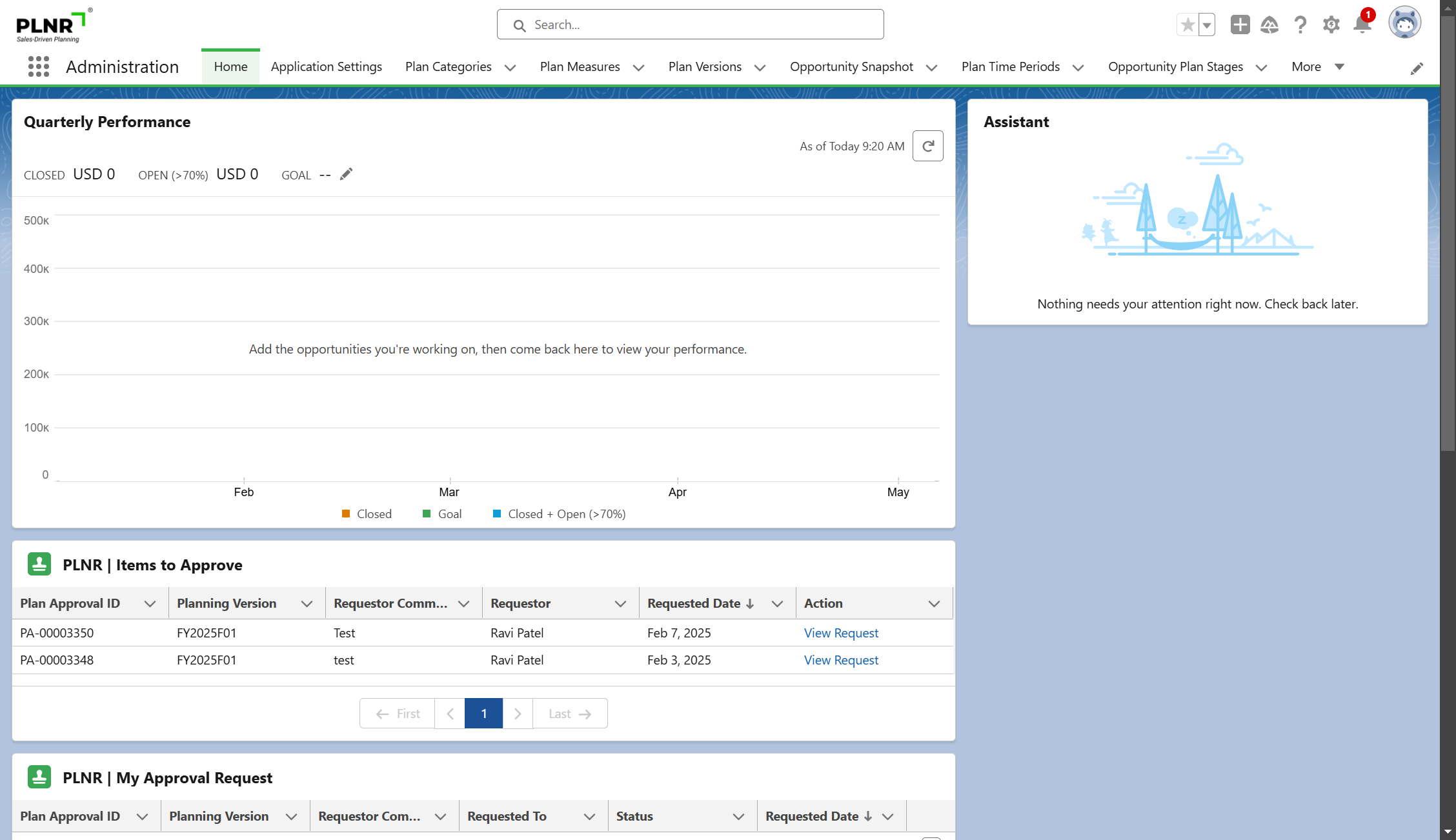
Figure 1.69 - Manager Items to Approve
Approval Types
When reviewing Plan Approval submissions, a Manager is able to perform the following Actions:
- Approve All
- Reject All
- Partially Approve
You will see the Approval Buttons at the top of the screen when you open a Plan for review.
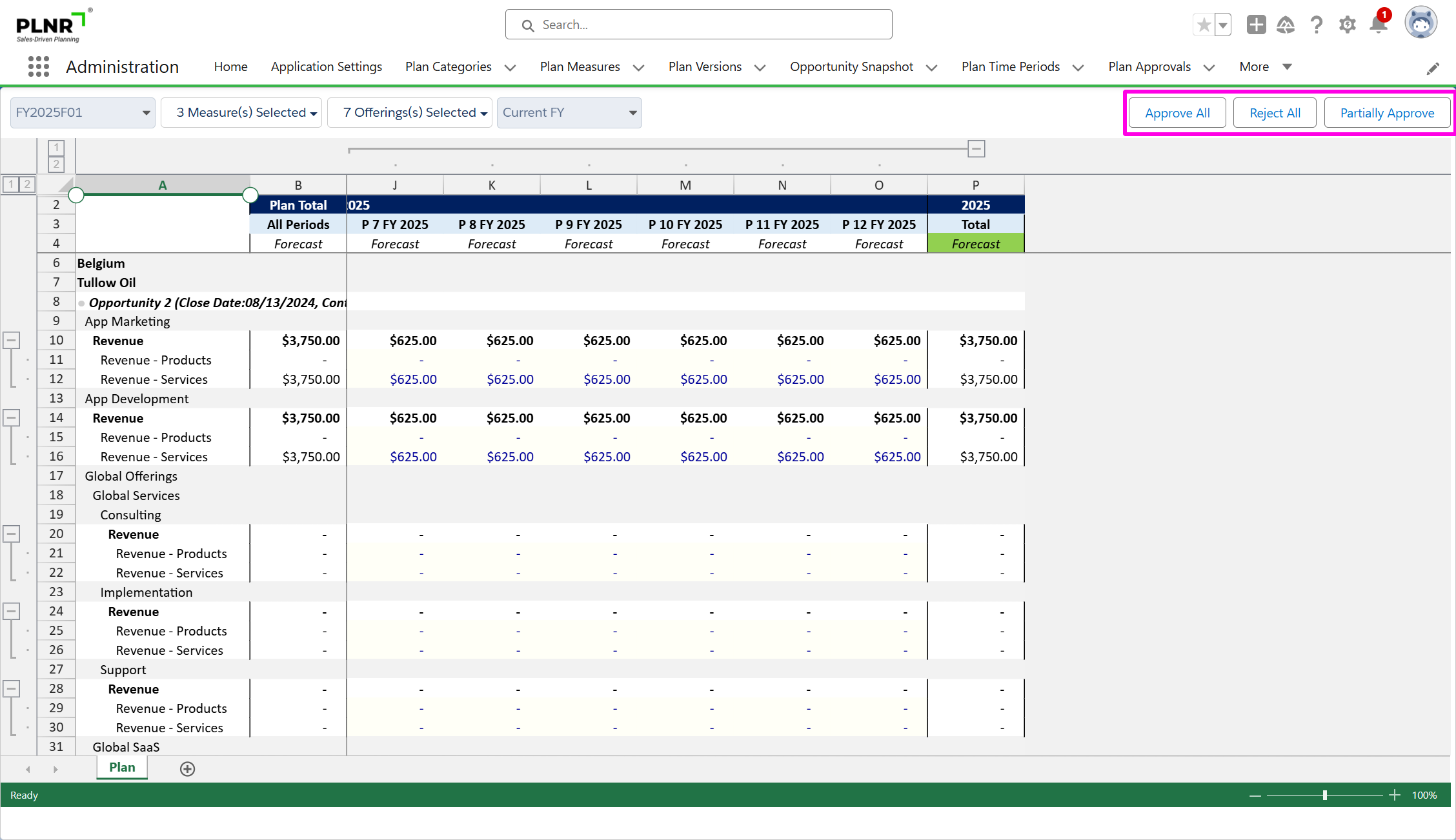
Figure 1.70 - Plan Approval Types
Approve All
You can Approve all entries without reviewing them individually.
Steps:
- Click on the “Approve All” button.

Figure 1.71 - Approve All
REJECT ALL
You can Reject All entries without reviewing them individually.
Steps:
- Click on the “Reject All” button.

Figure 1.72 - Reject All
PARTIALLY APPROVE
Steps:
- Click on the “Partially Approve” button.
Once you begin approving or rejecting specific individual entries in the plan — covered in the next section, the “Approve All” and “Reject All” buttons will be grayed out, leaving only the “Partially Approve” action available.

Figure 1.73 - Partially Approve
Need to Add Manager Approval Screens...Update Steps and Screenshots
Add user story to refresh the demo org for Atul since Sanjiv made the updates in dev org
You will use this button after you Approve and Reject individual Plan Entries.
Approving Individual Plan Entries
When you open the plan (Account or Opportunity) to approve, the Plan Entries to review are highlighted in Beige.
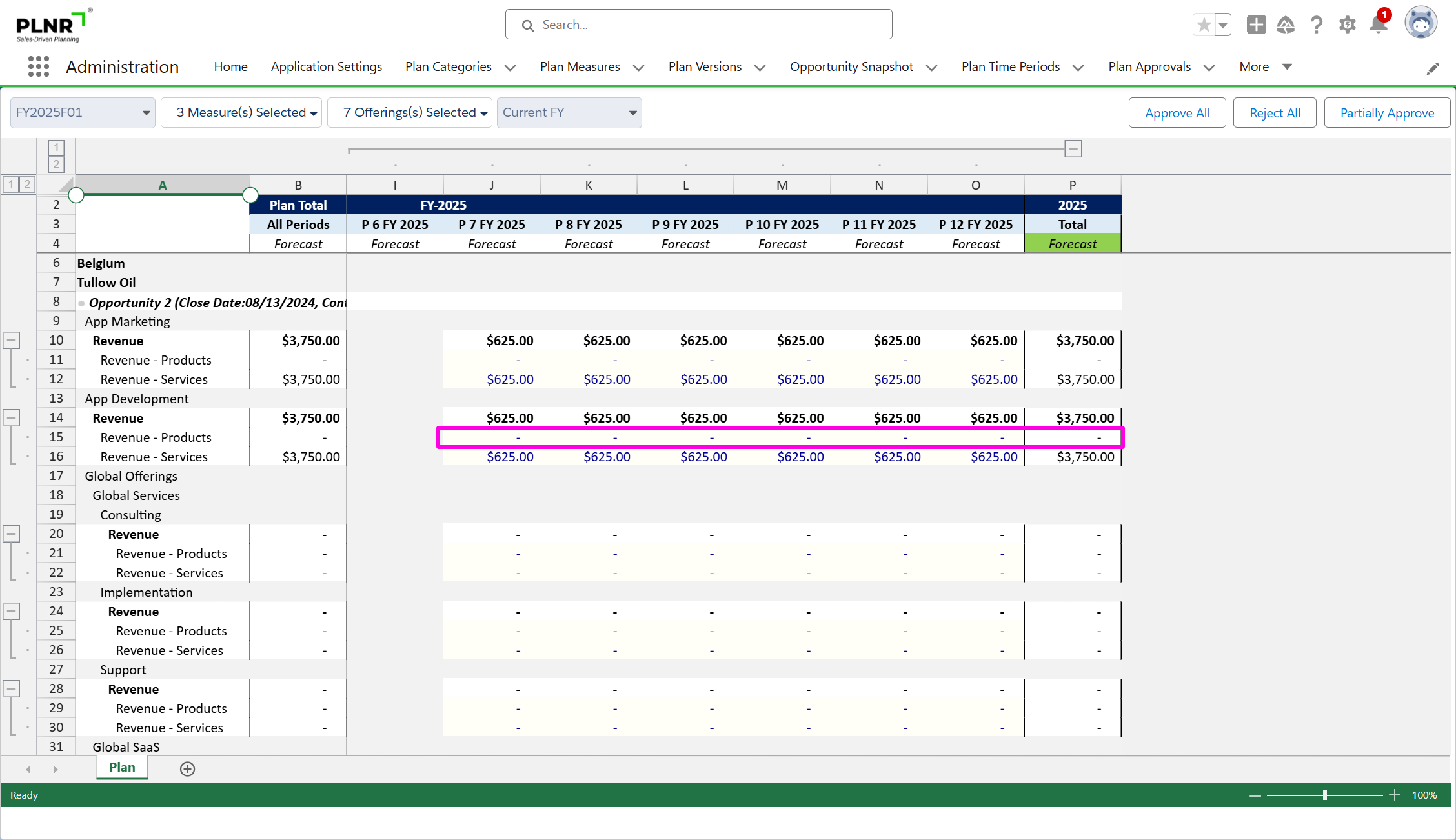
Figure 1.74 - Approving Individual Plan Entries
Context Pop-Up Box
Steps:
- Right-Click on an individual plan entry. A Context Menu will pop-up.
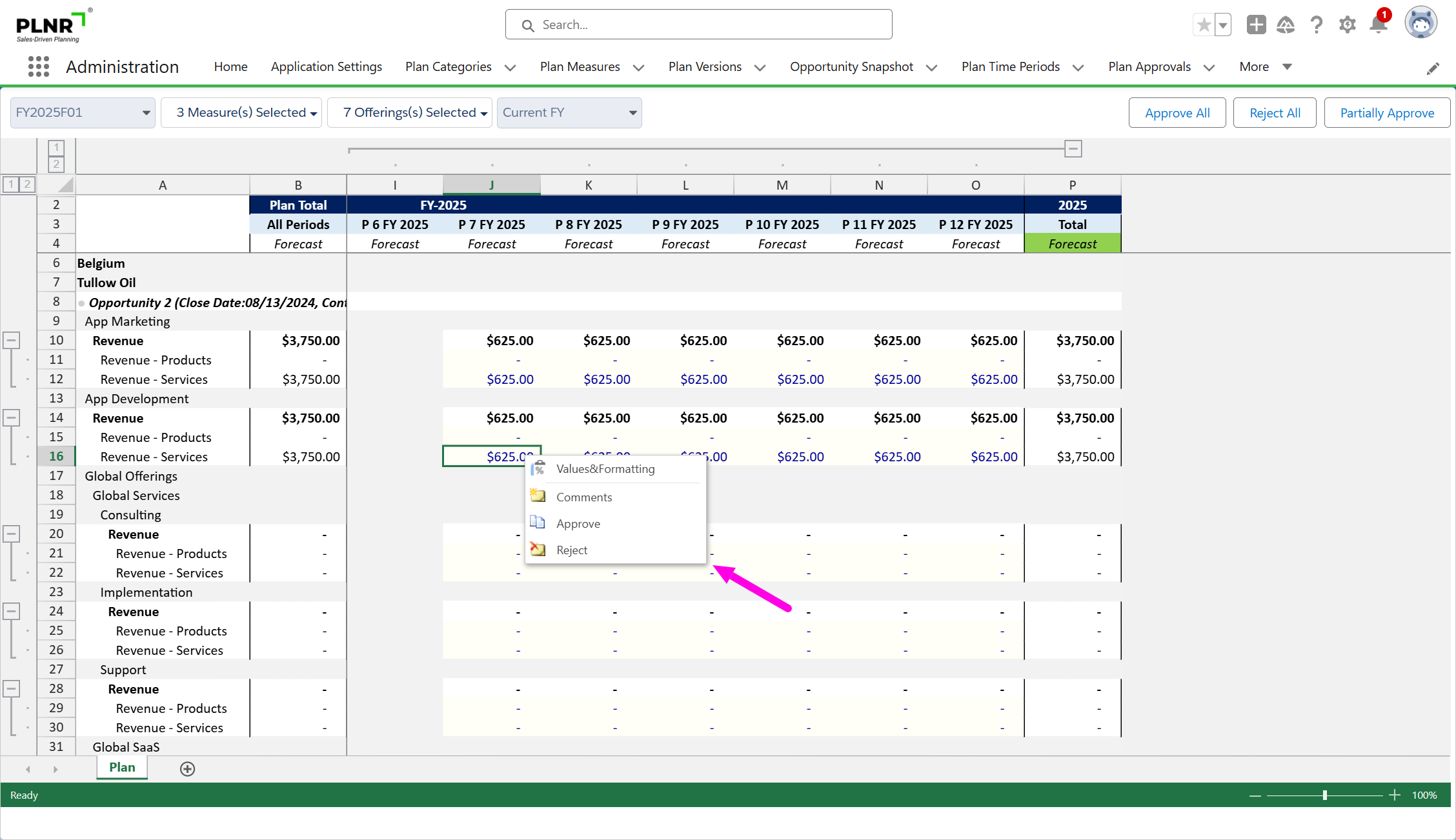
Figure 1.75 - Context Menu Pop-Up Box
CONTEXT BOX SELECTION
Steps:
- Select “Approve” from the menu.
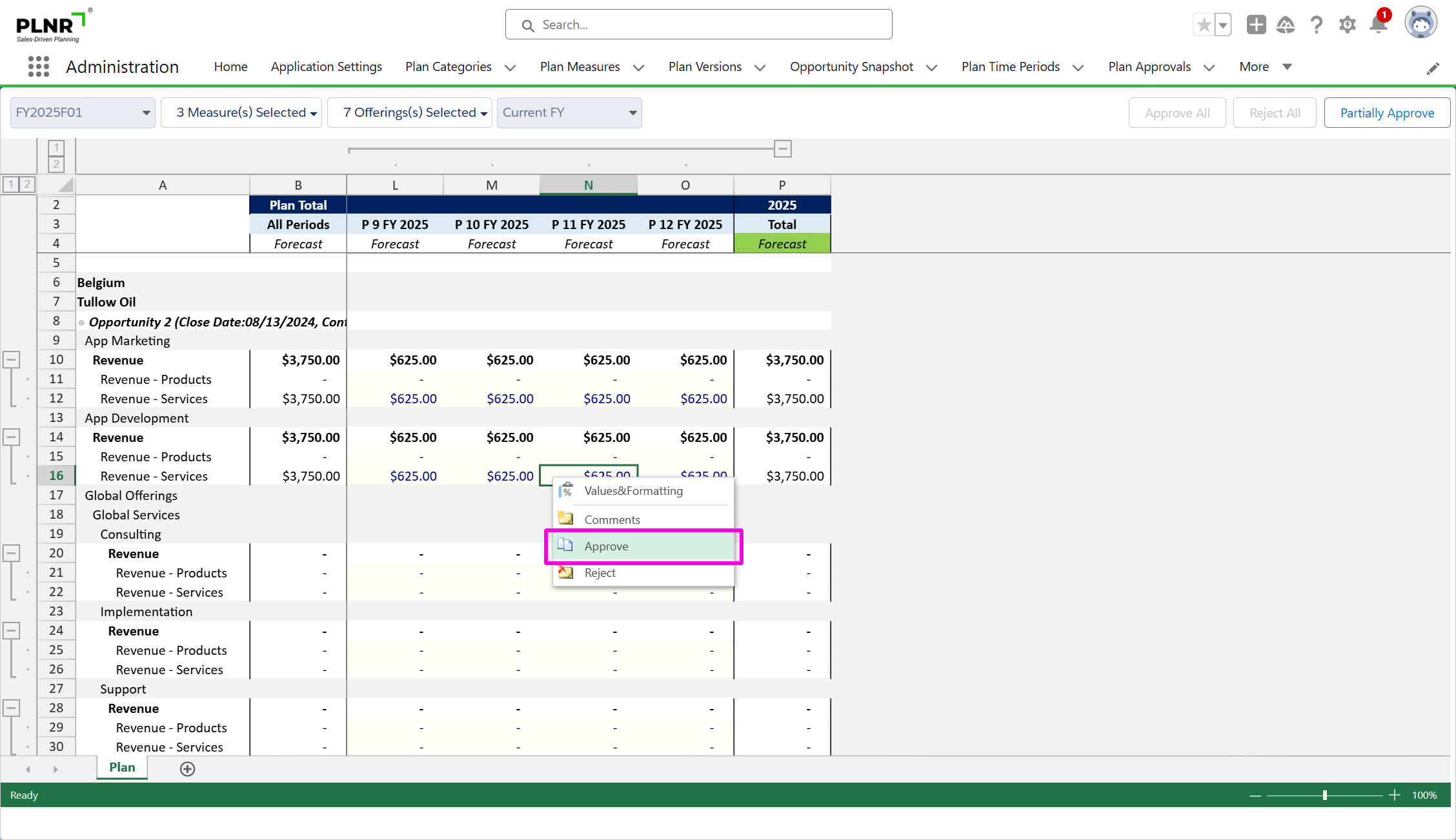
Figure 1.76 - Select Approve in Context Pop-Up Window
APPROVED INDIVIDUAL PLAN ENTRY
The Approved cell’s background then turns Green.
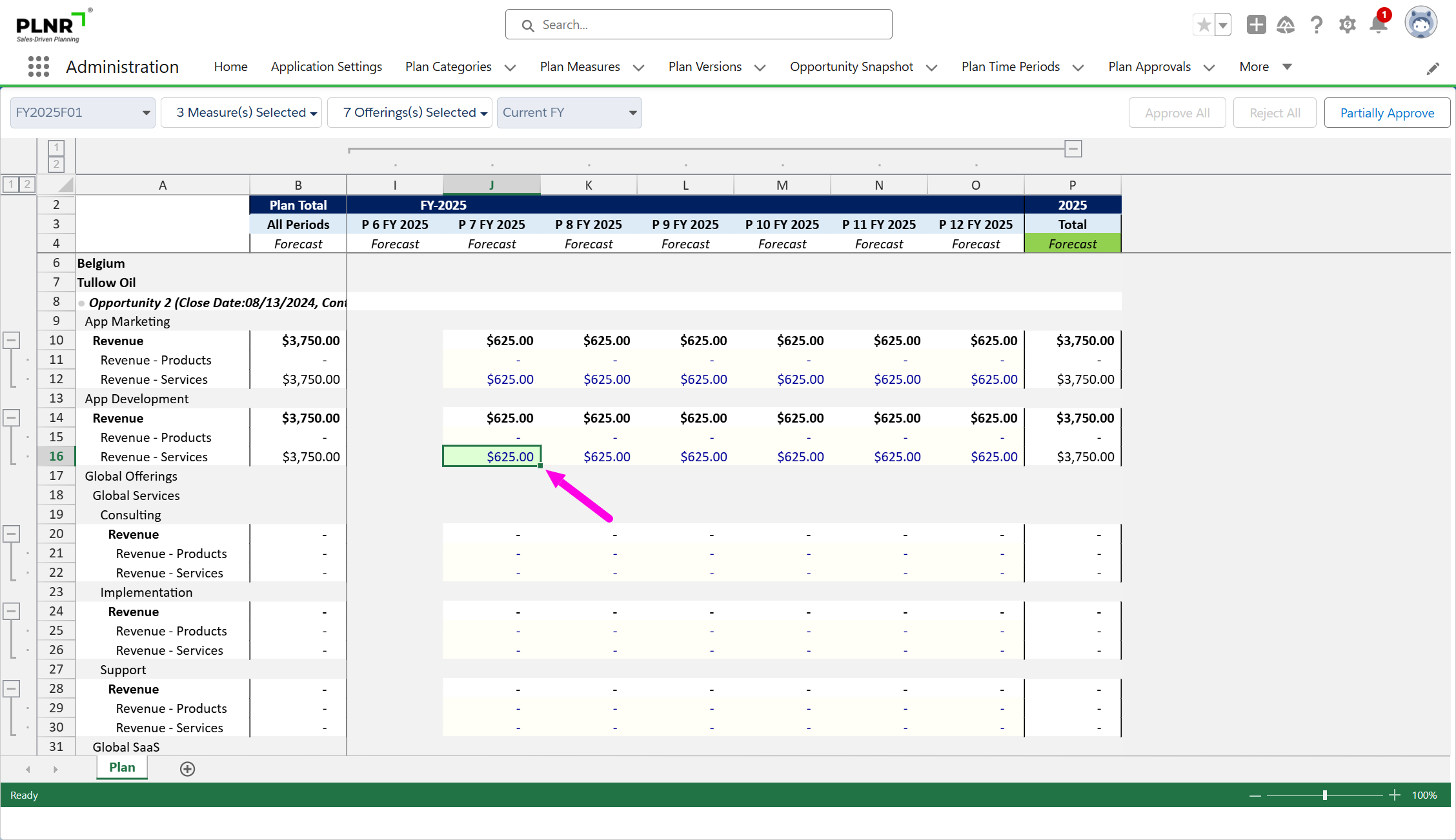
Figure 1.77 - Approved Individual Plan Entry
Rejecting Individual Plan Entries
Context Pop-Up Box
Steps:
- Right-Click on an individual plan entry. A Context Menu will pop up.
Figure 1.78 - Context Menu Pop-Up Box
REJECT ENTRIES
Steps:
- Select “Reject” from the menu.
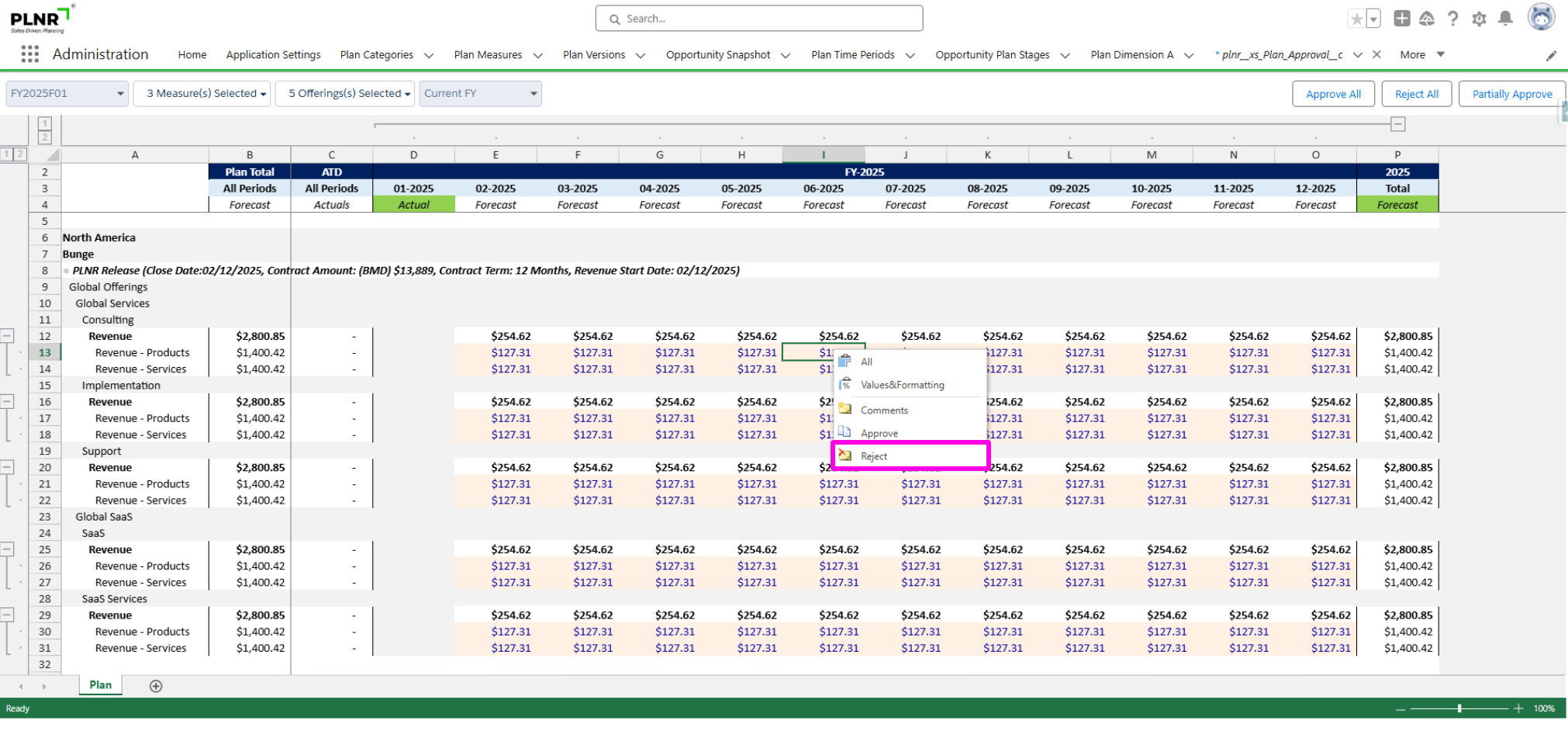
Figure 1.79 - Context Menu Reject Option
The Rejected cell’s background then turns red.
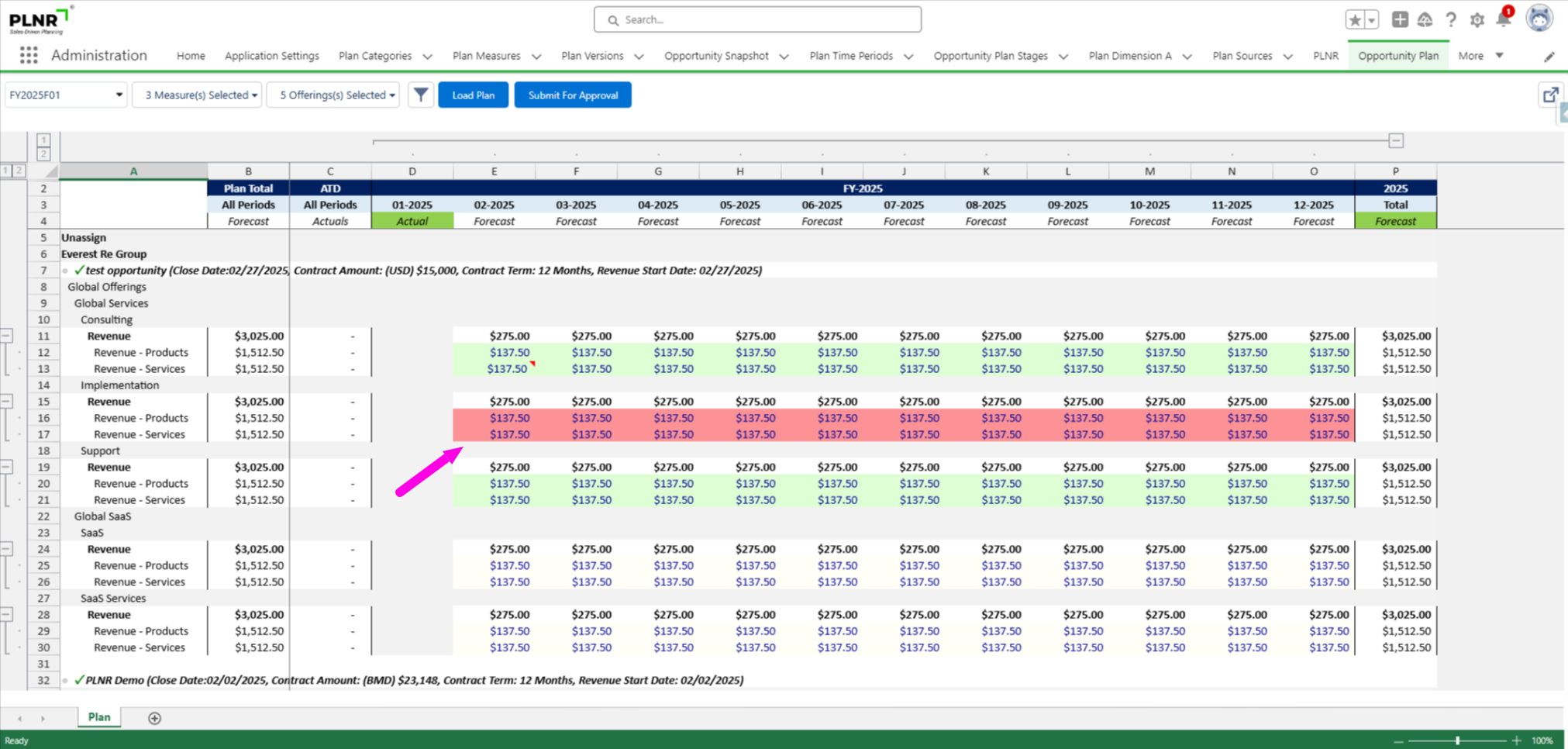
Figure 1.80 - Rejected Plan Entries
Commenting On Individual Plan Entries
You can add Comments to any individual entry.
Select comment option
Steps:
- Right-Click on an individual plan entry. A Context Menu will pop up.
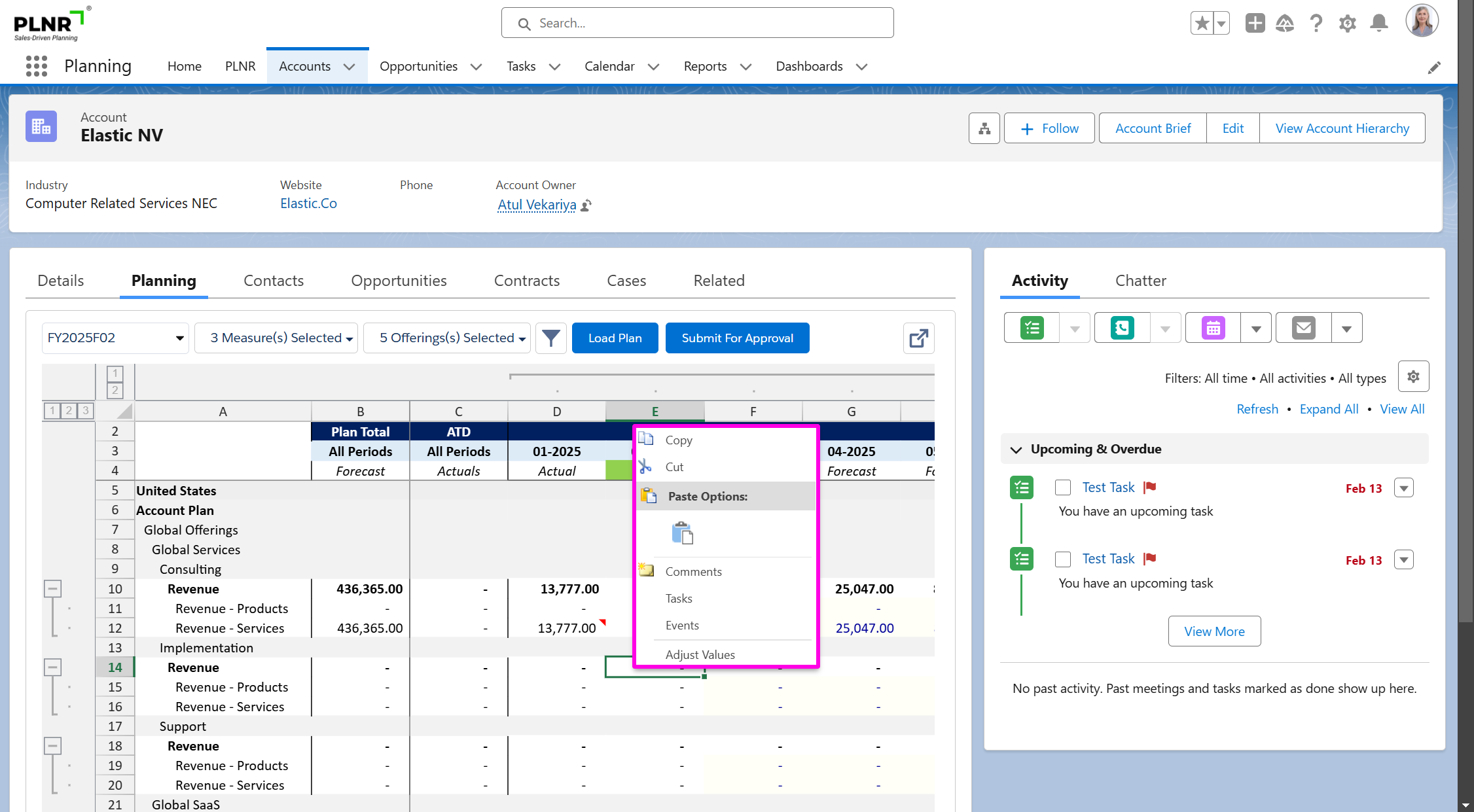
Figure 1.81 - Pop-Up Context Box
Select comment option
Steps:
- Select “Comments” from the menu.
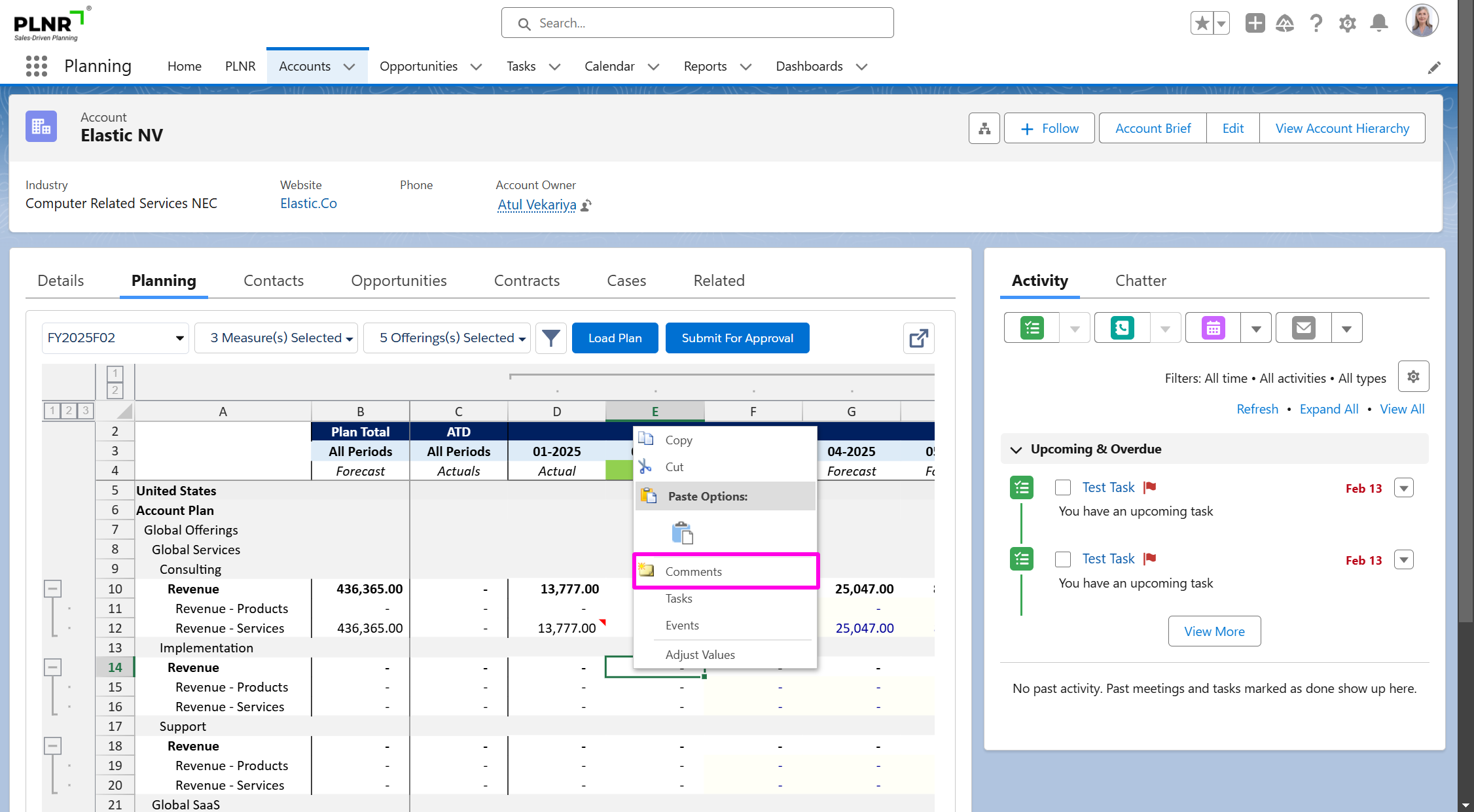
Figure 1.82 - Comments Option In Pop-Up Context Box
COMMENTS SAVE BUTTON
Steps:
- In the pop-up window, type in your Comment and click on the “Save” button.
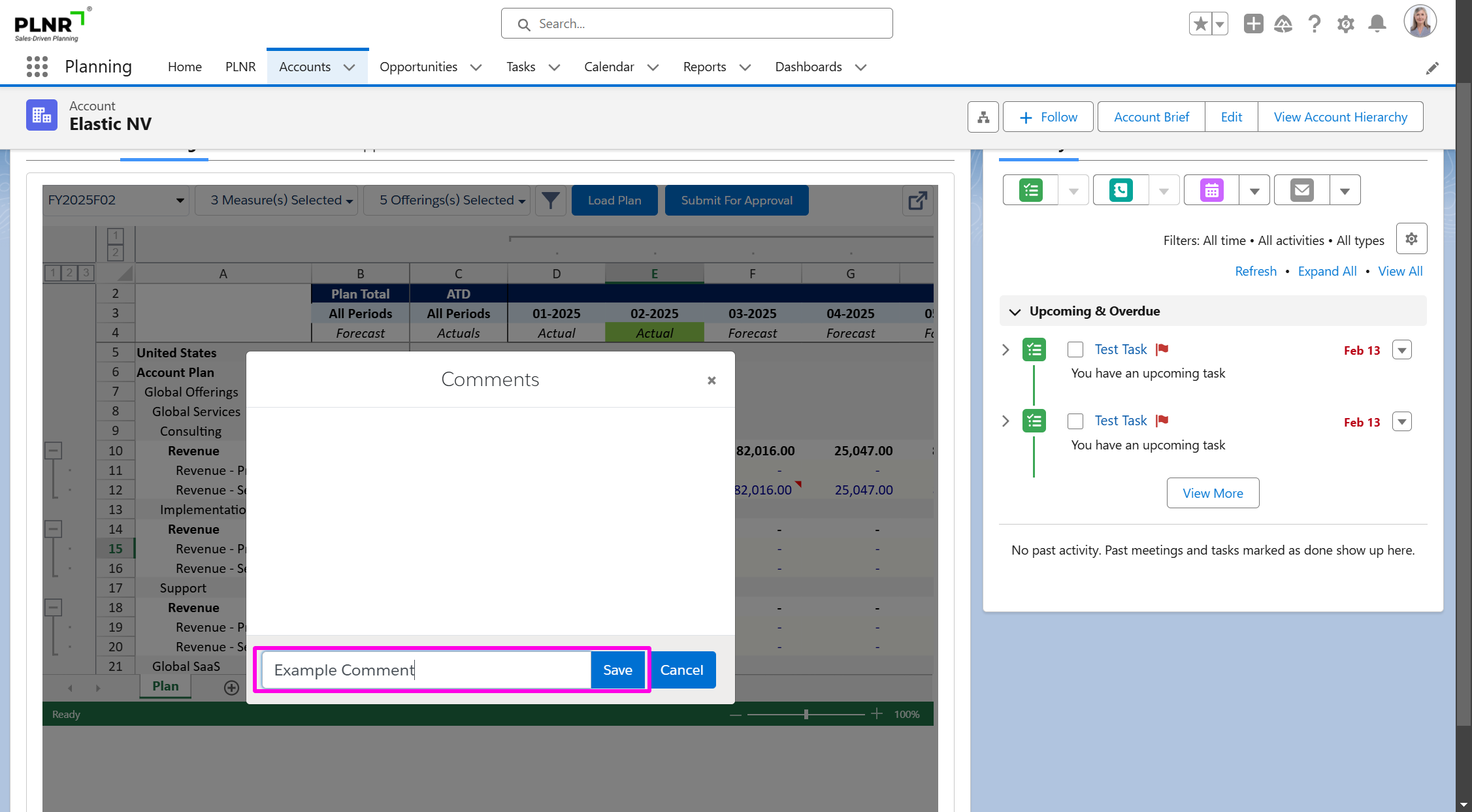
Figure 1.83 - Comments Pop-Up Box
NEWLY ADDED COMMENTS
Steps:
- The Comment appears within the Comments Pop-Up Window.
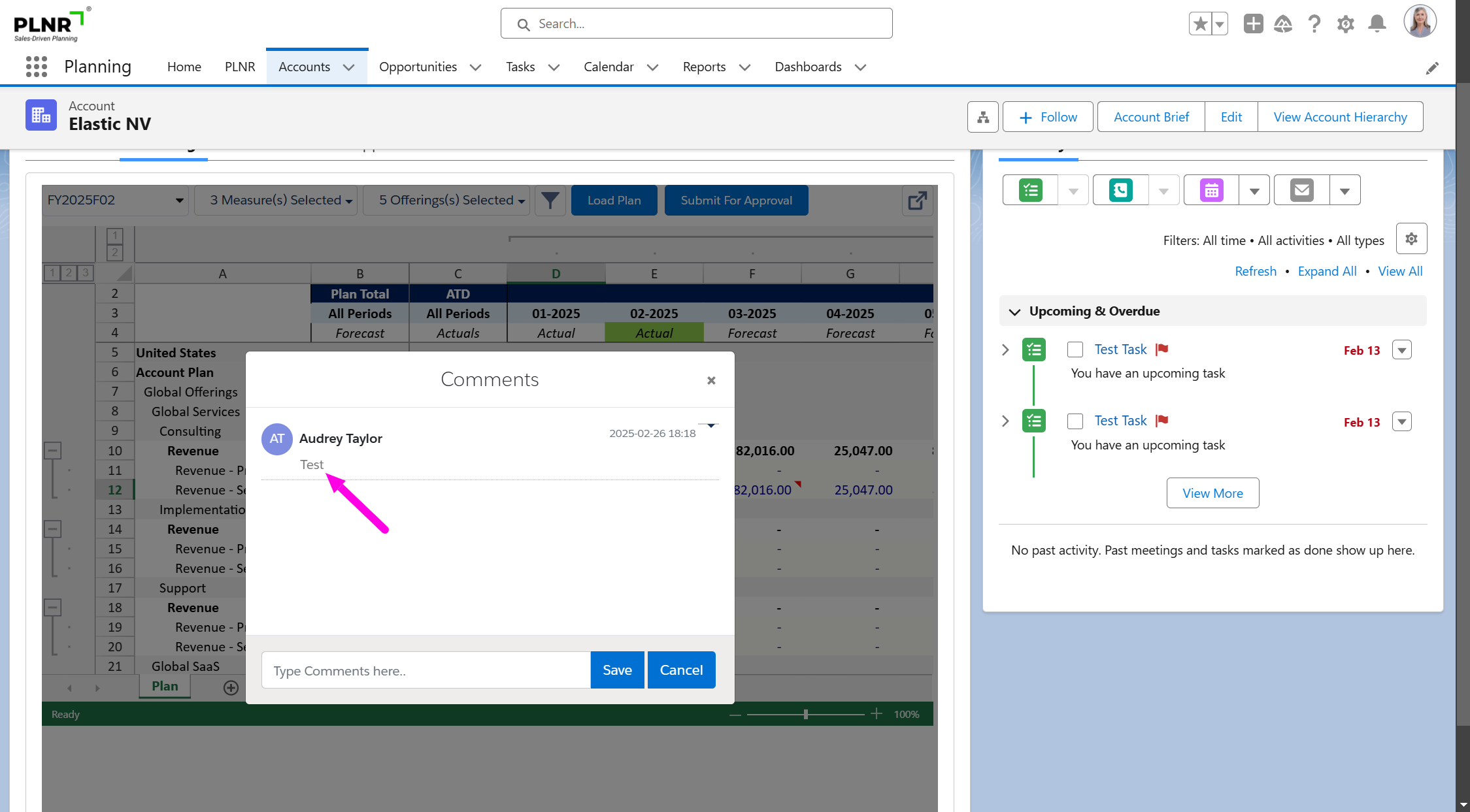
Figure 1.84 - New Comment Display
EXIT COMMENT BOX
Steps:
- Click on the “Cancel” button or the cross in the Top-Right Corner of the pop-up window to close it.
A Red Indicator now appears in the Top-Right Corner of the entry that contains a Comment.
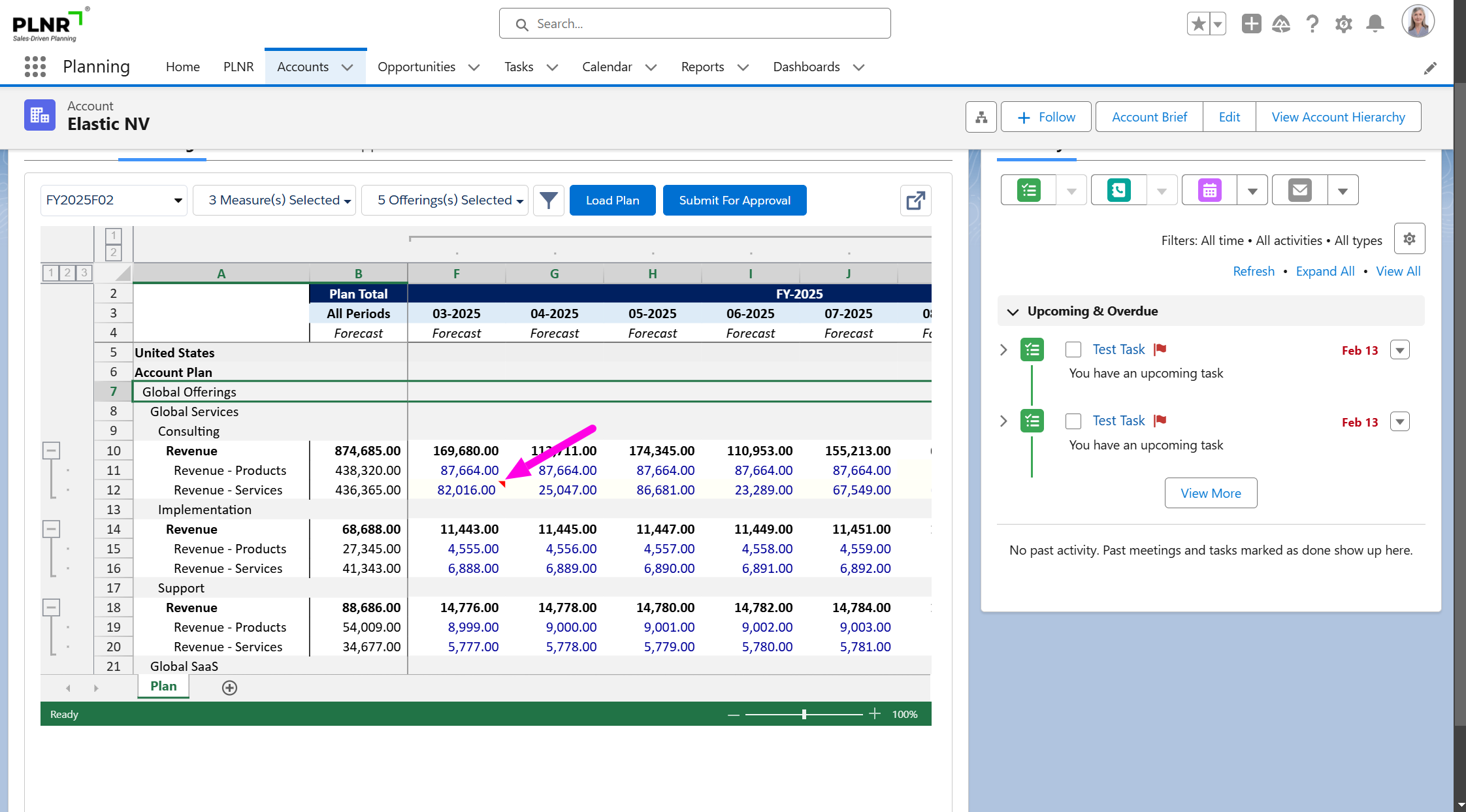
Figure 1.85 - Red Existing Comment Indicator
VIEW NEW COMMENT ON PLAN VIEW
Steps:
- To view Comments for an entry that displays a red arrow, simply follow steps 1 and 2 of the “Commenting on Individual Plan Entries” section.
Planning Conclusion
Closing The Planning Cycle
Once all plans have been Approved, the PLNR Admin can close the Planning Cycle.
Closing the Planning Cycle prevents any further changes to be made to the Plan.
This is important because it creates a fixed snapshot on which management can perform Analysis, which can also be compared to previous and future Planning Versions.
Planning Version Updates and Settings
Update Planning Version Status
PLAN VERSIONS
Steps:
- In the “Administration” module, click on the “Plan Versions” tab.
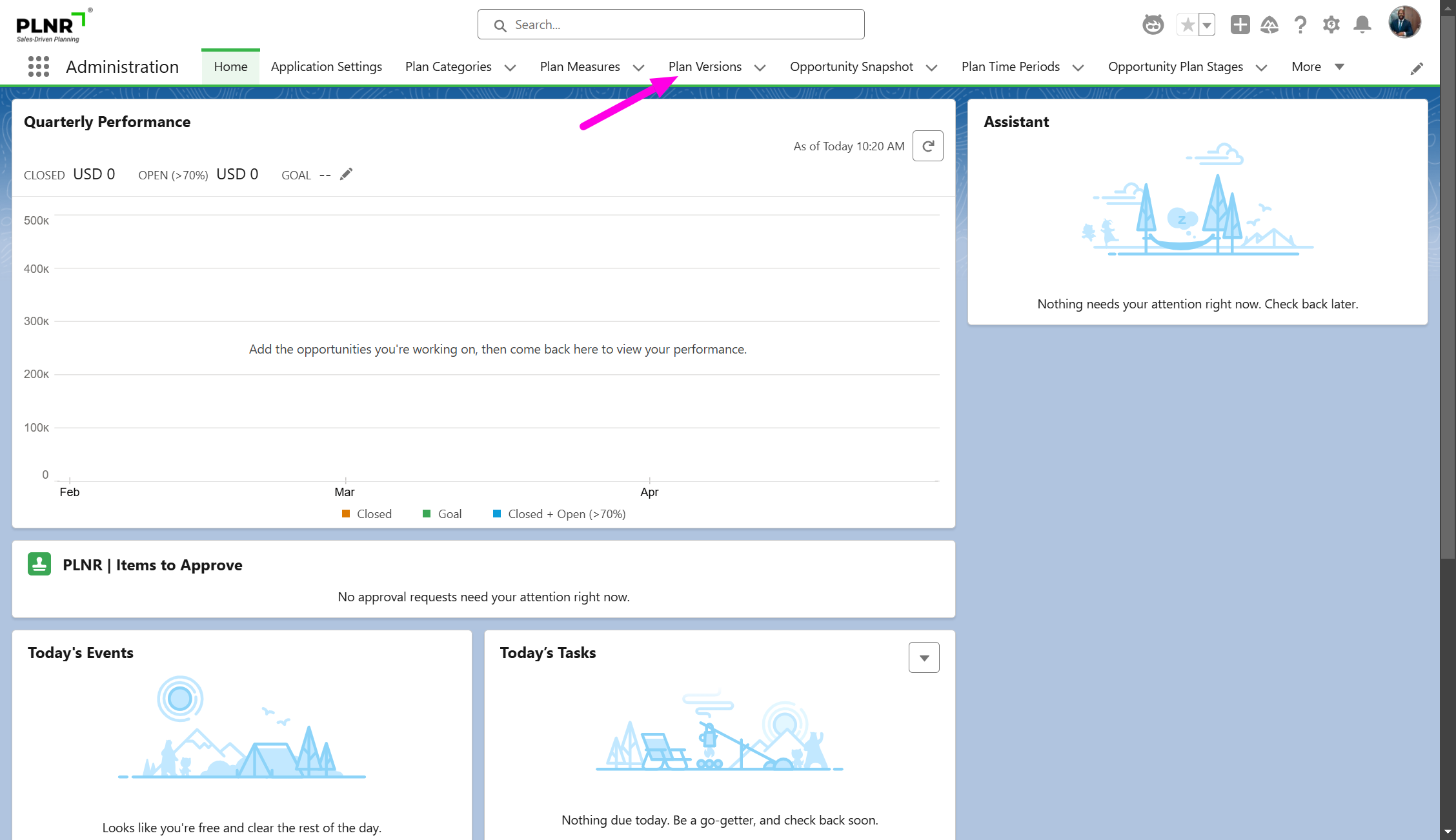
Figure 1.86 - Plan Versions Tab
SELECT PLAN VERSION
Steps:
- Identify the row of the Planning Version you want to close. Under the “Status” column, click on the “Edit” icon of the entry (which reads “Open for Planning”).
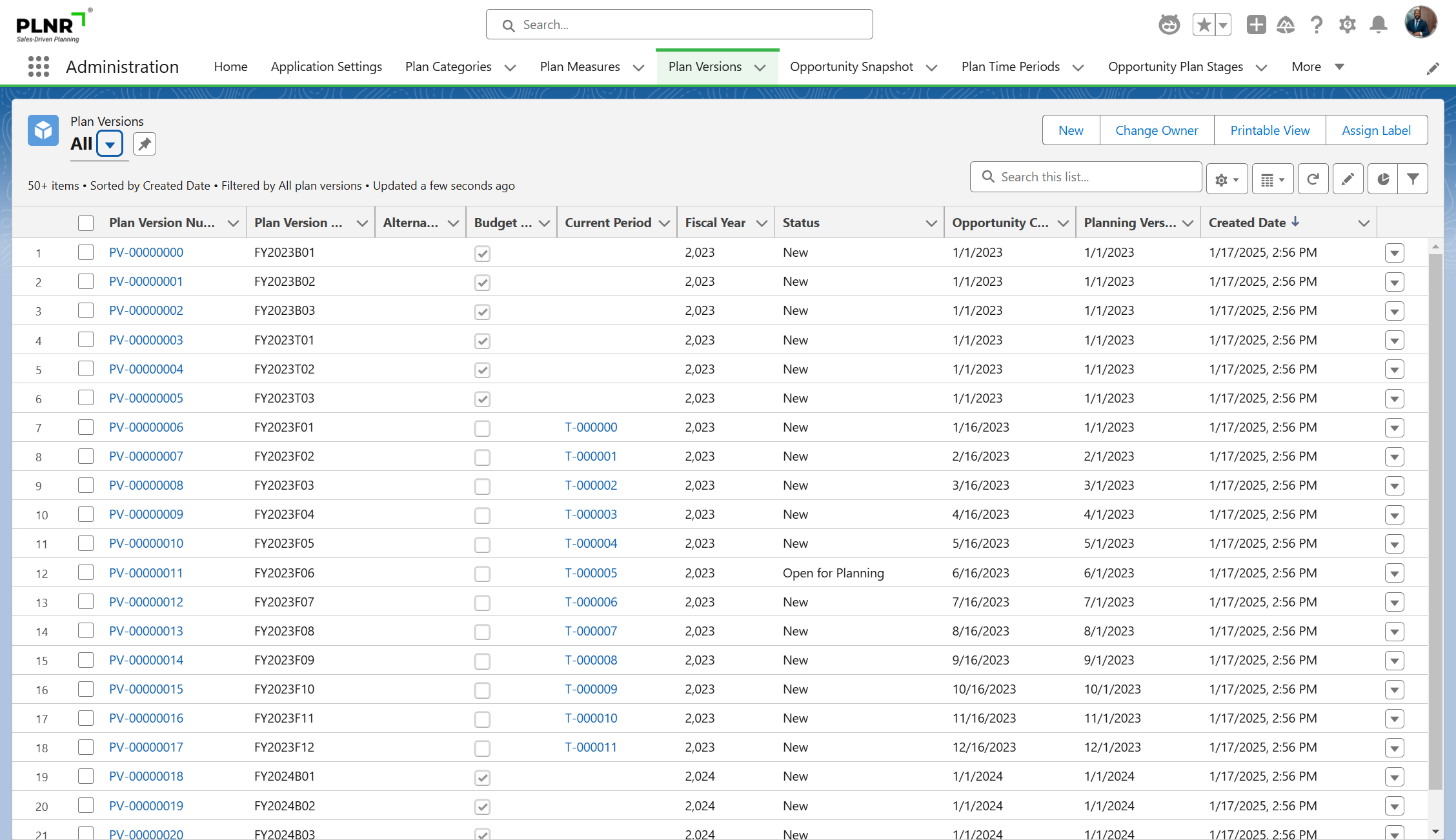
Figure 1.87 - Plan Versions List View
CLOSE PLAN VERSION
Steps:
- Click on the Drop-Down menu to open the menu and select the option “Closed”.
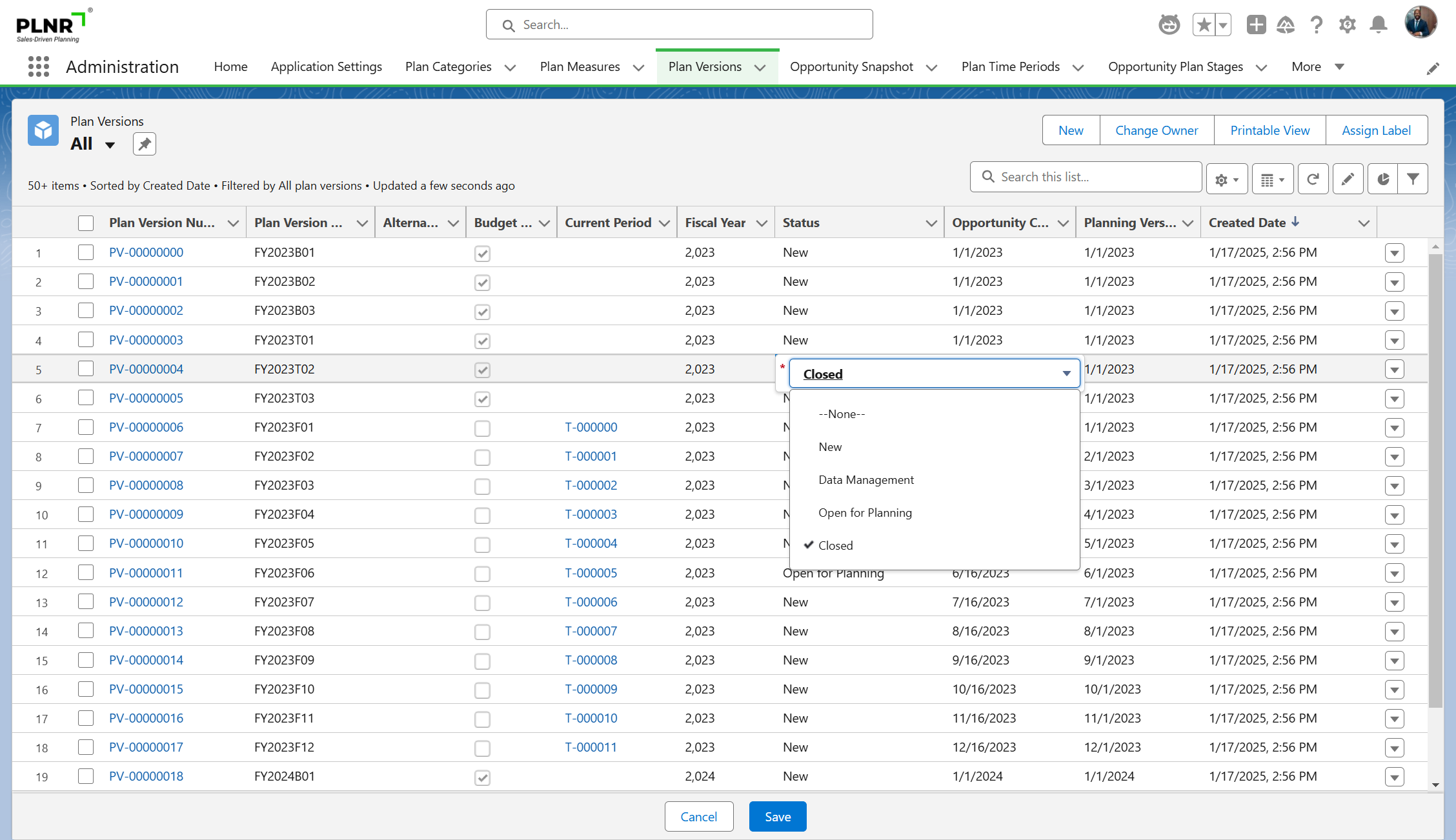
Figure 1.88 - Close Plan Versions
SAVE PLAN VERSION
Steps:
- At the Bottom of the screen, click on the “Save” button.
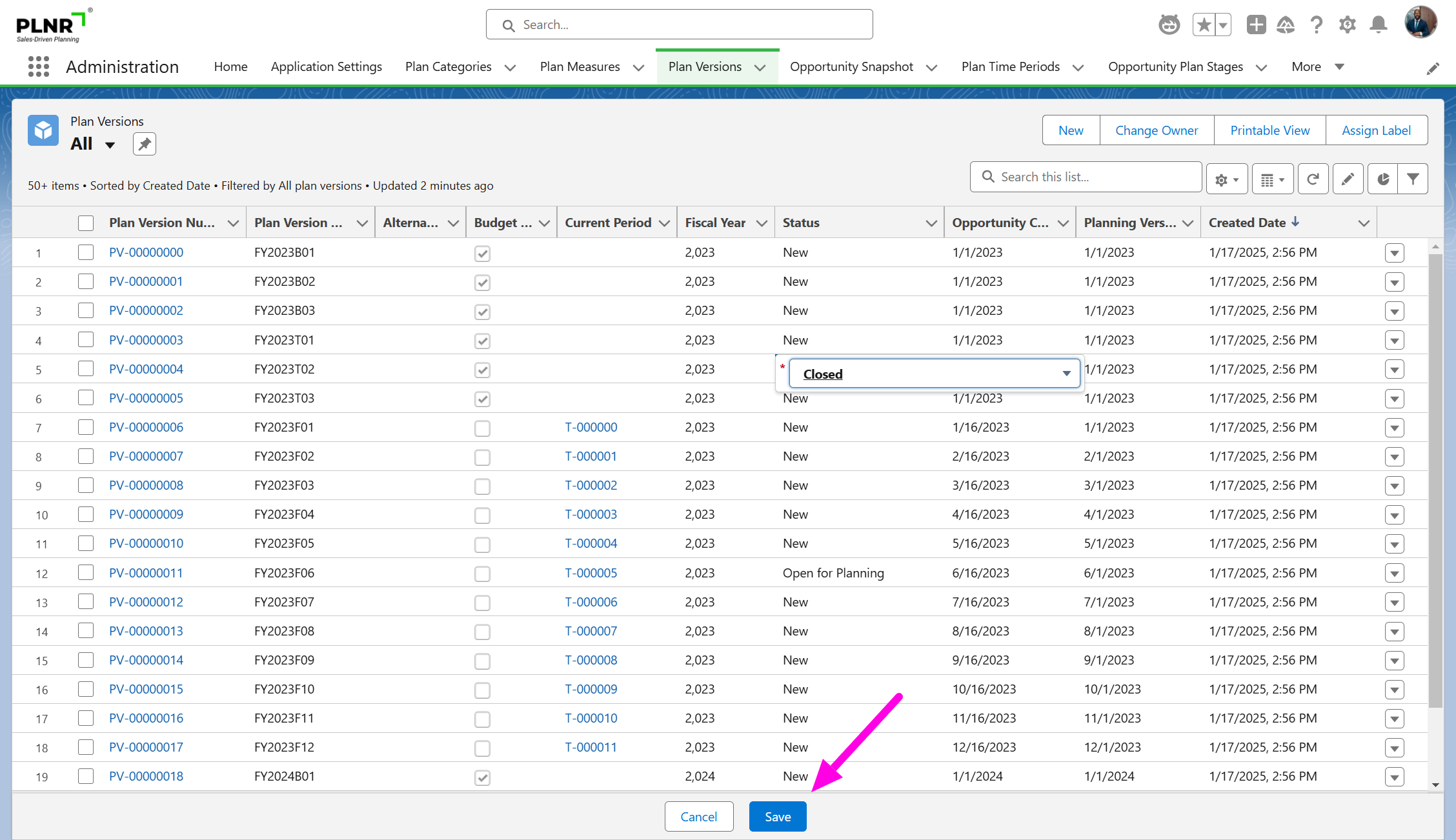
Figure 1.89 - Save Plan Versions
The Planning Cycle has now been Closed.
Set Default Planning Version for Analysis
After closing the Planning Cycle, set the Default Planning Version for analysis. This will allow you to report and visualize the data from the Planning version.
Application Settings
Steps:
- In the “Administration” module, click on the “Application Settings” tab.
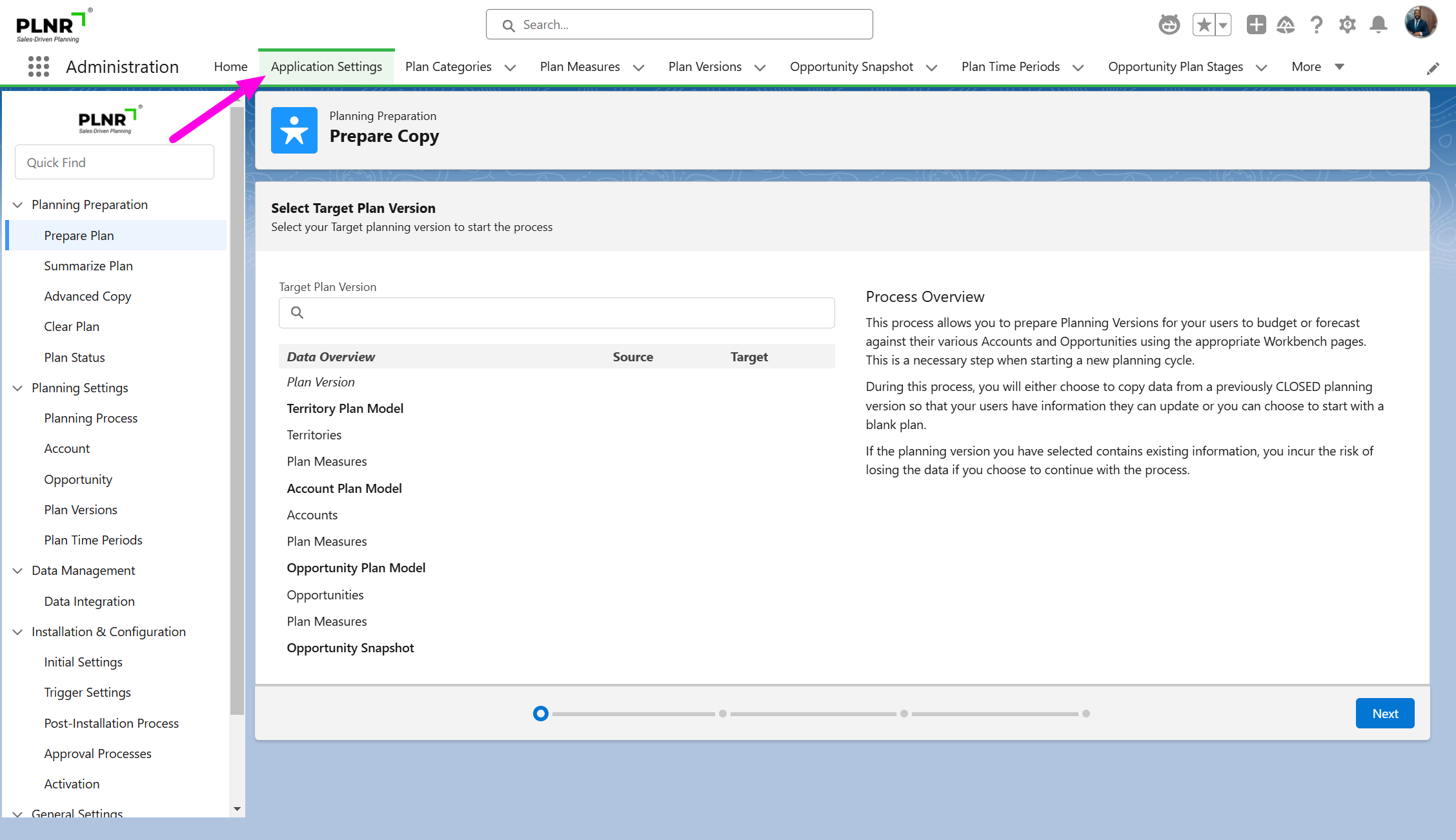
Figure 1.90 - Application Settings
PLANNING PROCESS
Steps:
- In the sub-menu “Planning Preparation”, click on “Planning Process”.
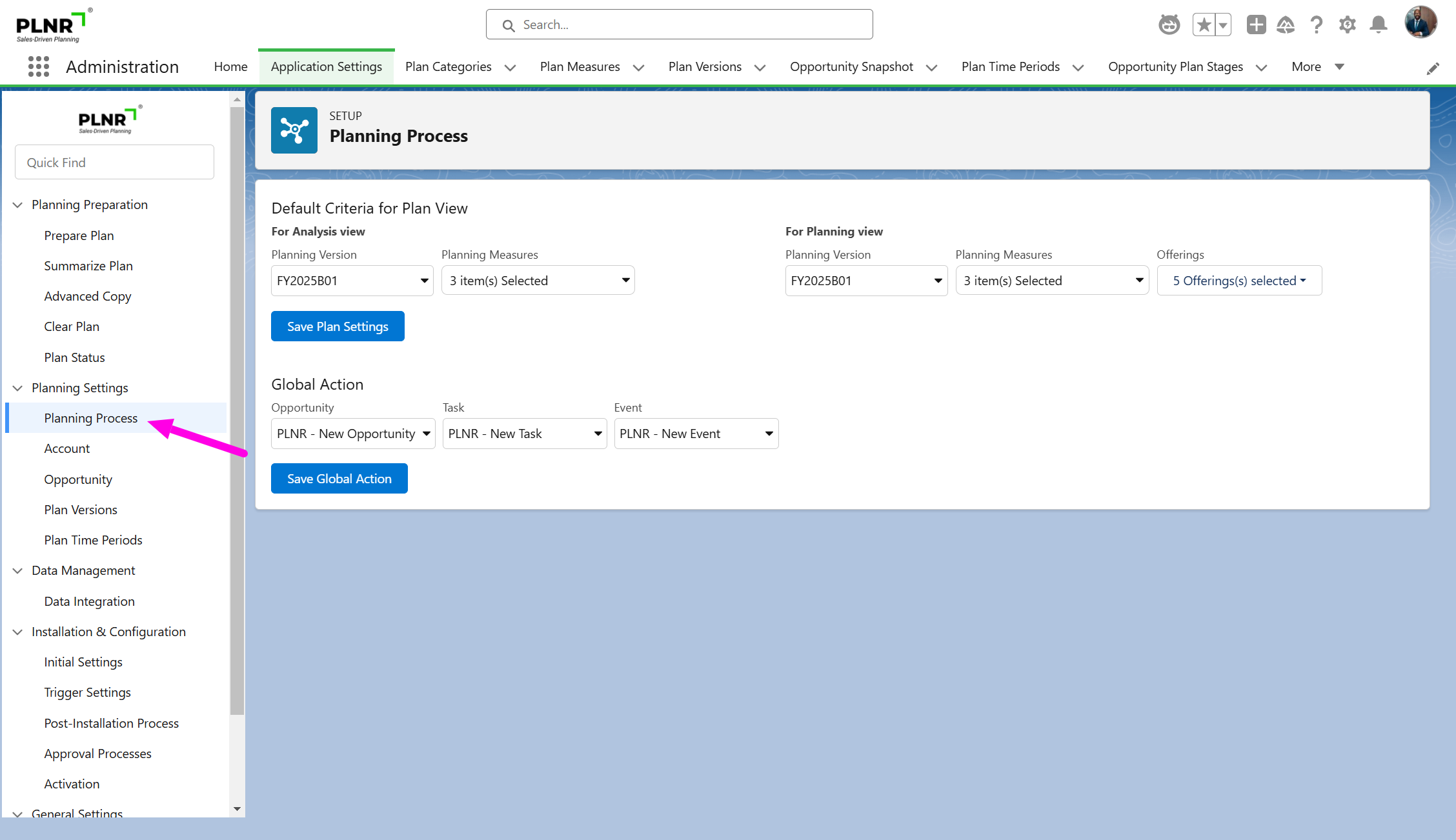
Figure 1.91 - Planning Process
SELECTING YOUR PLANNING VERSION
Steps:
- Under the “Default Criteria for Plan View” section, under “For Analysis View”, select the Planning Version you have just closed for planning.
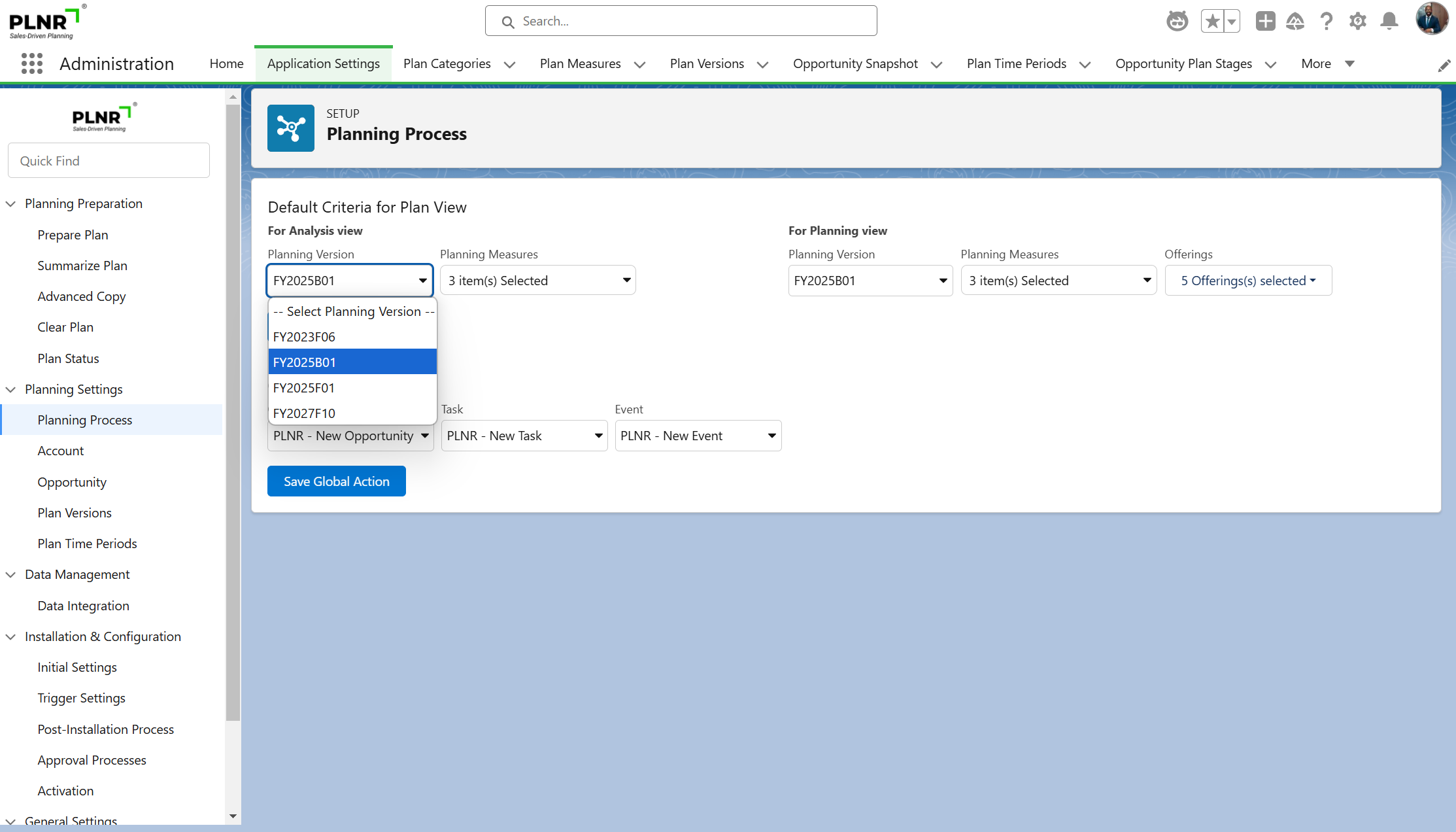
Figure 1.92 - Select Planning Versions
SELECTING YOUR PLANNING MEASURE
Steps:
- Under “Planning Measures”, select the Planning Measures to use for Analysis.
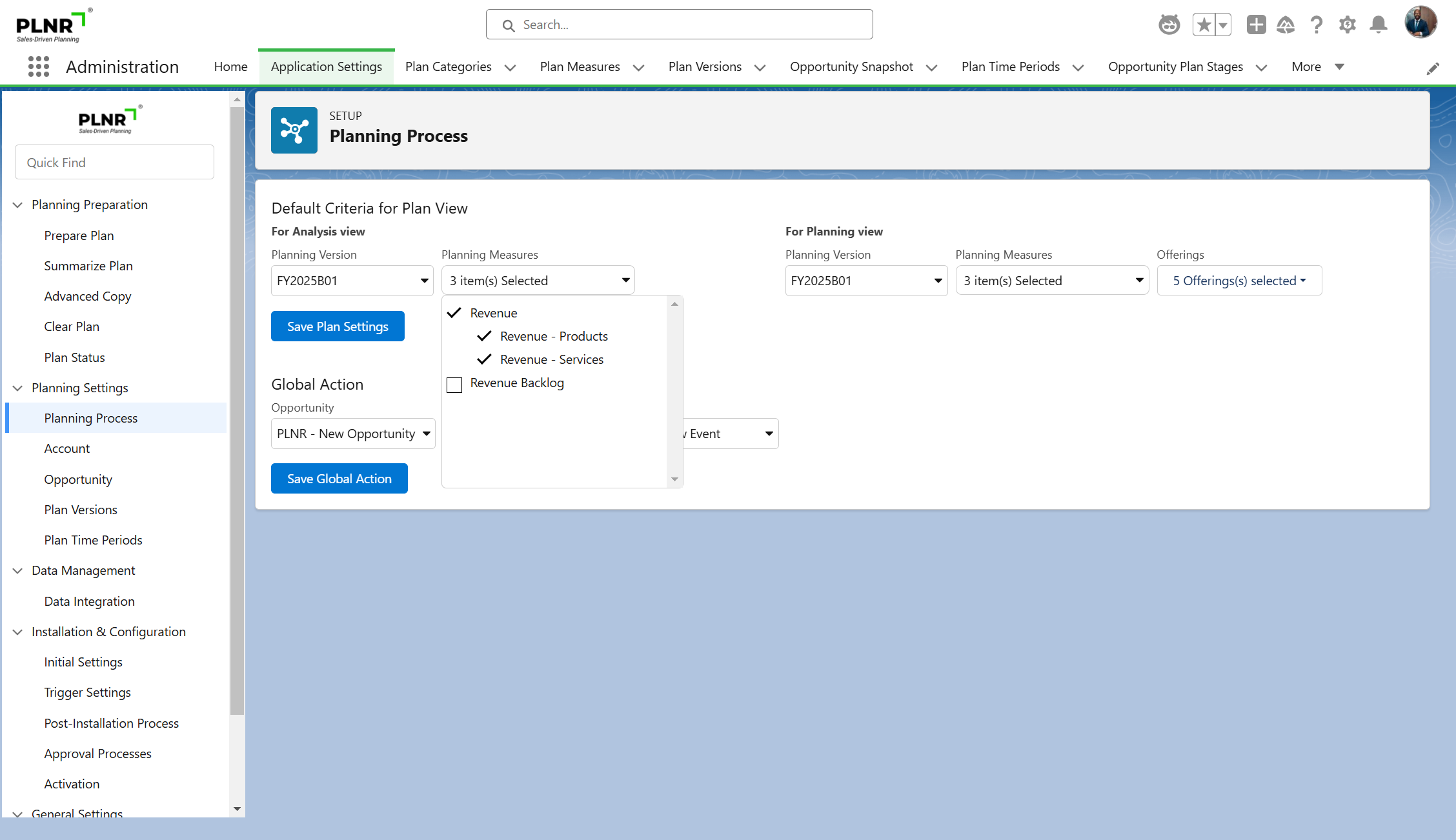
Figure 1.93 - Select Planning Measures
SAVE PLAN SETTINGS
Steps:
- Click on the “Save Plan Settings” button.
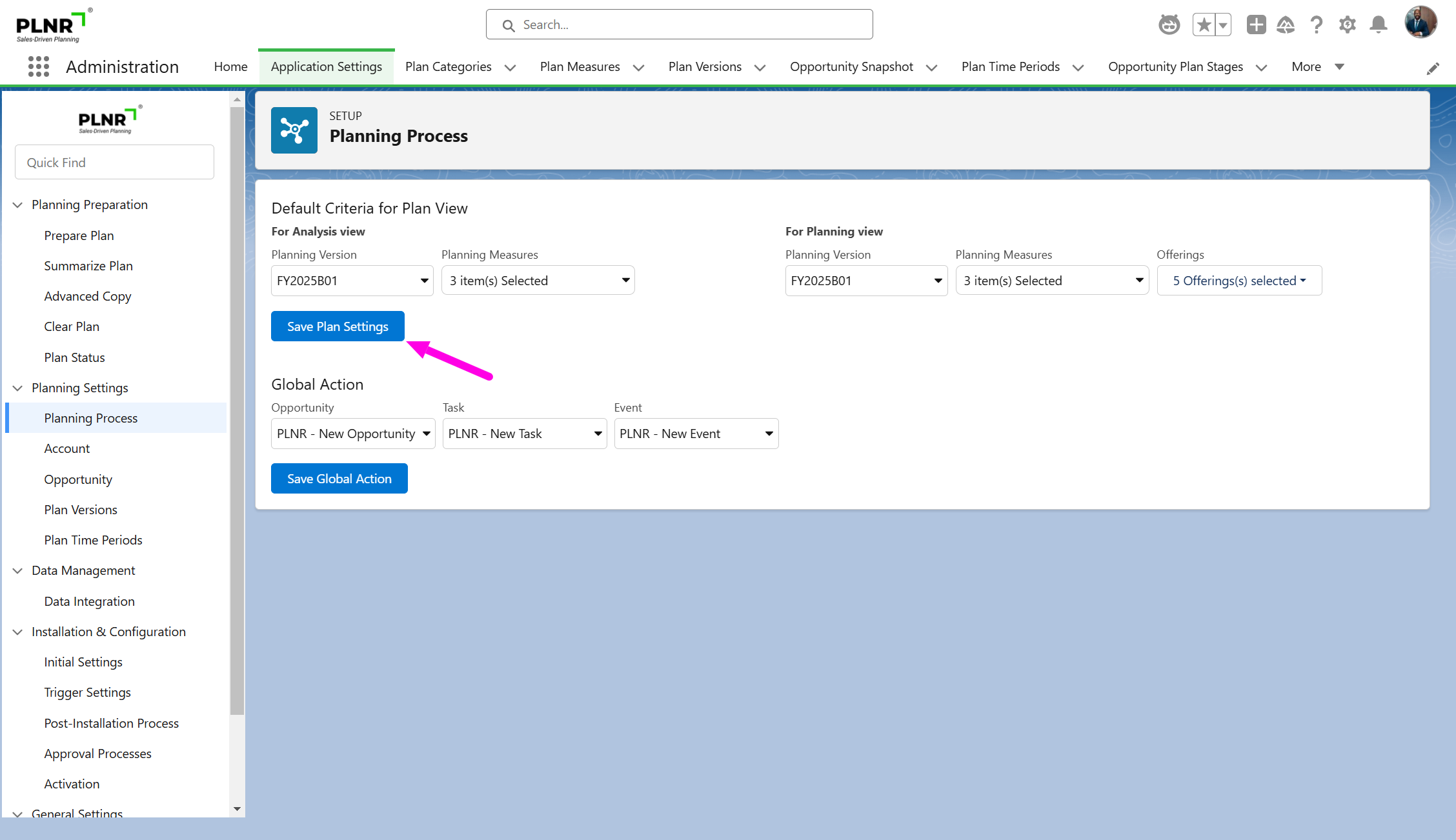
Figure 1.94 - Save Plan Settings
Set Default Planning Version for Planning
After closing the Planning Cycle, set the Default Planning Version for Planning. This will allow you to report and visualize the data from the Planning version.
Application Settings
Steps:
- In the “Administration” module, click on the “Application Settings” tab.
Figure 1.90 - Application Settings
PLANNING PROCESS
Steps:
- In the sub-menu “Planning Preparation”, click on “Planning Process”.
Figure 1.91 - Planning Process
SELECTING YOUR PLANNING VERSION
Steps:
- Under the “Default Criteria for Plan View” section, under “For Planning View”, select the Planning Version you have just closed for Planning.
(REPLACE SCREENSHOT)
Figure 1.92 - Select Planning Versions
SELECTING YOUR PLANNING MEASURE
Steps:
- Under “Planning Measures”, select the Planning Measures to use for Planning.
(REPLACE SCREENSHOT)
Figure 1.93 - Select Planning Measures
SELECTING YOUR PLANNING OFFERINGS
Steps:
- Under “Offerings”, select the Planning Offerings to use for Planning.
(REPLACE SCREENSHOT)

SAVE PLAN SETTINGS
Steps:
- Click on the “Save Plan Settings” button.
Figure 1.94 - Save Plan Settings